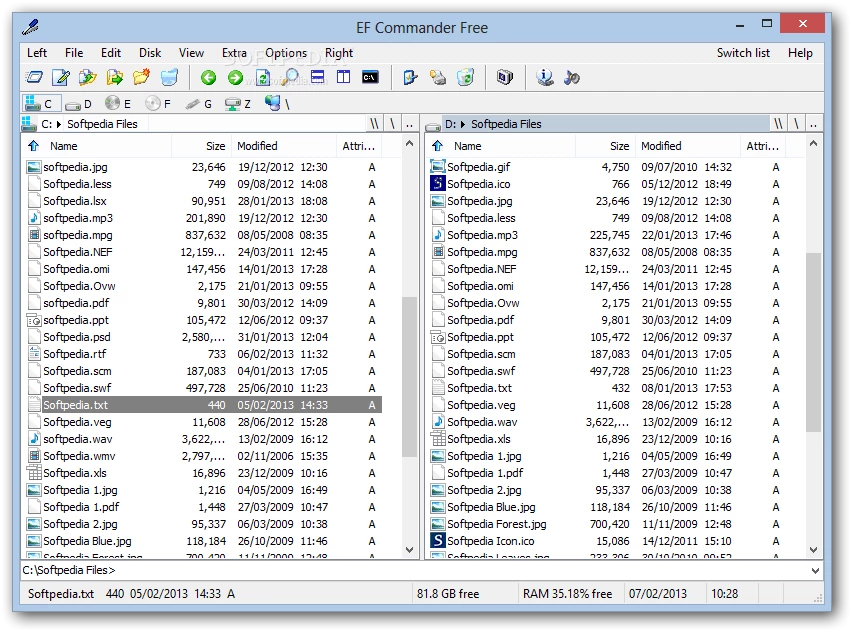
Managing local storage, network attached drives, and remote servers requires navigating complex folder structures that standard operating system windows struggle to handle efficiently. When dragging items between multiple overlapping folder windows, users often drop items in the wrong directory or encounter system freezes during large transfers. EF Commander provides a dual-pane, tabbed interface that places source and destination directories side by side within a single application window. This layout eliminates the need to juggle multiple separate screens. System administrators, web developers, and data archivists use this application to execute exact file operations, ensuring data moves precisely where intended without relying on clunky clipboard shortcuts.
Instead of treating local storage and remote servers as separate environments, this application unifies them. A user can open a local hard drive in the left pane and establish a secure FTP connection to a web server in the right pane, dragging assets directly across the network. Because the software handles execution internally, web browsers or lightweight cloud synchronization apps cannot replicate this direct file system control. Users who manage large audio libraries, handle digital photography archives, or edit configuration files daily rely on this interface to accomplish heavy logistical tasks that would otherwise require command-line scripts or half a dozen distinct utility programs.
The reliance on a dedicated desktop application ensures that operations remain stable regardless of background system activity. Standard file browsers often block the entire interface while waiting for a network drive to respond or an archive to decompress. EF Commander shifts these long-running tasks into parallel background threads. A user can start copying gigabytes of video footage to an external drive, extract a deeply compressed archive, and rename a batch of documents all at the same time. The main interface remains responsive, allowing continuous navigation and file inspection without forcing the user to wait for previous tasks to finish.
Key Features
- Dual-Pane Tabbed Interface: The core workspace displays two independent directory panels side by side, allowing clear visibility of both source and destination paths. Users can open multiple tabs within each pane to keep various local disks, network shares, or specific project folders active simultaneously. This design prevents window clutter and accelerates complex navigation routines using standard keyboard shortcuts.
- Parallel File Operations: When executing long-running transfers or large extraction jobs, the application runs tasks concurrently in the background. Users can initiate multiple copy or move commands simultaneously without locking up the main window interface. This allows operators to continue browsing, editing text, or managing other directories while heavy data loads process silently.
- Internal Archive Handling: The software packs and unpacks over twenty compression formats, including ZIP, RAR, 7-Zip, CAB, and ISO, directly within the panes. Archival files behave exactly like standard directories, allowing users to browse inside them, extract specific documents, or inject new items without launching external extraction utilities.
- Advanced Multi-Rename Tool: Batch renaming thousands of files takes seconds using flexible naming rules. Users can append sequential numbers, change case structures, or pull metadata directly from files, such as reading EXIF data from digital photographs or ID3 tags from audio tracks, to generate highly organized naming conventions.
- Integrated Secure FTP Client: A built-in networking client supports FTP, SFTP, FTPS, and SCP protocols for direct server connections. Users can transfer files between local drives and remote servers with resume capabilities for interrupted downloads, and it even supports server-to-server FxP transfers directly from the standard dual-pane workspace.
- Internal Text and HEX Editor: Developers and administrators can inspect and modify files directly using the internal viewing tools. The text editor handles configuration scripts with various encoding formats, while the HEX editor allows deep inspection of binary data and corrupted files, bypassing the need to open heavy external development environments for quick edits.
- Checksum Creation and Verification: To guarantee data integrity during storage or transmission, the application generates and verifies cryptographic hashes. Users can create SFV, MD5, SHA, or BLAKE3 checksums for large directories and validate them after moving files to an external drive, ensuring no bit rot or corruption occurred during the transfer process.
How to Install EF Commander on Windows
- Download the official Windows installer package from the developer's verified server, selecting the appropriate executable for your specific processor architecture.
- Locate the downloaded executable file in your default downloads folder and double-click it to initiate the setup wizard.
- Review the end-user license agreement presented on the first screen and accept the terms to proceed with the configuration.
- Specify the destination folder path on your local drive, or select a removable storage path if you intend to configure the software for portable execution from a USB drive.
- Choose whether to create desktop and Start menu shortcuts, and decide if the application should associate itself with specific archive formats or file extensions by default.
- Click the install button to copy the necessary executable files, background modules, and internal language files to the selected directory.
- Finish the setup process and launch the application for the first time, at which point you will see the default dual-pane layout and a prompt to either evaluate the trial or enter a purchased license code.
EF Commander Free vs. Paid
EF Commander operates primarily on a commercial shareware model, offering prospective users a fully functional 30-day evaluation period. During this trial window, users have unrestricted access to the entire toolkit, including secure FTP transfers, parallel background copying, the internal HEX editor, and advanced batch renaming. This allows professionals to test the application against real workloads, ensuring it handles massive directory structures and network drives efficiently. When operating under the trial, the software occasionally displays reminder screens prompting the user to register, which can momentarily pause automated workflows until dismissed.
Upgrading to a paid license removes all trial notifications and allows for uninterrupted commercial or personal use. The developer offers perpetual licenses, meaning users pay a one-time fee to own that specific build forever without worrying about mandatory recurring subscriptions locking them out of their own local files. Different licensing tiers dictate update eligibility; a standard license includes updates for a limited window, while premium options provide extended or lifetime access to future updates. The pricing structure is straightforward and heavily favors users who want a stable, offline-capable tool rather than a cloud-tethered service.
For users with minimal requirements, the developer also provides a separate application called EF Commander Free. This no-cost variant drops the advanced networking protocols, complex checksum verification, and heavy background processing tools in favor of basic dual-pane file management. While it serves as a competent alternative to the standard Windows interface for light local tasks, power users, web developers, and server administrators consistently require the paid version to access the crucial remote connection and parallel execution features.
EF Commander vs. Total Commander vs. Directory Opus
Total Commander stands as the historical heavy hitter in the dual-pane management category, celebrated for its extensive library of third-party plugins and deeply ingrained keyboard navigation. Users who have spent a decade building custom command-line scripts or who rely on obscure legacy extensions almost always stick with Total Commander. However, its interface retains a notoriously traditional design that can feel intimidating or visually stark to new users.
Directory Opus extends file management capabilities by offering deep customization of the visual interface, context menus, and toolbars, effectively allowing users to rewrite how their folders look and behave. This deep flexibility comes with a significantly higher price tag and a steep learning curve that requires hours of manual configuration to perfect. It appeals primarily to enthusiasts who demand absolute control over every pixel and function within their working environment, whereas others might find the sheer volume of settings overwhelming.
EF Commander fits directly between these two approaches by offering a highly capable layout that requires minimal setup while remaining significantly less expensive than Directory Opus. It provides internal media players, direct archive handling, and parallel processing out of the box without forcing the user to hunt down third-party plugins just to view an image or extract an ISO file. For users who want a reliable, ready-to-use tool with a tabbed design that executes complex background transfers cleanly, EF Commander presents a highly practical middle ground.
Common Issues and Fixes
- Slow performance when opening large directories. If the application takes several seconds to display folders containing thousands of files, the thumbnail engine is likely struggling to process the metadata. Navigate to the Options menu under View settings and disable real-time thumbnail generation and content previews to restore immediate directory loading.
- Optical burning options return an error. The software interface includes buttons and menus for burning CDs and DVDs, but these will fail if clicked on a standard system. The application does not contain its own burning engine and explicitly requires Nero Burning ROM to be installed locally to execute disk authoring commands.
- Specific media or image files fail to preview. While the internal viewer handles standard audio tracks cleanly, highly specific or raw image formats might display as blank icons. Users must install external viewer applications like IrfanView or XnView and link them in the configuration settings to expand the internal format support.
- Workflows interrupted by trial notifications. Operating the commercial application without a purchased license causes periodic pop-up screens to appear, which require manual dismissal. To prevent these screens from pausing background operations while you are away from the keyboard, you must enter a valid purchased license code.
Version 25.30 — November 2025
- Improved user interface responsiveness during extensive file operations.
- Updated archive module to increase extraction speed for ZIP and 7Z formats.
- Enhanced FTP client with better auto-reconnect capabilities and improved passive mode support.
- Optimized compatibility for Windows 11, specifically versions 22H2 and 24H2.
- Fixed an issue where filter settings for folder synchronization were not saving correctly.