TomTom Home operates as the dedicated desktop management utility for older legacy TomTom navigation devices. While modern GPS units frequently update their maps and software directly over Wi-Fi networks, classic hardware requires a physical, tethered connection to a computer to receive new navigational data. This software acts as the critical bridge between those older dashboard units and the manufacturer's servers, allowing users to keep their physical hardware functional. It translates the proprietary file system of the device so that a standard Windows environment can read, write, and back up the internal storage safely.
The application is designed specifically for owners of legacy product lines, such as the classic GO x50, ONE, XL, and older Rider series. Without this specific desktop bridge, these legacy units cannot download critical map revisions, receive updated satellite positioning fixes, or back up customized local data. It solves the concrete problem of hardware obsolescence by providing a direct pipeline to necessary navigational data, ensuring that older models continue to calculate accurate routes along newly constructed roads. By eliminating the need for a web-browser interface, the desktop app prevents timeout issues during massive multi-gigabyte map transfers.
By managing internal storage directly from a Windows desktop, users gain precise control over what files remain on the navigation unit. Instead of relying on a generic operating system file explorer, which risks deleting necessary boot files, the interface categorizes points of interest, voice packs, and regional maps safely. This structured approach makes it straightforward to add or remove specific content when the limited internal memory of these older devices runs low, ensuring that a driver can swap out a North American map for a European map before an international trip without corrupting the device.
Key Features
- Map and Software Updates: Downloads the latest quarterly street maps and required firmware directly to the connected GPS unit's internal storage. The interface visually displays all available geographic regions, calculates file sizes, and warns the user immediately if the hardware lacks sufficient space for a specific territory, preventing partial and broken installations.
- QuickGPSfix Data Delivery: Pre-loads satellite location data to the dashboard unit over the computer's internet connection. This file drastically reduces the time it takes the hardware to lock onto a satellite signal when powering on, meaning drivers do not have to sit idle in a parking lot waiting for a connection before beginning their trip.
- TomTom MapShare Access: Connects to daily map corrections submitted by the global driving community. This allows users to apply minor road layout changes, newly blocked street notices, and corrected speed limit adjustments to their existing maps without waiting for or purchasing a full regional map update.
- Full Device Backup and Restore: Creates a complete local image backup of the unit's internal storage on the computer's hard drive. This safeguards custom points of interest, saved home locations, recent destinations, and personalized routing settings in case the hardware suffers data corruption or requires a factory reset.
- Granular Content Management: Provides a dedicated visual menu to browse, add, or delete individual system files safely. Users can manage foreign language text packs, custom navigation voices, custom startup images, and vehicle position icons without risking the accidental deletion of core operating system files.
- Safety Camera Alerts Sync: Downloads the latest known fixed and mobile speed camera locations to the device database. Keeping this data synchronized ensures the navigation unit maintains accurate driving warnings along plotted routes, helping drivers maintain appropriate speeds in unfamiliar jurisdictions.
- Offline Route Planning: Allows users to plan complex itineraries and multi-stop trips using the computer's larger screen and keyboard, and then send the finalized route directly to the connected device. This bypasses the slower touchscreen typing experience on older resistive dashboard screens.
How to Install TomTom Home on Windows
- Download the official Windows installer executable package directly from the manufacturer's support site.
- Launch the downloaded setup file and review the software license agreement before clicking to accept the terms.
- Select the destination folder for the application files on your primary drive, or leave the default installation path as suggested by the wizard.
- Choose whether to create a desktop shortcut and specify whether to configure the utility to start automatically in the background when the computer boots up.
- Click the install button to copy the necessary executable files, install the required USB drivers, and complete the setup process.
- Connect the GPS device to a direct motherboard USB port using the original manufacturer cable, avoiding keyboard passthroughs or unpowered hubs.
- Launch the application, wait for it to detect the physical hardware, and log in with an official account to link the device and check the servers for available updates.
TomTom Home Free vs. Paid
The desktop management application itself is completely free to download, install, and use on Windows. There are no premium software tiers, professional editions, or trial limitations governing the main interface. Users can perform local device backups, manage the internal storage capacity, plan routes, and install essential firmware updates without spending any money. The utility functions as an open administrative tool for hardware owners, completely devoid of subscriptions just to run the program.
Several ongoing navigational services are also provided at no cost through the platform. Access to community-submitted MapShare corrections and the daily QuickGPSfix satellite positioning data remain permanently free for all connected devices, improving device performance and accuracy. Users can also browse and download various free community-created vehicle icons, warning sounds, and startup screens from the integrated content library.
However, acquiring major regional map updates requires purchasing a specific geographic map or subscribing to an ongoing Map Update Service through the integrated Map Shop. Because road networks change frequently, these quarterly updates represent the primary cost of maintaining a legacy device. Additionally, premium content, such as officially licensed celebrity voices and active safety camera location database subscriptions, require direct payment. The desktop application simply acts as the storefront and delivery mechanism for these paid additions, downloading the unlocked files only after a transaction clears.
TomTom Home vs. Garmin Express vs. TomTom MyDrive Connect
Garmin Express serves as the direct equivalent management utility for Garmin navigation devices. It provides a highly comparable workflow for downloading maps, syncing route data, and managing internal storage. However, it is strictly engineered for Garmin hardware and cannot interface with TomTom products under any circumstances. Drivers who own Garmin units use Express to achieve the exact same offline backup and map-loading results, benefiting from a slightly more modern interface designed around Wi-Fi syncing for their newer hardware lines.
TomTom MyDrive Connect is the manufacturer's modern desktop client, built specifically to replace older utilities for newer hardware generations. It handles devices that use a fundamentally different internal file system, managing updates for models that cannot be read by older legacy software. MyDrive Connect pushes updates to devices like the newer GO series, acting as a portal rather than a direct file manager, since modern devices handle their own file structures internally.
Choosing TomTom Home is entirely dictated by the specific hardware a driver owns. If the physical dashboard unit is a classic legacy model like the ONE, XL, or early Rider, this software remains the only official method to update it. Owners do not cross-shop these applications based on feature lists; owners of newer devices must use MyDrive Connect, Garmin owners must stick to Garmin Express, and owners of legacy hardware rely entirely on this classic utility to keep their older screens navigating accurately.
Common Issues and Fixes
- No device connected error message. Ensure the navigation unit is plugged directly into a computer motherboard USB port rather than an external monitor hub or keyboard passthrough. The use of the original manufacturer cable is strictly advised, as generic charging cables often lack the internal pins required for data transfer.
- Device icon appears grayed out in the interface. Perform a soft reset on the GPS unit by holding down its physical power button for about fifteen seconds until a drum roll sound plays. Once the device restarts, reconnect it to the computer while the desktop utility is actively running on the screen.
- Map download fails or constantly times out mid-transfer. Check your computer's firewall settings to ensure the application is explicitly permitted to access the internet. Switching from a wireless connection to a wired Ethernet cable directly to your router often resolves persistent download interruptions for multi-gigabyte map files.
- Insufficient storage space warning for new maps. Navigate to the Manage my device menu within the application to delete obsolete maps, unused foreign language text files, or large custom voice packs. This frees up enough internal memory on the hardware before attempting the new installation again.
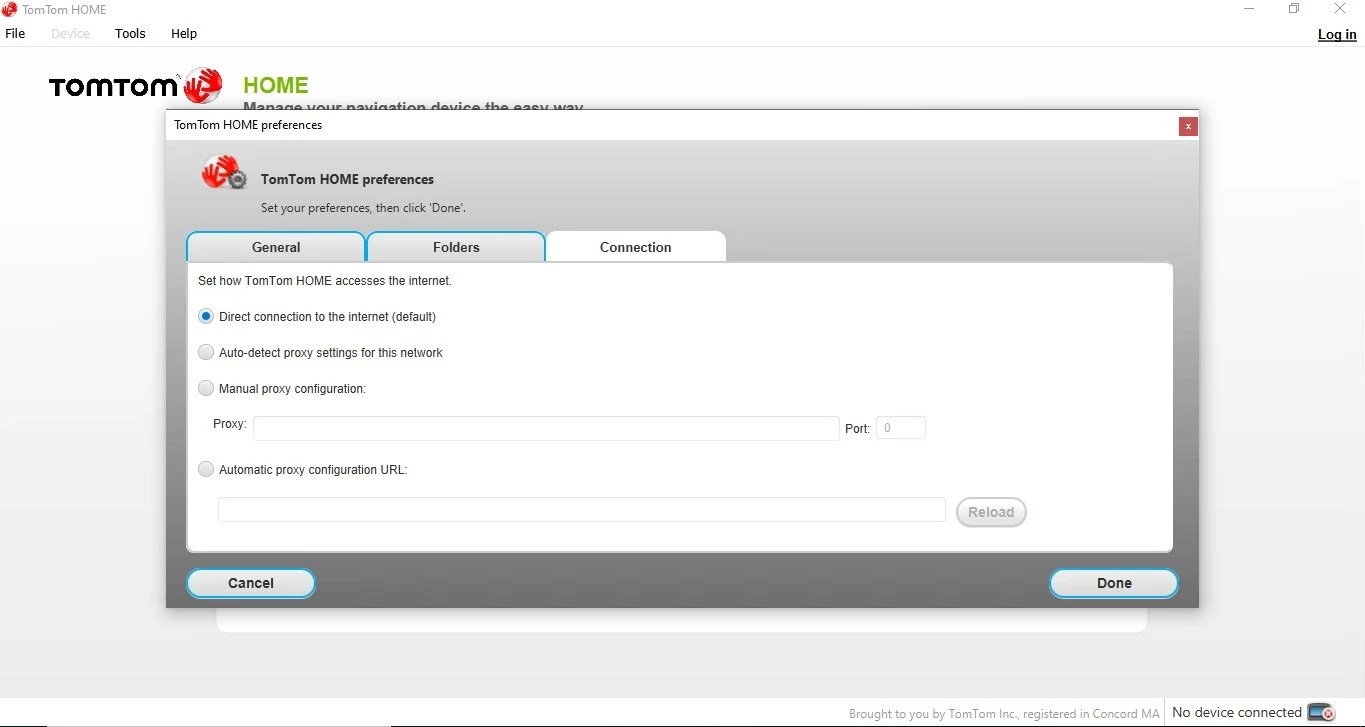
- Application does not start automatically. Check the utility's internal preferences menu under the General tab to ensure the startup option is ticked. Additionally, verify that the Windows Task Manager startup tab has not manually disabled the background executable, which prevents the app from listening for hardware connections.
Version Latest — 2026
- Refreshed the user interface with updated branding and a modern color scheme for better visibility.
- Implemented several performance optimizations to ensure faster operation and device recognition.
- Resolved various minor bugs and improved overall software stability.