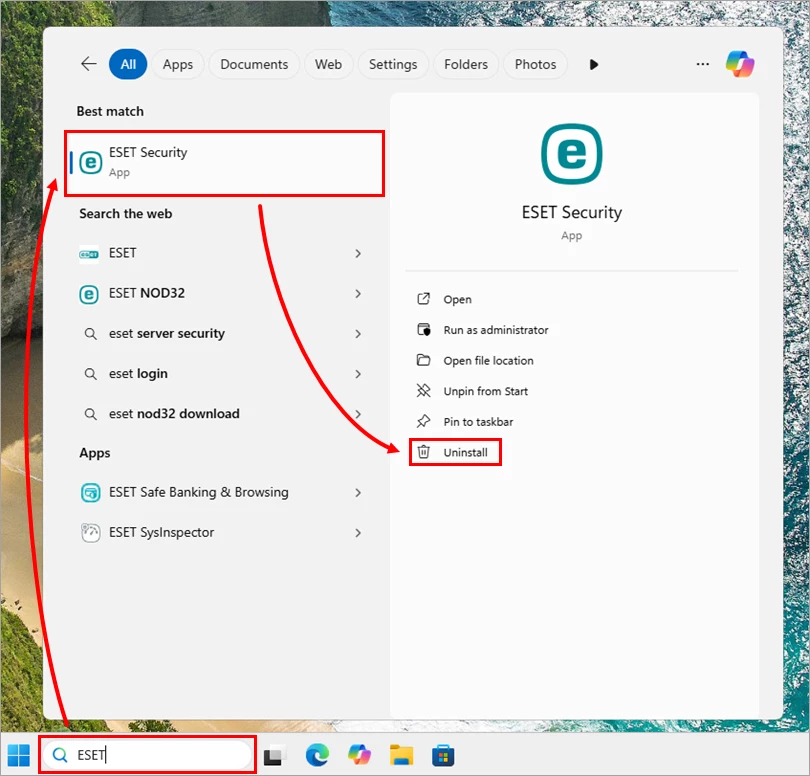
ESET Uninstaller is a dedicated emergency removal utility built to forcibly delete all traces of ESET security products when standard Windows uninstallation methods fail. Whether a corrupted installation blocks the normal removal process, a forgotten settings password locks access to the main application interface, or residual registry keys prevent the installation of alternative security software, this command-line tool bypasses standard operating system restrictions to clean the machine. Security software integrates deeply into the Windows environment, deploying kernel-level drivers, network filters, and self-defense mechanisms designed to prevent malicious tampering. When these components become corrupted due to interrupted system updates or conflicting applications, the standard Windows Installer service often cannot unhook them, resulting in error codes or incomplete removals that leave the system in a compromised state.
Unlike general-purpose software removal utilities that operate within the standard desktop interface, this specialized application runs almost exclusively in Safe Mode. This environmental requirement ensures that the core antivirus drivers, self-defense modules, and background services are completely inactive during the removal process. By operating outside the normal boot environment, the utility gains the necessary access rights to delete locked system files, clear protected registry entries, and reset network filter drivers without interference from the active security modules. If a user attempts to execute the program in a normal Windows session, it will immediately halt the process, display an error message regarding kernel communication, and instruct the user to reboot the operating system into the correct diagnostic state.
The tool is designed specifically for system administrators, IT support technicians, and users who find their machines stuck in a broken state after a failed update or an interrupted uninstallation. It targets the entire ecosystem of the vendor's products, including Endpoint Security, Smart Security Premium, and standalone antivirus packages. Because it requires manual command-line execution, direct navigation of local directories via text commands, and interaction with deep system components, it acts strictly as an emergency rescue option rather than a daily maintenance utility. Users only deploy this tool when conventional uninstallation wizards have been completely exhausted and the local machine requires manual intervention to restore default security settings.
Key Features
- Safe Mode Execution Enforcement: The utility actively checks the current boot state of the Windows operating system before allowing any commands to execute. By enforcing a Safe Mode requirement, the application ensures that proprietary self-defense modules and background services remain dormant. This prevents the active antivirus engine from interpreting the uninstallation process as a malicious attack and blocking the deletion of critical local files.
- Command-Line Interface: Rather than relying on a graphical user interface, the tool operates entirely through a standard text-based console window. This allows system administrators to execute the removal process using specific operational parameters, such as the /force command for unprompted removal. The text-based output provides immediate, unabstracted feedback regarding which system directories and registry keys are being targeted and removed during the operation.
- Complete Component Eradication: The application goes beyond standard uninstallation by actively hunting down residual files, hidden folders, and locked background services that the standard Windows Installer routine frequently leaves behind. It targets specific registry hives within the operating system to clear configuration data, quarantine logs, and license keys. This deep cleaning process guarantees a neutral system state, preventing conflicts when installing alternative security applications later.
- Network Adapter Filter Reset: Security software often installs custom filter drivers into the Windows network stack to monitor incoming and outgoing traffic for threats. When forcing a removal, this tool automatically unbinds and clears these proprietary network filter drivers from the local adapters. This prevents the common issue of permanent internet connectivity loss that can occur when firewall modules are forcefully deleted without properly restoring the default network configuration.
- Locked Password Override: Many security suites allow administrators to lock the program settings with a master password to prevent unauthorized tampering by standard account holders. If a user loses this password, the standard uninstallation wizard will block any attempt to remove the software. This utility bypasses local administrative restrictions and parental control locks, granting full removal capabilities directly from the command line without requiring the original authorization credentials.
- Advanced Partition Targeting: The application provides specific parameters for environments with multiple drives or custom boot configurations. By utilizing the /mode=offline parameter, administrators can instruct the tool to target specific CD drives, USB drives, or secondary hard disk partitions. This allows technicians to clean corrupted security installations on secondary drives without booting into the operating system installed on those specific partitions.
How to Install ESET Uninstaller on Windows
- Download the standalone executable file directly to the Windows Desktop to ensure easy directory access from the command prompt later in the process, and verify that the local account has administrative privileges.
- Open an administrative command prompt and type the command to back up current network adapter settings to a local text file, as the removal process resets network configurations.
- Press the Windows key, open the System Configuration tool by typing msconfig, navigate to the Boot tab, select the Safe boot option, and check the Network toggle to prepare the diagnostic environment.
- Restart the computer to enter Safe Mode, as the application will refuse to execute its primary functions and delete locked files in a standard Windows desktop session.
- Open the Windows Command Prompt with administrative privileges to guarantee the utility has the necessary elevated system rights to modify locked registry keys and system directories.
- Navigate to the Desktop directory within the command prompt by typing the cd command followed by the precise folder path corresponding to the active user profile where the executable resides.
- Type the exact name of the executable file and press Enter to launch the text-based wizard, then review the initial on-screen warning prompt regarding the impending network settings reset.
- Type the letter y to confirm the action, review the numbered list of installed products, select the numerical ID corresponding to the detected security software, and press Enter to initiate the forced removal process before restarting the computer.
ESET Uninstaller Free vs. Paid
ESET Uninstaller is completely free to download and use without any financial restrictions. The vendor provides this utility strictly as an official support tool for existing customers, system administrators, and technical support personnel who need to resolve broken software installations. There are no premium tiers, commercial enterprise editions, or paid add-ons associated with this specific rescue application, as its sole purpose is to correct critical system errors and restore baseline functionality.
Because the tool acts as a dedicated diagnostic and repair mechanism rather than a daily consumer application, it operates outside standard software business models. It does not require a subscription, a license key verification, or a registered user account to execute its primary functions. Users can download the executable file directly from the official support documentation pages without passing through a paywall, navigating a checkout process, or interacting with a trial limitation.
While the uninstaller itself carries zero cost, reinstalling the vendor's active security software after a successful cleanup will naturally require a valid, paid subscription to restore real-time threat protection. However, users face no penalties or hidden charges for running the emergency removal tool, and the utility imposes no limits on the number of times it can be executed across different machines in a commercial or home network environment.
ESET Uninstaller vs. Norton Remove and Reinstall vs. Avast Clear
Norton Remove and Reinstall is a proprietary vendor cleanup tool that operates differently by providing a graphical user interface and focusing heavily on the immediate reinstallation of the security product. Users should choose the Norton utility when dealing exclusively with Norton-branded software and when they prefer a visual wizard that automatically handles the transition back to a protected state. Unlike a command-line utility, it attempts to simplify the process for casual users but offers less manual control over deep system unhooking and offline drive targeting.
Avast Clear similarly targets its own specific ecosystem of antivirus products, but it offers a hybrid approach by providing a graphical interface that actively prompts the user to reboot into Safe Mode automatically. This makes the Avast tool slightly more accessible for casual users who might struggle with manual boot configurations using system tools like msconfig. However, it remains strictly locked to Avast software removal and lacks the granular text-based execution parameters preferred by IT professionals managing complex deployments.
ESET Uninstaller is the necessary choice when specifically removing ESET applications, as third-party tools cannot properly unbind the unique network filter drivers and kernel-level mechanisms used by this specific vendor. While it relies entirely on a text-based console and requires manual Safe Mode configuration, this direct command-line approach provides system administrators with absolute control over the removal process. The inclusion of offline partition targeting and forced execution commands gives it a distinct operational advantage for targeted recovery tasks.
Common Issues and Fixes
- The utility immediately closes upon execution. This occurs because the active antivirus self-defense modules are currently running and will block the uninstaller from deleting critical system files. You must restart the computer and boot directly into the Windows Safe Mode environment before attempting to run the executable file again.
- The operating system loses internet connectivity entirely. The utility aggressively removes network filter drivers during the cleanup, which can occasionally disrupt the Windows network stack. Open an administrative command prompt and use the netsh command to reset the network interface, or manually reinstall the network adapter drivers through the Windows Device Manager.
- A file access error message appears when launching from the Desktop. This happens if the Desktop folder is actively synced with a cloud storage provider like Microsoft OneDrive, which places a lock on the file handle. Move the executable file to a local, un-synced directory directly on the root of the main system drive before running the command line execution.
- The uninstaller fails to detect the installed security product automatically. Launch the tool with the /force parameter appended to the command line execution string. This bypasses the initial detection scan and forces the utility to blindly clean all known registry keys and directories associated with the vendor's software ecosystem without requiring manual product confirmation.
Version 9.0.8.0 — June 2025
- Updated compatibility to support the latest Windows 11 revisions and system updates.
- Enhanced detection and removal algorithms for the newest ESET security product versions.
- Resolved minor stability issues and improved the tool's performance in Safe Mode.