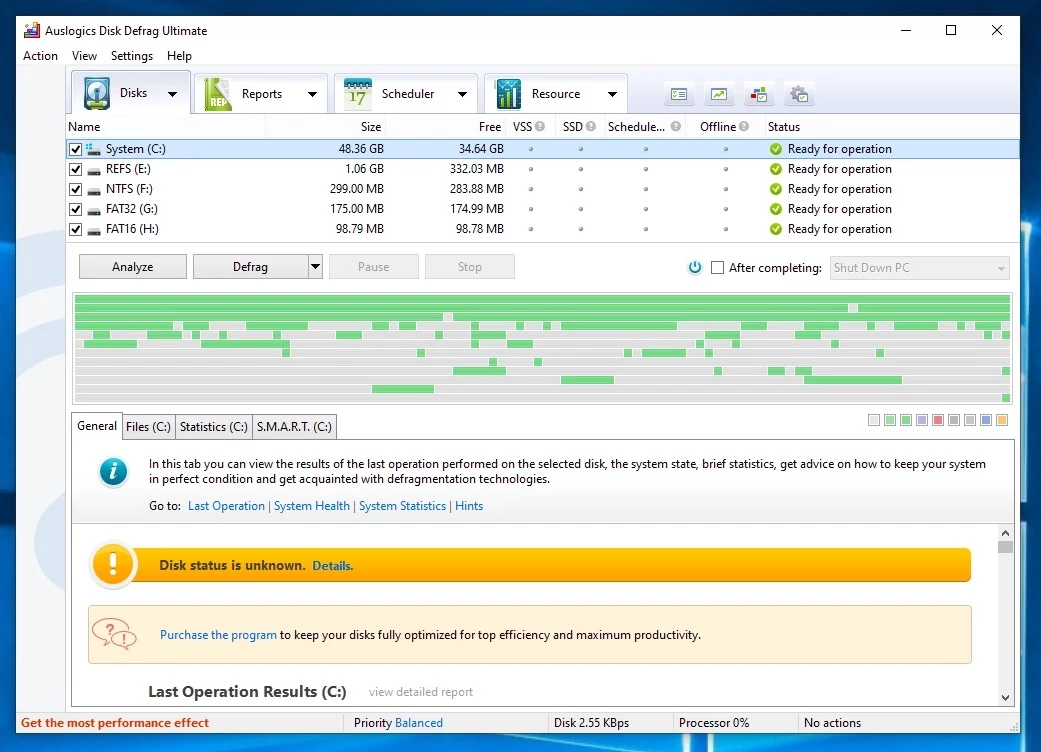
When a computer runs an operating system and handles daily data transfers, files are constantly written, modified, and deleted. Over time, the storage drive struggles to save complete files in a single continuous block, forcing the file system to scatter data fragments across physical disk sectors. This fragmentation forces mechanical hard drives to work harder, moving read/write heads erratically across spinning platters, which translates to delayed application launches, slow system boots, and sluggish file transfers. Auslogics Disk Defrag Pro addresses this physical data bottleneck by reorganizing files on a structural level, minimizing the mechanical travel time required to retrieve data.
Unlike basic built-in utilities that simply group file fragments together, this desktop application provides granular control over exactly where data resides on the disk surface. Mechanical drives read data significantly faster from the outer tracks of a platter than from the inner tracks. By recognizing this physical reality, the software allows system administrators and hardware enthusiasts to force frequently accessed files, system libraries, and heavy applications to the fastest zones of the drive. It also handles solid-state drives with different logic, issuing specific optimization commands that align with flash memory controllers rather than attempting traditional block movement.
Because low-level file management requires direct interaction with the Master File Table and Windows core services, a dedicated desktop application is required. Browser-based tools or lightweight cleaners cannot securely lock volumes, schedule offline operations, or execute Volume Shadow Copy-aware algorithms. Auslogics Disk Defrag Pro provides the direct system access required to maintain high-capacity storage arrays, archival drives, and daily workstation storage without risking data corruption or interfering with automated backup systems.
Key Features
- Multiple Optimization Algorithms: The software provides four distinct placement strategies to match specific computing environments. Users can choose "Optimize by Access Time" to prioritize frequently opened documents, "Optimize by Prefetch Layout" to accelerate software loading, "Optimize by Change Time" to group recently modified files, or "Optimize by Disk Zone" to manually force specific file extensions to the outer, fastest tracks of a mechanical platter.
- Boot-Time Defragmentation: Windows strictly locks crucial background files like the Master File Table, the paging file, and the hibernation file while the operating system is active. This feature schedules an offline processing pass that runs immediately after the motherboard boot screen but before Windows fully loads, allowing the software to reorganize these heavily fragmented system files safely.
- SSD Optimization and TRIM: Solid-state drives do not suffer from mechanical seek delays, making traditional defragmentation unnecessary and harmful to the flash memory's finite write cycles. The application automatically detects solid-state storage and switches to an optimization mode that issues TRIM commands, clearing discarded data blocks and helping the drive controller maintain maximum write speeds.
- Free Space Consolidation: As files are deleted and created, empty storage blocks become heavily fragmented, ensuring that new files will also be broken apart upon creation. This tool physically moves existing data to create large, contiguous blocks of empty space, acting as a preventative measure that reduces the future fragmentation rate of newly saved video renders, databases, and downloads.
- VSS-Compatible Mode: Windows uses the Volume Shadow Copy Service to maintain system restore points and background backups. Moving files aggressively can trick the system into thinking massive changes have occurred, causing the shadow storage area to expand rapidly and overwrite older backups. This algorithm limits block movement strictly to what is necessary, protecting existing system snapshots.
- Single File and Folder Processing: Scanning and rearranging a multi-terabyte archival drive can take many hours. For quick maintenance, users can right-click specific folders or files within the interface to defragment only targeted items. This is useful for optimizing a single large video game directory, a localized database, or a newly downloaded virtual machine disk image without scanning the entire volume.
How to Install Auslogics Disk Defrag Pro on Windows
- Download the official setup package directly from the vendor's website or an authorized software distributor.
- Launch the Windows installer and accept the User Account Control prompt, as disk modification tools require high-level administrator privileges to access file system structures.
- Progress through the initial setup wizard, taking care to review the optional software offers. Auslogics installers historically include bundled utility offers, so uncheck any unwanted promotional applications before clicking the next button.
- Select the destination folder for the application files. The default directory is typically located on the primary system drive, which is standard for Windows environments.
- Choose whether to enable Windows Explorer context menu integration during the shortcut creation step. Enabling this allows you to right-click any folder or drive directly in File Explorer to trigger a targeted scan.
- Finish the installation and launch the application. The software will automatically map your connected storage devices, identifying mechanical hard drives, solid-state drives, and removable media.
- On the first run, navigate to the license registration menu to input your purchased product key. If you are testing the software, select the trial option to access the interface and initiate an initial analysis scan.
Auslogics Disk Defrag Pro Free vs. Paid
Auslogics separates its disk optimization tools into distinct tiers, primarily offering a free basic edition and a paid professional application. The core defragmentation engine is available in the free version, which allows home users to run standard scans, consolidate free space, and perform basic file reorganization. However, the free version restricts deep system configuration and lacks the specialized placement algorithms required for serious workstation maintenance.
Auslogics Disk Defrag Pro operates on a commercial licensing model. Users can typically test the software via a time-limited free trial, which provides full access to the interface to analyze drives and evaluate the severity of their fragmentation. Once the trial expires, continuous use of the advanced algorithms requires purchasing a license.
The paid tier is generally sold as an annual subscription or a perpetual license for a specific major release, with pricing often situated around the thirty-dollar mark for a multi-PC household license. Purchasing the Pro edition unlocks boot-time defragmentation, the four specialized file-placement algorithms, SSD-specific TRIM optimization, and the VSS-compatible processing mode. It also removes any promotional banners or upgrade prompts found in the free tier, providing a cleaner interface for IT administrators who need to schedule quiet, automated background maintenance tasks.
Auslogics Disk Defrag Pro vs. IObit Smart Defrag vs. Defraggler
IObit Smart Defrag focuses heavily on automated, silent background processing and gaming optimization. It includes a specific module designed to detect and prioritize game directories, making it popular among casual users who want to install a utility and forget about it. However, IObit's aggressive background monitoring can sometimes consume unexpected system resources, and its interface leans heavily on scheduled tasks rather than granular, manual file placement controls.
Defraggler, developed by the makers of CCleaner, takes the opposite approach by offering a highly minimal, entirely free utility. It is widely praised for its portable version, which can be run directly from a USB flash drive without requiring installation. Defraggler is excellent for quickly targeting individual files or small external drives, but it lacks the advanced disk-zone optimization, boot-time file processing, and flash-aware TRIM algorithms necessary for maintaining complex, modern storage arrays.
Auslogics Disk Defrag Pro is the better fit for users who require strict control over their file systems. While Defraggler is simpler and IObit is more automated, Auslogics provides the most detailed feature set. If an administrator needs to force specific file types to the outer tracks of a mechanical drive, safely process locked hibernation files during a system reboot, and manage a mixed environment of mechanical drives and solid-state drives with correct hardware-specific logic, Auslogics handles these tasks reliably.
Common Issues and Fixes
- Free space not found error. During operation, the software may fail to process a large file and report this specific error. This happens when a drive has enough total empty space, but that space is scattered into tiny fragments across the disk. Fix this by selecting the "Defrag & Optimize" mode from the dropdown menu, which will physically group the empty blocks together, creating enough contiguous room for large files.
- Skipped locked system files. Users often notice that certain critical files are bypassed during a standard optimization run. Windows locks these files, such as the registry hives and pagefile, while the desktop is active. To resolve this, navigate to the scheduling settings and enable "Boot-time Defragmentation," which will command the software to process these files during the next system restart before Windows loads.
- Excessive processing times on large volumes. Running a deep optimization pass on a multi-terabyte mechanical drive can take several hours, interfering with daily work. To mitigate this, open the program settings and exclude large media formats—such as compressed video files and archives—which do not benefit significantly from defragmentation. Alternatively, use the "Quick Defrag" option for daily maintenance.
- Solid-state drives appear untouched. New users might worry that their flash storage drives are not being processed during a scheduled run. The software is designed to automatically detect flash memory and disable traditional mechanical defragmentation to prevent hardware wear. If a flash drive needs maintenance, manually select it in the drive list and choose the "SSD Optimization" profile, which will safely issue TRIM commands to the drive controller.
Version 12.1.0.1 — December 2025
- Resolved various reported bugs to ensure smoother operation.
- Corrected multiple errors within language localization files for better interface accuracy.
- Enhanced overall program stability and performance.