Using Topaz Photo AI as a plugin allows Windows photographers to fix image quality issues directly within their existing Adobe workflow without switching applications. This integration brings powerful sharpening, noise reduction, and upscaling tools right into Photoshop and Lightroom Classic, making it an essential utility for rescuing blurred or noisy shots. By acting as a filter or external editor, it processes images using advanced machine learning models and returns the improved file to your Adobe timeline for further editing.
Key Features
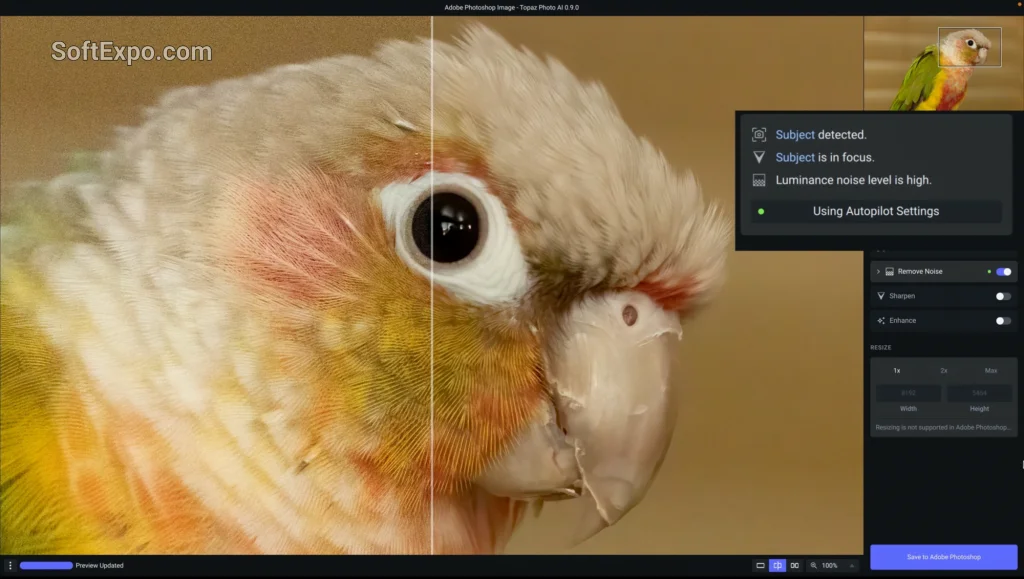
- Autopilot Detection: Automatically scans your image to detect severe noise, blur, and focus issues, suggesting optimal settings immediately.
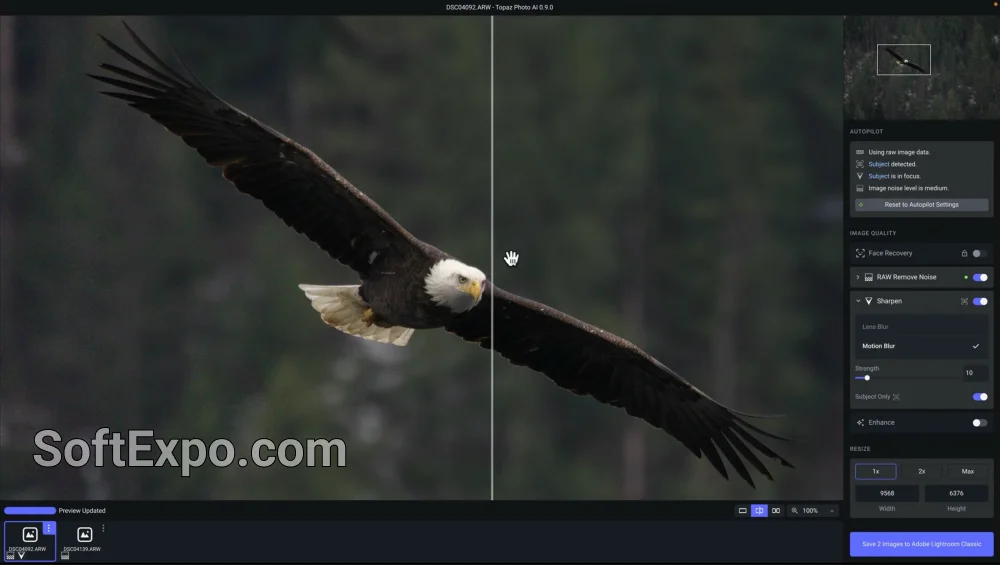
- RAW Denoise: When used with Lightroom Classic's "Plug-in Extras," it processes raw sensor data for superior noise reduction without detail loss.
- Intelligent Sharpening: Distinguishes between soft focus and motion blur, applying corrective sharpening only where needed to avoid artifacts.
- Face Recovery: Reconstructs low-resolution or blurry faces in group shots, adding realistic detail to eyes and skin textures.
- Generative Upscaling: Increases image resolution by up to 600% while generating new pixels to maintain clarity, perfect for large prints.
- Object Removal: Quickly erases unwanted distractions from backgrounds using generative fill technology.
Installation and Setup
To start using Topaz Photo AI as a plugin, download the latest installer from the Topaz Labs website. Run the Windows installer (`.exe`) and ensure your Adobe applications are closed during the process. The setup wizard automatically detects installed versions of Photoshop and Lightroom Classic and places the necessary plugin files in the correct Adobe folders.
As of late 2025, Topaz Labs transitioned to a subscription-only model. You will need an active "Pro" or individual app subscription (approximately $58/month or $252/year) to use the software without watermarks. Once installed, launch the standalone app once to log in and authenticate your license before attempting to use it inside Adobe apps.
How to Use Using Topaz Photo AI as a Plugin
In Adobe Lightroom Classic:
For the best quality with RAW files, do not use the standard "Edit In" menu. Instead, select your image and go to File > Plug-in Extras > Process with Topaz Photo AI. This method allows the software to work with the raw data directly. For non-RAW files (JPEGs/TIFFs), you can use the standard Photo > Edit In > Topaz Photo AI workflow, which will create a TIFF copy.
In Adobe Photoshop:
Open your image and navigate to Filter > Topaz Labs > Topaz Photo AI. This opens the interface as a filter layer. If you need to upscale an image significantly, it is better to use File > Automate > Topaz Photo AI, which allows the plugin to resize the canvas and layer properly, bypassing some of Photoshop's native layer resizing limitations. After making adjustments, click "Save to Adobe Photoshop" to return the improved layer to your project.
Compatibility
The plugin is compatible with recent releases of Adobe Photoshop and Lightroom Classic on Windows. For the operating system, Windows 10 (build 19045 or higher) or Windows 11 is required. Hardware requirements for 2026 are demanding: a dedicated GPU (NVIDIA RTX series or AMD Radeon) with at least 6GB of VRAM (8GB+ recommended) and 16GB of system RAM are necessary for reasonable processing speeds. Integrated graphics may function but will be significantly slower.