When a desktop refuses to start normally, hardware components fail, or file systems become corrupted, standard recovery tools often fall short. Ultimate Boot CD serves as a freestanding bootable diagnostic environment that bypasses the installed operating system entirely to run low-level repairs. Instead of relying on a running desktop environment to execute tests, technicians and system administrators boot this tool directly from a USB flash drive or optical disc. This isolates the hardware, ensuring that memory tests, hard drive diagnostics, and file recovery procedures interact directly with the physical components rather than filtering through an active system registry or background services that might skew the results.
While many users rely on built-in recovery partitions or automated startup repair sequences, those methods require a functional drive and intact boot records to operate. If a hard drive has physically damaged sectors or the master boot record is wiped, native software repair utilities simply will not load. Ultimate Boot CD bypasses these limitations by consolidating over a hundred diagnostic utilities—spanning processor stress tests, memory analyzers, and disk cloning tools—into a single ISO image. By running independently of the local storage, the software allows technicians to mount uncooperative drives and run raw data extraction without triggering the boot loops associated with damaged local files.
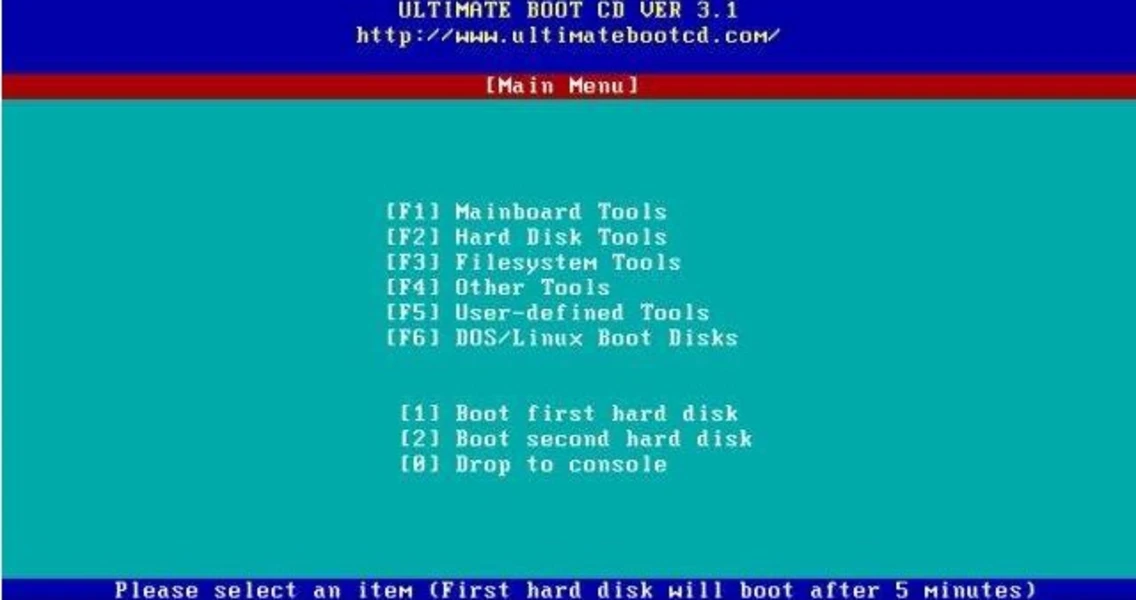
Because it operates entirely from removable media, the application provides a pristine environment for troubleshooting. Users can rescue data from failing disks, reset compromised user accounts, or execute deep diagnostic scans on systems that would otherwise fail to boot. The interface remains text-driven and highly responsive, requiring very little system memory or processing overhead. This lightweight footprint ensures that the toolkit functions reliably even on older desktop configurations or heavily degraded hardware where heavier graphical preinstallation environments would stall or crash during initialization.
Key Features
- Hardware Stress Testing: Includes CPU and memory diagnostic tools such as Memtest86+ and Prime95, allowing users to run continuous passes on RAM modules to isolate hardware faults causing system crashes. These utilities run outside of normal memory allocations, ensuring the physical RAM space is tested for errors without interference from background applications. Users can leave these tests running overnight to verify the stability of new builds.
- Disk Diagnostic Utilities: Bundles manufacturer-specific hard drive testing tools like SeaTools and HDAT2, which read SMART data and scan for bad sectors directly at the firmware level. This direct access allows the software to identify mechanical drive failures and remap failing sectors before a drive becomes completely unreadable, providing necessary failure codes for warranty replacements.
- Partition Management: Offers low-level volume control tools such as GParted, enabling users to resize, format, and delete disk partitions outside of standard disk management constraints. Technicians can use these tools to rebuild corrupted partition tables, merge fragmented volumes, or prepare raw drives for a clean installation. The graphical interface makes complex drive geometry adjustments straightforward.
- Bare-Metal Data Recovery: Integrates recovery applications like TestDisk and PhotoRec, providing a command-line interface to locate lost partitions and extract deleted files from formatted or corrupted drives. These tools bypass standard file system drivers to read the raw data blocks directly, salvaging files even when the main index is destroyed. Recovered data can then be copied to an external drive.
- Disk Cloning and Imaging: Features bit-for-bit cloning utilities like Clonezilla that perform exact physical copies of storage drives, duplicating every sector regardless of the file system. This allows users to back up failing disks to an external target before attempting aggressive repair procedures. The cloning tools support both local drive-to-drive transfers and network-based image creation.
- Offline Antivirus Scanning: Provides signature-based malware scanners that inspect dormant file systems, neutralizing threats that actively hide when the primary operating system is running. By scanning the drive while the local environment is inactive, it prevents rootkits from masking their presence or blocking the quarantine process, ensuring deep threats are eradicated.
How to Install Ultimate Boot CD on Windows
- Download the official Ultimate Boot CD ISO image file from a verified mirror on the vendor's site to a functional Windows desktop or laptop, taking care to verify the file size upon completion.
- Acquire a dedicated USB flash drive with at least 2GB of storage capacity and connect it to an available USB port, ensuring no critical personal files remain on it as the preparation process will wipe the drive completely.
- Download a verified USB creation utility such as Rufus or Universal USB Installer to write the ISO image correctly to the removable media, as simply copying the file will not make the drive bootable.
- Launch the USB creation utility, select your connected USB flash drive from the target device dropdown menu, and use the file browser to select the Ultimate Boot CD ISO file as the source image.
- Set the partition scheme to MBR and the target file system to FAT32, which maximizes compatibility with older motherboards and legacy BIOS setups that might not support modern UEFI boot protocols.
- Click the start button to write the image, waiting for the utility to extract the ISO contents, copy the individual diagnostic files, and write the necessary boot sector modifications to the flash drive.
- Restart the target computer, leaving the prepared USB drive connected, and press the designated hardware key (such as F12, F8, or Esc depending on the manufacturer) during the initial startup sequence to open the boot override menu.
- Select the USB flash drive from the list of available boot devices to bypass the internal hard drive and load the main text-based diagnostic interface directly into the system memory.
Ultimate Boot CD Free vs. Paid
Ultimate Boot CD is distributed entirely as freeware and operates without any commercial licensing tiers, paywalls, or subscription models. The project aggregates various open-source and free-for-personal-use diagnostic tools into a single bootable image, making it accessible to both home users and professional technicians without ongoing costs. There is no premium or enterprise edition holding back advanced disk cloning, memory testing, or data recovery features. The single download provided on the official mirrors contains the complete, unrestricted toolset ready for immediate deployment.
The development, maintenance, and hosting of the project rely on community mirrors and voluntary donations rather than forced monetization or trial limitations. Users do not need to create accounts, register software, input license keys, or connect to an activation server to use the included utilities. Because the entire toolkit runs entirely offline from a local USB drive or disc, there are no cloud dependencies, recurring billing cycles, or usage telemetry systems tracking how often specific tools are launched. Technicians can keep the drive in their toolkit indefinitely without worrying about software expiration dates.
However, because the compilation bundles software from dozens of different independent authors, corporate users should review the individual licenses of specific included tools if they intend to deploy them in large-scale commercial environments. While the overall distribution requires no purchase, some specific bundled utilities may have clauses restricting commercial usage without proper authorization from their respective developers. The core project itself places no artificial limitations on file exports, scan sizes, or the number of computers a technician can troubleshoot using a single prepared drive.
Ultimate Boot CD vs. Hiren's BootCD PE vs. Windows Boot Genius
Hiren's BootCD PE operates as a graphical preinstallation environment based on Windows 10, offering a familiar desktop interface for users who prefer standard window management and mouse navigation. It excels at resetting local passwords, connecting to wireless networks, and editing the registry of an offline Windows machine, making it ideal for software-level troubleshooting and recovering files using standard file explorer windows. However, Hiren's BootCD PE requires significantly more system memory to boot and lacks the sheer volume of low-level, text-based hardware stress tests that older systems or deeply damaged hardware require for proper diagnosis.
Windows Boot Genius is a commercial recovery utility focused primarily on repairing damaged boot records, fixing startup crashes, and retrieving lost data through a simplified, wizard-driven interface. It targets users who want a guided recovery process without needing to learn technical command-line syntax or manual partition management operations. While it simplifies basic rescues by automating the repair sequence, it requires a paid license for full functionality, limiting its appeal for independent technicians who need a versatile, unrestricted toolkit for everyday use across multiple client machines.
Ultimate Boot CD remains the superior choice for users diagnosing physical hardware failures, particularly on older machines or systems with limited computing resources. Because it relies on lightweight, text-based utilities and direct hardware access rather than a heavy graphical desktop environment, it boots successfully on almost any hardware configuration regardless of age. It is the better fit when a technician needs to run continuous memory diagnostics, perform raw sector scans on a failing drive, or clone a disk exactly prior to attempting an operating system repair without interference from background services.
Common Issues and Fixes
- System ignores the USB drive and boots normally. This happens when the motherboard prioritizes the internal hard drive over removable media during the startup sequence. Restart the machine, enter the BIOS or UEFI settings menu by pressing Del or F2, disable Secure Boot if active, and move the USB device to the very top of the boot priority list before saving changes.
- Menu items fail to load or display a missing file error. This typically indicates that the ISO file was corrupted during download or the USB creation process failed to copy all hidden files correctly to the flash drive. Verify the SHA256 checksum of the downloaded ISO file to ensure integrity, and recreate the bootable drive using an alternative writing utility like Rufus or YUMI.
- Graphical utilities display a black or garbled screen. Certain older video cards struggle with the default display drivers used by the bundled graphical volume management tools like GParted. When selecting a graphical tool from the main text menu, look for an option to load it in "Safe Graphics Mode" or "VGA mode" to force a basic, highly compatible display resolution that bypasses specific driver requirements.
- Hard drives do not appear in diagnostic tools. If disk utilities cannot see the internal storage, the storage controller may be set to RAID or an unsupported AHCI mode that the older tools cannot read. Access the computer's BIOS settings and temporarily change the SATA operation mode to IDE or Legacy to allow the low-level diagnostic tools to read the raw drive directly, remembering to change it back before booting the normal operating system.
- Memory tests freeze or lock up the computer completely. While running intensive RAM diagnostics, a system with severe physical defects or inadequate cooling may lock up rather than report an error code. If the timer stops updating and the keyboard becomes unresponsive, physically power off the machine, clean out internal dust to improve airflow, and test the memory modules individually to isolate the severely damaged stick.
Version 5.3.9 — August 2020
- Downgraded SeaTools for DOS (GUI) to version 2.22 to resolve a timeout error in V2.23 that hindered long diagnostic tests on high-capacity hard drives.
- Updated the Parted Magic component to the 2013_08_10 build.
- Upgraded disk recovery tools (PhotoRec, TestDisk, and Fidentify) to version 7.1 via a new module implementation.
- Updated Q&D Unit Clone to version 1.1r.