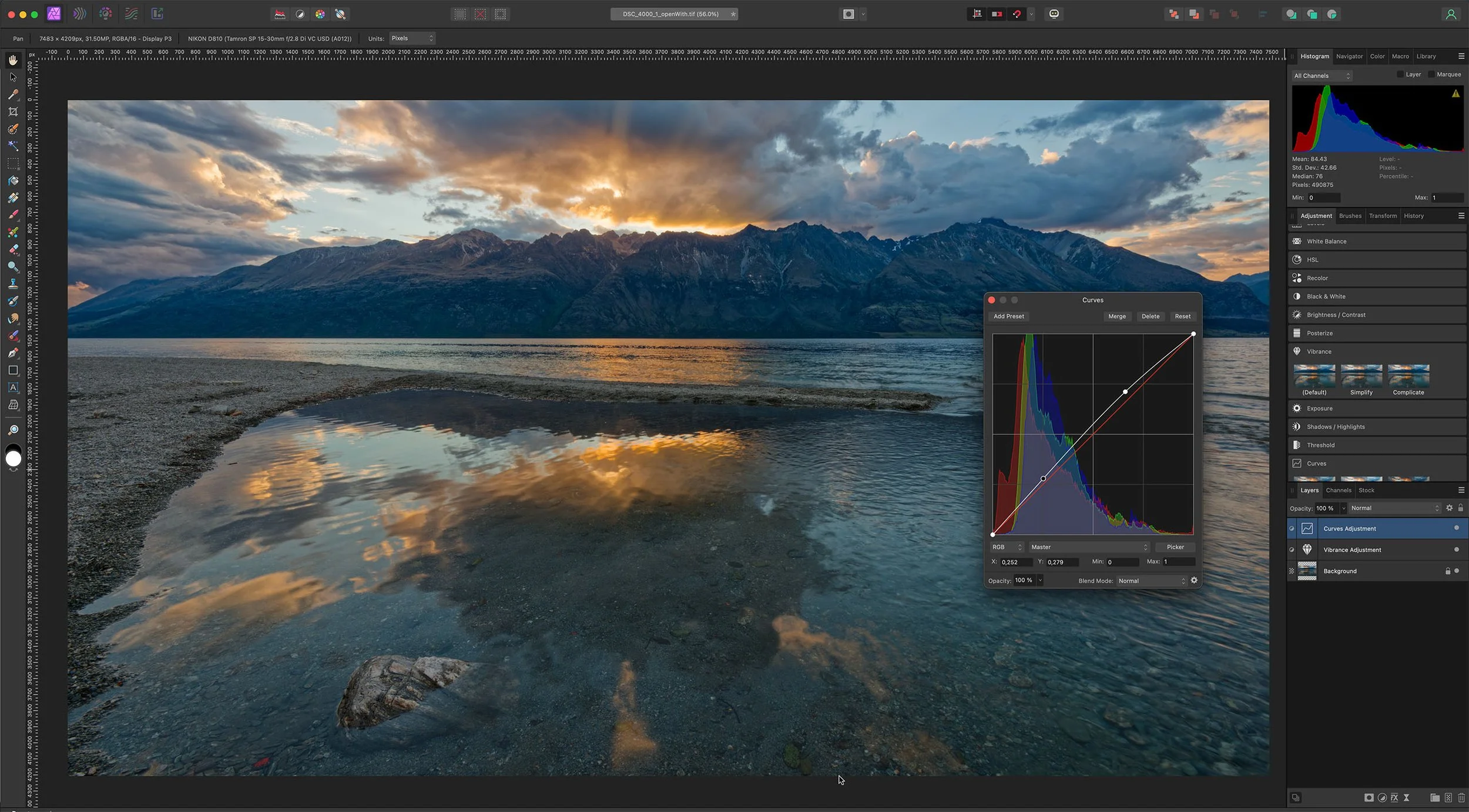
Following a monumental transformation, this software evolved from a paid perpetual-license application into the dedicated photo-editing engine within a newly unified, free-to-use creative suite. Operating as a standalone desktop application rather than a lightweight browser utility, it delivers professional-grade raster editing, non-destructive RAW image processing, and unlimited layering without an upfront financial barrier. The interface connects directly with vector and layout toolsets, allowing designers and photographers to execute complex multimedia projects inside a single consolidated workspace. By relying on local hardware rather than cloud servers for its core operations, the program ensures minimal latency when manipulating heavy digital assets.
For digital artists and retouchers, a local desktop application solves the fundamental limitations of web-based editors. Browsers restrict memory allocation and struggle with massive file imports, whereas a dedicated Windows desktop client utilizes full system RAM, local disk caching, and direct graphics hardware acceleration. This structural advantage means users can stitch together dozens of high-resolution images for panoramic landscapes, process 42-megapixel sensor data from modern mirrorless cameras, or stack hundreds of adjustment layers without experiencing interface lag. The workspace is logically divided into specialized modules—known as Personas—separating raw development tasks, pixel manipulation, localized liquify distortions, and final file exports into distinct, focused environments.
Professionals choose this specific toolset to handle demanding, concrete tasks that require exact pixel control. A real estate photographer can merge multiple exposure brackets into a single 32-bit High Dynamic Range file to balance dark interiors with bright windows. A macro photographer can utilize the focus stacking engine to combine shallow depth-of-field shots into one perfectly sharp composite. Meanwhile, commercial retouchers rely on frequency separation and intelligent inpainting to clean up product shots and smooth out portrait blemishes. By offering high-end features like these at zero cost, the software eliminates the traditional financial hurdles of professional image manipulation while retaining the heavy-duty processing capabilities expected on modern Windows 10 and Windows 11 workstations.
Key Features
- Feature Name: Non-Destructive RAW Development. The dedicated Develop Persona acts as a digital darkroom for raw sensor data. Users can adjust exposure, apply lens corrections, tweak white balance, and recover blown-out highlights before committing the image to the main workspace. Because the adjustments exist as mathematical parameters rather than baked-in pixel changes, photographers can revisit and refine these initial tweaks at any point in the editing process.
- Feature Name: Live Filter Layers. Instead of permanently blurring or distorting a pixel layer, the software allows users to apply adjustments like Gaussian Blur, Unsharp Mask, or Perspective shifts as stackable, independent layers. This means you can mask out specific areas of the filter, change its opacity, or delete it entirely days after saving the project. The layer stack updates in real time based on local CPU and GPU calculations.
- Feature Name: Advanced Selection and Masking. Extracting complex subjects like hair or transparent glass requires specialized localized tools. The Refine Selection dialog lets users paint over tricky edges, using local contrast detection to separate fine details from the background. Once the selection is tight, it can be output as a new layer, a pixel mask, or an independent alpha channel for compositing work.
- Feature Name: Dedicated Retouching Toolkit. For portrait and product editing, the interface provides a dedicated healing brush, clone stamp, and an intelligent inpainting tool that analyzes surrounding pixels to erase unwanted objects. It also natively supports frequency separation workflows, automatically splitting an image into color and texture layers so retouchers can smooth out skin blemishes without destroying natural pores.
- Feature Name: Unified Interface Environment. The application shares a single underlying architecture with its sister vector and layout modules. Users editing a raster photograph can switch instantly to vector pathing or typography layouts using the persona buttons in the top toolbar. This structural design eliminates the need to export intermediate files and saves significant disk space when building complex, mixed-media projects.
- Feature Name: Extensive Format Compatibility. Integrating into existing studio pipelines means handling industry-standard file types accurately. The software opens Adobe PSD files, retaining folder structures, adjustment layers, and smart object equivalents where technically possible. It also exports directly to TIFF, PNG, SVG, PDF/X for commercial print, and EXR for 32-bit HDR workflows common in 3D rendering environments.
How to Install Affinity Photo on Windows
- Navigate to the official vendor website and sign in using your registered account credentials to access the software library.
- Select the Windows operating system from the available downloads and choose either the MSIX or MSI/EXE installer package depending on your system configuration.
- Save the setup executable to your local storage drive, then double-click the file to launch the Windows installation wizard.
- Review the software license agreement and confirm the default local directory path on your primary hard drive.
- Allow the setup process to unpack the application binaries and configure the local directories, which takes a few moments.
- Close the installer dialog once the success screen appears and launch the application directly from your Windows Start menu.
- Upon the initial launch, enter your account email and password to verify the free license and unlock the main workspace for offline editing.
Affinity Photo Free vs. Paid
The pricing structure for this application experienced a major structural change when the software transitioned away from a perpetual-license model. The core desktop application is now entirely free for all users. This free tier provides unrestricted access to the complete professional raster editing toolkit, the RAW processing engine, unlimited layer management, and all export formats. There are no trial periods, no watermarks stamped onto exported images, and no mandatory monthly fees required to utilize the local hardware-accelerated processing features.
While the standalone desktop software costs nothing, the parent company monetizes the cloud-based artificial intelligence features integrated into the broader creative suite. Specific tools like remote generative fill, AI-driven background expansion, and automated object removal rely on external server processing. To access these specific AI modules inside the desktop workspace, users must hold a paid Canva Pro or premium subscription. The interface directly links to the cloud to perform these intensive generative tasks.
Users who prefer not to pay for a subscription simply lose access to the remote generation menus. If you do not have a paid account, these specific cloud tools will remain locked, but the standard local editing tools operate without restriction. Features such as the localized inpainting brush, manual clone stamping, and complex masking remain fully functional without payment, ensuring traditional editors have everything needed for professional output.
Affinity Photo vs. Adobe Photoshop vs. GIMP
Adobe Photoshop remains the established standard for commercial raster manipulation, deeply embedded in enterprise studios and global advertising agencies. It offers advanced cloud-based generative AI tools and tight integration with the broader Creative Cloud ecosystem. However, Photoshop demands a mandatory subscription, presenting a permanent financial obligation. Users who need access to Adobe's specific proprietary AI generation engines or who must pass layered files natively back and forth with enterprise Photoshop pipelines will still need the Adobe application to guarantee strict compatibility.
GIMP serves as the traditional open-source alternative, maintained by a decentralized community of volunteer developers. It is entirely free, avoids corporate licensing completely, and runs smoothly on older hardware configurations, making it a reliable fallback for basic image manipulation. However, GIMP lacks native non-destructive adjustment layers, possesses a fragmented user interface, and handles commercial CMYK print profiles poorly compared to proprietary software. It is best suited for users who absolutely require open-source software or are running operating systems outside of standard commercial support structures.
Affinity Photo acts as the definitive middle ground for modern Windows environments. It provides the professional-grade non-destructive workflows, RAW processing capabilities, and refined interface expected from premium commercial software, but operates completely free of charge. For photographers, digital painters, and independent designers who want local, high-performance raster editing without a recurring subscription, it offers the most practical and capable desktop workspace available.
Common Issues and Fixes
- Problem description. The standard MSIX installer fails to deploy or returns a Windows App Installer error. To resolve this, log into your account dashboard and download the alternative MSI/EXE installer, which utilizes a traditional setup wizard and bypasses the modern app deployment restrictions.
- Problem description. Cloud-based AI generative features are grayed out or prompt for a user upgrade. These specific remote processing tools require an active premium subscription; if you do not want to pay, ignore the cloud menus and use the local inpainting brush tool for standard content-aware removal.
- Problem description. The software canvas flickers, renders black squares, or displays visual artifacts during editing. This indicates a conflict between the application's OpenCL hardware acceleration and your current graphics drivers. Open the application preferences, navigate to the Performance tab, uncheck the hardware acceleration box, and restart the software.
- Problem description. Imported PSD text layers lose their editing capabilities and rasterize into flat pixels. The application needs explicit permission to interpret third-party text formatting. Open the General preferences menu, check the box labeled "Import PSD text as text rather than bitmap," and ensure the specific project fonts are installed on your local system.
Version 3.0.2 — December 2025
- Added improved Image Trace functionality, now delivering better results for images with transparency.
- Improved performance of typing when the context toolbar is undocked, eliminating previous lag.
- Improved reliability of "Export to Canva" workflows and startup stability in managed Windows environments.
- Fixed issue with PDF export where errors occurred if the "Tagged" option was enabled.
- Fixed issue in Canva AI where the Generative Expand Tool did not correctly utilize the last crop tool ratio.
- Fixed issue with Super Resolve failing to scale images correctly when the Initial Downsample was set to 1/3.
- Fixed issue where controls in the Develop Studio would occasionally fail to initialize or function as expected.
- Fixed various application crashes, including instances when zooming on macOS Ventura or using the color picker in a Studio without an open document on Windows.