Gravit Designer—frequently recognized within the Corel ecosystem under the name Corel Vector—provides a dedicated environment for creating scalable vector graphics, UI wireframes, and digital illustrations. While browser-based design tools have gained traction, utilizing the dedicated Windows desktop client offers hardware-accelerated processing that handles complex paths and heavy SVG files more efficiently than a standard web browser tab. Illustrators, marketing teams, and interface designers rely on this application to draft corporate logos, build presentation assets, and arrange layout elements without the heavy overhead associated with resource-intensive enterprise graphical suites.
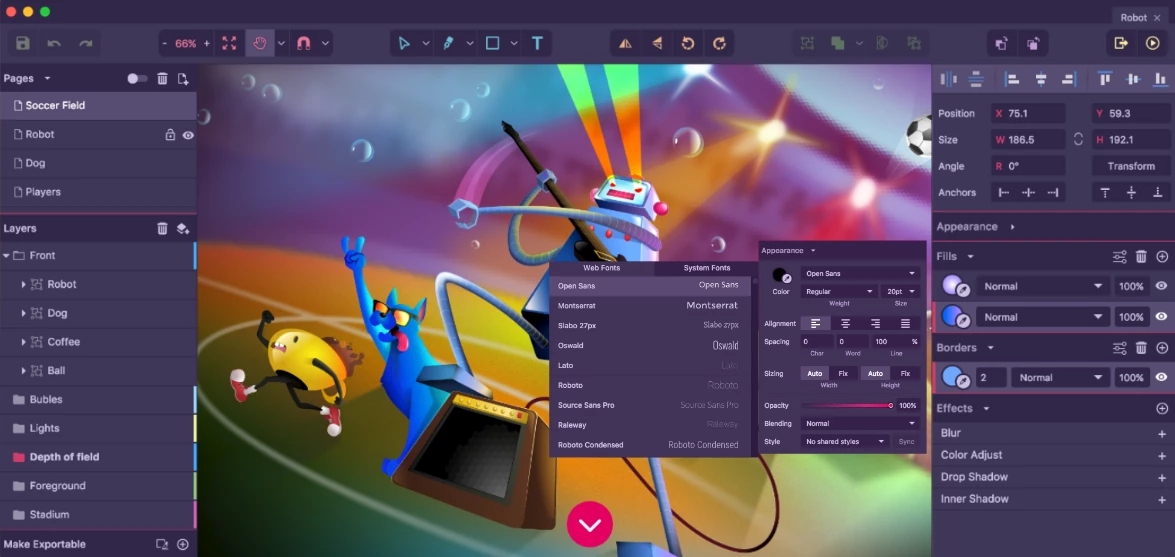
Instead of navigating deeply nested menus or managing scattered floating toolbars, users work within a single-window interface that adapts to the currently selected tool. Selecting a text node immediately displays typography settings in the right-hand Inspector panel, while clicking a vector shape swaps the panel to display stroke, fill, and boolean operation controls. This contextual approach removes interface clutter, allowing digital artists to focus strictly on their current canvas and maintain visual momentum. The desktop software effectively bridges the gap between basic consumer drawing utilities and professional-grade drafting environments required for commercial output.
Deploying the local application directly on Windows ensures that critical keyboard shortcuts respond instantly and local file management remains straightforward. Users can save documents as native design files directly to their local storage drives, avoiding mandatory cloud uploads for sensitive client projects under strict non-disclosure agreements. For designers handling large artboards, complex bezier curves, or dense anchor point clusters, the local client minimizes the rendering delays and input lag frequently encountered in web-only editors. Working locally also prevents work interruptions during internet outages, ensuring that active design sessions continue without requiring constant server verification.
Key Features
- Contextual Inspector Panel: The right-side Inspector panel updates automatically based on the selected object on the canvas. If you select a bezier path, the panel displays options for anchor point alignment, corner rounding, and border thickness. This dynamic interface prevents screen clutter and keeps relevant tools immediately accessible without requiring separate floating dialog boxes.
- Advanced Path Editing: The Pen tool allows precise control over vector drawing, giving users the ability to manipulate bezier curves and anchor points individually. You can easily switch between straight lines and mirrored curves using standard keyboard modifiers during the drawing process. The software also includes a Bezigon tool, which calculates mathematical curves based on point placement to create perfectly smooth shapes automatically.
- Non-Destructive Boolean Operations: Combining multiple basic shapes into complex geometry is handled without permanently altering the original paths. The Combine, Subtract, Intersect, and Difference tools create compound shapes that remain entirely editable within the layers panel. You can adjust the underlying circles or rectangles long after applying the boolean effect, making iterative design changes much easier.
- Multiple Pages and Artboards: The canvas supports a hybrid approach to document structure, allowing users to create multiple pages within a single project file. Each page can have distinct dimensions, bleed settings, and canvas background colors depending on the target output. You can toggle a multipage view to see all your artboards side by side, which aids in building unified UI mockups or comprehensive icon sets.
- Shared Styles and Symbols: For interface design and repetitive graphical work, elements can be converted into reusable symbols stored in the document library. Updating the master symbol immediately applies the changes to all instances across every page in the document. You can also save specific drop shadows, gradients, and border properties as Shared Styles to maintain visual consistency across different objects.
- Scalable Export Options: The software supports direct exporting of canvas elements or entire pages to standard web formats like SVG, PNG, and JPEG. You can slice specific UI components and assign different export resolutions to each slice simultaneously from the export dialog. The SVG export engine produces clean XML code that translates well into front-end development environments.
- Typography and Text on Path: Text elements can be bound to any vector line or shape, automatically wrapping along the curve of the path as you type. The Inspector panel provides deep typographical controls, including character spacing, line height, and text alignment options for fine-tuning paragraphs. You can also convert text into raw paths to manipulate individual letters as standard vector shapes for custom typography and logo design.
How to Install Gravit Designer on Windows
- Obtain the Installer: Acquire the standard Windows executable setup package from the official distribution source. Ensure you are using a Windows user account with administrative privileges before starting the installation process to prevent file permission errors.
- Launch the Setup Wizard: Double-click the downloaded executable file to initiate the installation engine. The wizard will prompt you to accept the standard end-user license agreement before proceeding to the configuration steps.
- Select the Destination Directory: By default, the installer places the application files inside your standard Program Files directory on the main operating system drive. You can specify a different storage drive if you prefer to keep your main disk clear of third-party software, though the default path is recommended for most setups.
- Wait for File Extraction: Click the install button and allow the setup engine to extract the necessary application files to your storage drive. This process usually completes in under a minute depending on your hardware.
- Launch the Application: Once the installation finishes, locate the new program shortcut generated on your desktop or look inside your Start menu. Click the shortcut to launch the application for the first time.
- Navigate the Welcome Screen: On the initial run, the software presents a welcome screen requiring you to choose a new canvas size, input custom dimensions, or pick a pre-configured layout template. You may be prompted to sign into an account to access cloud synchronization, though you can skip this to work strictly on local files if you only need offline access.
Gravit Designer Free vs. Paid
Gravit Designer operates on a freemium model, splitting its feature set between a complimentary tier and a paid subscription traditionally known as the Pro version or Corel Vector. The free version grants access to the core vector drawing tools, standard layer management, and basic export functions required for casual digital art. Users operating on the free tier are limited to the RGB color space, making it strictly suitable for screen-based projects rather than professional print production. Export resolution is also restricted to a maximum of 150 DPI, and users cannot utilize the native system fonts installed on their local Windows computer, relying instead on a bundled selection of web fonts provided by the application.
The Pro subscription, which requires an annual payment plan, lifts these restrictions and introduces advanced professional features necessary for commercial workflows. Upgrading unlocks the CMYK color space, which is required for accurate commercial printing, and allows exporting high-resolution PDF files at 300 DPI. Paid users also gain the ability to export designs with advanced color profiles, assign specific color swatches, and utilize the full library of locally installed system fonts to match existing brand guidelines.
Additionally, the Pro tier provides an enhanced offline mode for users working outside of stable internet coverage. While the free version often requires an active internet connection to verify your account credentials and load cloud-based assets, the paid subscription ensures the Windows desktop application functions entirely offline without interruption. Pro users also receive extended version history for their cloud-saved documents, allowing them to restore previous iterations of a design up to twenty versions back in case of a critical error.
Gravit Designer vs. Inkscape vs. Adobe Illustrator
Inkscape is a completely free, open-source vector graphics editor that appeals to users who want no subscription fees, no account requirements, and total offline privacy. While Inkscape offers a dense array of node editing and path manipulation tools that rival commercial software, its interface is notoriously cluttered and presents a steep learning curve for newcomers. Gravit Designer organizes its interface far more logically with a contextual panel that hides tools until they are needed, making it a much faster environment for wireframing and basic illustration, whereas Inkscape is better suited for users willing to dig through complex menus for specialized SVG rendering options.
Adobe Illustrator stands as the heavyweight standard in the commercial design industry, offering deep integration with other creative desktop applications, advanced 3D extrusion, and complex print production tools. However, Illustrator demands a high monthly subscription fee and requires significant local system resources to run effectively without lagging. Gravit Designer acts as a lighter, more affordable alternative that handles the vast majority of standard vector tasks—such as logo creation, UI design, and icon drawing—without taxing your computer hardware or requiring an expensive enterprise software budget.
Ultimately, Gravit Designer fits best for marketers, hobbyists, and UI designers who need a modern, streamlined workspace that balances core functionality with accessibility. If you need complete open-source freedom without restrictions, Inkscape is the proper route to take. If you are preparing complex, multi-layered print campaigns for major agencies, Illustrator remains the required tool for the job. For everything in between, especially web-focused asset creation, this application provides an excellent middle ground that respects user time and interface clarity.
Common Issues and Fixes
- Blank overlay or login screen blocking the app on startup. This occurs when the application attempts to connect to deprecated or unreachable cloud servers for account verification upon launching. To bypass this screen, disconnect your computer from the internet temporarily, launch the application to force it into local offline mode, and then reconnect your network cable or Wi-Fi.
- Application lagging on files with complex paths. Working with thousands of individual anchor points or multiple heavy drop-shadow effects can cause rendering delays on the canvas. Group complex background elements and temporarily disable their visibility in the layers panel, or use the rasterize function on finished background layers to reduce the real-time vector math required by your CPU.
- Exported images appear blurry or low quality. Free tier users are locked to a maximum export resolution of 150 DPI, which can look pixelated on high-resolution displays. To get a higher quality output without upgrading to the Pro subscription, export your project as a raw SVG file, which scales infinitely without losing quality, and use a separate viewing tool to convert the SVG to a high-resolution PNG.
- Unable to use locally installed Windows fonts. If you cannot find a custom font you installed on your system inside the typography dropdown menu, you are likely using the free tier account. Access to native local system fonts is restricted to the Pro subscription; free users must rely on the pre-packaged web fonts available in the default application library.
Version 3.5.73 — February 2022
- Implemented critical stability updates to prevent crashes and ensure smoother operation across all platforms.
- Improved compatibility with the latest operating systems, including optimizations for Windows 11 environments.
- Fixed various minor bugs and performance issues to enhance general application responsiveness and cloud synchronization.