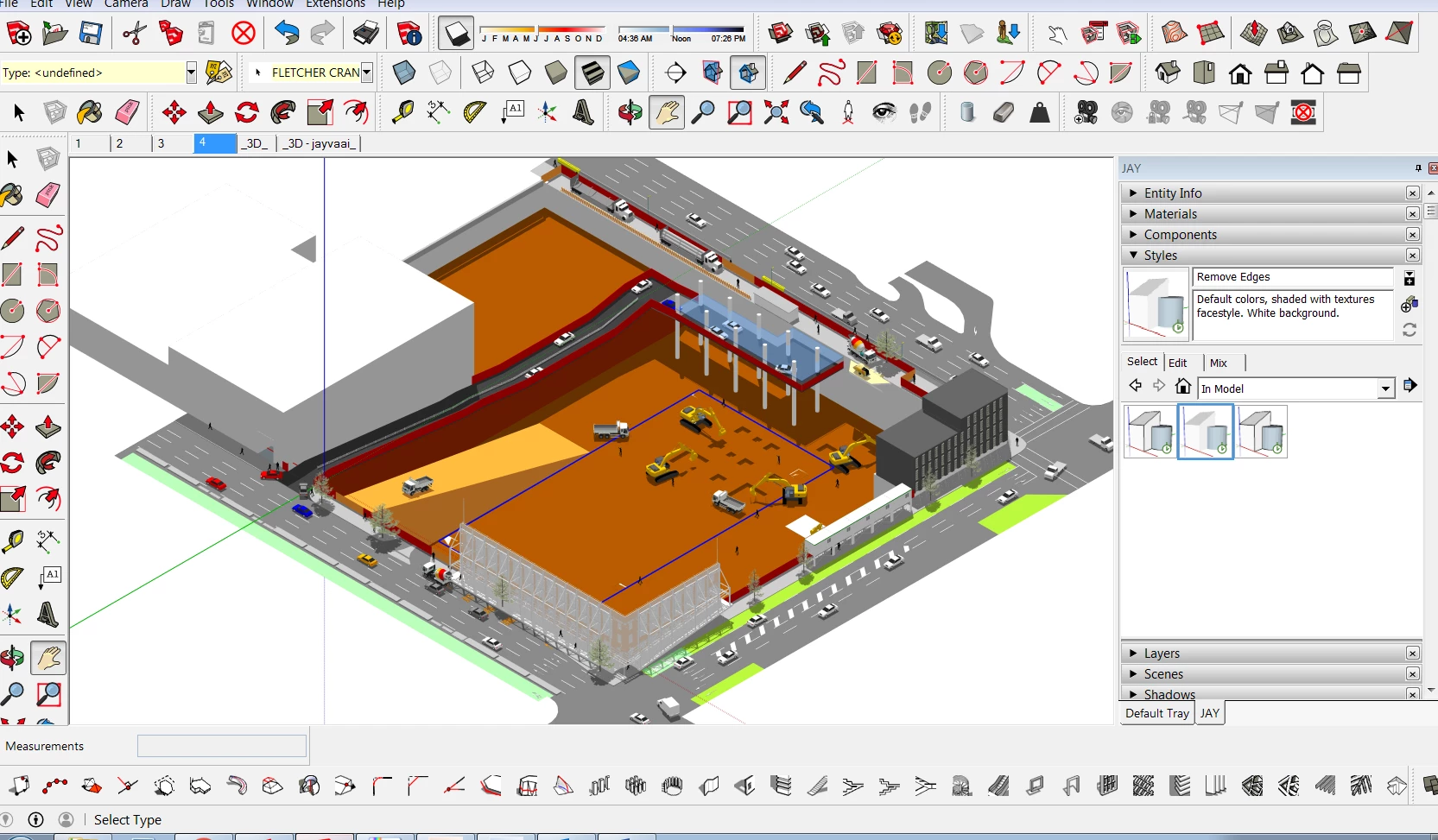
SketchUp Pro operates as a professional 3D modeling and conceptual design application utilized extensively by architects, interior designers, urban planners, and woodworkers. Unlike heavily engineering-focused CAD environments that require exact mathematical coordinates for every line, this application relies on an intuitive face-and-edge logic system. Users draw 2D shapes and extrude them into 3D volumes using the core Push/Pull mechanic, allowing for rapid spatial prototyping. The interface presents a clean modeling viewport surrounded by customizable toolbars and default trays, keeping the focus on visual space planning rather than navigating complex parameter menus.
For industry professionals, the desktop application provides specific structural advantages over browser-based alternatives. Running locally on Windows 10 and Windows 11 hardware allows the program to utilize dedicated system graphics for rendering shadows, applying anti-aliasing, and calculating high-polygon environments without browser memory constraints. Furthermore, local installation permits the use of third-party rendering engines, physics simulators, and productivity extensions that require direct access to the computer's file system. Interior designers drafting a residential kitchen or landscape architects plotting a commercial plaza rely on this localized performance to manage large files containing thousands of individual components and high-resolution material textures.
Beyond raw modeling, the software addresses the critical job of client presentation and construction documentation. Because 3D models alone cannot be handed to a contractor, the included LayOut module bridges the gap between spatial concepts and actionable blueprints. Designers can slice their 3D models into 2D elevations, apply standard architectural scales, add dimension lines, and export the resulting sheets directly to a structural engineer. By keeping the conceptual 3D massing and the 2D documentation tethered together through a single file ecosystem, users avoid the repetitive task of redrawing floor plans in secondary drafting applications whenever a client requests a wall modification.
Key Features
- LayOut 2D Documentation: The dedicated LayOut application connects directly to the primary 3D model to generate scaled architectural drawings. When a user updates a wall or window in the 3D file, the 2D floor plans, elevations, section cuts, and custom title blocks automatically update inside LayOut, preventing mismatched documentation and saving hours of manual drafting.
- Extension Warehouse Support: The desktop client supports localized plugins written in Ruby, providing specialized tools that are unavailable in web browsers. Users can install external physics simulators, procedural staircase generators, or photorealistic rendering engines like V-Ray and Enscape directly into the program interface to expand native functionality.
- 3D Warehouse Integration: An integrated library panel allows designers to search and download millions of pre-built models straight into their active project. Instead of spending hours modeling a specific manufacturer's sofa, window frame, or plumbing fixture, users import the exact geometry to test spatial fit, scale, and sightlines immediately within their custom architecture.
- Advanced File Export Options: The application supports industry-standard interoperability by exporting files into DWG, DXF, OBJ, FBX, and IFC formats. This capability ensures that a conceptual block model can be transferred into strict engineering environments, advanced game engines, or specialized structural analysis programs without losing essential face and edge geometry.
- Solid Tools Operations: A specialized toolset handles Boolean operations, allowing users to intersect, merge, subtract, trim, or split overlapping geometric volumes. Woodworkers and 3D printing enthusiasts rely on these tools to create precise mortise-and-tenon joints, drill accurate holes, or ensure a model is completely watertight before sending the file to a slicing application.
- Dynamic Components: Users can assign parametric rules, spreadsheet logic, and custom attributes to their modeled objects, turning static geometry into interactive assets. A dynamic cabinet component, for example, can be programmed to add more shelves automatically when the user scales its height, maintaining exact material thickness and avoiding distortion across the mesh.
How to Install SketchUp Pro on Windows
- Navigate to the official Trimble website, sign in with your Trimble ID, and download the Windows executable installer package for the desktop application.
- Locate the downloaded executable in your local directory, right-click the file, and select "Run as administrator" to prevent system permission blocks during the initial setup phase.
- Review the automatic setup prompt, which will verify your system and install necessary prerequisites such as the Visual C++ Redistributable or .NET Framework if they are missing from your Windows environment.
- Select your preferred installation directory or leave the default path pointed to your primary system drive to ensure standard extension compatibility when adding plugins later.
- Choose your required language packs from the installation options menu and click "Install" to begin copying the primary modeling application, the LayOut module, and the Style Builder tool to your local drive.
- Click "Finish" once the installation sequence completes, and launch the primary desktop application from your newly created desktop shortcut or the Windows Start menu.
- Click the "Sign In" button on the welcome screen, which will open a browser window asking you to authenticate your Trimble account, thereby verifying your active subscription or initiating the trial period before granting access to the modeling workspace.
SketchUp Pro Free vs. Paid
Trimble structures its modeling environment across four distinct tiers, eliminating perpetual licenses entirely in favor of an annual or monthly subscription model. The baseline tier, SketchUp Free, is a browser-only application designed strictly for personal use and hobbyists. It provides the core drawing mechanics and 10 GB of cloud storage, but it restricts commercial use, lacks any third-party extension support, limits 3D Warehouse downloads, and restricts file exports to basic formats like STL, intentionally omitting professional CAD extensions.
For mobile-centric workflows, the Go tier costs $129 per year and provides access to specialized tablet applications and the advanced web modeler. This tier removes the commercial use restriction and adds unlimited cloud storage through Trimble Connect, but it still does not provide access to the localized desktop application. It is primarily utilized by contractors or site managers who need to review 3D geometry on a construction site rather than build complex architectural documentation from scratch at a desk.
The primary tier for industry professionals is SketchUp Pro, priced at $399 per year. This subscription unlocks the full Windows desktop application, granting users the ability to work entirely offline, install custom Ruby extensions, and run high-end rendering plugins. Crucially, the Pro tier includes the LayOut application for creating 2D construction documents and enables full DWG and DXF export capabilities, making it the minimum requirement for architectural firms and interior design studios handling actual client deliverables and engineering handoffs.
At the highest end, the Studio tier costs $819 per year and bundles the Pro desktop application with highly specialized enterprise tools. This package includes a native Revit importer for bringing complex BIM models directly into the workspace, the Scan Essentials tool for converting raw point cloud data from drone scans into workable 3D geometry, and a built-in V-Ray license for immediate photorealistic rendering. Studio targets large architectural practices that rely heavily on site scans, strict BIM compliance, and high-fidelity client visualizations.
SketchUp Pro vs. AutoCAD vs. Blender
AutoCAD dominates the market for 2D drafting, strict dimensional compliance, and standardized engineering blueprints. While it contains 3D modeling tools, its core interface is built around exact mathematical coordinate inputs, layer management, and vector lines, making it ideal for civil engineers, mechanical designers, and municipal planners who require zero margin for error in complex schematics. Users building electrical layouts or mass structural framing plans choose AutoCAD because its drafting logic is strictly enforced, whereas SketchUp treats 2D lines simply as the flexible edges of a 3D surface.
Blender operates as an open-source, entirely free 3D creation suite focused on organic modeling, character rigging, animation, and high-end visual effects. Its polygon-subdivision mechanics and modifier stacks allow artists to sculpt highly detailed, curved surfaces like human faces or moving fabric, tasks where traditional architectural software struggles. Environment artists and game developers choose Blender for its advanced physics simulations, complex node-based material editors, and built-in rendering engines, accepting its notoriously steep learning curve in exchange for unrestricted creative control over polygons.
SketchUp Pro is the better fit for professionals who need to move rapidly from a blank canvas to a presentable architectural concept without getting bogged down by engineering coordinates or complex animation nodes. An interior designer can draft a room, pull up the walls, drop in scaled furniture from the 3D Warehouse, and present a physical space to a client in a fraction of the time it would take to build from scratch in AutoCAD or Blender. It prioritizes speed, architectural visualization, and direct translation into scaled 2D floor plans, making it highly specific to spatial design rather than mechanical engineering or cinema production.
Common Issues and Fixes
- The application fails to generate faces when creating very small objects. This limitation occurs because the engine struggles to calculate edge segments smaller than one millimeter, which frequently affects users designing 3D printed parts or detailed hardware. The standard fix is the "Dave Method": turn the object into a component, create a copy, scale the copy up by a factor of 100, execute the detailed geometry edits on the large copy, and then delete it so the original small component inherits the exact details. Follow Me and Push/Pull operations will execute normally on the scaled-up version without breaking the underlying math.
- Heavy lag and frame rate drops occur when navigating around complex models. Performance issues generally stem from an accumulation of high-polygon assets or discarded textures rather than the raw physical dimensions of the file. Navigate to the Window menu, open Model Info, select the Statistics tab, and click "Purge Unused" to delete unassigned materials and components; additionally, disable shadows and edge profiles in the Styles panel during active modeling to reduce the load on your Windows graphics hardware.
- The camera cuts through walls and geometry when zooming closely into small interior spaces. This clipping plane issue happens when the camera's field of view is too wide or when the model contains stray geometry located extremely far away from the central origin axis. To fix this, change the camera mode from Parallel Projection to Perspective, or unhide all layers in the project, zoom out completely using the Zoom Extents tool, and delete any accidental lines scattered miles away from your primary structure.
- Third-party extensions fail to load or display error messages after updating the software. Because the core Ruby environment occasionally changes during major updates, older plugins may lose compatibility and fail to initialize upon launch. Open the Extension Manager inside the application, uninstall the broken plugin completely, and download the latest verified release directly from the Extension Warehouse to ensure it matches your current desktop environment. Restart the application completely after installing the updated RBZ file to refresh the active script database.
Version Latest — 2025
- Added support for CSS color names in the Inspector, allowing users to type values like "transparent" or standard color names directly into hex fields.
- Enabled the ability to swap Text Styles on text layers that are nested within combined shapes.
- Improved the visual contrast and legibility of toolbar items when using the application in dark mode.
- Fixed a bug where corner radius input fields would sometimes appear empty in the Inspector.
- Resolved an issue that prevented the application from remembering the last-used text styling across different documents.
- Fixed a problem where advanced border settings failed to function correctly when working in the Components view.