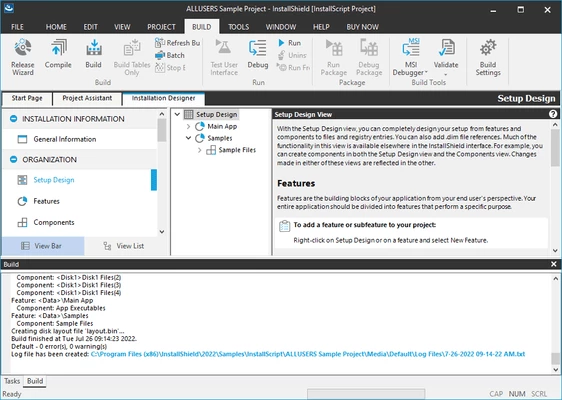
Software developers, release managers, and enterprise IT teams rely on specialized authoring tools to transform compiled binaries, application assets, and database schemas into reliable Windows deployment packages. InstallShield provides a visual integrated development environment (IDE) for constructing Microsoft Installer (MSI) databases, modern MSIX packages, and executable wrappers. Rather than writing raw XML code or debugging intricate command-line scripts by hand, packaging engineers use this desktop environment to visually map out file destinations, configure complex registry keys, enforce strict hardware prerequisites, and design custom user-facing setup dialogs. The desktop interface remains critical for this precise work because packaging large enterprise software often involves inspecting hundreds of local source files, managing dynamic path variables across different development environments, and logically organizing component features before compiling the final output package. Relying on a purely browser-based tool or a basic archiving utility is insufficient for enterprise deployments, which require deep access to the Windows operating system architecture, hardware detection, and strict adherence to administrative privileges.
For modern deployment workflows, the application bridges the gap between traditional local development and automated cloud-based continuous integration pipelines. Engineers can architect their setup configurations on a local workstation using the graphical interface, test the deployment behavior using built-in virtual machine provisioning, and then push the finalized project file to automated build servers. The tool directly addresses the complexity of modern Windows ecosystems by providing native support for deploying files to ARM architecture locations, evaluating conditional installations for enterprise server environments, and enabling direct deployment of web applications to Azure and IIS endpoints. By standardizing the entire packaging process, development teams reduce the friction users experience during first-time installations, major updates, and silent enterprise rollouts executed by IT administrators.
Key Features
- Native MSI and MSIX Creation: The software compiles standard Windows Installer databases and modern MSIX packages from a single unified project file. Engineers use the interface to map application files to specific target directories, ensuring that the resulting package complies with strict Windows deployment standards and uninstalls cleanly without leaving orphaned registry entries.
- Suite and Advanced UI Bootstrappers: Packaging teams can bundle multiple separate installers, system prerequisites, and third-party framework dependencies into a single setup executable. The Suite/Advanced UI project type allows developers to sequence these installations logically, evaluate system conditions before execution, and present a continuous user interface throughout the entire deployment process.
- Custom Action Configuration: Developers extend standard installation behavior by executing VBScript, PowerShell, or managed code DLLs during the setup sequence. The Custom Actions view allows precise scheduling of these scripts within the InstallExecuteSequence or InstallUISequence, dictating exactly when custom logic fires to modify system settings or validate user input.
- Digital Signing and Security: The build process automatically applies digital certificates to the compiled binaries and the final installer packages. Administrators can configure the tool to integrate directly with Azure Key Vault or use local custom signing tools, preventing security warnings and SmartScreen blocks when end users launch the downloaded setup file.
- Visual Studio Integration: The authoring environment embeds directly into the Microsoft Visual Studio workspace, allowing developers to manage setup projects alongside their primary application source code. This integration ensures that the installer configuration detects new project outputs and library dependencies automatically without requiring engineers to perform manual file path updates.
- Cloud License Server Integration: Build engineers can connect standalone command-line build agents to a centralized licensing portal rather than managing physical hardware keys or node-locked files. This configuration supports dynamically provisioned build agents in Azure DevOps, AWS, or GCP pipelines, consuming concurrent licenses only when a build actively runs.
- InstallScript Language Support: For scenarios where standard MSI tables cannot accommodate complex logic, the tool provides a proprietary scripting language designed specifically for installation tasks. Engineers write InstallScript to handle complex file parsing, custom hardware detection, and advanced dialog interactions that standard Windows Installer actions cannot process natively.
How to Install InstallShield on Windows
- Download the main setup executable package from the Revenera Product and License Center using the account credentials provided after a commercial purchase or trial registration.
- Launch the downloaded installer file with local administrator privileges, which are strictly required for registering core COM components, licensing services, and Visual Studio templates across the operating system.
- Review and accept the End-User License Agreement presented in the initial dialog box to proceed with the configuration.
- Select the destination path for the application files. The default installation directory is typically located within the standard program files folder on the primary system drive, but can be modified if your organization mandates a specific volume for development tools.
- Choose the specific setup type required for your workstation. A Typical installation installs the main IDE and standard templates, while a Custom installation allows you to select specific language packs or exclude the Visual Studio integration modules if they are not required on the current machine.
- Click Install to begin extracting the compressed files, writing necessary registry keys, and configuring the standalone command-line build utilities on the local disk.
- Upon the first launch of the application, wait for the activation wizard to appear. Enter your node-locked license credential or provide the network connection details for your organization's Cloud License Server to authenticate the software, verify the subscription status over the internet, and unlock the visual interface for project creation.
InstallShield Free vs. Paid
InstallShield operates strictly as a commercial, enterprise-grade development tool and does not offer a permanently free community edition for general use. The vendor provides a fully functional 14-day free trial for prospective buyers to evaluate the packaging workflow, build outputs, and Visual Studio integration. Once the trial period concludes, users must purchase a paid subscription to continue compiling installers and accessing the visual designer. In 2021, the developer transitioned the software licensing to a pure subscription model, retiring the entry-level Express edition and moving away from perpetual lifetime licenses entirely.
The Professional edition serves as the baseline offering for commercial development, typically costing around $4,723 for a three-year node-locked subscription. This tier includes all the core capabilities required to build MSI, EXE, and MSIX packages, configure custom actions, design standard user interfaces, and deploy databases to SQL servers. It supports 64-bit installations and includes a limited number of standalone build licenses for automated continuous integration environments. This edition is restricted to single-language projects, meaning development teams must purchase the higher tier if they need to ship software with localized setup dialogs for different global markets.
The Premier edition targets large enterprise environments and complex deployment scenarios, priced around $7,795 for a three-year node-locked subscription. This tier unlocks multi-language installations within a single setup package, allowing end users to select their preferred language at runtime without requiring separate downloads. It also adds advanced features like Suite/Advanced UI projects for complex bootstrapper configurations, automated virtual machine provisioning for testing deployments directly from the IDE, and multi-tier installation templates. Organizations that require concurrent licensing for large DevOps teams or floating build agents can request custom pricing for Cloud License Server integration, which allows licenses to be shared across network users and temporary cloud instances dynamically.
InstallShield vs. Advanced Installer vs. WiX Toolset
Advanced Installer is a strictly commercial packaging tool that emphasizes a highly visual, user-friendly graphical interface and rapid application repackaging workflows. It offers a more accessible entry point for smaller development teams with lower-priced tiers, while its enterprise editions provide robust support for MSIX conversion, App-V packaging, and Microsoft Intune integration. Packaging teams often choose Advanced Installer when they want an interface that heavily abstracts the underlying Windows Installer database tables, prioritizing visual wizards, guided tutorials, and quick configuration over script-heavy custom actions.
WiX Toolset is a free, open-source framework that compiles Windows Installer packages directly from XML source files rather than relying on a visual drag-and-drop designer. Because it is entirely text-based, it integrates natively into standard version control systems like Git, allowing developers to track every single change to the installation logic just like standard application source code. Development teams choose WiX when they have a strict zero-cost budget, possess the technical programming expertise to manage complex XML schemas, and prefer a developer-centric, code-first approach to building setup files.
InstallShield remains the logical choice for enterprise environments that require the established industry standard for Windows deployment, complete with deep legacy support and specialized InstallScript capabilities. It strikes a balance by offering a comprehensive visual IDE for managing thousands of files and registry keys, while still exposing the raw MSI database tables for precise low-level modifications. Organizations favor it when they need guaranteed compatibility across both modern ARM architectures and older enterprise servers, require dedicated Visual Studio integration, or need to build highly complex, multi-language Suite bootstrappers that chain multiple application dependencies together in a single unified executable.
Common Issues and Fixes
- Error 2762 during custom actions. This standard Windows Installer error typically occurs when a custom action fails because it is sequenced incorrectly within the deployment logic. To fix this, verify that the action is scheduled within the InstallExecuteSequence rather than the InstallUISequence, and ensure the "Wait for Action" attribute is properly configured if the script depends on files that must be physically extracted to the disk first.
- ISICE10 validation warnings. These warnings appear in the build log when custom actions lack proper internal documentation, which is required for certain Windows Logo certifications and enterprise deployment standards. Resolve this by opening the Custom Actions view, selecting the flagged action, and using the Help File Path setting to link a text file describing the behavior, which automatically populates the necessary ISCustomActionReference table.
- Architecture validation build errors. The build process may fail or halt if the compiler cannot determine whether an included binary file is 32-bit or 64-bit during the validation phase. Fix this by manually setting the component's 64-Bit Component property to Yes or No within the property grid, rather than relying on the tool's automatic architecture extraction which often fails on ambiguous or obfuscated DLLs.
- MSBuild cannot locate the target framework. Standalone build agents may throw an error stating they cannot invoke MSBuild due to missing framework dependencies. Ensure that the specific build of the .NET Framework required by the project's custom actions is physically installed on the build server, as dynamically provisioned cloud agents or fresh virtual machines sometimes lack older runtimes necessary to compile the setup logic.
- VBScript custom action file path warnings. A warning stating that a custom action does not point to a valid file appears when the action type is misconfigured. Fix this by opening the Custom Actions view and ensuring the Type property correctly matches the source file, specifically choosing a VBScript stored in the Binary table or installed with the product, rather than a standard executable type.
Version 2025 R1 — July 2025
Added:
- High contrast mode support for Advanced UI installations
- 64-bit InstallScript setup launchers with new Architecture setting
- APPX/MSIX automation interface support
- Run 64-bit InstallScript custom actions setting
Improved:
- Error message management for build event failures
- Windows compatibility with latest versions
- Accessibility enhancements for visual impairments
Fixed:
- Various build and runtime stability issues
Security:
- Updated licensing server requirements for concurrent users