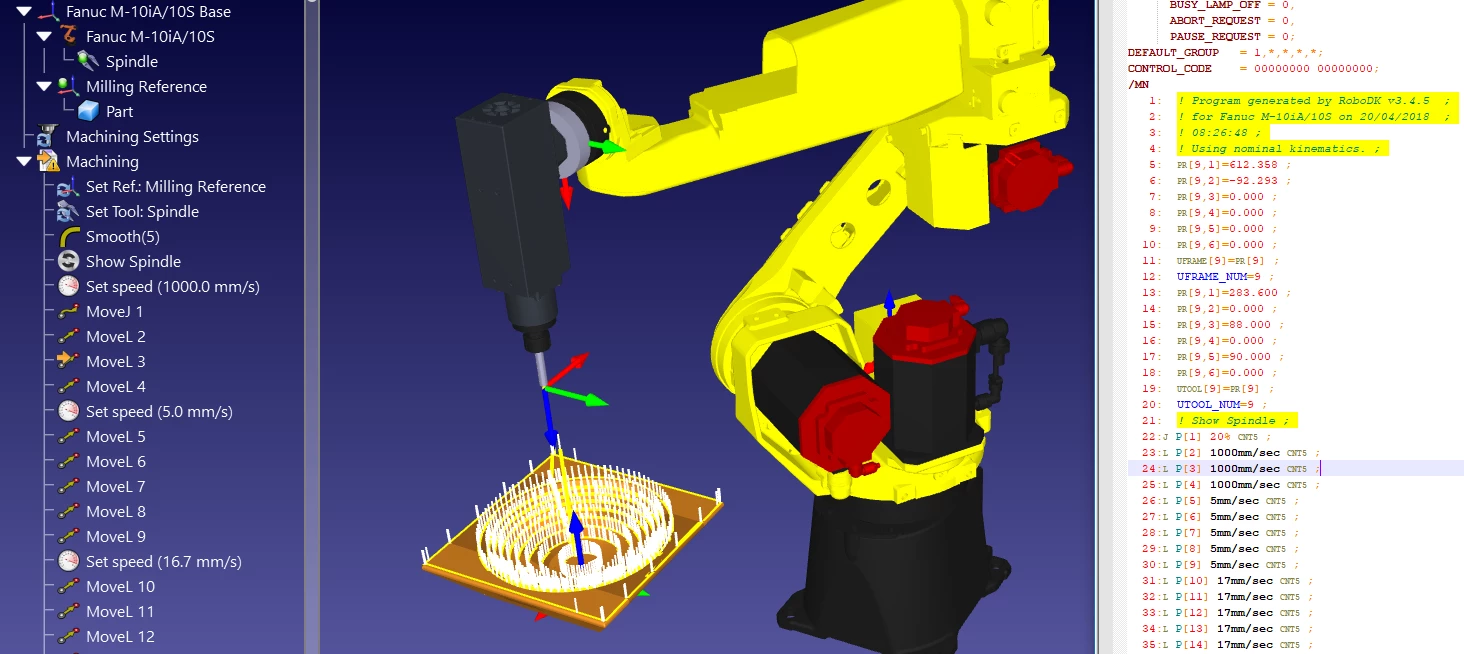
FANUC Robo operates as an offline programming and 3D simulation environment built strictly for industrial automation engineers and system integrators. Instead of taking a physical manufacturing line offline to teach a robot new movements, engineers use this desktop application to design the entire workcell virtually. By importing CAD models of parts, fixtures, and safety fences, users can plan exact manipulator paths, test tooling logic, and calculate cycle times before any hardware arrives on the factory floor. The software generates the exact code required by the physical controller, allowing teams to transfer their finished programs via a USB drive directly to the production line.
The target audience consists of manufacturing planners, automation designers, and robotics technicians who need a safe sandbox for collision testing and logic verification. Because industrial robots execute high-speed, heavy-payload movements, programming them manually with a physical pendant can be slow and physically dangerous if a coordinate error occurs. This offline tool eliminates those risks. Planners can visualize complex multi-robot layouts, measure physical reach constraints, and test different end-of-arm tooling configurations to find the most efficient setup. During the simulation phase, engineers can also map external I/O signals and test logic triggers for peripheral devices like conveyor belts and safety scanners.
A dedicated desktop application is required for this type of engineering work because web browsers cannot handle the intensive physics calculations and 3D rendering required for real-time kinematics. The software runs locally on Windows 10 and Windows 11 machines, utilizing the host computer's processor and discrete graphics card to process complex CAD imports and simulate exact motion algorithms. By relying on native hardware access, the application ensures that the virtual controller matches the exact timing, acceleration curves, and logic behavior of the physical machine. This local processing capability allows factories to validate their automation designs on secure engineering workstations without risking external network latency.
Key Features
- HandlingPRO Material Handling: This module focuses on packaging, assembly, and part transfer workflows. Engineers import 3D CAD models of their facilities and use CAD-to-path programming to automatically generate tracking lines for conveyors. The tool calculates the exact reach and payload requirements for pick-and-place operations.
- WeldPRO Arc Welding: Designed for automated welding applications, this component auto-generates coordinated motion paths for multiple robot groups. Users define specific torch angles and process parameters within the interface, ensuring that the virtual simulation mirrors the exact heat and speed requirements of the physical arc.
- PaintPRO Path Generation: This feature eliminates the need for manual coordinate programming in paint booths. An operator graphically selects the specific surface area of a part on the screen, and the software automatically calculates the required spray paths, overlap percentages, and trigger intervals for the paint gun.
- PalletPRO Pattern Libraries: Engineers tasked with end-of-line packaging use this tool to build unit loads and test slip-sheet dispensers. It includes a built-in library of industry-standard pallet patterns, allowing users to quickly configure complex stacking sequences and export the resulting data directly to a physical controller.
- Virtual Teach Pendant: The software includes an exact digital replica of the physical teach pendant. Operators use this interface to navigate the standard menus, write KAREL or TPE code, and monitor input/output signals exactly as they would on the physical factory floor, reducing the learning curve for new technicians.
- Collision Detection: The application continuously monitors the 3D workspace for intersecting geometry during a simulation run. If a robot arm, tool, or payload comes into contact with a safety fence or another machine, the system highlights the impact point, allowing designers to adjust joint limits and avoid expensive hardware damage.
- Cycle Time Analysis: Because the software relies on the exact virtual controller logic used by the physical hardware, it measures operation times down to the millisecond. Planners use these precise readouts to identify production bottlenecks, test different speed overrides, and confirm that the automated line will meet its required throughput targets.
How to Install FANUC Robo on Windows
- Register for an evaluation account on the official vendor portal using a corporate email address, then download the large installer archive once approved.
- Extract the downloaded archive to a local directory on your Windows 10 or Windows 11 machine, ensuring you have at least four gigabytes of free storage space.
- Right-click the bootstrapper setup executable and select the option to run the file with administrator privileges to prevent system folder write errors.
- Read and accept the end-user license agreement, then specify the destination folder for the core application files on your primary hard drive.
- Review the Process Plug-ins checklist and select the specific application modules you need, such as HandlingPRO, PaintPRO, or WeldPRO.
- Check the boxes for any necessary Utility Plug-ins, which include the 4D Editor, External Device Connection tools, and the basic Modeler application.
- Wait for the setup wizard to copy the runtime libraries and register the local license manager components on your system.
- Launch the application from the desktop shortcut and open the Workcell Creation Wizard to configure your first virtual robot controller and assign initial tool frames.
FANUC Robo Free vs. Paid
This software operates on a strict enterprise pricing model and requires a substantial financial commitment. It is not available as a standard consumer purchase, and there is no permanent free tier. Organizations typically pay thousands of dollars annually for a single activated seat. The exact cost fluctuates based on the specific modules requested, the number of concurrent users, and the nature of the corporate licensing agreement negotiated directly with the vendor.
Prospective buyers can access a 30-day evaluation period by submitting a detailed registration form on the official vendor portal. Once the vendor verifies the company credentials, the user receives access to a temporary license key. This trial grants full access to the simulation environment and process plugins, allowing engineering teams to validate the software against their specific CAD files and cycle-time requirements before committing to an enterprise purchase.
For production use, the software relies on a local license manager to verify subscription status. Companies generally deploy physical USB keys to transfer activations between different offline engineering workstations on the factory floor. This system ensures that engineers can program and simulate layouts on secure, air-gapped computers without maintaining an active internet connection, provided the local license remains valid and up to date according to their support contract.
FANUC Robo vs. ABB RobotStudio vs. RoboDK
ABB RobotStudio provides an offline programming environment tailored entirely to ABB hardware. It features an accurate virtual controller that mirrors the physical ABB machines exactly, making it excellent for factories heavily invested in that specific brand. However, it cannot be used to program robots from competing manufacturers, forcing multi-brand facilities to juggle different software tools.
RoboDK takes a vendor-agnostic approach, offering support for over five hundred different robot models across dozens of brands. It excels in diverse manufacturing environments where a single layout might contain machines from KUKA, Universal Robots, and Yaskawa. While it serves as an excellent universal bridge and CAD-to-path generator, it lacks the proprietary virtual controller accuracy required for micro-optimizing exact cycle times on specific vendor hardware.
FANUC Robo is the mandatory choice for facilities operating FANUC manipulators. Because it contains the exact proprietary controller logic for those specific machines, the offline simulation perfectly matches the physical floor execution. If an engineer needs guaranteed cycle-time validation and error-free code transfer for this particular brand, this dedicated application outperforms any agnostic alternative.
Common Issues and Fixes
- Problem description. The bootstrapper fails to install system runtime libraries during the initial setup. This usually happens when the user lacks sufficient directory write permissions. To fix this, cancel the installation, right-click the setup executable, and choose "Run as administrator" to grant the necessary file access.
- Problem description. Process modules like WeldPRO or PaintPRO are missing when starting a new project. This occurs if the specific checkboxes were skipped during the installation wizard. Close the application, re-run the bootstrapper setup, and ensure the required process plug-ins are actively selected in the component list.
- Problem description. The virtual controller fails to boot after loading an external backup file. This happens when the backup archive is missing critical system files required by the emulator. Ensure that the backup taken from the physical machine is a complete "All of Above" archive rather than a partial program dump.
- Problem description. The 3D viewport lags heavily when panning around complex layouts. This indicates that the system is relying on integrated graphics rather than a dedicated GPU. Open your graphics card control panel and force the application to utilize the discrete NVIDIA or AMD processor.
- Problem description. Manual robot jogging feels unpredictable when using the mouse scroll wheel. Dragging the tool center point manually often results in clumsy positioning. Instead, use the built-in keyboard shortcuts to jog axis one through six, and switch the orientation mode to base or tool for exacting control.
Version 10.0 — June 2025
Added:
- Virtual reality capabilities with immersive environment and VR playback/walkthrough functionality
- Drag-and-drop robot addition tool for quick robot location and definition
- Enhanced support for native CAD import with many more supported formats
- VR application for recording work cell simulations into 3D video for headset playback
Improved:
- 64-bit architecture delivering higher performance and increased content capacity
- Modernized user interface with ribbon-style toolbar, floating and docking windows
- Advanced graphics performance for more realistic simulation experience with brand new intuitive UI
- Enhanced Workcell Wizard for easier and quicker robot configuration in work cells