MadCap Flare operates as a specialized technical authoring application designed for documentation specialists, instructional designers, and technical writers. Instead of relying on linear word processors that struggle with scale, professionals use this tool to manage vast amounts of enterprise documentation through an XML-based, single-source architecture. By breaking information down into modular components known as topics, writers construct highly reusable content blocks that compile into Help systems, policy manuals, API references, and internal knowledge bases. This structured approach changes how technical teams handle repetitive information. Rather than updating a safety warning manually across fifty different product manuals, a writer updates a single snippet, ensuring the change propagates across thousands of generated pages instantly.
Choosing a dedicated desktop authoring environment rather than a lightweight browser-based text editor stems from the heavy processing requirements of enterprise-level publishing builds. Managing tens of thousands of local XML files, high-resolution media assets, conditional build targets, and complex CSS hierarchies demands direct access to local hardware resources. The Windows installation allows technical communicators to perform offline source code manipulation whenever required. Furthermore, it integrates closely with local Git repositories, Apache Subversion, or Microsoft Team Foundation Server, enabling writers to execute compilation tasks without relying on remote cloud rendering speeds or constant internet connectivity.
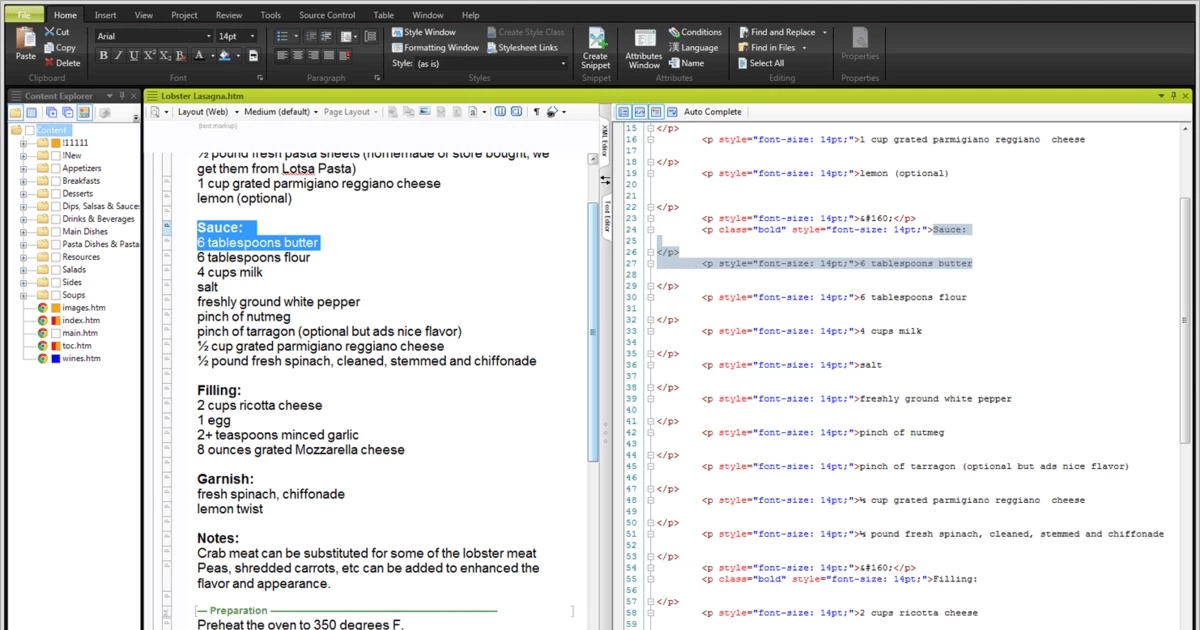
For organizations dealing with physical hardware documentation, software support portals, and strict regulatory compliance manuals, this application provides exact control over typography, layout, and document structure. Writers manipulate raw CSS and XML using a dual-view editing interface, jumping fluidly between visual page layouts and code-level tagging. By generating distinct outputs—such as responsive HTML5 sites tailored for mobile viewing, strictly formatted PDF files for commercial print, and Clean XHTML for third-party system ingestion—from the exact same project folder, teams avoid the expensive liability of maintaining separate documents for different distribution channels. The application bridges the gap between software development practices and traditional writing, applying strict version control and conditional logic to the written word.
Key Features
- Topic-Based XML Authoring: Writers structure their manuals using a specialized XML Editor that offers both a visual layout and a direct Code View. Instead of drafting a continuous book from chapter to chapter, users create discrete, standalone files for each concept, task, or reference. These modular topics are then dragged and dropped into various Tables of Contents (TOC) to assemble different manuals on demand.
- Single-Source Publishing: Content creators configure specific Target profiles to translate the exact same source files into different end formats simultaneously. A user can run a build process that outputs a responsive HTML5 website, a strictly formatted PDF document, an EPUB file, and a Microsoft Word file without rewriting or manually reformatting the text for each medium.
- Snippets and Variables: Authors store frequently repeated text fragments, such as safety warnings or standard operating procedures, as Snippets. Dynamic text items like product names, current dates, or copyright strings are saved as Variables. This guarantees that a single modification in the central project instantly updates the terminology across the entire document set.
- Conditional Text Tags: The interface permits users to assign color-coded conditional tags to specific paragraphs, images, or entire files. During the final build step, the writer instructs the compiler to include or exclude these tags. This mechanism separates internal developer notes from public-facing customer instructions within the exact same source document.
- Advanced Source Control Binding: Projects sync directly with external version control systems like Microsoft Team Foundation Server (TFS), Subversion, and Git via the dedicated Project Ribbon. This allows multi-writer teams to manage file check-outs, merge code changes, and maintain local offline repositories without leaving the primary authoring interface.
- Micro Content Extraction: Technical communicators can pull short, highly focused answers from their existing XML topics to serve specific user queries. This micro content feeds directly into search engine results pages, automated support chatbots, or context-sensitive help dialogs embedded directly within external software interfaces.
- Stylesheet Editor Customization: Visual design remains separated from written text using an integrated CSS editor. Writers define styles for different screen sizes or print media in one central location, ensuring that a specific heading might appear as a blue hyperlink on a desktop monitor but render as standard black text when exported to a printed manual.
How to Install MadCap Flare on Windows
- Download the main Windows installer executable package from the official vendor portal using your account credentials or trial registration link.
- Double-click the downloaded setup file to initialize the installation wizard; Windows User Account Control will likely ask for administrative permission to proceed.
- Wait for the wizard to run a prerequisite system check, which automatically detects if your machine requires updates to Microsoft .NET Framework or Visual C++ Redistributables.
- Allow the installer to fetch and configure any missing framework dependencies over your internet connection before it moves on to the primary application files.
- Review the end-user license agreement, accept the terms, and choose your destination folder, which defaults to a standard directory on your local disk.
- Click the final install button and allow the process to extract the core application files, which may take several minutes depending on your disk speed and hardware.
- Close the wizard when the "Setup Complete" message appears on screen, then launch the application directly from your Windows Start menu.
- Interact with the initial activation prompt by selecting "Use as trial" to begin a time-limited evaluation, or paste your purchased license key to unlock the software permanently for production use.
MadCap Flare Free vs. Paid
The software operates strictly under a commercial, paid licensing model, meaning there is no permanent free tier available for users. Prospective buyers can download a time-limited trial version to evaluate the interface and test their XML import workflows. During this trial period, users have access to the primary authoring tools and build compilers, allowing them to see exactly how their topics look in HTML5 or PDF formats before committing to a purchase. When the trial period expires, saving and building operations are restricted until a valid license is applied.
Paid licenses are structured as timed subscriptions, commonly billed on an annual basis. Organizations can select between single-user node-locked subscriptions or enterprise floating licenses. The floating license model allows the application to be installed across multiple workstations within a corporate network, tracking concurrent active users via a centralized key to accommodate larger teams working in shifts. These paid subscriptions typically include Platinum-level maintenance, which grants users access to direct technical support and any updates released during their active billing period.
In addition to the core authoring application, active subscriptions often bundle companion utilities tailored for technical communicators. This frequently includes integrated screen capture and simulation tools designed to generate software training visuals that drop directly into the XML editor. If a user decides not to renew their subscription at the end of the term, the software will require a new license to continue launching, though the raw XML source files remain fully accessible via standard text editors and can be migrated to other XML-compliant platforms.
MadCap Flare vs. Paligo vs. Adobe RoboHelp
Paligo operates as a cloud-native Component Content Management System (CCMS), shifting the entire authoring and publishing workflow into a web browser. Organizations select Paligo when they want to avoid local desktop installations entirely and require strict, database-driven content reuse across highly distributed global teams. It excels in environments where direct synchronization with cloud help desks like Zendesk or Salesforce is a daily requirement, handling automated mapping natively in the cloud. Conversely, MadCap Flare relies on local file management and traditional source control synchronization, requiring more manual configuration for cloud deployment.
Adobe RoboHelp provides a strong Help Authoring Tool alternative, particularly favored by teams already entrenched in the Adobe ecosystem. Users choose RoboHelp for its straightforward interface and tight integration with Adobe Experience Manager and Adobe FrameMaker. It utilizes an unstructured or lightly structured authoring model that feels highly accessible to beginners who are transitioning from standard word processors. This contrasts with the strict XML tag management and deep code-level customization demanded by more complex documentation frameworks, making RoboHelp a faster deployment for simpler web help projects.
MadCap Flare proves superior when technical communicators require absolute, offline control over their local file structures, CSS, and hardware-accelerated build processes. The desktop architecture handles massive project compilations and intricate local Git or TFS integrations without depending on cloud processing or constant internet access. Writers who need to manipulate exact XML syntax, configure highly specific print-based PDF layouts alongside responsive HTML5 targets, and maintain distinct control over micro content routing will find this local application significantly more adaptable to extreme customization.
Common Issues and Fixes
- Slow build times for massive projects. If generating a target takes an exceptionally long time, open the Builds window pane to check for excessive missing-file warnings that stall the compiler. You can also improve processing speed by closing all unused XML Editor tabs and reducing the size of massively long topics by splitting them into smaller snippets.
- PDF images cut off at the margins. When images look correct in web outputs but bleed off the page in print targets, the CSS print medium lacks a size constraint. Open the Stylesheet Editor, navigate to the Unclassified section for your print medium, and set the maximum width for image tags to 100 percent.
- Missing topics in HTML5 output. When new files do not appear in the published web site, verify that the files are actively linked within the Table of Contents (TOC) for that specific Target. Additionally, check the file properties to ensure no conditional exclude tags are unintentionally hiding the content during the build phase.
- Videos downloading instead of playing in popups. Inserting older media formats like AVI can cause web browsers to force a file download rather than playing the clip inline within the help site. Convert the source video to a standard MP4 format before inserting it into the topic to ensure standard browser playback.
- Installation fails due to background conflicts. Setup processes occasionally stall if old registry keys or conflicting applications block the installer from overwriting shared system files. Close all non-essential processes via the Task Manager, ensure your local disk has adequate space, and manually update your Microsoft .NET Framework before relaunching the setup executable.
Version 2025 r2 — September 2025
Added:
- Syndicate publishing enhancements
- SSO login for MadCap Central integration
- ID attributes support for anchor tags
- Reviews and building output for specific branches
- PowerPoint output generation capability
Improved:
- Updated DOMPurify to version 3.2.6
- Enhanced branch management with file and commit viewing
- SFTP improvements including AWS encryption server support
- SVG rendering performance for PDF output
Fixed:
- Accessibility compliance issues with title toolbar
- Elasticsearch keyboard trap in HTML5 outputs
- ServiceNow republishing errors with deleted topics
- Variable definitions dropdown display issues
- Performance improvements for typing in XML Editor
Security:
- Updated RequireJS from version 2.3.6 to 2.3.7
- Resolved DOMPurify vulnerabilities in versions before 3.2.4