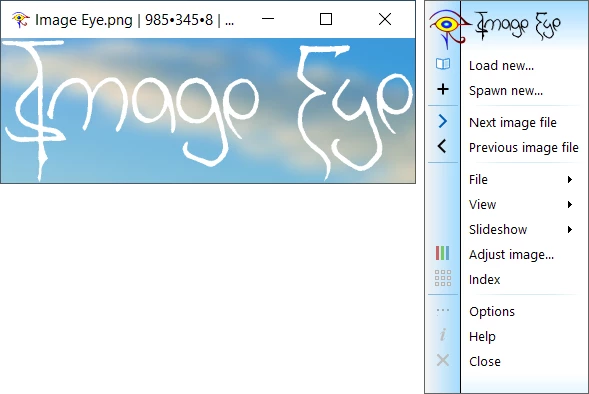
Image Eye by FMJ-Software strips away the clutter of traditional photo viewers to provide a strictly distraction-free visual experience. Instead of wrapping pictures in bulky toolbars, extensive menus, and busy status panels, this application displays images in a completely borderless window. The interface automatically resizes to match the exact dimensions of the media being viewed, ensuring no screen real estate goes to waste. This minimalist approach caters to digital artists, photographers, and casual users who want to inspect visual content without interface elements interfering with the artwork. When the application loses window focus, even the standard operating system title bar disappears, leaving only the picture suspended on the desktop monitor. By hiding the mechanical parts of the software, the visual content remains the sole focus of the user interaction.
While browser-based image galleries and heavy photo editors require importing files or waiting for background processes to load, a dedicated desktop application handles local directories with much less overhead. Users can rapidly page through hundreds of reference photos, textures, or exported renders directly from Windows Explorer. Because the underlying code utilizes specialized AVX2 SIMD instructions and asynchronous file operations, high-resolution photographs load fast. Clicking a file instantly opens the image, while the background engine speculatively caches the next items in the directory to prevent stuttering during rapid scrolling. Instead of uploading private files to a cloud viewer, users retain total control over local assets, opening formats like AVIF, WEBP, TIFF, and PSD instantly from their local hard drive or solid-state storage.
Beyond simple viewing, the software addresses practical daily tasks through a right-click context menu rather than permanent toolbars. Users can apply non-destructive adjustments to brightness, contrast, sharpness, and color balance directly within the viewing window. The application saves these parameter tweaks independently, automatically reapplying them the next time the specific file is opened without altering the original source file on the hard drive. For users managing large archives, the separate index window generates thumbnails fast, providing a grid view to navigate deep folder structures without relying on the default Windows caching system. Furthermore, multiple instances of the program can run simultaneously, allowing artists to scatter various reference materials across secondary monitors without draining system memory.
Key Features
- Borderless Viewing Interface: The application removes all standard window framing when reviewing media. By default, the title bar and borders hide completely when the window is not actively clicked, leaving only the media floating against the desktop background. This approach helps digital painters and 3D modelers who need to keep reference material open alongside their main workspace without staring at gray software borders.
- Non-Destructive Image Adjustments: Users can alter brightness, contrast, hue, saturation, and gamma using the built-in adjustment dialog. The application saves these visual changes independently, meaning the original source file on the hard drive remains completely untouched, yet the program remembers the exact visual tweaks the next time that specific file is launched from the same directory.
- Hardware-Accelerated Performance: The rendering engine relies on AVX2 SIMD vector instructions and multi-core task parallelism to decode heavy files quickly. The software performs asynchronous file input/output, allowing decompression to start before the file is entirely read from the storage drive, resulting in near-instant loading times even for massive, uncompressed formats stored on mechanical hard drives.
- Catmull-Rom Image Resampling: When zooming in or scaling a picture down to fit the monitor, the application applies a Catmull-Rom 4x4 filter kernel for mathematical interpolation. This scaling method prevents the harsh pixelation or blurry artifacts commonly seen in basic default operating system viewers, maintaining sharp, accurate details across different zoom levels and display resolutions.
- Rapid Thumbnail Indexing: Rather than forcing users to open files blindly, the separate index window creates small preview icons of an entire directory folder. This grid view allows quick visual navigation through thousands of items, utilizing a dedicated disk caching option to speed up future visits to the same directory without forcing the central processing unit to re-scan the files from scratch.
- Keyboard Shortcut Navigation: The program relies heavily on mouse and keyboard inputs to replace visible menus, allowing for an efficient workflow. For example, users can hold the Shift key while scrolling the mouse wheel to flip through the folder, tap the spacebar to advance a built-in slideshow, or strike the Ctrl-Alt-X combination to instantly close all active picture windows scattered across the screen.
How to Install Image Eye on Windows
- Download the official Windows installer package from the designated vendor source, saving the executable file to your local downloads folder.
- Double-click the downloaded executable file to initiate the setup wizard, granting the necessary user account control permissions when prompted to allow the installation process to modify your operating system directories.
- Review the end-user license agreement presented by FMJ-Software, reading through the freeware terms, and click the acceptance button to proceed to the next configuration screen.
- Choose the destination folder on your local storage drive, or leave the default path provided by the setup wizard for a standard deployment in the Program Files directory.
- Select whether you want to associate common graphic formats with the application during the setup prompt. Enabling this option changes the default double-click behavior in Windows Explorer, forcing supported media to open in this new tool automatically.
- Click the install button to extract the core application files, rendering engines, and language translation packs to the selected local directory.
- Finish the setup wizard and check the option to launch the program for the first time.
- Upon the initial launch, access the configuration prompt to finalize your preferred interface language, adjust the default window behavior, and verify that the keyboard shortcuts map correctly to your specific workflow needs.
Image Eye Free vs. Paid
FMJ-Software distributes the application entirely as freeware. There are no mandatory subscription fees, no hidden trial limits, and no artificial watermarks applied to exported or adjusted files. Users can download and run the full application indefinitely without needing to register a user account, input an email address, or purchase a commercial license. The developer explicitly avoids locking advanced capabilities, such as Catmull-Rom resampling, deep color processing, or non-destructive adjustments, behind a premium paywall.
While the software requires no payment to operate, the developer accepts voluntary donations through their official website to support ongoing maintenance and feature updates. This donationware model ensures that all users, regardless of budget, have access to the exact same rendering engine and file format support. The interface contains no advertisements, telemetry trackers, or promotional banners urging users to upgrade to a different tier. You will not encounter nag screens interrupting your workflow when opening multiple instances of the viewer.
Because the application is free, it provides an excellent utility for organizations or educational institutions looking to deploy a lightweight viewer across multiple workstations without managing complex volume licensing agreements. Users looking to keep a copy on a portable USB drive can also do so freely. The application can run as a portable tool, allowing individuals to utilize the software on different machines, such as library computers or shared office hardware, without triggering license verification errors or hardware locks.
Image Eye vs. IrfanView vs. ImageGlass
IrfanView serves as one of the oldest and most established graphic viewers for Windows, offering extensive plugin support and deep batch processing capabilities. Users who need to convert hundreds of files into different formats, extract icons from executables, or apply complex batch renaming rules will find IrfanView quite capable. However, its interface retains a dense, traditional aesthetic with visible menus, status bars, and toolbars that can distract from the actual media. This traditional layout makes it less ideal for users who simply want a clean, floating picture on their desktop without software framing.
ImageGlass is an open-source alternative known for its modern user interface and broad format compatibility, including native support for SVG vectors and HEIC files from mobile devices. It offers a sleek top toolbar and a thumbnail ribbon at the bottom of the screen, which helps users navigate through folders visually while keeping the main image centered. While ImageGlass is visually customizable with themes and layout options, it relies on the .NET framework, which can introduce slightly longer initial launch times compared to natively compiled C++ applications that prioritize raw speed over interface aesthetics.
Image Eye stands out when the primary goal is a distraction-free, borderless viewing experience with the lowest possible system overhead. If you require complex batch conversions, scanner support, and heavy format shifting, IrfanView remains the superior choice. If you prefer a modern, customizable user interface with a persistent thumbnail ribbon, ImageGlass fits the bill well. But for digital artists, designers, and minimalist users who want their reference materials to float on the screen without title bars, while loading massive high-resolution files almost instantly via AVX2 optimization, FMJ-Software's offering provides the most focused and unobtrusive workflow.
Common Issues and Fixes
- Window disappears behind other applications. Because the program can strip away normal window borders, it might fall behind your active browser or editing tool when you click away. You can fix this by right-clicking the active picture, navigating to the window behavior settings, and checking the option to keep the application always on top of other desktop windows.
- File format not recognized. While the tool handles major formats like JPG, PNG, TIFF, and WEBP, attempting to open strictly proprietary camera RAW files might result in an error dialog or a blank screen. Ensure you have the latest available build installed, as newer updates add support for modern formats like AVIF, or convert the proprietary RAW to a standard format like DNG first using a dedicated converter.
- Accidentally closing all open visual references. Users relying heavily on keyboard navigation sometimes hit the Ctrl-Alt-X shortcut by mistake, which shuts down every active window from this application simultaneously across all monitors. To prevent this sudden loss of reference material, navigate to the shortcut customization menu and unbind or remap the close-all command to a less commonly used key combination.
- Images appear overly dark or washed out. If a file looks drastically different here than it does in a standard web browser, the application might be applying previously saved non-destructive adjustments to the image. Right-click the media, go to the adjustment dialog, and hit the reset button to clear any saved gamma, contrast, or brightness alterations that were previously attached to that specific file path.
- High-resolution files load slower than expected. If massive TIFF or PSD files take too long to open, the storage drive might be acting as a bottleneck. Verify that the files are stored on a solid-state drive rather than a mechanical hard drive, and check the application settings to ensure that speculative background caching is enabled, which allows the software to pre-load adjacent files in the folder.
Version 9.3 — July 2022
Added:
- Auto-hide feature for index window title bars
- Customization of keyboard commands and shortcuts
- ARM64 (ARM 64-bit) version support
Improved:
- WebP security fix by rebuilding with latest libwebp library
Security:
- Important WebP security vulnerability patched