Squirrels AirParrot acts as a wireless broadcasting bridge between a Windows desktop environment and common media receivers like Apple TV, Google Chromecast, and software-based receivers. While Windows includes native Miracast support for basic external displays, it lacks the native ability to send a screen or media file over Apple’s AirPlay protocol or Google Cast without relying entirely on a specific web browser. This application installs at the operating system level, capturing the desktop display, system audio, or specific running programs, and encoding that feed in real-time to broadcast over a local Wi-Fi or Ethernet network.
Users rely on this utility to solve compatibility gaps in mixed-hardware environments, such as a classroom using Apple TVs, a conference room equipped with Chromecasts, or a home theater where a user wants to push a downloaded movie file directly to a television. Instead of running long HDMI cables across a room or navigating complex network share setups to access files from a smart TV menu, the software turns the computer into an active transmission hub. You initiate the connection from the computer, dictating exactly what appears on the remote display.
The desktop application is critical for users who need to cast entire Windows applications—such as a presentation slide deck, a spreadsheet, or an engineering model—rather than just a browser tab. Because the software handles the encoding and network transport independently of the browser, it supports pushing local 1080p media files, managing 5.1 surround sound audio tracks, and handling multiple destination screens simultaneously. It forces Windows to speak the wireless languages of competing ecosystems, removing the friction of hardware lock-in.
Native Windows casting depends heavily on Miracast, a Wi-Fi Direct standard that requires compatible receiving hardware. Apple TVs reject Miracast entirely, responding only to AirPlay, while Chromecast devices rely on the Cast protocol. A user with a Windows PC is typically stuck using Google Chrome to cast browser tabs, leaving local desktop applications and full-screen environments stranded. By acting as an intermediary encoding engine, the software intercepts the Windows display output, translates it into the required protocol format on the fly, and pushes it across the local area network. This allows users to retain their preferred Windows workstation while interacting with presentation hardware designed for other ecosystems.
Key Features
- Specific App Mirroring: Instead of broadcasting the entire desktop and risking the display of private notifications or background applications, you can restrict the wireless feed to a single active window. The software isolates the chosen application, scaling it to fit the receiving television or projector while keeping the rest of your Windows desktop hidden from the audience.
- Media Streaming with 5.1 Surround Sound: Beyond live screen capture, the software functions as a direct file streaming engine. You can drag and drop a local video file, such as an MP4 or MKV, into the application menu to send it to the television. This bypasses live screen encoding, delivering the original file quality alongside 5.1 surround sound audio tracks to home theater receivers.
- Wireless Extended Desktop: The application creates a virtual display adapter within Windows, tricking the operating system into treating a living room television or conference projector as a secondary monitor. You can drag windows off the edge of your primary screen and drop them onto the wireless display, keeping your main monitor free for taking notes or controlling playback.
- Multiple Destination Casting: The network engine supports broadcasting a single source feed to multiple receivers simultaneously. A user can mirror their desktop to an Apple TV in one room and a Chromecast in another at the exact same time, distributing a presentation or media file across an entire office or house without duplicating the effort.
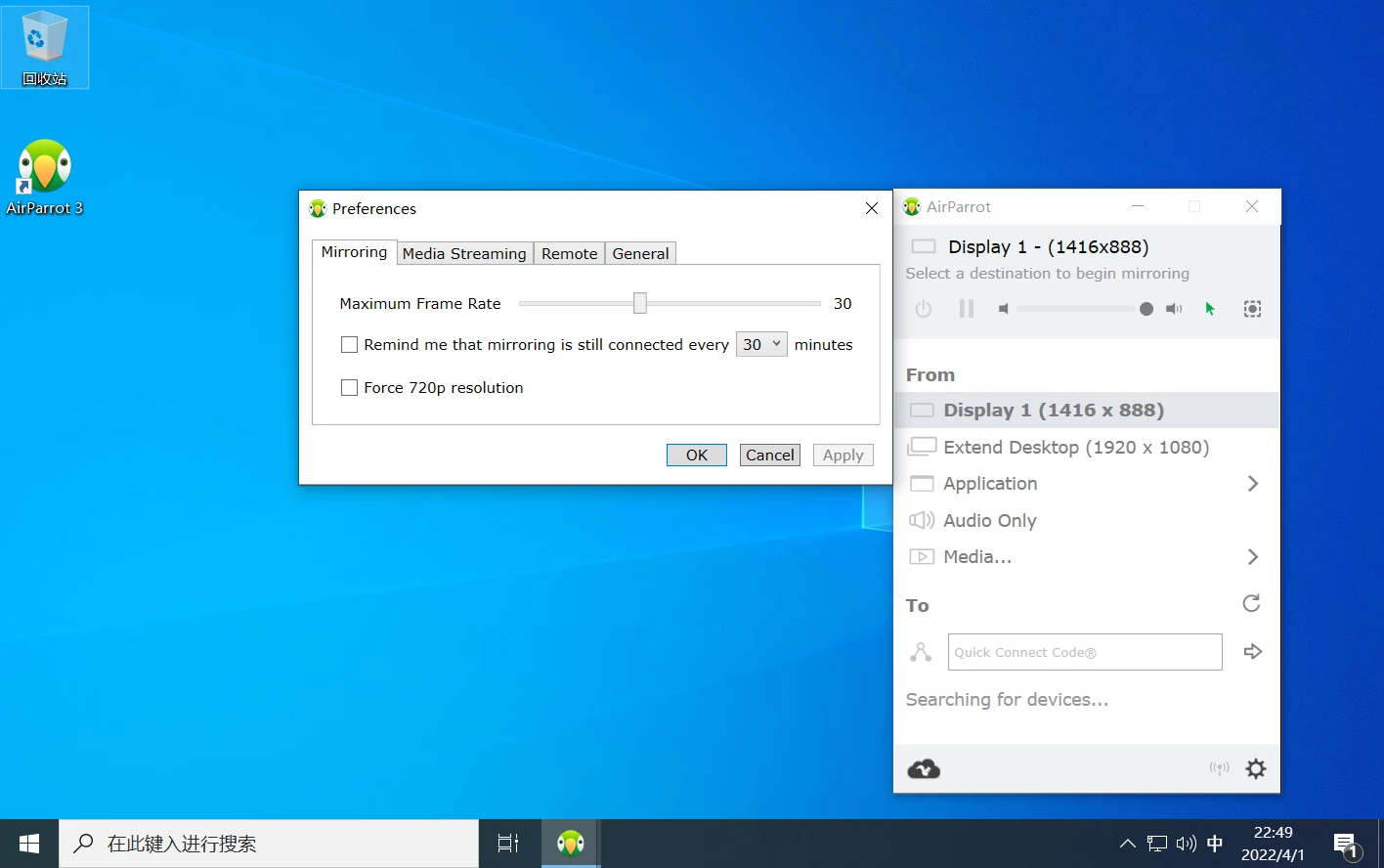
- Quick Connect Code Routing: In large corporate or educational networks with dozens of available receivers, local discovery lists often become cluttered. Users can bypass the network discovery scan by typing a Quick Connect Code, a short alphanumeric string that routes the broadcast directly to a specific device running the vendor's Reflector receiver software.
- Pause and Resume Broadcasting: A toggle switch in the system tray menu allows you to temporarily freeze the live video feed on the receiving display. The television will hold the last captured frame, giving you time to open a confidential document, locate a specific file on your local drive, or type a password before clicking resume to continue the live broadcast.
How to Install Squirrels AirParrot on Windows
- Download the official Windows installer package from the vendor's website, selecting the correct architecture setup for your specific workstation.
- Launch the setup executable and accept the End User License Agreement to proceed through the installation wizard.
- Select the destination folder for the application files. The installer defaults to the standard program directory on the main Windows drive unless you specify a custom path.
- During the installation sequence, the setup program will prompt you to install an Extended Desktop display driver. This component is required if you want to use wireless receivers as secondary monitors.
- Accept the Windows Security prompt to allow this hardware device driver to write to the system registry and complete the installation.
- Finish the setup wizard and launch the program. By default, the application does not open a large floating window; instead, it minimizes directly to the Windows system tray located in the bottom right corner of the taskbar.
- Click the application icon in the system tray to open the control menu. On the first run, a prompt will appear asking you to enter a purchased license string or start the 7-day trial period.
- Ensure that your Windows network profile is set to Private rather than Public, and if prompted by Windows Defender Firewall, allow the application to communicate over the local network so it can discover available television receivers.
Squirrels AirParrot Free vs. Paid
This software operates under a commercial licensing model and is not freeware. Users can download a 7-day trial version to test hardware compatibility and network performance before committing to a purchase. During this trial period, the application places a visible watermark over any mirrored screens or streaming media files displayed on the receiving television. The trial provides full access to all protocols and features, ensuring that users can verify Apple TV or Chromecast connectivity in their specific network environment.
Once the trial expires, continued use requires purchasing a commercial license. The standard pricing model relies on a one-time perpetual fee per computer, typically costing around $15 to $20 depending on current vendor rates. This tier provides access to minor updates and bug fixes. The vendor also offers licensing bundles that combine this broadcasting tool with their Reflector software, providing a discount for users who need a single machine to act as both a sender and a receiver.
For larger deployments in schools or corporate offices, individual consumer licenses are often replaced by volume purchasing agreements. However, it is important to note the distinction between this perpetual-license desktop utility and the developer's enterprise alternative, Ditto. Ditto is a subscription-based platform that charges an annual fee per receiver device and focuses on digital signage and centralized management. AirParrot remains positioned for single users, teachers, or small offices looking for a flat-fee, locally installed application without recurring cloud subscription costs.
Squirrels AirParrot vs. Airtame vs. Reflector
Airtame operates as a combined hardware and software ecosystem rather than just a desktop application. To use Airtame, organizations must purchase physical hardware dongles—often costing several hundred dollars each—and plug them directly into the HDMI ports of their televisions or projectors. The desktop software then communicates exclusively with those proprietary dongles. You should choose Airtame if you are building out a corporate office from scratch, have the budget for enterprise-grade hardware, and want a unified management dashboard that avoids relying on consumer streaming sticks.
Reflector is built by the exact same development team but serves the exact opposite function on a network. Reflector is a receiver application that you install on a Windows PC to make that computer act like an Apple TV or Chromecast. It catches incoming screen mirrors from mobile phones and tablets. You should choose Reflector if your goal is to display a mobile device screen on your computer monitor, perhaps to record a mobile app tutorial or present a tablet screen during a video conference call.
Squirrels AirParrot is the better fit when your objective is to push your Windows desktop out to existing consumer hardware, such as an Apple TV in a living room or a standard Chromecast in a meeting space. It requires zero additional hardware purchases because it utilizes the receiving devices you already own. By translating the Windows display output into AirPlay and Google Cast protocols, it bridges the gap between competing ecosystems using only a budget-friendly software license.
Common Issues and Fixes
- Receivers not showing in the device list. This occurs when Windows Defender Firewall or third-party antivirus software blocks the application's local network discovery protocols. Fix this by opening the Windows Firewall settings, clicking "Allow an app through firewall," locating the software, and checking both the Private and Public network boxes to ensure local traffic passes through.
- Lag or choppy video playback. Wireless interference, poor signal strength, or an overworked PC encoder can cause the broadcast frame rate to drop. Fix this by switching the router and receiving device to a 5GHz Wi-Fi band, connecting the PC to Ethernet, or opening the software preferences to manually lower the "Maximum Frame Rate" setting and enforce a 720p maximum resolution.
- Black screen when extending the desktop. The virtual display driver may conflict with existing graphics drivers or fail to initialize correctly during connection. Fix this by opening the application preferences, navigating to the Display tab, clicking the button to completely uninstall the Extended Desktop driver, rebooting the machine, and reinstalling the driver from the same menu.
- Application control panel does not appear after launching. Because the software is designed to run silently in the background, clicking the desktop shortcut will not open a central application window on your screen. Fix this by looking at the Windows taskbar, clicking the small up arrow near the clock to reveal hidden system tray icons, and clicking the software's logo to open the control menu.
- Audio plays on the PC instead of the television. The application may fail to hijack the default Windows audio output device during a mirroring session. Fix this by clicking the application's tray icon, selecting the connected receiver from the menu, and ensuring the "Enable Audio" toggle is explicitly checked within the connection parameters.
Version 3.1.8 — January 2025
- Added enhancements to extended display capabilities for a smoother second-screen experience
- Improved overall application stability and performance during mirroring sessions
- Fixed various technical issues and minor bugs to ensure reliable connectivity