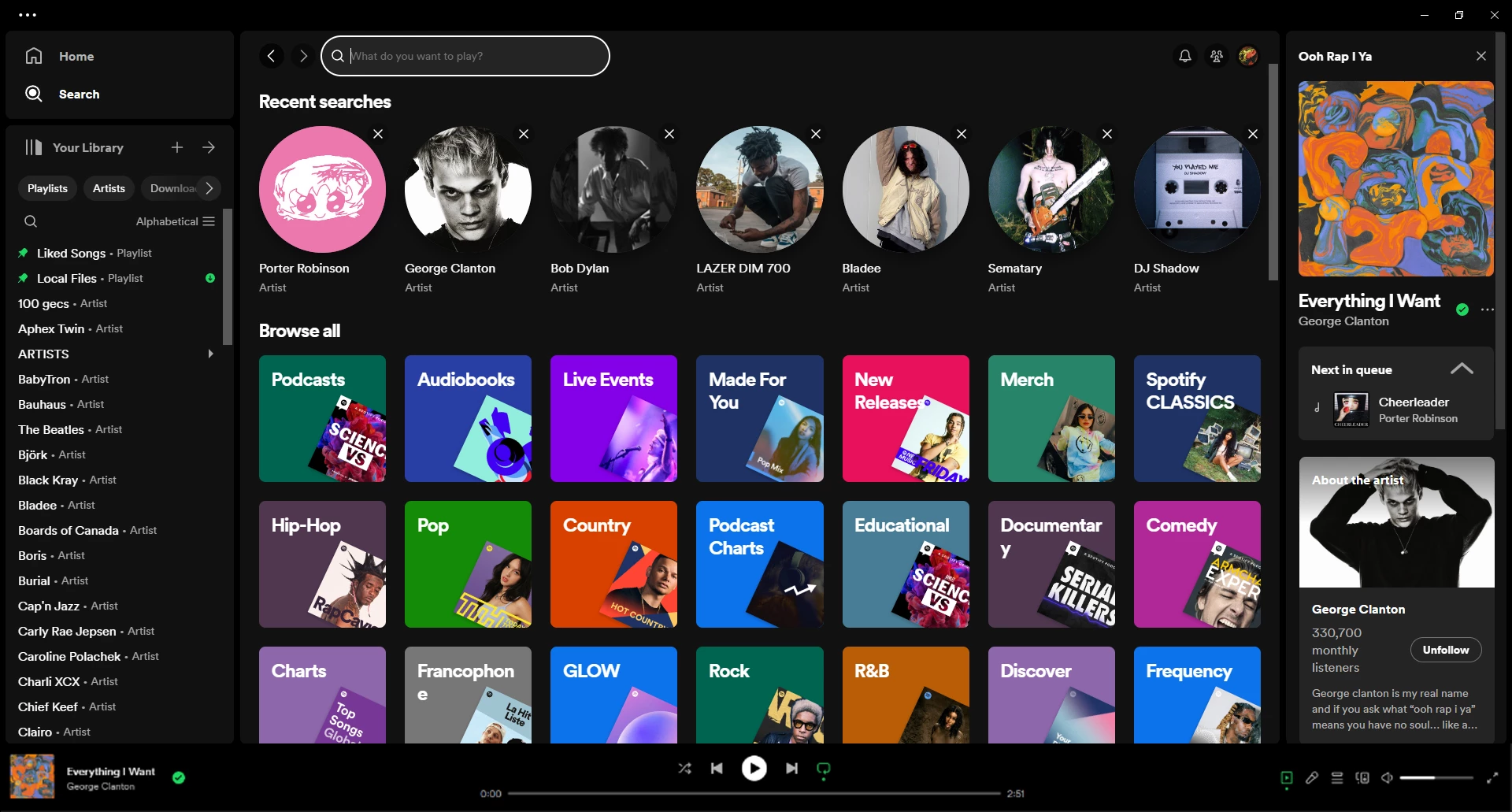
Spotify functions as the primary desktop hub for organizing, streaming, and caching digital audio on Windows PCs, acting as a crucial tool for users who want to move beyond basic browser playback. While the web-based player handles casual listening, the dedicated desktop application directly interfaces with the operating system to unlock hardware media controls, custom storage paths for offline caching, and faster playlist management. It successfully bridges the gap between algorithm-driven streaming and traditional local file management, allowing listeners to consolidate their personal MP3 archives alongside a massive online catalog of music and podcasts. By running natively, the software prevents audio dropouts caused by browser crashes or background tab sleeping, ensuring uninterrupted playback during heavy multitasking.
For PC users, the desktop interface provides immediate access to customizable keyboard shortcuts and deeper audio preference menus that simply do not exist in lighter alternatives. Following the vendor's recent rollout of CD-quality lossless streaming, the application now serves as a high-fidelity listening station for users with capable external digital-to-analog converters or high-end studio monitors. It delivers uncompressed audio directly through the Windows sound mixer, bypassing the aggressive compression routines historically associated with streaming media. This shift directly targets listeners who previously relied on dedicated local media players for strict audio fidelity but still want access to global charts and daily algorithmic mixes.
Beyond basic audio rendering, the software solves the practical problem of massive library curation. Users who manage thousands of saved tracks rely on the desktop client to bulk-edit track metadata, drag and drop entire albums into nested folder structures, and monitor friend activity in real time through the right-hand sidebar. It transforms a passive listening experience into an active audio management workspace, built for users who need concrete control over their playback hardware, offline storage behavior, and local network casting. This native application avoids the latency of a web wrapper, ensuring immediate response times when scrubbing through long podcast episodes, reordering play queues, or transitioning between high-bitrate tracks.
Key Features
- High-Fidelity Lossless Audio: Premium subscribers can access CD-quality streams up to 24-bit/44.1 kHz FLAC. Users enable this by navigating to the Media Quality section in the Settings menu and selecting the highest available tier, bypassing the older compressed formats to deliver artifact-free playback.
- Local File Integration: The application scans local Windows directories to play MP3, MP4, and M4A files directly alongside streaming tracks. By toggling "Show Local Files" in the settings, listeners can combine rare rips, mixtapes, and unreleased local audio with official catalog tracks in the same unified interface.
- Hardware Acceleration: To maintain interface fluidity when scrolling through libraries containing tens of thousands of tracks, the application offloads visual rendering tasks to the system's graphics processing unit. Users can toggle this feature under the View menu to prevent central processing unit bottlenecks during heavy library navigation.
- Advanced Playlist Management: The desktop client allows listeners to create nested playlist folders, bulk-select tracks using the Shift or Control keys, and drag large batches of audio into new categories. Users can also click the playlist header image to upload custom cover art directly from their local hard drive.
- Network Device Control: Through the Spotify Connect protocol, the desktop software acts as a master remote control for other hardware on the local network. By clicking the devices icon in the bottom right corner, users can instantly route audio output to smart speakers, game consoles, or home theater receivers without relying on standard Bluetooth pairing.
- Integrated Equalizer: Listeners can adjust specific audio frequency bands using the built-in equalizer found in the Playback settings menu. This provides immediate control over bass response, vocal clarity, and treble without requiring users to install third-party digital signal processing software at the Windows system level.
How to Install Spotify on Windows
- Download the official Windows installer executable package directly from the vendor's website.
- Double-click the setup file to initiate the installation process, noting that the small executable functions as a stub that fetches the full application assets from the vendor's servers in the background.
- Allow the automated process to finish; the installer automatically writes the application data to the user's hidden AppData directory and does not prompt for a custom drive path during initial setup.
- Launch the application from the Start menu and authenticate using an existing email address, or sign in through a connected Google or Apple account via the browser redirect prompt.
- Click "Allow Access" when the Windows Defender Firewall prompt appears on the screen, as this network permission is strictly necessary for local device discovery and casting features to operate.
- Navigate to the main application settings, scroll down to the Storage section, and define a new offline download path if you prefer to keep cached audio files on a secondary storage drive rather than filling up your primary boot disk.
- Verify your audio output device in the Windows sound mixer, ensuring that the software routes audio to your preferred headphones or speakers rather than a disconnected monitor.
Spotify Free vs. Paid
The free tier operates on an ad-supported model that places audio and visual advertisements between tracks and within the interface. While mobile free users are restricted to shuffle-only playback for most of the catalog, the Windows desktop client allows free users to select and play specific tracks on demand. However, the free tier restricts audio streaming quality to a maximum of 160 kbps and requires an active internet connection, entirely disabling the ability to cache tracks for offline listening.
For those requiring uninterrupted playback and higher audio fidelity, the Premium Individual plan costs $12.99 per month. This subscription removes all advertisements, unlocks the maximum 320 kbps compressed audio tier, and includes access to the 24-bit/44.1 kHz lossless FLAC streaming option at no additional cost. Premium users also gain full access to offline caching, allowing them to download entire libraries to their local storage drives for use without an active internet connection.
The vendor also offers multi-user subscription models to reduce the cost per person. The Duo plan, priced at $18.99 per month, provides two separate Premium accounts for users living at the same physical address. Families can utilize the $21.99 per month Family plan, which supports up to six individual accounts and includes a separate application environment designed specifically for younger listeners. Additionally, university students enrolled at accredited institutions can verify their status to access the Student plan for $6.99 per month, which occasionally bundles limited access to third-party video streaming services depending on regional availability.
Spotify vs. Apple Music vs. Tidal
Apple Music charges $10.99 per month and heavily targets users who want native integration with the broader Apple ecosystem. It distinguishes itself by offering true high-resolution lossless audio up to 24-bit/192 kHz and a massive library of tracks mixed in spatial formats. Listeners who possess dedicated digital-to-analog converters and prioritize maximum audio bitrate often lean toward Apple Music, though its Windows client has historically exhibited slower load times and a less responsive interface than its competitors.
Tidal matches the $10.99 monthly price point and appeals directly to strict audiophiles by delivering high-resolution FLAC files up to 24-bit/192 kHz. The platform focuses heavily on editorial curation and historically emphasizes higher direct payouts to artists per stream. Users who want pristine mastering quality, extensive metadata regarding track producers and studio engineers, and direct hardware integration with high-end audio receivers typically choose Tidal over algorithm-heavy alternatives.
Spotify remains the more practical fit for listeners who prioritize algorithmic discovery, social sharing, and cross-platform flexibility. Even though its lossless stream caps at CD quality and does not match the ultra-high resolution formats of its rivals, its Windows client is noticeably faster when handling massive personal libraries. The reliability of the Connect protocol for casting audio to third-party devices, combined with extensive collaborative playlist features and built-in podcast integration, makes it a highly versatile daily driver for the average PC user.
Common Issues and Fixes
- Interface rendering as a black screen or flickering during scrolling. This occurs when the system's graphics drivers conflict with the application's visual processing. To fix this, click the View option in the top-left menu bar and uncheck Hardware Acceleration, then restart the application to force standard software rendering.
- Local files failing to sync to a mobile device on the same network. This happens when the desktop client cannot communicate with the mobile application. Ensure both devices are connected to the exact same Wi-Fi frequency band, then open Windows Security and verify that the application is allowed through the Windows Defender Firewall on private networks.
- Primary hard drive filling up rapidly due to cached audio data. The application caches temporary files and offline downloads in the C drive by default. To reclaim space, open Settings, scroll down to the Storage section, click "Change Location," and select a folder on a secondary internal or external hard disk.
- Media keys on the keyboard failing to pause or skip tracks. This conflict usually arises when a web browser intercepts global media commands. To resolve this, open your web browser's settings and disable the hardware media key handling flag, ensuring the desktop audio client regains exclusive control over your keyboard's playback buttons.
- Audio playback stopping unexpectedly or stuttering continuously. This indicates a conflict with the current network connection or a corrupted local cache. Navigate to the Storage section in Settings and click the "Clear cache" button to delete temporary playback files, then restart the client to force a fresh connection to the streaming servers.
Version 1.2.80.354 — December 2025
- New Feature: Playlist Mix (Premium) — Introduced the ability to blend songs within your created playlists using custom transitions, minimizing awkward pauses and creating a seamless DJ-like flow.
- Prompted Playlists (Beta) — Added support for AI-generated playlists based on text descriptions, allowing you to specify mood, genre, or activity to instantly create a tailored listening session.
- Wrapped 2025 Optimizations — Improved the stability and playback smoothness of the "Listening Age" and "Clubs" data stories within your Wrapped feed.
- Performance Improvements — Fixed an issue causing intermittent background playback pauses and enhanced overall app responsiveness during high-quality streaming.