aTube Catcher functions as a multipurpose desktop application for Windows users who need to manage online media, convert local files, and record screen activity without relying on a browser window. Rather than navigating cluttered web-based downloader sites that impose strict file size limits and frequently drop connections midway through a transfer, you can handle your media locally. The software consolidates several distinct tasks into a single tabbed interface. You can paste a URL to grab a video for offline viewing, rip the audio track from a public domain film, capture a software tutorial from your desktop, or burn a physical disc for archival storage.
Operating locally brings distinct advantages for media management workflows. Web extensions often struggle with long media files or require active, open tabs to process conversions, consuming significant browser memory. A dedicated desktop application bypasses these browser constraints, utilizing your computer's local hardware to process the files directly. This approach suits educators building offline lesson plans, archival researchers gathering reference materials, and casual users preparing entertainment for travel where internet access remains unavailable. By keeping everything inside one specific utility, you avoid installing separate dedicated video converters, screen capture tools, and disc authoring programs that clutter your system.
Furthermore, the application interface groups its tools by clear functional tabs, ensuring that you do not need technical expertise to navigate the different modules. Whether you are dealing with a standard moving picture file or an audio-only track, the software treats the input methods similarly. You configure the output parameters, select the destination folder on your primary drive, and initiate the task. This standardized approach to handling different media types reduces the learning curve typically associated with advanced video processing tools.
Despite handling large file conversions and optical disc authoring, the application maintains a relatively light footprint on your primary storage drive. It does not require high-end graphics cards or massive amounts of RAM to function, making it entirely usable on older laptops or budget desktop builds. As long as your system meets basic operational standards, you can reliably run background conversions or capture screen footage without causing severe system lag. This accessibility ensures that users working with aging hardware still have a reliable method for managing their offline media libraries.
Key Features
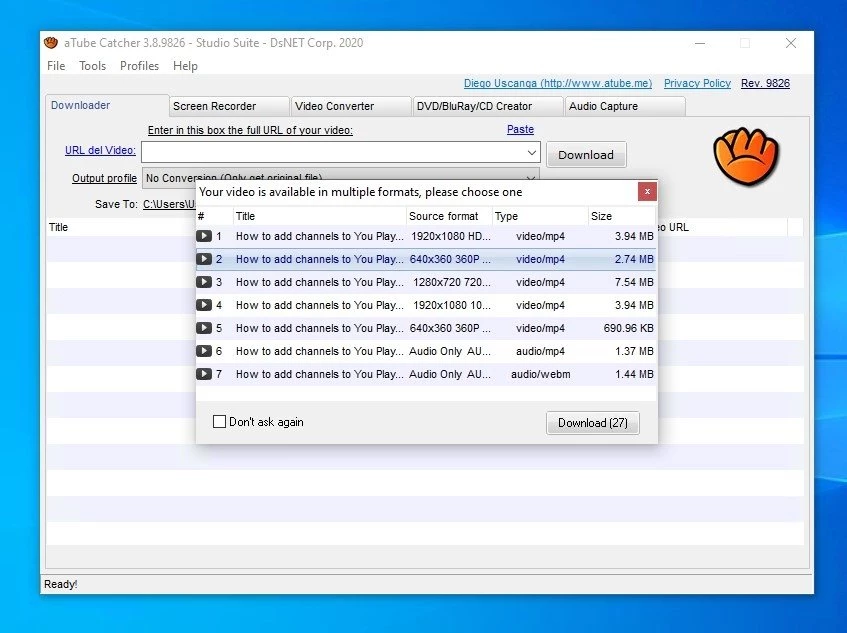
- Video Downloader: Grab media from hundreds of supported streaming sites by copying and pasting the URL into the main interface window. The application parses the link and presents a detailed list of available resolutions, framerates, and file containers, allowing you to choose exactly how the file should be saved on your hard drive before initiating the transfer. You can prioritize smaller file sizes for quick sharing or select the maximum available resolution for high-quality archival purposes.
- Format Converter: Drag and drop local video or audio files into the Video Converter tab to change their internal encoding. The software includes preset profiles tailored for various portable media players, legacy devices, and gaming consoles, letting you adjust advanced parameters like target bitrate, aspect ratio, and audio channels before rendering the final output file. This ensures compatibility with almost any playback hardware.
- Screen Recorder: Capture visual activity directly from your desktop monitor to create software tutorials, record live online presentations, or document specific workflows. You can instruct the tool to record the entire monitor surface, trace a specific application window, or draw a custom rectangular region on the screen, while simultaneously capturing cursor movements, visual input clicks, and keyboard strokes if needed.
- Audio Extractor: Strip the visual track entirely from a media link to save only the isolated sound data for offline listening. By selecting an MP3, WMA, or WAV output profile during the initial download configuration, you can build a personal library of offline educational lectures, ambient audio tracks, or podcasts without consuming the massive hard drive storage space required by high-definition video files.
- Optical Disc Creator: Author physical media directly from the application interface using the built-in DVD, VCD, and CD burning tools. You can insert a blank disc into your optical drive, queue up your downloaded or locally stored media files, and allow the software to process and format the disc so it functions correctly in standard living room hardware, providing a physical backup of your digital media.
- Batch Link Processing: Manage large lists of URLs without manually clicking through the individual download sequence for each separate file. You can paste multiple links directly into the batch queue or import a simple text document containing the target URLs, allowing the application to process the entire list sequentially in the background while you focus your attention on other desktop tasks.
How to Install aTube Catcher on Windows
- Download the official executable installer package directly from the developer's website to avoid modified files hosted on third-party directories.
- Locate the downloaded executable in your local storage directory, double-click the file to launch the initial setup wizard, and click "Yes" when the Windows User Account Control prompt asks for administrative privileges.
- Select your preferred interface language from the initial dropdown menu and click "OK" to proceed to the main setup screens.
- Review the initial license agreement carefully and click "Next" until you reach the screen presenting third-party software offers.
- Examine the promotional screens closely and explicitly click the "Decline" button or uncheck the visible boxes to prevent the installation of optional toolbars and sponsored utilities.
- Choose the destination folder for the software files on your primary hard drive, or leave the default path intact if you have sufficient storage space.
- Click "Install" to extract the core application files to your system, then select "Finish" to close the wizard and launch the main interface.
- Upon opening the application for the first time, navigate to the general settings menu to verify your default output directory, ensuring that all large media files are routed to a drive with adequate storage space.
aTube Catcher Free vs. Paid
The software operates on a strict freeware model, meaning the developer offers the entire application at no cost to the end user. There are no premium subscription tiers, no hidden paywalls, and no trial periods to worry about. Every feature found in the interface—from the screen recording module to the optical disc burner—is fully unlocked the moment you finish the initial setup process.
Because the tool does not require a paid license, you will not encounter the typical restrictions associated with freemium software. Users can process an unlimited number of URLs per day, download high-definition files without encountering artificial speed throttling, and record desktop activity without dealing with branded watermarks stamped across the final footage. The application handles all tasks based purely on the capabilities of your local hardware and the speed of your internet connection.
To sustain development without charging a direct fee, the developers monetize the project through bundled software offers presented during the installation phase. When running the setup wizard, the installer will display advertisements for third-party utilities or browser modifications. Users retain full control over this process and can simply decline these offers to install the core application cleanly. Once installed, the main interface does not demand payment or interrupt your workflow with subscription prompts.
aTube Catcher vs. 4K Video Downloader vs. JDownloader 2
4K Video Downloader focuses strictly on pulling media from online sources with a heavy emphasis on extremely high resolutions, 360-degree video support, and full channel backups. It excels at extracting subtitle files and managing massive playlists with a highly polished, single-purpose interface. However, it operates on a freemium model that places a daily cap on how many links non-paying users can process, and it does not offer any built-in tools for screen capture or disc burning.
JDownloader 2 serves as an advanced, open-source link management tool designed for data hoarders who pull files from hundreds of different hosting platforms. It handles complex tasks like captcha solving, premium account management, and massive automated queues with ease. While incredibly capable for heavy data retrieval and handling complex site structures, its interface caters primarily to technical users willing to learn its intricacies, and it entirely lacks media conversion or desktop recording capabilities.
You should choose aTube Catcher when you want a highly versatile, completely free utility that handles a wide variety of media tasks from a single interface. If you occasionally need to grab a public domain clip, record a quick desktop tutorial, and convert an old file format for a portable media player, this tool prevents you from needing to install and manage three separate programs to accomplish your goals.
Common Issues and Fixes
- The download progress freezes indefinitely at a specific percentage. This behavior typically occurs when the host server alters its streaming algorithm to prevent third-party scraping. Cancel the current task, check the developer's official site for an application update, and restart the process once the new rules are applied.
- Security software blocks the installation package. Antivirus programs frequently flag the setup executable as a Potentially Unwanted Program due to the bundled third-party advertising network. Temporarily pause your real-time scanning, complete the setup while carefully declining the optional software offers, and re-enable your protection immediately afterward.
- The target website returns an error when you paste the URL. Streaming platforms constantly change their backend code, occasionally breaking direct link parsing. While waiting for a software update to address the issue, you can use the built-in screen recorder module to manually capture the video as it plays on your monitor.
- Screen recordings produce files with visual movement but absolutely no audio. The recording module often defaults to a disabled virtual audio device or the wrong hardware input source. Open the Screen Record tab, locate the audio settings dropdown menu, and explicitly select your primary microphone or the system stereo mix before clicking the record button.
- The application fails to capture video streams in Stream Catcher mode. The network capturing features require external components to monitor internet traffic. Ensure you have the WinPcap library installed on your system, as the tool relies on this specific driver package to analyze and extract media streams directly from your network card.
Version 10.26.0 — November 2025
- Resolved connectivity issues affecting downloads from specific YouTube videos.
- Fixed a bug that caused incorrect display of application titles in certain interfaces.
- Improved overall application stability by correcting minor internal errors.