Video conversion often forces users into a frustrating choice between slow online tools that limit file sizes and overly complex encoding software that requires a steep learning curve. 4Videosoft Video Converter Ultimate is a desktop application built to bridge this gap, giving Windows users a straightforward way to process massive local video files without relying on a cloud connection. It handles format shifting, batch processing, and basic editing tasks directly on your local hardware, ensuring that large source files never have to be uploaded to remote servers.
The application targets digital archivists, content creators, and casual home users who need to standardise media formats for playback on specific televisions, smartphones, or editing timelines. By supporting high-resolution inputs like 4K, 5K, and 8K footage, it serves as a reliable utility for shrinking massive raw recordings into highly compressed, playback-friendly formats like MP4 or MKV. Instead of opening a heavy non-linear editing suite just to trim the start and end of a clip, users can load entire folders into the interface, trim the unwanted sections, and export the batch in a uniform codec.
Relying on a dedicated desktop application provides significant advantages for media processing workflows. Web-based converters typically impose strict upload limits and suffer from latency, while lighter desktop alternatives often lack the hardware acceleration necessary to encode long videos quickly. 4Videosoft Video Converter Ultimate utilizes local GPU resources to accelerate the encoding process. This localized approach means users maintain total control over output quality, bitrate, and resolution without being bottlenecked by internet bandwidth or subscription-based cloud rendering queues.
Key Features
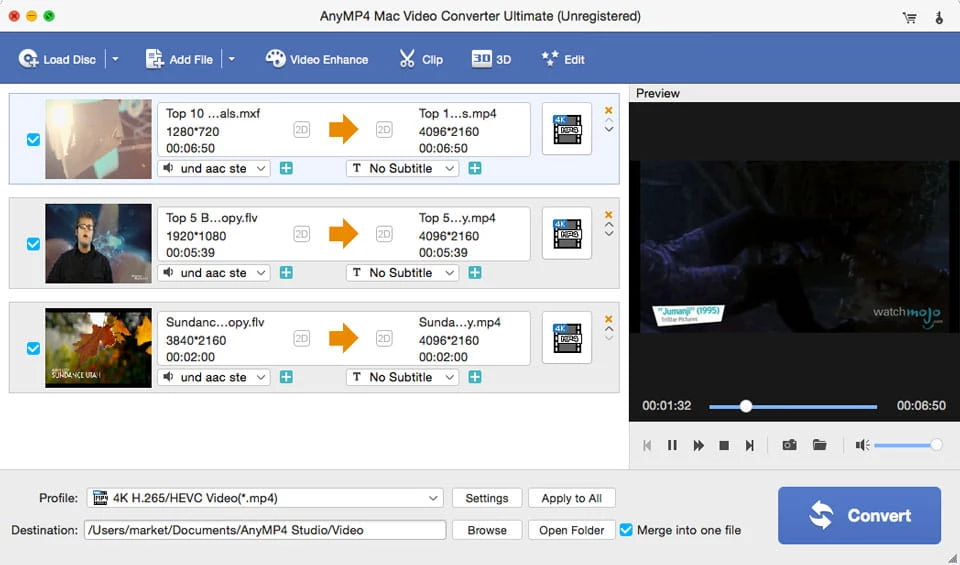
- Feature Name: Format Shifting and Codec Conversion: The software reads and writes hundreds of multimedia formats, including popular containers like MP4, MKV, MOV, AVI, and WMV. Users can load source files directly into the main interface and use the "Convert All to" dropdown menu to force a uniform codec across an entire batch of videos, ensuring playback compatibility on target devices.
- Feature Name: Hardware-Accelerated Processing: Built to utilize local system resources, the application features a dedicated toggle for high-speed encoding. By enabling the "120x Faster Lossless Conversion" mode, the software forces GPU acceleration to process heavy 4K and 8K files significantly faster than CPU-only encoding methods, reducing the time spent waiting for large exports.
- Feature Name: Built-In Video Editing: Instead of requiring a separate video editor, the tool includes a timeline editor accessible directly from the loaded media track. Users can click the edit icon to access a panel for trimming out unwanted segments, cropping the video frame to remove black bars, and applying basic visual filters or adjusting contrast and brightness before the final conversion.
- Feature Name: Custom Subtitle and Audio Injection: When preparing foreign language films or adding commentary tracks, the interface allows for custom media injection. Users can click the audio or subtitle dropdowns on any loaded video to import external audio files or subtitle formats such as .srt, .ssa, and .ass, hardcoding them directly into the final exported video file.
- Feature Name: DVD Ripping and 3D Creation: The application includes tools for extracting raw video data from unencrypted physical DVD media. Additionally, it offers a 3D conversion module that takes standard 2D flat video and exports it into anaglyph or split-screen 3D formats, allowing users to watch standard footage on compatible 3D televisions or virtual reality headsets.
- Feature Name: Utility Toolbox: Beyond standard conversion, the "Toolbox" tab houses several standalone multimedia utilities. This section includes a Media Metadata Editor for fixing ID3 tags, a Video Compressor for hitting exact target file sizes, a GIF Maker for turning short video segments into looping animations, and a Video Enhancer for upscaling lower-resolution source material.
How to Install 4Videosoft Video Converter Ultimate on Windows
- Download the official Windows installer package from the developer's website and save the executable file to your local drive.
- Double-click the downloaded setup file to launch the installation wizard. If prompted by Windows User Account Control, click Yes to allow the installer to make changes to your device.
- Read and accept the end-user license agreement on the first screen of the wizard, then click Next to proceed.
- Review the default installation path, which typically routes to your local Program Files directory. You can click Browse to choose an alternative storage drive if your main disk is low on space.
- Select your preferred shortcut options, such as placing a launch icon on your desktop or adding the program to your Start menu, and click Next.
- Click Install to begin extracting the core application files. The progress bar will indicate when the local files have been successfully written to your disk.
- Click Finish to exit the setup wizard. On the first launch, the application will display an activation prompt where you can either enter your purchased registration key or click the button to continue evaluating the software in free trial mode.
4Videosoft Video Converter Ultimate Free vs. Paid
4Videosoft Video Converter Ultimate operates on a shareware business model, allowing users to download and test the core functionality before committing to a purchase. The free trial is designed strictly for evaluation and imposes several hard limits on the output. Most notably, the trial restricts video conversion and export to a maximum of three minutes per file. If your source video is shorter than three minutes, the trial will only convert half of the total duration. Additionally, the free tier caps the hardware acceleration features, forcing slower processing speeds compared to the unlocked version.
To remove these limitations, users must purchase a license key from the official vendor. The developer offers two primary purchasing paths: a short-term subscription or a perpetual lifetime license. The one-month license typically costs around $38, providing full access to the software for a single project or short-term need. For long-term use, the lifetime license is generally priced between $60 and $75, granting permanent access to the software on a single computer without any recurring subscription fees.
Activating the paid version immediately lifts the time restrictions, allowing for full-length movie conversions and unrestricted batch processing. The paid tier also unlocks the "120x Faster Lossless Conversion" mode, giving users the ability to utilize their full system hardware for significantly faster rendering times. All utilities within the Toolbox tab, including the Video Compressor and GIF Maker, also become fully functional without arbitrary length or size constraints once the license key is applied.
4Videosoft Video Converter Ultimate vs. HandBrake vs. Wondershare UniConverter
HandBrake is a completely free, open-source video transcoder favored by technical users who want granular control over bitrates and encoding frameworks. While HandBrake excels at pure compression and format shifting, it requires a steeper learning curve, lacks a timeline for direct video editing, and does not include built-in utilities for adding text watermarks or creating GIFs. Users who want a free tool and are comfortable navigating complex encoding parameters will prefer HandBrake, but those who need an all-in-one editing and conversion interface will find it lacking.
Wondershare UniConverter targets a similar market as 4Videosoft, offering a highly polished interface with a massive array of features, including direct screen recording and disc burning. However, Wondershare locks many of its best tools behind a relatively expensive, recurring subscription model, and the application can feel bloated for users who only need straightforward video processing. It is a strong choice for users who want a central hub for all possible video tasks, but it comes at a premium price point.
4Videosoft Video Converter Ultimate strikes a practical middle ground between these two alternatives. It provides a more approachable graphical interface and easier batch processing tools than HandBrake, while offering a permanent lifetime license option that Wondershare actively discourages. For users who need rapid hardware-accelerated conversions, simple timeline editing, and reliable format shifting without renting their software month-to-month or deciphering open-source documentation, 4Videosoft delivers a highly balanced desktop workflow.
Common Issues and Fixes
- Problem description. Video conversion stops at three minutes. This behavior is intentional when running the unregistered trial version of the software. To fix this, you must purchase a license key and enter it into the activation prompt to unlock full-length video processing.
- Problem description. Conversion speed is unexpectedly slow. By default, the software might not fully engage your system's graphics card for rendering. Fix this by locating the "High-Speed Conversion" button in the main interface and enabling the "120x Faster Lossless Conversion" toggle to force hardware acceleration.
- Problem description. Subtitles do not appear in the exported video. The application will not automatically detect external subtitle files if they are not explicitly linked. To fix this, click the subtitle dropdown menu under your loaded video track, select "Add Subtitle," and manually import your .srt, .ssa, or .ass file before starting the conversion.
- Problem description. Cannot import specific MKV files. A corrupted MKV header or an unsupported internal codec can cause the application to reject the file. Fix this by opening the "Toolbox" tab, launching the built-in Video Compressor, and running the problematic file through it to rebuild the file structure, or check the source file for physical disk errors.
Version 7.2.88 — October 2025
- Implemented advanced video enhancement tools to upscale resolution, remove digital noise, and optimize brightness and contrast automatically.
- Added new rotation and flipping capabilities to correct video orientation and adjust angles easily.
- Expanded support for external subtitles and multiple audio tracks, allowing for better synchronization and customization.
- Improved conversion speeds significantly through optimized GPU hardware acceleration.
- Fixed minor bugs related to batch processing and enhanced stability for 4K and 8K video output.