Digital video files often suffer from massive file sizes and incompatible playback formats, making local storage and network distribution difficult. HandBrake operates as an open-source video transcoder designed to solve this exact problem by converting raw, unoptimized media into highly compressed, widely supported formats. By acting as a technical bridge between heavy archival files and practical daily playback, the application allows users to take a large source file and re-encode it into an efficient container like MP4, MKV, or WebM. It utilizes modern codecs such as H.264, HEVC, and AV1 to drastically reduce file footprints while retaining visual clarity.
Users rely on this desktop application to manage practical media tasks that basic browser-based tools simply cannot handle. Whether preparing a high-bitrate video file for a local media server, shrinking a massive screen recording for a digital signage display, or standardizing home videos for local network streaming, the software gives editors precise control over the output metrics. Cloud-based converters typically restrict file sizes, require lengthy uploads, and compromise privacy by forcing users to send personal media to external servers. A dedicated local application utilizes the raw processing threads of a local CPU and the encoding chips of a local GPU to process long-form video quickly, securely, and without artificial bandwidth bottlenecks.
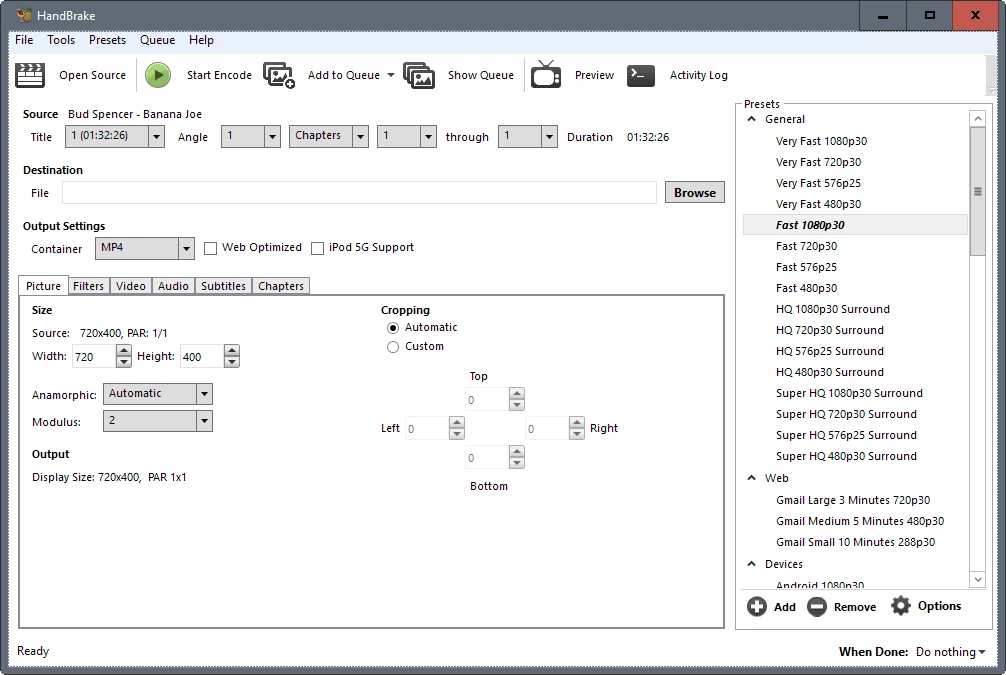
The application serves both casual users who want quick conversions and advanced video archivists who require strict parameter control over their media library. A casual user can drop a video into the interface, select a predefined profile like "Fast 1080p30", and start the encode immediately without touching complex settings. Meanwhile, advanced operators can fine-tune the constant quality slider, define average bitrate targets, assign specific subtitle tracks, and manage audio passthrough channels. By skipping simplified mobile interfaces and restricted online services, the application provides the necessary flexibility to process extensive media collections efficiently.
Key Features
- Format Conversion: The application converts nearly any video file into modern MP4, MKV, or WebM containers using efficient codecs like H.264, HEVC (H.265), and AV1. Users manage the output quality through a Constant Quality slider, allowing them to define the exact visual fidelity they need rather than guessing a specific bitrate, which ensures the final file is as small as possible without visible degradation.
- Hardware Acceleration: Encoding video is traditionally a heavy processing task, but the application interfaces directly with dedicated hardware encoders including Intel QuickSync, Nvidia NVENC, and AMD VCE. Activating these hardware options shifts the rendering burden away from the main processor, resulting in significantly faster export times while keeping the computer responsive for other tasks.
- Built-In Presets: The right-hand side panel contains a large library of pre-configured output profiles categorized by device type and use case. Selecting templates like "Fast 1080p30" or "Web Optimized" automatically configures the resolution, framerate, and audio channels to match target hardware, preventing playback errors on smart TVs, tablets, or gaming consoles.
- Advanced Video Filters: Users working with older media can apply specialized processing filters directly within the interface before the final encode. The software includes decomb, deinterlace, and detelecine tools that analyze and remove the horizontal combing artifacts frequently found in older television captures or digitized analog tapes.
- Audio and Subtitle Control: The application grants total control over secondary media streams, allowing users to pass through high-definition surround sound tracks (like AC3 or DTS) untouched or downmix them to basic stereo. For subtitles, users can embed external SRT files directly into the container as togglable soft subtitles, or permanently burn them into the video track for devices that do not support subtitle menus.
- Batch Processing Queue: For extensive media libraries, the software features a built-in queue system that processes multiple encoding jobs sequentially. Users can configure different export parameters for a dozen different files, add them all to the queue, and let the application run overnight without requiring any manual intervention between exports.
How to Install HandBrake on Windows
- Navigate to the official project website and download the Windows installer executable file, ensuring you select the standard 64-bit architecture package.
- Locate the downloaded setup file in your local directory and double-click it to initialize the installation wizard.
- Review the GNU General Public License terms presented on the screen, then click Next to accept the agreement and proceed with the setup.
- Choose the destination folder where the application files will reside; leaving the default directory path is recommended to avoid permission issues, then click Install.
- Wait for the wizard to extract and copy the core application files to your system drive.
- Click Finish to close the setup wizard and double-click the newly created desktop shortcut to launch the application for the first time.
- If Windows displays a prompt stating that you must install the .NET Desktop Runtime, click the download button to open the official Microsoft repository.
- Download the exact .NET runtime version requested, install it using its own setup wizard, and finally launch the video transcoder again to access the main interface.
HandBrake Free vs. Paid
The application operates entirely as Free and Open-Source Software licensed under the GNU General Public License. There are no paid tiers, no premium versions, and no enterprise subscriptions. Every feature, from AV1 hardware encoding to advanced subtitle management, is available to all users immediately upon installation without any financial barrier.
Unlike commercial video converters that restrict export lengths, apply large watermarks to free outputs, or limit resolution until a license is purchased, this transcoder imposes zero artificial limitations. The software is built and maintained by a global team of volunteer developers who rely on open-source community support and donations rather than a traditional corporate business model. Users are never forced to create an account, log into a cloud service, or maintain an active internet connection to process local files.
Because the software is completely free, users should exercise caution if they encounter third-party websites attempting to sell licenses or bundled versions of the application. The official application will never prompt users for a credit card, a registration form, or an unlock code to access its processing capabilities. The entire toolset remains unrestricted permanently.
HandBrake vs. MakeMKV vs. VidCoder
MakeMKV serves a highly specific purpose that this transcoder cannot handle natively: optical disc decryption. Commercial DVDs and Blu-rays feature encryption that prevents standard software from reading the video files. MakeMKV bypasses this encryption and extracts a 1:1, uncompressed copy of the disc directly to the hard drive. Users typically rely on MakeMKV for the initial extraction, as it preserves the original massive file size, while the primary transcoder is used afterward to compress that file into a smaller, device-friendly format.
VidCoder is an alternative Windows video application that utilizes the exact same core encoding engine to process media files. The primary difference is strictly visual; VidCoder provides a different user interface layout that some users prefer for specific tasks like automated folder watching, custom target file sizing, and advanced batch handling. Because the backend technology is identical, the final video quality and rendering speeds remain the same across both tools, making the choice a matter of interface preference rather than technical capability.
Users should utilize MakeMKV when they need to securely rip an encrypted physical disc without losing a single pixel of quality. VidCoder serves as a viable alternative for editors who want the underlying open-source engine but prefer a different graphical workflow. The primary transcoder remains the optimal choice for the vast majority of users who need an official, regularly updated application to compress heavy video files, apply interlacing filters, and prepare media for a wide range of playback devices.
Common Issues and Fixes
- Missing .NET Desktop Runtime error on launch. The graphical interface relies on specific Microsoft frameworks to run on Windows. Clicking the download link on the error prompt will direct the browser to the exact Microsoft runtime installer needed; installing that small package will allow the application to open normally.
- Application freezes when clicking Start Encode. This lockup frequently occurs due to a conflict between the application's Process Isolation feature and local Windows configurations. Navigating to the application preferences, disabling Process Isolation, and restarting the program typically restores normal encoding behavior.
- Audio and video fall out of sync after export. This alignment issue happens often when converting game capture footage or phone videos recorded with a variable frame rate. Navigating to the Video tab and changing the Framerate setting from Variable to Constant Framerate forces the application to keep the audio perfectly aligned with the visual track.
- Errors when attempting to read a commercial DVD. By default, the application cannot read copy-protected media directly from a disc drive. Users must either extract the video first using a dedicated decryption tool or manually download and place the required decryption library file directly into the application's installation folder to enable disc reading.
Version 1.10.2 — September 2025
- Added automatic disabling of QSV or NVDec decoders on Windows if outdated drivers are detected to prevent stability issues.
- Improved AV1 video encoding and subtitle handling by updating SVT-AV1 to version 3.1.2 and HarfBuzz to version 11.4.5.
- Fixed a crash that could occur when encoding high-bit-depth video sources across all platforms.
- Fixed incorrect behavior regarding Constant Quality (CQ/RF) calculations and preset handling on Windows.
- Fixed a rare crash issue specifically affecting Apple Silicon Macs.