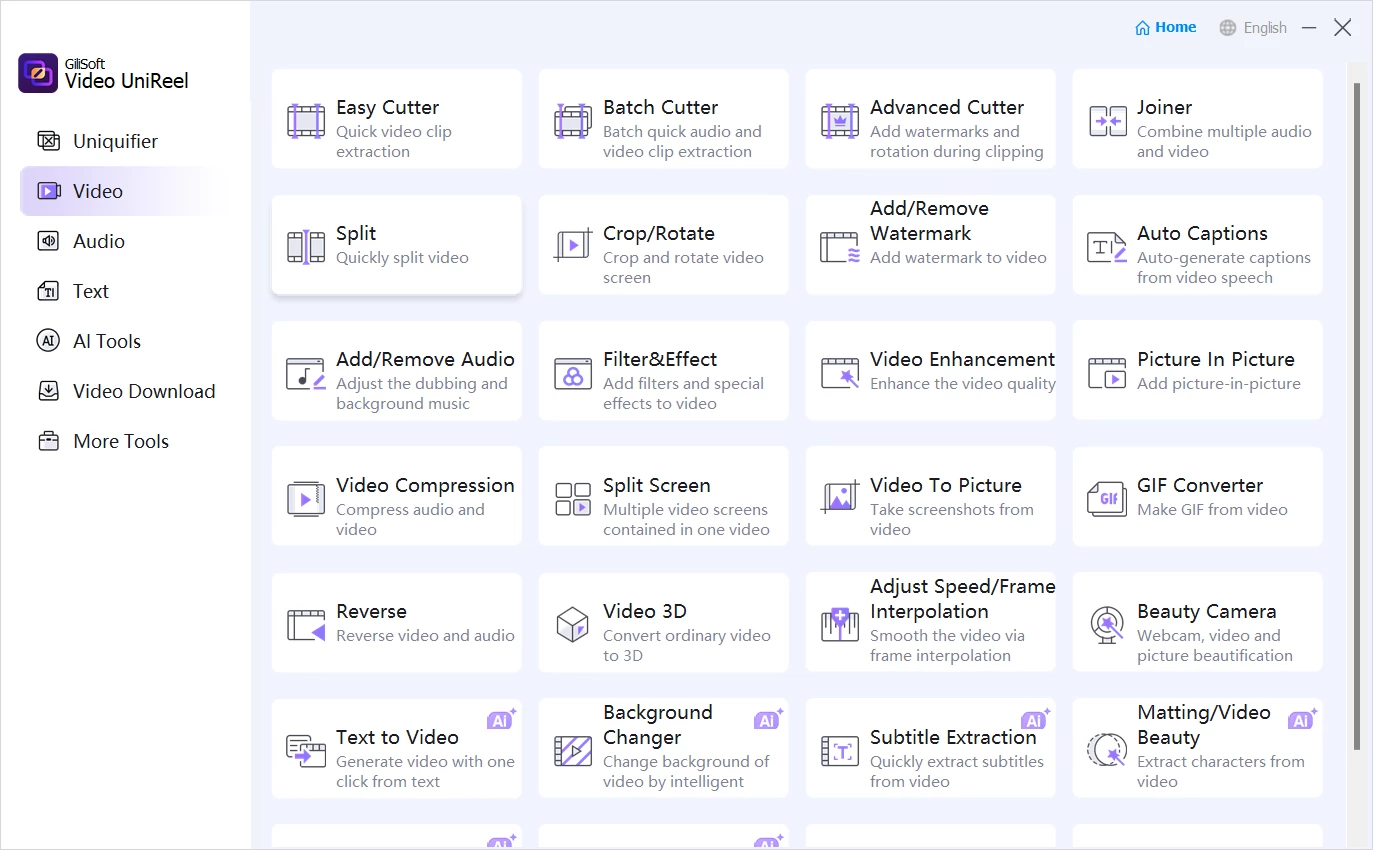
Gilisoft Video UniReel operates as a specialized video processing utility tailored for digital marketers, social media managers, and content curators who focus on high-volume asset production. Unlike traditional non-linear editors that require meticulous timeline scrubbing and keyframing, this software is engineered specifically for video repurposing. It automates the tedious mechanical steps required to transform existing long-form footage or stock clips into dozens of fresh, distinct assets formatted for vertical feeds like TikTok, YouTube Shorts, and Instagram Reels. By concentrating on batch operations rather than intricate single-file editing, it serves as a mass-production engine for users managing multiple accounts or aggressive posting schedules.
The core job this application solves is algorithmic duplicate content detection. Social media platforms strictly monitor uploads and routinely penalize accounts that post identical or lightly modified clips. To bypass these restrictions, content creators must alter the underlying structure of the video file. This tool accomplishes that through aggressive randomization and bulk formatting. It can automatically mirror shots, shift playback speeds, crop aspect ratios, and swap backgrounds across an entire folder of media simultaneously. Instead of manually applying these variations to spoof the duplicate filters, operators can configure a set of parameters and let the application render an entire batch of mathematically unique files while they work on other tasks.
Running a local desktop application for this type of bulk rendering provides distinct advantages over modern browser-based alternatives. Cloud editors typically charge recurring subscription fees based on processing minutes or total export bandwidth, which becomes prohibitively expensive when generating hundreds of short-form clips per week. By utilizing local hardware, users maintain total control over their processing queues without hitting arbitrary server limits. Furthermore, working locally means that heavy source files—such as high-bitrate MP4s and MKVs—do not need to be uploaded to a remote server before the extraction, splitting, and rendering processes can begin. This approach saves massive amounts of bandwidth and keeps proprietary raw footage securely on the user's hard drive.
Key Features
- Automated Video Uniquifier: This is the central module designed to bypass duplicate content filters on social networks. It works by applying subtle, randomized alterations to a batch of videos. Users can configure parameters to randomly mirror frames, introduce slight speed fluctuations, apply minor color filters, and delete arbitrary micro-segments. The result is a folder of exported files that look visually similar to the original but possess completely different file hashes and frame structures.
- Batch Cutting and Splitting: The utility includes specific modules for dissecting large media files into bite-sized segments without requiring timeline navigation. The Splitter can divide a two-hour recording into equal parts based on exact time intervals—such as 60-second chunks for Shorts—or by strict file size limits. The Batch Cutter allows operators to load multiple files at once, set predefined in and out points, and trim them all simultaneously.
- AI Silence Removal: Targeting podcasts, talking-head videos, and raw interviews, this automated tool scans the audio track to detect dead air. Once identified, it automatically splices out the silent gaps and pulls the remaining clips together. This reduces the time spent manually reviewing raw footage to eliminate awkward pauses, resulting in tighter clips that maintain viewer retention in fast-paced social feeds.
- Hardcoded Subtitle Embedding: Instead of relying on platform-specific closed captioning that might fail or display incorrectly, users can permanently burn text directly into the video file. The application accepts standard SRT and ASS subtitle formats, allowing users to define the font, size, color, and screen position before rendering. Once embedded, the captions become an unalterable part of the video stream.
- Multi-Format Joining and Merging: When compiling compilation videos or stitching together disparate assets, the Joiner module combines multiple clips into a single continuous file. It accepts varied input formats, such as mixing AVI, MKV, and MP4 files, and processes them into a unified output. Users can choose to insert standard fade-in and fade-out transition effects between the joined segments to soften the cuts.
- AI Background Matting and Replacement: This module isolates human subjects from their environments without requiring a physical green screen during filming. The software analyzes the footage, separates the foreground elements, and allows the operator to drop in a completely new image or looping video behind the subject. This is practical for reaction videos or educational shorts where the creator overlays themselves onto secondary media.
How to Install Gilisoft Video UniReel on Windows
- Download the Windows installer package from the official vendor website or authorized software directory.
- Locate the downloaded executable file in your Downloads folder and double-click to launch the setup wizard.
- Read and accept the end-user license agreement when prompted by the installer screen.
- Choose the destination directory for the application files. The setup wizard defaults to
C:Program FilesGiliSoftVideo UniReel, which is recommended for standard environments. - Select your preferences for desktop shortcuts and Start menu folder creation to ensure easy access to the application.
- Click the install button to copy the core application files, rendering engines, and initial processing modules to your local storage drive.
- Upon completing the installation, launch the software. You will see a prompt to either evaluate the trial mode or enter your email address and purchased registration code to unlock the full feature set.
- Note that certain advanced AI tools, such as specific background matting models, may require the application to download additional asset packages from the vendor's servers upon their first use.
Gilisoft Video UniReel Free vs. Paid
Gilisoft Video UniReel operates under a traditional try-before-you-buy shareware model, offering a trial version alongside multiple paid license tiers. The trial edition is openly accessible and allows prospective buyers to install the software, test the interface, and run the various batch processing modules. However, this evaluation mode imposes strict limitations, most notably applying a prominent, permanent watermark across all exported videos. To remove this watermark and unlock unrestricted batch rendering, users must purchase a commercial license.
The paid tiers are structured to accommodate both short-term projects and long-term production environments. For users who prefer a lower initial cost, the vendor offers a one-year subscription license for a single computer. This tier grants full access to all features, including the Uniquifier and AI processing tools, for a continuous 12-month period. Once the year concludes, the software will revert to the restricted trial mode unless the subscription is manually renewed.
For established content farms, marketing agencies, or dedicated creators, the perpetual licensing options offer significantly better long-term value. Unlike many competing video tools that enforce mandatory monthly cloud subscriptions, this application provides a lifetime license option for a single PC. Furthermore, operators managing multi-machine rendering workflows can purchase a discounted lifetime bundle that covers up to three PCs. These perpetual keys ensure that the software remains fully functional for the purchased configuration without any recurring monthly charges.
Gilisoft Video UniReel vs. CapCut PC vs. Opus Clip
CapCut PC dominates the market for standard, timeline-based video editing, offering an extensive library of trendy templates, text effects, and precise keyframe controls. It is heavily optimized for creators who want to meticulously craft a single, polished video by manually syncing audio beats and applying dynamic stickers. However, CapCut requires significant manual intervention for every edit. When the goal is to take a single source video and quickly render thirty randomized variations to feed multiple social media accounts, CapCut's manual workflow becomes a bottleneck, making Gilisoft's bulk-processing logic much more efficient.
Opus Clip is a widely adopted cloud-based AI service designed specifically to ingest long-form podcasts and automatically extract short, viral clips with animated captions. It is a completely hands-off solution, but it forces users into a strict subscription model based on uploaded video minutes and relies entirely on cloud processing queues. Gilisoft provides a fundamentally different approach by keeping the processing local. While it requires the user to configure the split points or batch parameters, it avoids per-minute processing fees, keeps heavy raw files off remote servers, and offers a broader set of traditional merging, cropping, and randomizing tools.
You should opt for Gilisoft when your daily workflow is defined by volume rather than intricate storytelling. If you operate content curation pages, manage a network of affiliate marketing accounts, or need to continually repurpose existing media to bypass algorithmic duplicate-content flags, this tool provides the exact batch automation required. It is the superior choice for users who want to pay a flat fee for a local desktop utility that can run massive randomization and splitting jobs in the background without burning through a monthly allowance of cloud rendering credits.
Common Issues and Fixes
- The Uniquifier module produces exported videos with unnatural pacing or stuttering playback. This typically happens when the randomization parameters are set too aggressively. To fix this, open the re-creation settings before starting the batch job and lower the random speed variance. Additionally, turning off the random segment deletion feature will prevent the software from indiscriminately chopping out frames, preserving the natural narrative flow.
- AI background removal leaves jagged edges or visible artifacts around the human subject. The background matting algorithm struggles with heavy motion blur, low lighting, or poor contrast. To improve the results, ensure your source footage is brightly and evenly lit. The subject’s clothing must contrast sharply with the original background, and keeping camera movement to a minimum will help the AI cleanly isolate the foreground.
- Hardcoded subtitles appear completely out of sync with the spoken audio after batch processing. If you apply the batch cutter, splitter, or random segment deletion tools, the video's original timestamps will change, invalidating any pre-existing subtitle files. You must extract, generate, or align your SRT and ASS files after the video has been trimmed and finalized, rather than trying to embed them during the cutting phase.
- The Video Joiner fails to merge files or produces an output file with audio desynchronization. This issue frequently occurs when attempting to join clips that have different frame rates or resolutions using the super-fast direct-stream copy mode. To resolve this, disable the high-speed copy option and manually select a specific output format. This forces the application to re-encode all the disparate clips into a uniform frame rate and resolution, ensuring smooth playback.
- The application prompts for an internet connection when attempting to use certain AI tools for the first time. While the primary cutting and joining tools operate entirely offline, specialized AI features often require localized model data. The software does not ship with every model pre-installed to keep the initial download size manageable. Allow the program through your firewall temporarily so it can download the required module from the vendor's servers, after which the tool can run locally.
Version Latest — 2025
- Added new "Uniquifier" module designed to automatically transform existing footage into unique clips, preventing duplicate content detection on social platforms.
- Introduced AI-powered tools for intelligent background removal, subtitle extraction, and automatic silence deletion to streamline editing workflows.
- Added support for randomly applying effects such as playback mirroring, border overlays, and speed adjustments during batch processing.
- Improved video rendering performance and added full support for the HEVC/H.265 codec to ensure high-quality output with smaller file sizes.
- Fixed issues related to copyright flagging by optimizing the "Duplicate Removal" algorithms to better randomize visual and audio signatures.