Wondershare UniConverter functions as a multi-functional desktop media workstation designed for content creators, archivists, and video editors operating on Windows. Originally recognized as a dedicated transcoding utility, the software has grown into a versatile suite handling high-volume tasks such as format conversion, file compression, screen capture, and non-linear editing. For users working with heavy raw footage, legacy home movies, or high-bitrate screen recordings, relying on a localized desktop application ensures data privacy and bypasses the upload limits enforced by browser-based converter tools. Running these intensive processes locally also allows the application to draw on hardware rendering, keeping export times shorter than remote server queues.
One of the central additions to this workflow is the integration of Topaz Labs' Starlight AI model, which shifts how users handle low-resolution or degraded source files. Instead of simply stretching a 720p or 1080p clip to fit a modern 4K display, the application restores the footage by analyzing frames to reduce digital noise, sharpen soft edges, and correct blocky compression artifacts. When paired with modern graphics cards, the program processes multi-gigabyte files using hardware acceleration, bypassing slower CPU-only encoding methods. This localized AI processing makes batch-converting entire video archives practical without requiring a persistent internet connection for rendering.
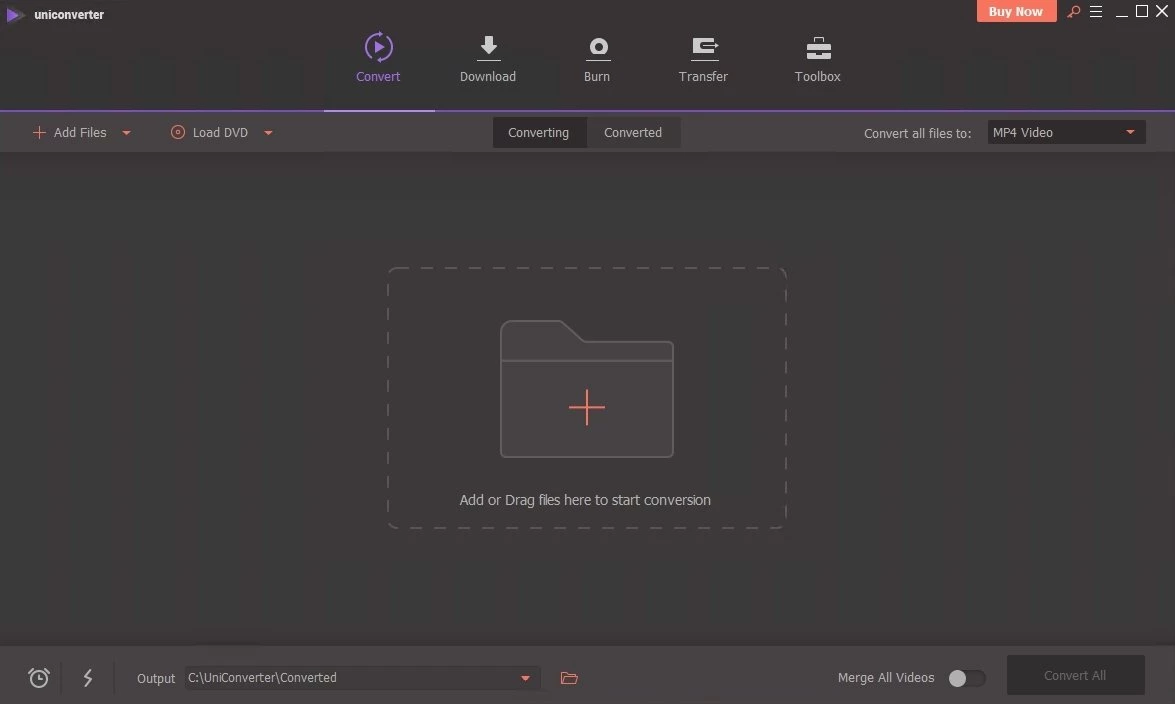
Beyond artificial intelligence upscaling and encoding, the application consolidates multiple utilities into a single interface, reducing the need to install separate tools for minor tasks. The workspace provides access to a web video downloader, a disc burner, a subtitle generator, and an isolated application window recorder. Whether a user needs to transcode an MKV file to a smart-TV-compatible MP4, shrink a large video project to fit an email attachment limit, or capture a high-framerate software tutorial, the application provides exact slider controls and dropdown menus for bitrate, framerate, and codec adjustments. The software runs strictly on Windows 7, Windows 8, Windows 8.1, Windows 10, and Windows 11, focusing entirely on local system resources over cloud dependencies.
Key Features
- Hardware-Accelerated Format Conversion: The application supports over 1,000 video, audio, and image formats, including modern codecs like HEVC (H.265) and AV1. By offloading the conversion process to Intel, AMD, or NVIDIA GPUs, users can transcode massive 4K and 8K files in batches without causing the main CPU to bottleneck other system tasks.
- Topaz Labs Starlight AI Upscaling: The built-in AI video enhancer actively reconstructs missing pixel data in low-resolution videos. By applying the Topaz Labs Starlight AI model, users can upscale older SD or HD footage to 4K quality, removing grain, smoothing out pixelated lines, and correcting lighting issues through a dedicated settings panel.
- Customizable Video Compression: When dealing with large raw files, the compression module allows users to shrink file sizes by up to 85 percent. Users maintain strict control over the final output by manually adjusting the target file size, bitrate, and resolution sliders, ensuring the visual quality meets exact storage or delivery requirements.
- Web Media Downloader: A built-in download manager fetches videos directly from URLs. Users can queue up single videos, entire playlists, or multi-track audio files, with options to specify the download resolution up to 8K, select the final container format, and manage concurrent active downloads within a dedicated tab.
- Application and Screen Recording: The recorder module captures specific desktop activity. Users can isolate a single application window, record full-screen 4K gameplay, or select a custom region of the desktop. The tool includes audio routing options to separate system sounds from microphone input, along with tools to draw on the screen during recording.
- Essential Timeline Editing: Before exporting, users can open clips in a linear editing interface to trim dead space, crop frame dimensions, and merge multiple segments. The editor also provides tools for hardcoding custom subtitles, embedding image or text watermarks, and applying color correction filters directly from the conversion queue.
How to Install Wondershare UniConverter on Windows
- Navigate to the official vendor website to download the Windows executable installer package to your local drive.
- Double-click the downloaded setup file to initialize the installation wizard and accept the end-user license agreement.
- Select your preferred installation directory on your Windows 7, Windows 8, Windows 8.1, Windows 10, or Windows 11 machine, ensuring the drive has sufficient free space for large video caches and AI model downloads.
- Choose whether to create a desktop shortcut and click the install button to begin unpacking the core application files.
- Wait for the progress bar to complete; depending on the installer version, the program may download additional dependencies required for local AI processing.
- Click the finish button to launch the application, which will present a welcome screen and a prompt to sign into your account.
- Enter your Wondershare ID credentials to authenticate your license, access cloud-connected features, and claim any included trial AI credits.
- Open the Preferences menu from the main dashboard and navigate to the Performance tab to verify that GPU acceleration is checked and active for your specific graphics hardware.
Wondershare UniConverter Free vs. Paid
The software operates on a freemium model that functions primarily as a restricted trial, letting users test the interface, file handling, and export speeds before committing to a purchase. Under the free tier, users face strict limitations on output and workflow. Every exported video carries a prominent vendor watermark across the screen, making it unsuitable for professional delivery. The video downloader caps fetches at 480p resolution, and format conversions may only process a fraction of the total video length. While free users do receive a small starting balance of AI credits to test the Topaz Labs Starlight AI enhancement tools, active production work requires a paid license.
For users ready to upgrade, the vendor offers two primary billing models: an annual subscription and a perpetual license. The annual plan, typically priced around $39.99 per year, provides continuous access to all core application modules, recurring updates, and the immediate removal of all export watermarks. Alternatively, users can purchase a perpetual license for roughly $79.99, which grants lifetime access to that specific software build. However, this one-time purchase usually means that jumping to a major future system upgrade will require an additional upgrade fee.
Purchasing a license unlocks high-definition 4K and 8K downloading capabilities, removes file-length conversion caps, and allows users to run unlimited hardware-accelerated batch compression queues. Commercial entities and enterprise teams also have access to multi-seat business licenses priced according to the number of installed workstations. Because the application relies on an account-based activation model, users must remain logged into their Wondershare ID to maintain their premium status, process AI credits, and verify their subscription status across different devices.
Wondershare UniConverter vs. HandBrake vs. Movavi Video Converter
HandBrake operates as a free, open-source transcoder that appeals to advanced users who require precise control over video encoding parameters without spending money. It excels at compressing massive files into MKV or MP4 containers using efficient codecs like H.265, VP9, and AV1. However, HandBrake focuses entirely on encoding; it lacks a video downloader, a screen recorder, and AI-driven resolution upscaling. Furthermore, its interface presents a dense wall of sliders and codec flags, which can easily overwhelm users who just want to make a file playable on a specific television or smartphone.
Movavi Video Converter targets users who prioritize a fast, guided experience for straightforward format swapping and light timeline adjustments. Its SuperSpeed mode is effective at remuxing files without re-encoding them, preserving the original visual quality while changing the container format almost instantly. While Movavi is excellent for quick trims, fast exports, and basic device presets, it does not offer the broad suite of auxiliary tools found in larger media workstations, such as advanced 8K web downloading or dedicated application window recording.
Wondershare UniConverter occupies a middle ground that serves users needing both technical depth and a broad utility toolkit. It brings the advanced encoding options of HandBrake and the accessibility of Movavi into a single workspace, while adding high-end features like the Topaz Labs Starlight AI integration for restoring degraded footage. Users managing multi-stage workflows—such as downloading a webinar, upscaling the resolution, shrinking the file size, and burning it to a physical disc—will find this unified desktop application much more practical than constantly switching between three separate specialized programs.
Common Issues and Fixes
- Preview lag or audio sync issues during playback. This typically happens when the system processor struggles to decode high-resolution source files in real time. To fix this, navigate to Preferences, select the Performance tab, and toggle the GPU Acceleration setting off and then back on. If the box is grayed out, you must update your AMD, Intel, or NVIDIA graphics drivers.
- Video downloader fails to fetch online media. URLs from certain sites change their backend structure, preventing the built-in parser from reading the video stream. To resolve this, use the built-in Screen Recorder module to capture the video manually, or install the vendor's official Chrome Extension to bypass direct parsing errors.
- Exported file sizes are unexpectedly large. If you leave the conversion settings on a high-bitrate codec like ProRes or uncompressed AVI, the output will consume massive amounts of disk space. Open the Video Compressor module, select a modern codec like HEVC (H.265), and manually reduce the target bitrate slider by 20 to 30 percent before exporting.
- Incorrect media metadata displaying on smart TVs. Files converted without proper tagging often show up as generic alphanumeric titles on external playback devices. Use the "Fix Media Metadata" tool located in the More Tools section to manually fetch or enter episode names, poster art, release dates, and director information prior to conversion.
- DVD burner module rejects the blank disc. This occurs when the optical drive encounters a mechanical read error or a formatting mismatch. Verify that your disc matches the region and format (DVD-R vs DVD+R) expected by your optical drive, clean the disc surface, and lower the burn speed in the software settings to ensure a stable data write.
Version 17.1.1 — December 2025
- Added integration with Topaz Labs' "Starlight" diffusion model for advanced AI video upscaling, denoising, and detail restoration.
- Introduced "AI Smart Format Recommendation" to automatically detect and apply the optimal output settings for source files.
- Expanded file support to include Apple Live Photos, FFV1 for professional archiving, and AMV for portable device playback.
- Improved conversion performance for ProRes codecs, achieving speeds up to 200% faster than previous iterations.
- Enhanced Screen Recorder capabilities with native 4K recording support and real-time AI background noise reduction.
- Fixed issues related to inaccurate video metadata display and optimized Hi-Res Audio conversion up to 24-bit/192 kHz.