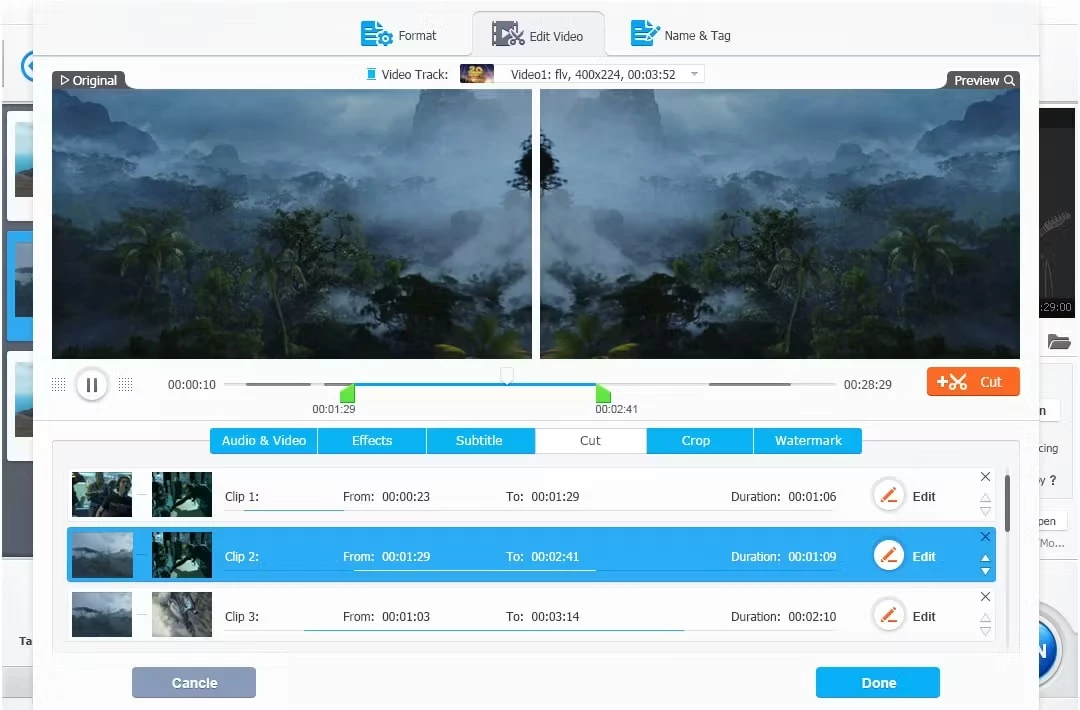
VideoProc Converter AI operates as an all-in-one desktop utility that bridges the gap between traditional media transcoding and modern neural network enhancements. Originally designed as a straightforward tool for converting video formats and compressing large camera files, the application has expanded to incorporate local artificial intelligence models. These additions target the specific problems of modernizing old, low-resolution footage, smoothing out jittery camera movements, and repairing visual artifacts without forcing the user to learn a highly complex node-based compositing application. By keeping the interface modular and straightforward, the software provides an accessible entry point for content creators, home archivists, and everyday users who need to process digital media quickly and efficiently.
Unlike browser-based editors or cloud-reliant enhancement services, this software relies entirely on local processing hardware to handle its computational workloads. Processing gigabytes of high-definition video through artificial intelligence models requires substantial hardware resources, and offloading this task to a remote server often results in massive upload times, potential privacy risks, and strict file size limits. By utilizing the local graphics processing unit on a Windows machine, the program keeps all media strictly on the local storage drive and crunches the data directly on the user's hardware. This architecture means that an active internet connection is only required for initial registration and software updates, leaving the core rendering and conversion tasks fully functional in offline environments.
Choosing a unified desktop application over a scattered collection of single-purpose utilities drastically simplifies the media management workflow. Users frequently encounter situations where a single video file needs to be ripped from a physical disc, upscaled to a higher resolution, stabilized to remove camera shake, and then compressed into a highly compatible format for playback on a living room television. Managing this sequence across three or four different open-source programs often leads to format conflicts, audio desynchronization, and unnecessary generational quality loss from multiple encoding passes. This application consolidates these discrete steps into a single dashboard, allowing the operator to queue up their desired enhancements and output the final file in one continuous, hardware-accelerated rendering operation.
Key Features
- Super Resolution Upscaling: Utilizes local machine learning models to enlarge low-resolution videos and images by 200%, 300%, or 400%, pushing standard definition clips up to 4K or even 8K displays. Operators can select specific rendering profiles from the right-side settings panel, choosing the GenDetail model for restoring complex textures or the RealSmooth model for flat surfaces and animated content.
- Frame Interpolation: Analyzes the visual data between existing frames to generate entirely new, synthetic frames, effectively smoothing out choppy motion. This tool can push standard 30fps television clips up to 120fps, 240fps, or 480fps, making it highly effective for generating slow-motion sequences from standard camera captures without the typical stuttering effect.
- Video Stabilization: Fixes shaky handheld camera or drone footage by analyzing movement patterns and counteracting the physical jitter. The interface provides manual control sliders for cropping the borders and adjusting the edge-filling algorithms, ensuring that the final stabilized output remains visually clean without introducing severe optical distortion.
- Hardware-Accelerated Conversion: Transcodes over 370 distinct input formats using a Level-3 hardware acceleration pipeline. By tapping directly into Intel Quick Sync, AMD, and NVIDIA hardware architectures, the software dramatically speeds up the conversion process for highly demanding and deeply compressed video codecs like HEVC and AV1.
- Built-in Media Downloader: Extracts video streams, audio tracks, and subtitle files from online platforms directly to the local storage drive. The downloader module analyzes standard URL links or M3U8 playlist files, offering the user a clear list of available formats, resolutions, and bitrates before initiating the local save operation.
- Screen Recording Utility: Captures desktop monitor activity, external webcam feeds, and internal system audio simultaneously. The recording module includes specific toggles for a picture-in-picture mode and custom capture area framing, providing a practical, built-in workflow for software tutorial generation and presentation building.
- Physical Media Ripping: Converts physical DVD discs and ISO image files into standard digital video formats for modern playback. The application can handle physical media backups with options to preserve original subtitle tracks, select specific audio languages, and bypass standard region encoding limitations during the local extraction process.
How to Install VideoProc Converter AI on Windows
- Download the official Windows installer executable package from the vendor's primary website.
- Double-click the downloaded executable file to initialize the automated setup wizard.
- Review the end-user license agreement and define your preferred installation directory on a primary local storage drive.
- Select your preferences regarding desktop shortcuts and quick launch icons, then click next.
- Wait for the setup routine to extract the core application files, rendering engines, and initial machine learning dependencies to your local storage.
- Click the finish button to close the setup dialogue and launch the program for its initial hardware configuration scan.
- Navigate to the Register button located in the main interface upon first launch to input your licensed email address and registration code, or select the prompt to continue evaluating the software under the standard trial limitations.
VideoProc Converter AI Free vs. Paid
VideoProc Converter AI operates on a standard shareware model, offering a restricted free trial alongside multiple paid licensing tiers. The free trial grants prospective buyers access to the entire application interface and toolset, but it imposes strict output limitations designed to let users test hardware compatibility and processing quality without functioning as a free production tool. Specifically, users evaluating the neural network video and audio enhancement tools are restricted to exporting a maximum of five minutes of footage per file, while image upscaling is strictly capped at five total images. Furthermore, the built-in screen recorder applies a mandatory digital watermark and limits capture sessions to five minutes, and the media downloader restricts URL analysis to a maximum of ten supported sites.
To eliminate these export caps and workflow restrictions, the developer provides several distinct licensing options directly through their official storefront. The Premium 365 plan functions as an annual subscription, delivering full software access, regular feature updates, and technical support for a single year. For users who strictly prefer a perpetual software model, a one-time Lifetime License is available for a single computer, which frequently retails for roughly $39.95 during standard promotional periods. Organizations or households with multiple machines can opt for a Family License, which extends the lifetime activation rights to cover up to five separate computers for approximately $59.95.
Upgrading to any of the paid license tiers unlocks unrestricted media processing, full-speed hardware acceleration pipelines, and permanent access to newer machine learning models as the developer releases them. Upon completing a purchase, the software authenticates the license via a brief online check using the buyer's email address and the provided alphanumeric registration code. Once the application successfully verifies these credentials, it operates completely free of duration limits, file constraints, or forced watermarks, allowing for uninterrupted batch processing of large media archives.
VideoProc Converter AI vs. Topaz Video AI vs. HandBrake
Topaz Video AI is a highly specialized, professional-grade upscaling application focused exclusively on intensive machine learning restoration. It offers highly advanced deep-learning models and extensive manual parameter controls tailored for studio-level archival work, but it demands high-end workstation graphics cards and comes with a significantly higher upfront financial cost. Furthermore, Topaz Video AI skips basic utility functions entirely, meaning operators still must rely on separate software packages for standard format conversions, online media downloading, or screen recording operations.
HandBrake is a widely respected open-source video transcoder known for its extensive traditional encoding presets and complete lack of financial cost. It excels at compressing massive video files, adjusting bitrates, and applying standard visual filters, but it relies purely on conventional rendering algorithms and completely lacks modern neural network capabilities. Users looking for artificial intelligence-driven upscaling, synthetic frame generation, or complex video stabilization will not find those tools in HandBrake, nor does the open-source program include any modules for capturing screen activity or downloading online media.
VideoProc Converter AI occupies the highly practical middle ground between these two extremes, making it the better fit for general consumers and digital creators who require a versatile, unified toolkit. It provides accessible, consumer-friendly video enhancement that runs efficiently on standard consumer hardware, combined directly with the everyday utility of a fast format converter, a DVD ripper, and a screen recorder. Users should choose VideoProc Converter AI when they want an affordable, all-in-one media management dashboard that handles a wide variety of daily processing tasks, rather than paying a premium for a hyper-specialized studio tool or settling for a strictly traditional encoder.
Common Issues and Fixes
- Installation fails with error code 0xc000007b. This disruption occurs when the standard installer executable conflicts with specific Windows system environments or installer dependencies. To bypass this breakdown, right-click the downloaded setup file, use an archiving utility like 7-Zip to extract its internal contents into a new folder, and run the core application executable directly from that newly extracted directory.
- Hardware acceleration displays as unavailable or reports "No Vulkan found". The application will fail to detect the graphics processing unit if the system display drivers lack support for recent Vulkan or OpenCL application programming interfaces. Upgrading your NVIDIA, AMD, or Intel graphics drivers to the latest official manufacturer release usually resolves this detection failure and restores full rendering speed.
- The media downloader module fails to analyze video URLs. Online video hosting platforms frequently update their backend delivery networks, which can temporarily break external downloading modules. Ensure you are running the most recent update of the software, as the development team regularly issues specific patches to maintain active compatibility with changing web architectures.
- Playback devices reject the exported video file with a codec error. This situation happens when the chosen output profile utilizes a media codec that the target television, smartphone, or hardware media player cannot physically decode. Use the primary Video conversion tab to transcode the problematic file into a universally supported format standard, such as an H.264 MP4 file, before attempting local playback on older consumer electronics.
- GPU processing fails during active video conversion. This interruption often triggers when conflicting settings force the program to bypass hardware instructions. Navigate to the right-side configuration panel and ensure the "Auto Copy" function is unchecked, as leaving this specific feature enabled can sometimes block the rendering engine from properly engaging the graphics card during heavily compressed format conversions.
Version 8.7 — December 2025
- Added a new "Codec Info" display in the Downloader module to help users select the optimal version before downloading.
- Introduced an option to automatically embed video thumbnails as cover art for downloaded media files.
- Improved the AI Super Resolution model with enhanced texture and motion recognition, significantly reducing blur and noise in upscaled footage.
- Optimized AV1 and ProRes encoding performance, delivering faster processing speeds when using AI Stabilization and Frame Interpolation.
- Expanded MKV output support to preserve all original subtitle tracks during AI processing.
- Fixed a hardware encoding issue that occurred during 4K video compression.
- Resolved a glitch causing playback irregularities in slow-motion Frame Interpolation results.