MiniTool MovieMaker is a desktop video editor built to strip away the complicated menus of professional broadcasting suites, focusing instead on a straightforward drag-and-drop timeline. It serves home users, marketers, and casual content creators who need to quickly trim clips, assemble footage, and add background audio without learning complex keyframing or routing logic. Unlike browser-based alternatives that require uploading heavy gigabytes of raw media to remote servers, this application processes files directly on your local storage. This local approach eliminates waiting for server-side rendering and prevents workflow interruptions when your internet connection drops, making it practical for handling large uncompressed files from digital cameras or smartphones.
The core design revolves around a magnetic primary track that snaps clips together automatically, preventing accidental black frames or empty gaps in the final sequence. Users can import standard media formats such as MP4, MOV, AVI, and MKV, drop them onto the sequence, and apply edits immediately. For those who do not want to build a project from scratch, the application includes pre-built movie templates tailored for specific themes like travel vlogs, family albums, or event highlights. You simply select a template, feed it raw footage, and the software automatically arranges the media with appropriate pacing, transitions, and text overlays.
Beyond basic assembly, the software includes fundamental audio mixing controls. You can mute the original camera audio, detach the track entirely, or use keyframes to fade the background music in and out at specific points. This guarantees that background scores do not overpower spoken dialogue. Furthermore, the application accommodates different output aspect ratios. You can start a sequence in standard 16:9 widescreen for desktop monitors, switch to 9:16 portrait mode for short-form social media feeds, or use a 1:1 square ratio for specific image-sharing platforms. By keeping all these adjustments visible on the main workspace rather than hiding them in nested sub-menus, the interface remains approachable for users with zero formal training in video production.
Because it functions entirely offline once installed, users maintain strict privacy over their raw footage. You do not need to register for an online account or log into a cloud service just to cut a video. The software supports scaling outputs for different playback environments, offering options to export widescreen sequences for desktop monitors or vertical formats suitable for social media feeds. By focusing strictly on assembly, basic color correction, text application, and audio mixing, the software solves the immediate need for fast video creation without overwhelming the user interface.
Key Features
- Multi-Track Timeline: The sequence editor supports up to nine secondary video tracks and two dedicated audio tracks. This allows you to stack media for picture-in-picture effects, overlay transparent logos, or blend background music with the original camera audio.
- Pre-Built Movie Templates: The software includes structural templates that automate the editing process for specific themes. You import a batch of raw clips, and the application places them onto the timeline with pre-configured transitions, text placeholders, and background music.
- Speed Controls and Reversal: You can alter the playback speed of individual clips using multiplier presets to create slow-motion highlights or fast-forward sequences. A dedicated reverse toggle plays the selected clip backward, eliminating the need to render reverse media in an external application.
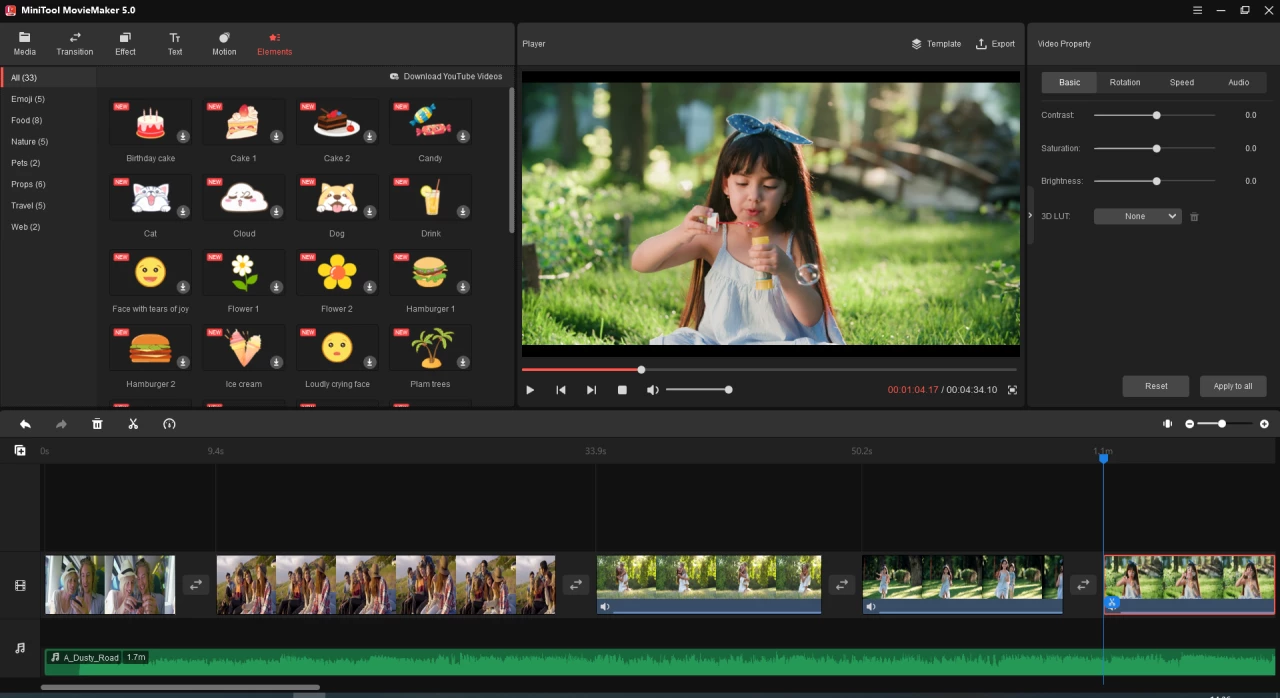
- Animated Elements and Titles: The library contains lower-thirds, end credits, and animated visual stickers. You can drag these directly onto the preview window, using anchor points to resize, reposition, and adjust the duration of the text or graphic over the underlying video.
- Color Correction and LUTs: The application provides built-in visual filters and 3D LUTs to change the color grading of your footage. It also offers manual sliders to adjust contrast, saturation, and brightness for clips that suffer from poor lighting or washed-out colors.
- Split, Trim, and Crop Tools: A dedicated scissor tool cuts clips directly on the timeline, while edge-dragging trims excess footage from the beginning or end of a file. The crop function lets you zoom into specific parts of the frame, removing unwanted edges or black bars, while keeping original files untouched.
- Local High-Resolution Export: You can render finished projects directly to your local drive in resolutions up to 1080p or 4K. The export dialog supports multiple codecs and container formats, including MP4, AVI, WebM, and GIF, giving you direct control over bitrate and file size.
How to Install MiniTool MovieMaker on Windows
- Download the official Windows installer executable directly from the vendor's website to your local storage drive.
- Double-click the downloaded setup file to launch the installation wizard and click Yes when the Windows User Account Control prompt asks for permission to make changes.
- Read the end-user license agreement presented on the first screen and click the button to accept the terms.
- Choose your desired installation directory; the wizard defaults to placing the application inside the Program Files folder on your primary storage drive, but you can click the Browse button to select a secondary storage drive if your main disk lacks sufficient free space.
- Decide whether you want the installer to create a desktop shortcut and a Start menu entry for easier access.
- Click Install to begin copying the required application binaries, visual effects libraries, and built-in templates to your local disk. The process typically takes a few minutes depending on your hard drive speed.
- Once the progress bar finishes, click Finish to close the setup wizard and launch the application directly to the initial project selection screen.
- On the first launch, you will see a welcome screen asking if you want to start a blank project or select a pre-configured template. You do not need to sign in or create a vendor account to begin working offline.
MiniTool MovieMaker Free vs. Paid
The application operates on a freemium model, offering a fully functional Free edition alongside several paid licensing tiers. The Free edition provides unrestricted access to all editing tools, timeline tracks, transitions, and visual effects. It allows you to export projects up to 1080p resolution without branding the video with a forced vendor watermark. However, the free tier limits export duration after the first few full-length videos; typically, it allows the first three videos of any length to export normally, but caps all subsequent exports to a strict two-minute limit.
To remove this export length restriction, users must purchase a paid license. The vendor offers a Monthly Subscription for short-term project needs, priced at $12.99. For longer access, an Annual Subscription is available for $35.99. Both subscription tiers include multi-PC licensing options depending on the exact checkout configuration, and they unlock unlimited export durations for all projects.
For users who prefer to avoid recurring billing, the vendor provides an Ultimate Plan for $59.99. This tier grants a perpetual lifetime license that covers multiple computers and includes future application upgrades at no additional cost. Because all editing features remain identical across the tiers, the decision to upgrade depends entirely on whether your ongoing projects exceed the free version's two-minute export cap.
MiniTool MovieMaker vs. Clipchamp vs. Movavi Video Editor
Clipchamp functions primarily as a web-centric editor that Microsoft has integrated directly into the operating system. It relies heavily on cloud-based processing, requires a mandatory user account login before you can access the timeline, and locks higher-resolution exports behind a paywall. You should choose Clipchamp if you want native cloud-syncing, direct stock media integration, and text-to-speech tools, but it struggles with offline workflows and processing heavy uncompressed local files without stable internet.
Movavi Video Editor targets the same beginner-to-intermediate demographic but offers a more complex toolkit, including motion tracking, chroma keying, and AI-driven background removal. It operates strictly as a commercial product with a harsh trial watermark across the center of your video until you purchase a license. You should choose Movavi if you have outgrown basic assembly editing and need specialized visual effects, but it requires a larger upfront investment or an ongoing subscription.
MiniTool MovieMaker is the better fit for users who want a traditional, strictly local desktop application that skips mandatory account creation and cloud dependencies. It excels at fast timeline assembly, offering a cleaner interface than Movavi while avoiding Clipchamp's reliance on remote servers. It is the practical choice if you need to quickly cut footage, apply a template, and export a clean, watermark-free 1080p video straight to your hard drive without navigating complex subscription gates or cloud sync errors.
Common Issues and Fixes
- Hardware acceleration crashes. If the application closes unexpectedly during timeline playback or while exporting a final project, the graphics card drivers might conflict with the rendering engine. Open the application settings and disable hardware acceleration, forcing the software to rely entirely on the CPU for rendering.
- Missing media files on the timeline. Moving, renaming, or deleting raw video files from your hard drive will break the file paths, causing red or blank clips to appear on the timeline. Keep all your raw assets in a single dedicated folder and avoid modifying them in your file explorer until the final video is completely exported.
- Choppy playback with 4K footage. High-resolution files from modern digital cameras can stutter during the timeline preview because the software tries to decode heavy data in real time. Lower the preview playback quality in the monitor window, or convert the raw files to standard 1080p using an external transcoder before importing them.
- Transition effects disappearing. Applying a visual fade between two very short clips often causes the effect to drop out because there are not enough overlapping frames. Zoom into the timeline and ensure both adjacent clips have at least a few seconds of extra duration to support the visual transition.
- DirectX launch errors. The software requires a compatible graphics framework to open correctly. If you receive a startup error stating that the application cannot launch, run the built-in Windows diagnostic tool (dxdiag) to verify that your system supports DirectX 10 or higher, and update your graphics drivers if necessary.
Version 8.4.0 — November 2025
- Added a new "Bubble Text" feature, allowing users to apply speech bubble styles to default text for more creative captions.
- Introduced a variety of festive Christmas-themed stickers and elements to the resource library.
- Optimized the text editing interaction by updating the drag handles in the player window for easier adjustment.
- Implemented a dynamic "New" label on resource categories to instantly highlight freshly updated content upon launch.
- Improved overall software stability and performance for a smoother editing experience.