Adobe After Effects operates as the primary layer-based motion graphics and visual effects application for professional video workflows. It focuses on post-production tasks where video editors, animators, and visual effects artists need to manipulate media beyond basic timeline splicing. Users rely on the desktop app to build 2D and 3D animations, design kinetic typography, replace backgrounds, and composite multiple visual elements into a single finished scene. Because it relies heavily on local processing power, the native Windows client utilizes local RAM, GPU hardware acceleration, and disk caching to manage complex rendering calculations that browser-based video editors simply cannot execute.
The application serves a very specific phase in video production. Instead of assembling raw clips into a linear sequence, users bring locked edits or individual raw shots into the composition window to apply specialized visual treatments. This workflow includes tracking moving objects to attach floating text, isolating characters using rotoscoping tools, or generating weather and particle effects from scratch. Animators use timeline keyframes, graph editors, and mathematical expressions to control exact frame-by-frame movements. This level of granular control makes the software the standard choice for creating broadcast title sequences, lower thirds, digital advertisements, and user interface mockups.
Running the application requires significant local system resources, specifically targeting 64-bit Windows architectures. While project files are saved locally as AEP files, the software integrates with Adobe's cloud infrastructure to sync licensed fonts, asset libraries, and collaborative team projects. The workspace is highly modular, featuring a central composition viewer surrounded by project media bins, a multi-track timeline, and panels for effects, character formatting, and tracking data. Instead of exporting directly to a final consumer video format immediately, users typically render intermediate files through the built-in Render Queue or send their compositions to the companion Media Encoder application to generate compressed H.264 or ProRes deliverables.
Key Features
- Layer-Based Compositing: Users stack video clips, still images, vector graphics, and adjustment layers within the timeline panel to build complex visual scenes. The software provides dozens of blending modes, track mattes, and alpha channel controls to dictate exactly how overlapping pixels interact with one another, allowing for precise background replacements and multi-pass rendering setups.
- Roto Brush and Masking: The Roto Brush tool isolates subjects from their backgrounds frame-by-frame by calculating edge contrast, effectively removing the need for a physical green screen in some scenarios. Editors use the pen tool to draw custom bezier masks around objects, allowing them to place text behind moving actors or isolate specific areas of a frame for color correction.
- Motion Tracking and Stabilization: The application analyzes video footage to track the movement of specific contrast points, enabling users to attach floating graphics, null objects, or text that realistically follow a moving subject across the screen. Additionally, the Warp Stabilizer effect calculates camera movement and crops the footage to smooth out shaky handheld video clips.
- Keyframe Animation and Expressions: Animators control layer properties like position, scale, rotation, and opacity using timeline keyframes to dictate start and end values over time. For highly complex or repetitive movements, users can write JavaScript-based code, called expressions, directly into the property fields to automate behaviors without manually placing hundreds of individual keyframes.
- Content-Aware Fill for Video: This tool analyzes surrounding frames to automatically calculate and remove unwanted objects from moving footage, such as boom microphones, dust spots, or stray background elements. The software interpolates the visual data and fills the empty space with generated background pixels, matching the lighting and camera movement of the original shot.
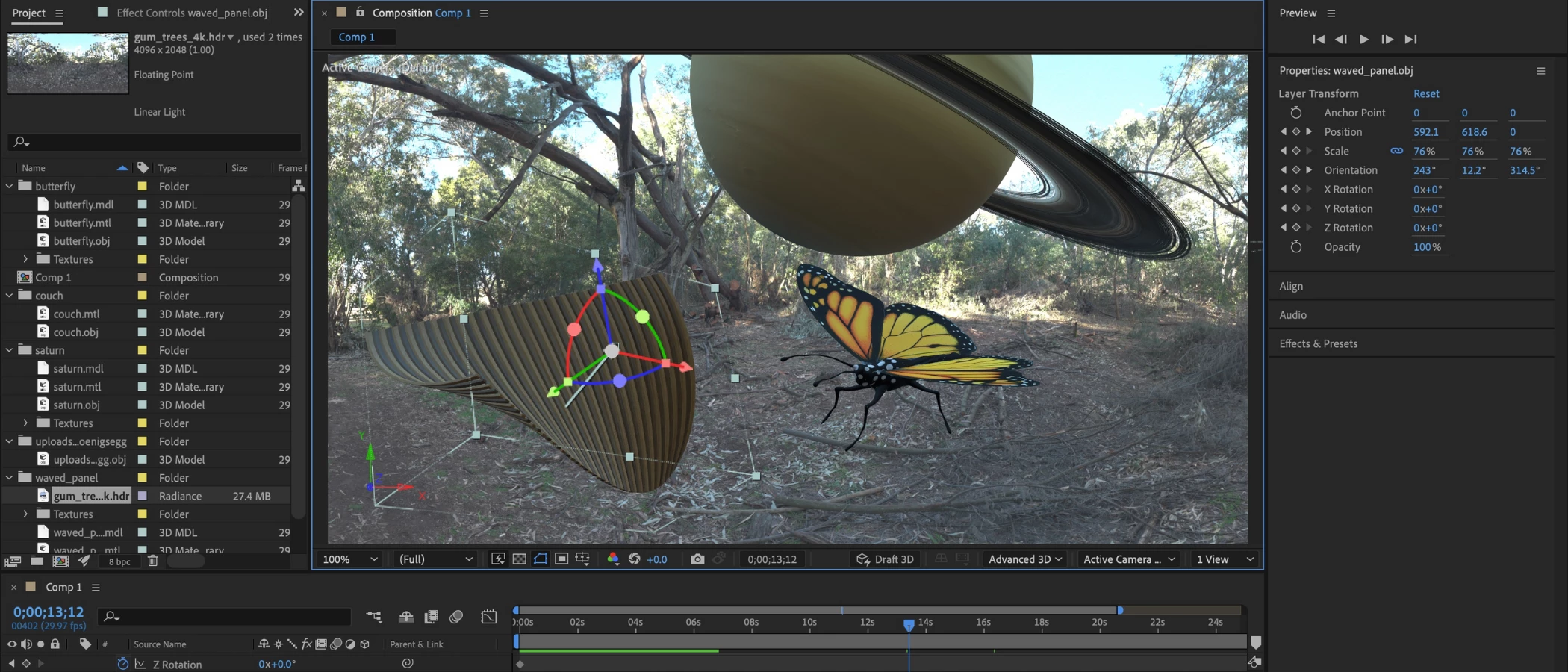
- 3D Workspace and Lighting Controls: The interface allows users to convert flat 2D layers into 3D space along the X, Y, and Z axes. Within this workspace, creators can add virtual cameras with adjustable focal lengths and depth of field, animate complex camera sweeps, and apply point or ambient lights that cast mathematically accurate shadows across the simulated environment.
- Dynamic Link Integration: When installed alongside Premiere Pro, the software allows users to import After Effects compositions directly into a Premiere editing timeline without rendering intermediate video files. Any changes made and saved in the visual effects composition automatically update in the video editor, eliminating the need to render and re-import revised clips repeatedly.
How to Install Adobe After Effects on Windows
- Navigate to the official Adobe website and download the Creative Cloud desktop application installer executable to your local drive.
- Launch the downloaded setup file and enter your Adobe ID credentials when the login window prompts you for authentication.
- Wait for the Creative Cloud client to finish downloading its core background processes, which will manage your software licenses and cloud storage connections.
- Open the main Creative Cloud dashboard, select the "All Apps" tab from the left-side menu, and locate the After Effects listing.
- Click the "Install" button; the client will automatically download the necessary application packages and place them in the default C:Program FilesAdobe directory.
- Launch the software either from your Windows Start menu or by clicking the "Open" button directly within the Creative Cloud client interface.
- During the first launch, allow the application time to initialize its media core components, scan for installed system fonts, and load the default workspace layout.
Adobe After Effects Free vs. Paid
Adobe After Effects does not offer a free tier, open-source alternative, or a traditional perpetual software license. The application operates strictly under a subscription billing model and requires an active internet connection to verify account licensing periodically. Users who want to test the software hardware compatibility and interface can access a fully functional 7-day trial. This trial requires payment details upfront and automatically converts to a paid subscription if the user does not manually cancel the plan through their Adobe account settings before the billing date arrives.
For individuals, the software is available through a Single App subscription plan. This tier provides full access to the desktop application, includes 100GB of cloud storage for project sync, and grants access to the Adobe Fonts library. Users pay either a flat month-to-month rate or select an annual commitment that is billed monthly at a reduced rate. Canceling an annual plan early incurs a cancellation fee. When a subscription ends, the user loses all access to open the software, though the local project files remain on their hard drive, inaccessible until the license is renewed.
Alternatively, users can license the software through the Creative Cloud All Apps plan, which bundles After Effects with other desktop applications like Premiere Pro, Photoshop, and Illustrator. Adobe offers specific pricing brackets based on the user category. Verified students and teachers receive significant discounts on the All Apps bundle for their first year. For commercial environments, Adobe provides specialized business licenses that cost more per seat but include centralized administration dashboards, advanced technical support, and shared team asset libraries.
Adobe After Effects vs. Nuke vs. DaVinci Resolve Fusion
Nuke utilizes a node-based compositing workflow designed specifically for high-end film and television visual effects pipelines. It excels at deep compositing, handling multi-channel EXR files, and managing heavy CGI renders from dedicated 3D applications. Visual effects artists working on complex feature films prefer Nuke for its strict mathematical approach to color space and its ability to connect hundreds of visual inputs without creating a cluttered, unreadable timeline. However, the software carries a much higher price tag than Adobe products and lacks the immediate typography and vector shape tools required for daily motion graphics work.
DaVinci Resolve Fusion also uses a node-based visual interface but exists directly inside the broader DaVinci Resolve non-linear editing suite. It appeals to solo video editors and color graders who need to execute visual effects, chroma keying, and 3D camera tracking without exporting their clips to a separate application. Fusion handles heavy node trees efficiently and offers a highly capable free tier within the basic DaVinci Resolve download. Despite these advantages, its dedicated motion design toolset and third-party plugin ecosystem remain smaller and less mature than the options available to Adobe users.
Adobe After Effects operates as the better choice for motion graphics designers, broadcast animators, and generalist video editors who need to generate title sequences, explainer animations, and kinetic typography. Its layer-based timeline feels highly intuitive for users migrating from Photoshop or Premiere Pro. While it can struggle under the weight of massive cinematic visual effects shots compared to node-based competitors, the sheer volume of available third-party plugins, pre-built templates, and community tutorials makes it highly adaptable for completing mid-level visual effects tasks and commercial animation projects on strict deadlines.
Common Issues and Fixes
- Render queue crashes mid-export. Complex projects with heavy particle effects or 4K footage often overwhelm local system memory during the final video export. To bypass this, change the output module from an MP4 or MOV file to an image sequence format like PNG or EXR. If the application crashes, you can resume the render from the exact frame where it failed without starting the entire process over.
- Timeline playback stutters or the green bar stops loading. This occurs when the local disk cache fills up completely, preventing the software from rendering new preview frames. Navigate to the Edit menu, select Purge, and click "All Memory & Disk Cache" to delete old temporary files and restore normal playback speed.
- Hardware acceleration errors appear on the screen. Specific graphics card drivers or outdated effects plugins occasionally conflict with the Mercury Playback Engine, causing screen glitches or complete freezes. Go to Project Settings under the File menu, and change the Video Rendering and Effects dropdown from GPU Acceleration to Mercury Software Only.
- Third-party plugins fail to appear in the Effects panel. Users often drop custom executable files or scripts into the wrong system directory. Ensure that the specific plugin files are placed exactly in the C:Program FilesAdobeAdobe After EffectsSupport FilesPlug-ins folder, then restart the application to force a fresh directory scan.
- Insufficient RAM warnings trigger upon startup. The application dynamically shares system memory with other open Adobe products, which can restrict its performance. Open Preferences, navigate to Memory & Performance, and increase the amount of RAM specifically allocated to the application while leaving enough reserved memory for the base Windows operating system to function properly.
Version 25.6 — November 2025
- Added a unified 3D gizmo that allows for the simultaneous rotation, scaling, and positioning of multiple selected 3D layers.
- Added the ability to adjust Default Camera settings and custom views directly through the View menu for improved 3D composition control.
- Introduced a "Tip of the Day" feature that displays workflow shortcuts and educational insights within the Composition, Layer, and Footage panels.
- Improved performance and stability across the application by resolving extensive bugs and crash issues.