Digital reading is heavily fragmented by vendor lock-in. When a reader purchases a digital book from Amazon, Kobo, Nook, or Google Play, that file is strictly bound to the retailer’s proprietary ecosystem. A title bought on Amazon cannot be natively opened on a Kobo eReader, and a Google Play book downloaded via Adobe Digital Editions cannot be read on a Kindle. Epubor Ultimate Converter bridges this gap by functioning as a decryption utility and format translator. It extracts purchased books from their walled gardens, stripping the underlying Digital Rights Management (DRM) restrictions and converting the files into universal standards.
This software is built for readers who want to retain offline backups of their digital libraries or migrate their purchased content across competing hardware devices. The core utility lies in its ability to handle complex, proprietary formats such as Amazon’s KFX and AZW3, Adobe’s ACSM-derived EPUBs, and Nook’s specialized encryption. By processing these files locally, the software gives users actual ownership over their media, ensuring that a discontinued store account or a hardware switch does not result in the loss of a purchased library.
A desktop application is strictly necessary for this task. Browser-based file converters cannot access the local encryption keys generated by desktop e-reading applications. Epubor Ultimate Converter runs directly on Windows, scanning the local file system to find the exact decryption keys tied to your specific Kindle for PC, Kobo Desktop, or Adobe Digital Editions installation. This local processing ensures that the DRM removal happens securely and automatically, without requiring the user to manually extract or upload sensitive account keys to an external server.
Key Features
- Format Conversion Engine: The application translates restrictive input formats including KFX, AZW, AZW3, AZW4, PRC, TPZ, Topaz, and ACSM-locked files into universal open standards. Users can export their libraries directly to EPUB, PDF, MOBI, AZW3, or plain TXT, ensuring compatibility with virtually any e-ink device, tablet, or desktop reading software.
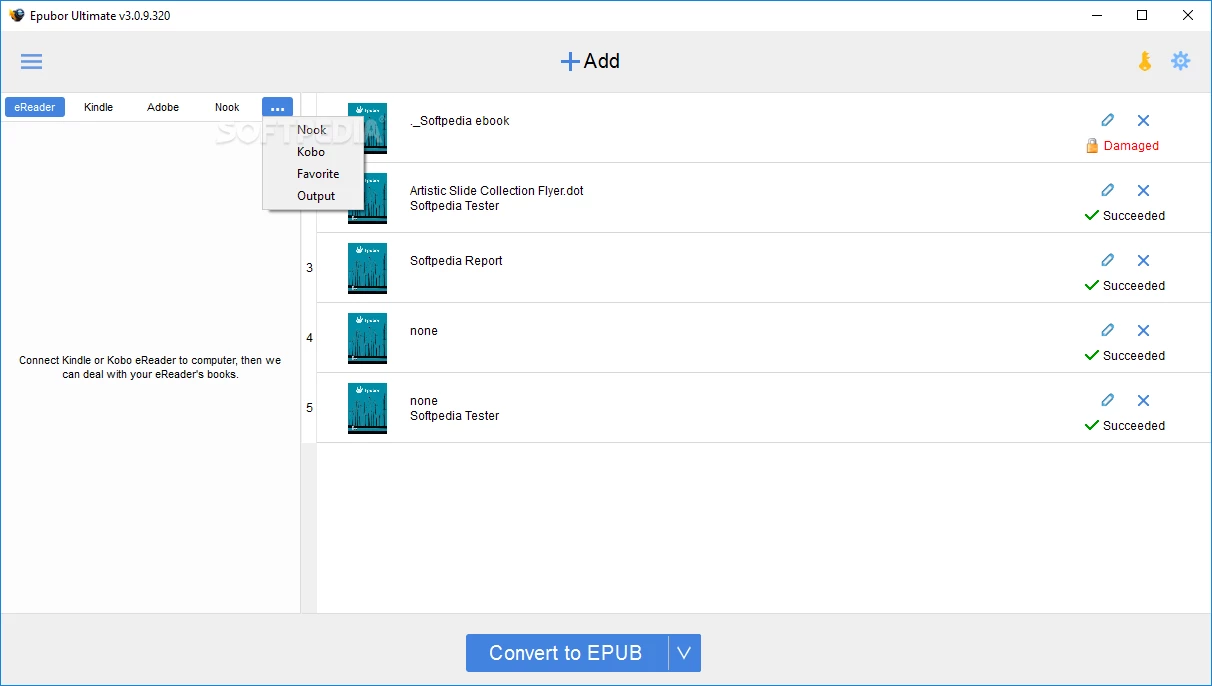
- Automated Library Detection: Upon launch, the software scans the Windows file system for recognized desktop reading applications such as Kindle for PC, Adobe Digital Editions, and Kobo Desktop. It automatically populates the left sidebar with your downloaded titles, eliminating the need to manually hunt through hidden AppData folders to find the encrypted source files.
- Hardware Device Syncing: If you connect a dedicated e-reader like a Kindle Paperwhite, Kobo Clara, or Sony eReader to your Windows machine via USB, the application detects the hardware. It reads the device storage and loads the contents into a dedicated column, allowing you to pull books directly off the physical reader for backup and conversion.
- Batch Processing Interface: The main workspace relies on a drag-and-drop mechanism where users can move multiple titles from the left sidebar into the central processing queue. Clicking the primary conversion button at the bottom of the screen processes the entire queue sequentially, applying the decryption and format translation to hundreds of files in a single pass.
- Metadata Editor: The software includes an edit interface accessible by clicking the pen icon next to any imported book. This panel allows you to fix broken or missing metadata before exporting, including fields for the book cover image, title, author, identifiers, publishing date, language, publisher, and introductory text.
- Built-in Library Search: For users managing massive local archives, the interface includes a search bar to instantly filter the loaded library. The search queries scan through titles, author names, publishers, and embedded text, allowing you to locate specific files quickly without scrolling through alphabetical lists.
How to Install Epubor Ultimate Converter on Windows
- Download the Windows installer executable from the official Epubor website.
- Double-click the downloaded setup file to launch the installation wizard.
- Accept the end-user license agreement and proceed to the destination folder step, leaving the default path assigned to your primary Windows program files directory.
- Click the install button to write the application files to your disk, and wait for the progress bar to complete.
- Check the option to launch the software immediately, then click to exit the setup wizard.
- Upon the first launch, a brief visual tutorial will overlay the main interface, explaining the layout of the left sidebar, the central drag-and-drop zone, and the output format menu.
- To ensure the software can decrypt your files, install and sign into the official desktop reading applications on the same Windows environment, and download your books locally so the converter can fetch the necessary keys.
Epubor Ultimate Converter Free vs. Paid
The software operates under a commercial, proprietary licensing model and provides a restricted free trial for testing the workflow. The trial version allows users to experience the interface, detect their local libraries, and verify that the software can successfully decrypt their specific files. However, the trial output is strictly limited: it only converts and exports a strict twenty percent of the original book's content, and it forces the output into a plain text format, discarding all original layout, formatting, and images.
To unlock the full functionality, users must purchase a commercial license. A standard one-year license for a single Windows machine typically costs around $29.99, which includes software updates and technical support for that duration. The developer also offers multi-year and perpetual lifetime licenses for users who want to avoid recurring subscription fees. Purchasing a license provides a registration code that, once entered into the software settings, immediately lifts the text-only restriction.
Once registered, the application preserves all of the book's content, retaining the original typography, chapter structures, and embedded images, and allows exporting to standard formats like EPUB and PDF. All paid tiers are backed by a standard 30-day money-back guarantee, allowing users to request a refund if the software fails to decrypt a specific proprietary format that was advertised as supported.
Epubor Ultimate Converter vs. Calibre vs. BookFab Kindle Converter
Calibre is a free, open-source eBook manager that excels at organizing massive digital libraries and converting DRM-free files. By default, Calibre cannot process encrypted books. To match the decryption capabilities of commercial tools, users must manually find, download, and install third-party plugins like the Apprentice Alf DeDRM package, and manually input their e-reader hardware identification strings. This makes Calibre exceptional for technical users who want complete, granular control over their metadata and formatting at no cost, but the setup process can be frustrating for casual readers.
BookFab Kindle Converter is a specialized, commercial utility that focuses primarily on the Amazon ecosystem. It often acts as a companion tool to Calibre, offering its own integration plugin to handle the latest Kindle encryption methods, and includes features specifically designed for converting text to audiobooks. It is a strong choice if your entire digital library is purchased exclusively through Amazon and you want tight integration with your existing Calibre database, but it lacks the broad, standalone support for Adobe Adept or Nook encryption.
Epubor Ultimate Converter is the better fit for readers who want a standalone, automated workflow that handles multiple storefronts out of the box. Because it automatically scans for desktop reading apps, fetches the decryption keys in the background, and requires zero plugin configuration, it removes the technical friction from the process. It is the most direct route for users who simply want to drag a file from Kindle, Kobo, or Google Play and export an EPUB in three clicks.
Common Issues and Fixes
- Problem description. The converted eBook only contains a small fraction of the text and has lost all of its original formatting and images.
This is the intended behavior of the free trial mode. The software limits output to a partial text file until registered. To export the complete book in EPUB, MOBI, or PDF format, you must purchase a license and enter your registration code in the application settings. - Problem description. The software displays an error stating your book is protected by a kind of DRM we do not support.
This usually happens when attempting to process files purchased from Apple iBooks. The application does not support Apple's Fairplay DRM. You must ensure your source files originate from supported retailers like Amazon, Kobo, Barnes & Noble, or Google Play. - Problem description. KFX format books downloaded via the latest version of Kindle for PC fail to decrypt or load into the interface.
Amazon frequently updates its Windows desktop app to block decryption methods. To resolve this, use the software's built-in downgrade tool, or manually uninstall your current Kindle for PC app and install an older, supported release to restore compatibility. - Problem description. Books purchased from Google Play or Kobo and downloaded as ACSM files do not convert directly.
An ACSM file is not the actual book; it is a secure download link. You must first install Adobe Digital Editions, authorize it with your Adobe ID, and open the ACSM file there. Once Adobe Digital Editions downloads the actual EPUB, Epubor will detect it and can proceed with decryption. - Problem description. Nook books do not automatically appear in the left sidebar despite being downloaded to the computer.
Updates to the Nook Windows application sometimes alter the default storage directory, breaking the auto-detection. You can fix this by locating your Nook downloads folder manually and dragging the files directly into the main conversion window.
Version 3.0.16.310 — December 2024
- Resolved a specific issue preventing correct Kindle key generation when installed in the Program Files (x86) directory.
- Optimized core conversion algorithms to ensure better compatibility with the latest eBook DRM schemes.
- Fixed various minor bugs and improved overall software stability for smoother batch processing.