TerminalWorks TSScan solves one of the most persistent headaches in remote desktop environments: the inability to easily use a local scanner within a remote session. Instead of requiring complex network setups or unstable driver installations on your server, this software creates a virtual communication tunnel that maps your local imaging devices directly to the remote server. Designed primarily for system administrators, healthcare providers managing electronic medical records, and accounting firms working on cloud-hosted desktops, it bypasses the standard hardware limitations of RDP, Citrix, VMware, and Azure Virtual Desktop sessions.
Before specialized redirection tools existed, employees working on terminal servers had to scan documents to a local folder, open an email client or FTP application, send the file to themselves, log back into the remote desktop, download the attachment, and then finally import it into their workflow. This fragmented process wastes countless hours and introduces security risks regarding orphaned files. The application completely eliminates these steps by intercepting the local scanner feed, compressing the image data, and sending it over the existing Microsoft Virtual Channel. This allows employees to open their remote accounting software or medical database, click the native scan button, and immediately trigger the physical scanner sitting on their local desk.
Relying on a dedicated desktop client and server module is necessary here because browser-based applications fundamentally fail at this specific task. Web platforms operate inside strict security sandboxes, meaning a standard browser cannot send direct electrical commands to a document feeder or bypass driver permissions to control motor speed. By using a native local client matched with a server-side receiver, organizations gain direct hardware control. This architecture ensures that multi-page scans, barcode detection, and exact DPI settings are faithfully transmitted over the remote connection without extreme bandwidth consumption, processing the raw, heavy image files locally before sending only the optimized data to the server.
Key Features
- Direct Hardware Passthrough: The software acts as a specialized bridge between the local machine and the terminal server, allowing remote enterprise applications to see locally connected TWAIN or WIA scanners as if they were physically plugged into the remote server rack.
- Advanced Image Compression: To prevent large uncompressed image files from freezing the remote session or causing bandwidth bottlenecks, the tool applies highly configurable JPEG compression directly at the client side before transmitting data over the virtual channel.
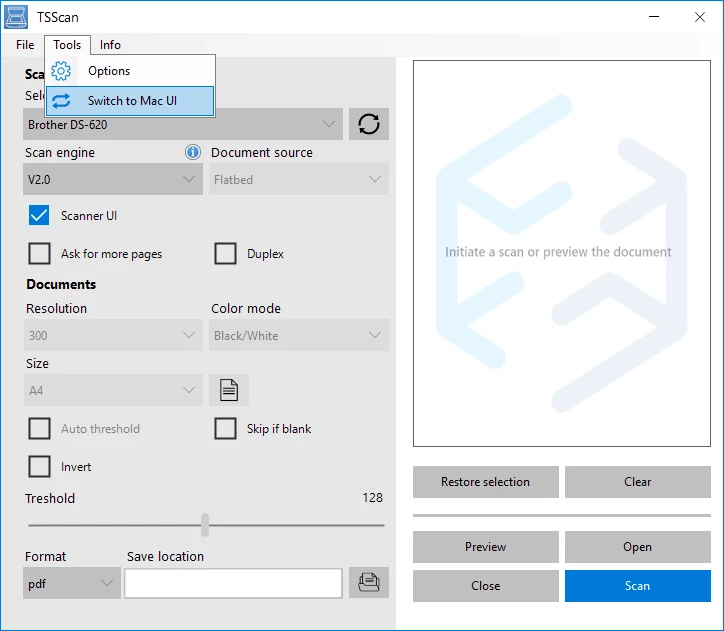
- Direct Format Exporting: Users do not need to install an extra image editor on the server to process their incoming scans. The native graphical user interface allows direct saving to standard formats including TIFF, JPEG, BMP, and multi-page PDF documents.
- Broad Environment Support: The underlying communication protocol works securely inside standard Microsoft RDP, Citrix Virtual Apps and Desktops, VMware Horizon PCoIP, and Azure Virtual Desktop environments, making it highly versatile for mixed-infrastructure IT departments.
- Hardware-Agnostic TWAIN Compliance: The virtual driver mapping accepts standard consumer flatbeds, high-volume Fujitsu document feeders, and specialized medical card scanners, passing them through to the server without requiring IT to install specific device drivers on the host machine.
- Granular Scan Controls: Through the client application interface, users can define precise region selections for custom paper sizes, trigger auto-crop functionalities, invert image colors, configure brightness, and manage auto-paper detection in heavy-duty document feeders.
How to Install TerminalWorks TSScan on Windows
- Download the TSScan Server installer package from the official vendor website and save it on your central Windows Server, Citrix host, or Azure Virtual Desktop environment.
- Run the server installer executable with administrative privileges, accept the end-user license agreement, select the default destination folder, and complete the setup wizard so the server is ready to receive incoming scanner connections.
- Switch to the local Windows workstation where the physical scanner is attached via USB or local network, and download the corresponding TSScan Client installer package.
- Launch the client setup wizard as an administrator, review the license terms, and install it to the default local directory within the Program Files folder.
- Once the client installation finishes, navigate to the Windows Start menu, locate the TerminalWorks folder, and open the "TSScan Client Settings" application.
- Click on "Select Default Scanner" from the graphical interface and choose your locally connected hardware from the dropdown menu to link the physical device to the virtual tunnel.
- Log into your remote desktop session, open any document management or medical application that supports scanning, and select "TSScan" from the application's native scanner selection prompt to begin capturing images directly to the remote host.
TerminalWorks TSScan Free vs. Paid
TerminalWorks TSScan operates on a commercial licensing model, but it provides a fully functional 30-day free trial for organizations to test the hardware pass-through in their specific remote environments. During this evaluation period, network administrators can install the server and client modules across their entire infrastructure without facing any hidden watermark restrictions, daily export limits, or blocked administrative features. This allows IT teams to definitively confirm compatibility with their specific TWAIN scanners, electronic health record databases, or cloud-hosted accounting software before committing to a final purchase.
Once the trial period expires, organizations must purchase a paid commercial license to continue using the software, as the application will stop bridging the scanner connection. TerminalWorks generally relies on a perpetual licensing model, meaning you buy the software once and own it permanently, rather than paying a mandatory recurring monthly subscription just to keep the software running. The pricing structure is divided into Limited licenses, which are priced per concurrent remote desktop user, and Unlimited licenses, which cover an entire Windows server regardless of how many employees connect to it. Support and future version updates are covered by an annual software assurance fee.
For growing organizations scaling up their remote workforce, upgrading from a per-user Limited license to an Unlimited server license is a straightforward process, as administrators simply pay the price difference through their online customer portal. Because there is no permanently free tier available beyond the initial 30 days, businesses looking for a zero-cost solution will need to rely on native Windows USB drive redirection or manual file-transfer workarounds. However, those manual methods lack the direct TWAIN integration and practical workflow that this dedicated application provides.
TerminalWorks TSScan vs. Quest RemoteScan vs. FabulaTech Scanner for Remote Desktop
Quest RemoteScan is one of the oldest and most established tools for redirecting scanner hardware over RDP and Citrix connections. It is highly trusted in strictly regulated enterprise and healthcare environments, supporting an extensive array of compliance standards for secure, encrypted data transmission. However, Quest RemoteScan's licensing is traditionally tied to the individual scanner hardware endpoints rather than the server capacity or the user count. This structure can make it expensive for large distributed teams utilizing many inexpensive desktop scanners. It remains the better choice for highly regulated enterprise environments that already rely heavily on Quest's broader endpoint management and security ecosystem.
FabulaTech Scanner for Remote Desktop is another strong alternative that focuses heavily on isolating scanner traffic so that multiple users operating on the same terminal server never interfere with each other's active document feeds. FabulaTech offers an incredibly granular level of control over individual device endpoints and handles complex USB redirection across challenging network topologies gracefully. The main drawback to this approach is the overall cost, as FabulaTech's pricing tiers tend to be significantly higher than the industry average, making it a premium choice specifically for organizations that demand strict endpoint isolation and dedicated USB-over-network architecture.
TerminalWorks TSScan stands out as the most cost-effective, straightforward, and easily deployed solution among the three, especially for small to mid-sized businesses, regional accounting firms, and local medical clinics. By offering a flexible licensing model based on total server capacity or active user seats rather than counting every single physical scanner plugged into a wall, it significantly reduces administrative overhead and overall expense. When an IT department needs to implement TWAIN redirection quickly without navigating a complex, multi-week enterprise sales process or paying premium corporate prices, TSScan is consistently the more practical and immediate fit.
Common Issues and Fixes
- Problem description. The remote application cannot find the scanner, or the TSScan driver does not appear in the TWAIN source list when attempting to import a document. The fix is to verify that the server module is fully installed on the host machine, restart the remote desktop session, and ensure that the host application is explicitly pointing to the "TSScan" virtual device as the active source instead of a local device.
- Problem description. Scanned images take too long to appear on the remote server, causing the remote desktop session to lag or briefly freeze during transfers. The fix is to open the local client settings and enable aggressive JPEG compression or reduce the physical scanning DPI settings, which minimizes the file size before it travels across the virtual channel.
- Problem description. A valid purchased license still shows as a trial version or displays an expired warning on the terminal server. The fix is to navigate to the
C:Program Files(x86)TerminalWorksTSScan Serverdirectory on the host machine, manually delete any old files ending with the.licenseextension, and then re-register the new license key through the server administration dialog. - Problem description. The physical scanner's native hardware interface does not pop up when initiating a scan from within the remote desktop application. The fix is to open the application settings and check the "Scanner UI" or "Use Shell Scanning" checkbox in the advanced configuration menu. This forces the remote session to call the actual hardware's proprietary control menu rather than the default shell.
Version 3.5.2.5— May 2022
- Resolved a character encoding bug affecting file save location paths.
- Addressed a malfunction specifically affecting the V3.0 scanning engine.
- Corrected an issue where incorrect paper dimensions were applied within the TSScan interface dialog.
- Fixed a persistence bug that caused the scan engine to revert to version 2.0 unexpectedly.