MediCat USB functions as a massive, multi-boot diagnostic environment that transforms an ordinary portable flash drive into a fully functional computer repair toolkit. When a desktop or laptop refuses to start normally, browser-based applications and cloud diagnostics are entirely useless. A bare-metal toolkit bypasses the damaged host operating system entirely, booting its own independent environment directly from system memory. This allows technicians and system builders to interface with the hardware without relying on the internal hard drive. By operating at the lowest level of the machine, it grants unrestricted access to the file system, registry, and boot configuration data. Users do not need an active internet connection to load the core utilities, making it ideal for offline servicing in server rooms or remote offices.
The environment is designed for heavy-duty, practical recovery jobs. Users deploy it to reset forgotten local account passwords, bypass lock screens, diagnose failing random access memory, and clone dying hard drives sector-by-sector to new solid-state drives. It also provides a safe, isolated workspace to scan an infected machine for deeply embedded malware or ransomware without giving the malicious code a chance to execute in the background. Because it boots into a graphical workspace, technicians do not have to memorize complex command-line arguments to rescue documents, photos, or databases from an unmountable partition.
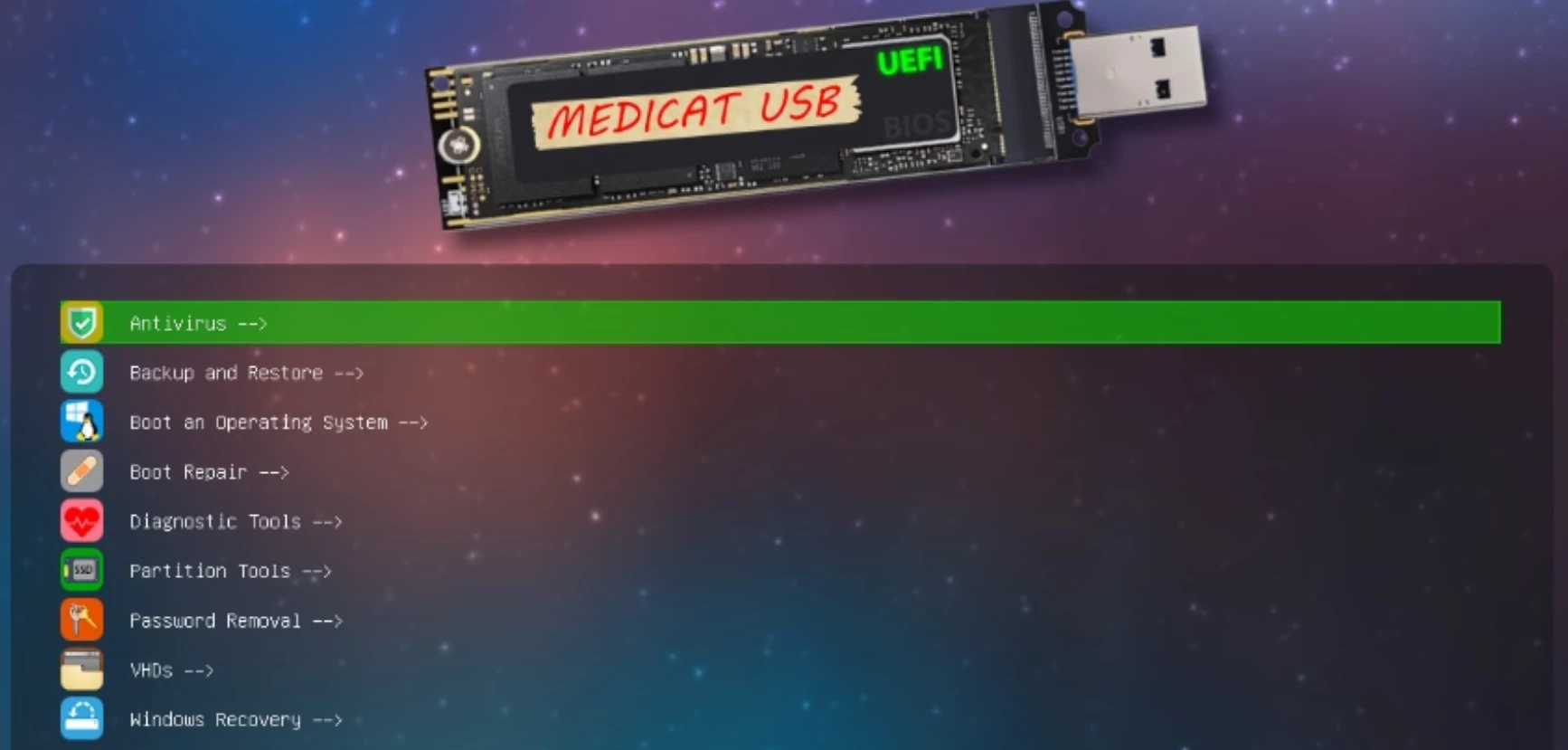
Instead of writing a single utility to a flash drive, this package utilizes a dynamic bootloader to house dozens of independent tools and environments. This means an IT professional no longer needs to carry a keyring full of separate drives for memory testing, storage formatting, and malware removal. By consolidating everything into one graphical menu, the toolkit streamlines the repair process, making it significantly easier to jump from hardware diagnostics straight into file recovery without ever rebooting the machine or swapping physical media.
Key Features
- Dynamic Bootloader Menu: The foundation of the toolkit relies on the Ventoy boot manager, which alters how portable drives handle disk images. Instead of repeatedly formatting the drive to write a single recovery tool, users can simply drag and drop raw ISO, WIM, and IMG files directly onto the storage partition. When the computer restarts, the main menu automatically populates with all available disk images, allowing for instant access to any added tools.
- Live Graphical Desktop: Troubleshooting from a stark command line is difficult, so the environment includes a Mini Windows 10 preinstallation workspace. This boots into a familiar desktop interface running entirely in system memory, complete with a taskbar, file explorer, and network support. From here, users can launch portable web browsers to research hardware error codes or run diagnostic utilities with a standard mouse and keyboard setup.
- Advanced Storage Management: Fixing drive errors requires direct block-level access to the storage controller. The menu includes heavy-duty partition managers such as DiskGenius and MiniTool Partition Wizard to format unallocated space, rebuild broken master boot records, and convert partition tables. Technicians use these utilities to rescue deleted volumes or safely wipe sensitive data from platters before disposing of old hardware.
- Account Access Recovery: Locked workstations present a major hurdle when administrative passwords are lost. The toolkit provides offline registry editors and active directory bypass tools that target the local security accounts manager database. With a few clicks, an administrator can clear a forgotten login credential, elevate a standard user to an admin, or completely bypass the lock screen on an inherited machine.
- Isolated Malware Scanning: Cleaning a highly infected machine from within its own operating system rarely yields permanent results. By booting from the external drive, scanners like Malwarebytes and Kaspersky run in complete isolation from the host registry. This prevents rootkits and ransomware from hiding their processes, allowing the scanning engine to target and quarantine malicious payloads directly on the dormant storage drive.
- Bare-Metal Data Cloning: Migrating a failing mechanical drive to a new solid-state drive requires exact sector-by-sector duplication. The environment incorporates imaging software such as Macrium Reflect and Clonezilla to capture entire disk snapshots or clone partitions directly. This ensures that the rescued drive retains its exact folder structure, installed applications, and boot configuration without requiring a fresh operating system installation.
How to Install MediCat USB on Windows
- Locate an empty USB flash drive or a portable solid-state drive with at least 64 gigabytes of storage capacity. Using a high-speed interface is critical, as loading graphical desktop environments and large disk images from an older standard will result in extremely slow performance.
- Temporarily pause Windows Defender or any third-party antivirus software currently active on the host computer. Security applications frequently flag offline password bypass utilities and network diagnostic scanners as potential threats, which will cause them to be deleted during the extraction process.
- Download the official installer archive and extract the entire compressed folder to a local directory on your primary hard drive. Do not attempt to run the installer script directly from inside the compressed viewing window, as the batch file needs full read and write access to its adjacent folders.
- Plug the blank portable drive into a direct motherboard port and take note of the exact drive letter assigned to it in the file explorer. Disconnect any other external storage devices to prevent accidental formatting during the automated setup phase.
- Right-click the included installation batch script, usually named for the setup process, and select the option to run it as an administrator. The command-line window will open and prompt you to enter the target drive letter for the formatting operation.
- Type the corresponding letter and press Enter to allow the script to wipe the drive, install the required Ventoy bootloader, and copy the multi-gigabyte toolkit payload. This file transfer involves thousands of small utilities and large disk images, so the process requires patience.
- Once the command-line window confirms a successful transfer, safely eject the drive and plug it into the malfunctioning target computer. Power on the machine, immediately enter the UEFI or BIOS settings, disable Secure Boot, and move the newly created portable drive to the top of the boot priority list.
MediCat USB Free vs. Paid
This toolkit operates strictly as a free, non-commercial project compiled from various open-source utilities and freeware applications. The developer does not charge for the software, nor does the project hide essential recovery features behind premium tiers, subscription requirements, or paid license keys. Anyone can download the complete archive, create their own bootable drive, and use the included tools to diagnose failing hardware or rescue data without encountering forced trial limits or watermarks.
The core philosophy of the project is accessibility for technicians and home users who need immediate access to emergency tools. Because the environment relies heavily on community-developed software and portable freeware, there is no enterprise licensing model or corporate support contract available. The development is sustained entirely by volunteer efforts, and the official documentation actively encourages users to build and modify their own drives at zero cost. Technicians who build the drive themselves gain full control over the update cycle. When an update drops, they simply replace the outdated disk images on their Ventoy partition rather than buying a completely new drive. This ongoing flexibility solidifies its position as a highly economical choice for independent repair shops.
While the software itself demands no payment, users may occasionally see physical drives pre-loaded with the toolkit sold on third-party auction sites. These independent sellers charge for the cost of the high-capacity hardware and the manual labor required to prepare and test the drive, not for the digital contents. Users with a fast internet connection and a blank drive can bypass these hardware sales entirely by following the official setup instructions and compiling the free environment themselves.
MediCat USB vs. Hiren's BootCD PE vs. WinPE Sergei Strelec
Hiren's BootCD PE serves as a modernized, lightweight successor to the classic diagnostic disc. It focuses exclusively on providing a single Windows 11 PE desktop loaded with essential freeware utilities for storage management and basic data retrieval. Users should opt for Hiren's when they need a fast, highly compact recovery environment that fits comfortably on smaller flash drives and boots quickly on older hardware. Its interface closely mimics a standard Windows environment, making it highly intuitive for casual users attempting their first data extraction.
WinPE Sergei Strelec acts as a highly capable, deeply detailed alternative known for its extensive driver library and network connectivity. It offers multiple boot options, including distinct Windows 10 preinstallation environments, and incorporates a vast array of specialized commercial and freeware utilities. System administrators frequently choose Sergei Strelec when handling complex network configurations or when trying to revive machines that require unusual storage controller drivers to recognize internal drives. The extensive documentation and built-in network file transfer capabilities make it an excellent tool for enterprise environments where pulling files across a local network is strictly required.
MediCat USB is the better fit when a technician requires an expandable, all-encompassing library rather than a fixed desktop image. Because it utilizes a dynamic bootloader, users can continuously drag and drop new operating system installers, custom disk images, and independent diagnostic WIM files directly onto the drive. It stands out as the ultimate choice for IT professionals who want to carry an entire arsenal of bare-metal imaging tools, offline registry editors, and hardware scanners on a single, high-capacity portable drive without ever having to reformat. The open nature of the partition structure means a single drive can service older legacy systems and modern machines equally well.
Common Issues and Fixes
- The installer batch script fails or closes immediately upon launch. This failure typically happens if the user attempts to run the batch file directly from inside the downloaded archive. The entire compressed folder must be fully extracted to a local directory on the host computer before executing the script, ensuring the installer can read the adjacent payload files.
- Essential diagnostic utilities go missing from the drive after installation. Aggressive real-time security software often flags password bypass tools and network scanners as malicious threats. To prevent these false positives, pause all active antivirus shields on the host machine before extracting the archive and keep them disabled until the drive creation is complete.
- The target computer ignores the flash drive and boots to its broken operating system. Modern motherboards actively block unauthorized operating systems from loading when Secure Boot is enabled. Enter the system BIOS or UEFI settings, navigate to the security tab to disable Secure Boot, and move the portable drive to the top of the boot priority list.
- The Ventoy boot menu appears, but launching a specific disk image results in a blue screen. Booting large images directly into memory can trigger errors if the host machine lacks sufficient random access memory or if the image file was corrupted during transfer. Select a lighter diagnostic tool from the menu, or replace the specific corrupted WIM file on the drive with a fresh copy.
- The command-line setup script formats the wrong external hard drive. The automated script relies entirely on user input to target the correct device letter, which can lead to accidental data loss. Always disconnect unrelated external hard drives, memory cards, and backup drives before starting the script, and verify the correct target letter using the disk management utility.
Version Latest — 2026
- Added a completely rewritten Ventoy configuration system that supports drag-and-drop functionality for new ISO, VHD, and IMG files without requiring manual code edits.
- Integrated a new Windows 11 Recovery environment that automatically bypasses TPM 2.0 and CPU hardware checks for easier troubleshooting on modern and legacy systems.
- Expanded the bootable toolset with restored and updated ISOs for AOMEI Backupper, DiskGenius, Macrium Reflect, and Symantec Ghost.
- Improved the Mini Windows 10 environment by enabling fully functional Windows Update and Microsoft Store access while removing bandwidth limitations.
- Enhanced system performance and privacy by stripping out telemetry, disabling hibernation, and removing bloatware from the included live operating systems.
- Updated the PortableApps suite to their latest versions, including Snappy Driver Installer Origin and an auto-connecting version of Tor Browser.
- Fixed compatibility issues in "Jayro's Lockpick" by upgrading it to a Windows 11-based WinPE for better hardware support.
- Resolved an oversight where personal Wi-Fi credentials were inadvertently saved in previous builds.