Maintaining a custom desktop computer or a pre-built system requires constant attention to hardware drivers, firmware updates, and motherboard utilities. While the operating system handles generic hardware communication, specific components like the audio controller, local area network module, chipset, and system BIOS require precise, vendor-approved software to function correctly. Without these specific updates, users often encounter unstable system behaviors, dropped network connections, or suboptimal gaming performance. Rather than forcing hardware owners to manually search through support pages, match model numbers, and download individual files, MSI Live Update serves as a centralized desktop utility that automates this exact process. It connects directly to the vendor’s hardware database to identify the specific components installed in the machine and fetches the appropriate updates.
The software is designed exclusively for users running compatible motherboards and graphics cards from this specific vendor. It solves a concrete problem: reducing the friction of system maintenance while ensuring that the installed hardware runs on the correct firmware revisions. Operating strictly as a desktop application, it requires low-level access to the motherboard to read the embedded hardware identification strings and current BIOS dates. This level of system polling cannot be performed safely through a standard web browser, making a local installation necessary. By scanning the physical hardware rather than relying on registry guesses, the application ensures that users do not accidentally install an incompatible chipset driver or a mismatched graphics card firmware.
Users choose this specific utility over generic driver updaters because it pulls files directly from the official manufacturer repository rather than relying on third-party driver caches. It focuses purely on stability and hardware functionality, allowing system builders, gamers, and IT administrators to maintain their machines with high accuracy. The interface avoids complex configurations, presenting a straightforward dashboard where users can review current versions, see available updates, and execute installations selectively. This direct approach to hardware maintenance ensures that the system remains optimized for demanding applications without introducing unnecessary background processes or third-party advertising into the operating system environment.
Key Features
- Feature Name: Automatic Hardware Scanning. The application queries the physical motherboard and installed graphics card to retrieve their exact hardware identification numbers. It then compares these hardware IDs and current driver versions against the official vendor database, generating a precise list of available updates specifically tailored to your exact machine configuration.
- Feature Name: Direct BIOS Firmware Updates. Unlike standard driver packages, the system BIOS dictates how the motherboard communicates with the processor and memory. The software identifies available BIOS revisions, downloads the correct ROM file, and provides a pathway to initiate the firmware update directly, saving users from having to navigate complex support directories.
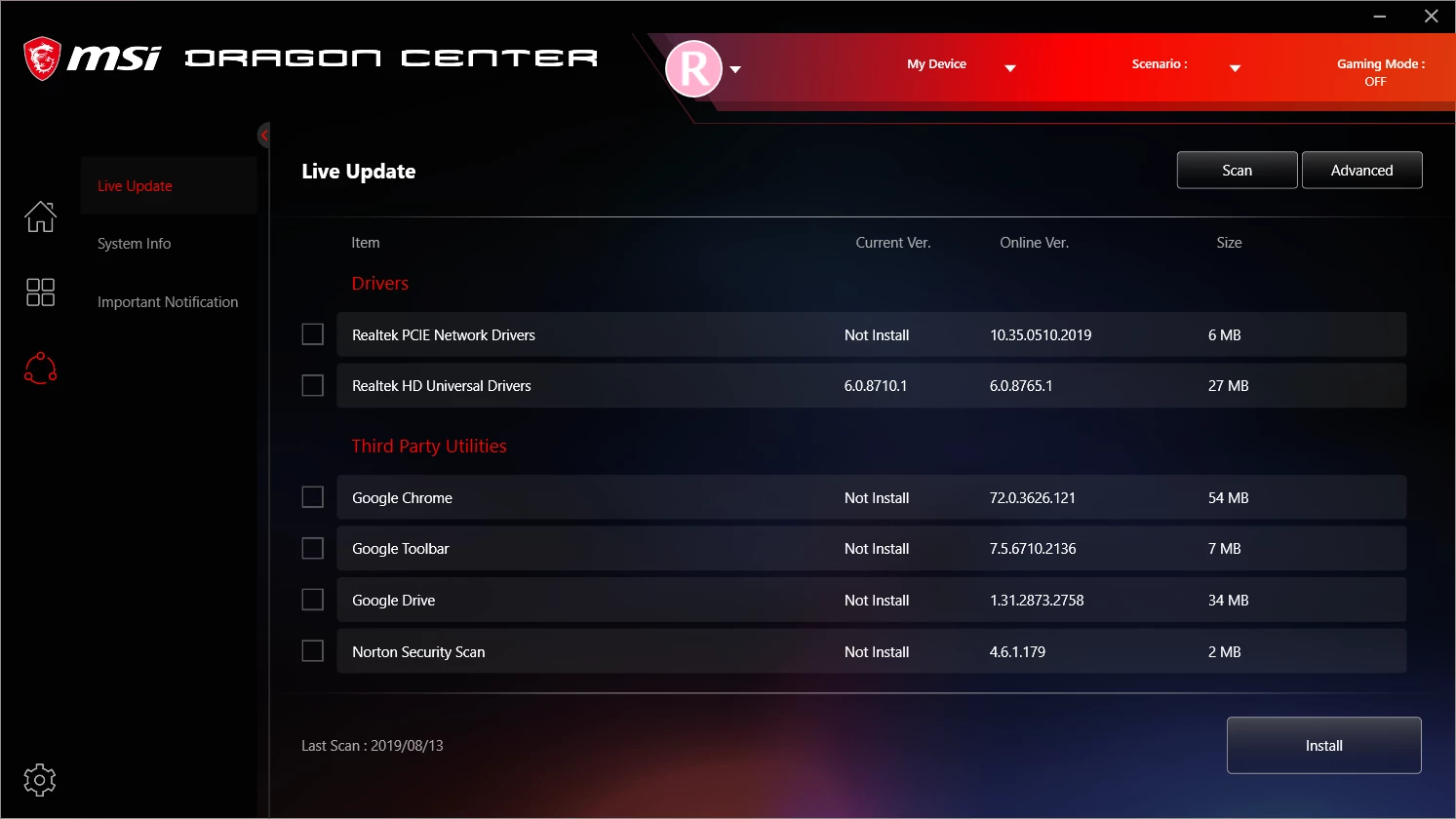
- Feature Name: Selective Manual Installation. After completing a system scan, the interface displays all available updates with individual checkboxes. This manual selection mode allows users to install a necessary chipset driver while opting out of optional utility software or audio drivers they do not wish to add to their system.
- Feature Name: Update Scheduling and Reminders. Instead of forcing the user to remember maintenance tasks, the settings menu includes a configurable calendar for automated checks. Users can define daily, weekly, or monthly intervals, allowing the utility to run silently in the background and trigger a notification only when a relevant download becomes available.
- Feature Name: System Information Dashboard. The main interface replaces the need for third-party hardware identification tools by displaying critical system data in one place. It lists the exact operating system build, the specific motherboard model string, the current graphics card details, and the installed BIOS release dates for quick reference.
- Feature Name: Download History Tracking. The software maintains a detailed log of all previously executed downloads and installations. By checking the history tab, users can see the exact date and filename of a past update, which helps isolate the cause if a recent audio or network driver introduces unwanted system behavior.
- Feature Name: Utility Software Management. Beyond standard hardware drivers, the application also tracks and manages proprietary vendor tools such as fast charging utilities or boot optimization programs. This centralized management ensures that auxiliary software remains compatible with the latest Windows updates and motherboard firmware.
How to Install MSI Live Update on Windows
- Download the official Windows installer archive from the vendor's designated support portal to your local storage drive, avoiding third-party mirrors.
- Extract the contents of the downloaded ZIP archive into a temporary folder using the native Windows extraction tool or a dedicated archive utility.
- Locate the executable setup file within the extracted folder and double-click it to initialize the primary installation routine.
- Click "Yes" when the Windows User Account Control prompt appears on your screen, granting the installer the administrator privileges required to write hardware polling drivers safely.
- Review and accept the software license agreement presented on the initial setup screen to proceed to the next stage.
- Select your preferred installation directory, or leave the file path at the default program files location on your primary system drive to ensure correct background service operation.
- Wait for the installer wizard to copy the necessary application files, register system services, and configure any required background dependencies for the scheduling tool.
- Click "Finish" to close the setup wizard, then launch the application from the newly created desktop shortcut to perform your baseline hardware scan.
MSI Live Update Free vs. Paid
MSI Live Update is available entirely free of charge. The manufacturer provides this utility as a complimentary support tool for customers who have purchased their motherboards or graphics cards. Because the software is hardware-dependent and serves to maintain the vendor's own products, there is no direct monetization strategy tied to the application itself.
There are no premium tiers, pro licenses, or enterprise subscription models. Every function, from automated daily scanning to direct firmware downloading, is fully unlocked upon installation. Users do not face artificial download speed limits, trial periods, or restrictive paywalls when accessing crucial system updates. The business model is entirely focused on adding value to the physical hardware purchase by ensuring long-term device stability.
Due to its free nature, users should be cautious of third-party websites that attempt to charge a fee for downloading the software or claim to sell software licenses. The official tool will never prompt users for payment details or require a credit card to unlock advanced scanning features. It operates as a pure utility, designed strictly to deliver verified files directly from the official manufacturer repositories without any financial barriers.
MSI Live Update vs. MSI Center vs. IObit Driver Booster
MSI Center serves as the modern, modular replacement for older vendor utilities, combining driver updates with RGB lighting control, fan curve tuning, and performance profiling. While it offers a centralized hub for managing every aspect of a gaming machine, its large footprint and multiple background processes can feel excessive for users who only want to maintain their hardware. Users who prefer a minimalist system environment often find the older, dedicated update utility less intrusive.
IObit Driver Booster targets a different audience by utilizing a massive, third-party database that covers thousands of different hardware manufacturers. It excels at updating older machines with mixed components, such as a specialized sound card or an obscure network adapter. However, it lacks the proprietary access required to handle complex motherboard BIOS flashes safely, and it occasionally installs generic drivers that overwrite strictly optimized vendor-specific packages.
MSI Live Update remains the better fit for users operating compatible vendor motherboards who want strict, official software maintenance without the bloat of a massive gaming control hub. It guarantees that the installed files are exactly what the manufacturer intended, providing a safer, more targeted approach to system stability than generic third-party driver scanners.
Common Issues and Fixes
- Motherboard becomes unresponsive after updating the BIOS through Windows. Updating low-level firmware while the operating system is actively running introduces a high risk of permanent failure if a background process interrupts the flash. To fix this, avoid using the Windows-based flashing feature entirely; instead, use the utility to identify the correct file, download it to an external USB drive, and perform the update via the motherboard's built-in flash menu.
- The scanner recommends installing an older driver version. The hardware detection engine occasionally misinterprets the version string of a currently installed driver, prompting the user to overwrite a newer file with a previous release. To fix this, manually review the version numbers listed in the scan results table and uncheck the box next to any driver that appears older than your current installation before clicking execute.
- Driver downloads result in empty archive files. When the server connection experiences drops or the local temporary directory lacks proper write permissions, the software may create a designated download folder containing a zero-byte zip file. To fix this, close the application entirely, right-click its shortcut to run the program as an administrator, clear the local cache folder, and initiate the download process again.
- Network connection errors prevent the scan from starting. The utility must contact the external vendor server repository to compare hardware IDs, and strict firewall rules can block this required outgoing request. To fix this, open your Windows Defender firewall settings, add an outbound exception specifically for the application's executable file, and verify that your network connection is stable.
Version 6.2.0.77 — February 2024
- Updated server URL protocols to ensure reliable communication with MSI update servers.
- Improved connectivity stability during driver and BIOS scanning processes.
- Fixed potential issues related to server connection failures.