Relying on wireless peripherals for daily desktop tasks introduces a specific maintenance chore: managing multiple battery levels. A mouse dying in the middle of a complex spreadsheet edit, or a headset powering down during a client video call, causes immediate frustration. Windows users often struggle to track these power levels because the operating system buries hardware telemetry deep within the main configuration menus. Bluetooth Battery Monitor solves this hardware management problem by extracting power data from your wireless accessories and placing it directly on the taskbar.
The utility operates as a lightweight background service that continually polls connected devices for their current charge state. Instead of opening multiple manufacturer-specific applications—one for a mechanical keyboard, another for a trackpad, and a third for an audio headset—you view everything in a single consolidated list. The application bridges the gap between standard Bluetooth reporting and proprietary hardware protocols, ensuring that peripherals from varying brands display accurate metrics in one unified interface without consuming heavy system resources.
By moving this critical hardware data to the system tray, the utility shifts peripheral management from a reactive problem to a proactive workflow. You no longer have to guess if your wireless gaming mouse will survive an evening multiplayer match or if your drawing tablet has enough charge for a digital art session. The application tracks the exact percentages, alerts you through standard Windows toast notifications before hardware failure occurs, and handles the complex reporting logic required for dual-device setups like true wireless stereo earbuds.
Key Features
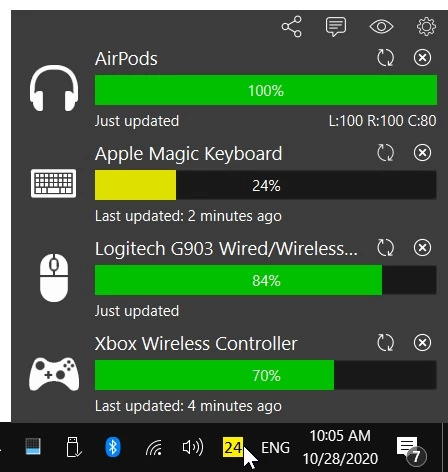
- System Tray Integration: The application places a dedicated icon on your taskbar that visually represents your hardware status. The icon automatically changes its display color to reflect the peripheral with the lowest current charge. This gives you an immediate visual indicator of your most critical hardware without requiring any clicks, allowing you to gauge your power situation before starting a long work session.
- Unified Device Dashboard: Clicking the taskbar icon opens a compact overlay listing every active wireless peripheral. You see your mouse, mechanical keyboard, and audio headset organized in a clean list with exact percentage readouts. This eliminates the need to launch heavy manufacturer utility applications just to check individual power levels.
- Broad Hardware Support: The service reads data from standard Bluetooth profiles as well as proprietary hardware transmitters. It pulls telemetry from Apple AirPods, Magic Trackpads, Logitech Unifying and Lightspeed devices, and specific gaming headsets from companies like Corsair and Razer. This ensures you can monitor mixed-brand setups from a single interface.
- Low Battery Alerts: The background process triggers a standard Windows toast notification when a device crosses a specific power threshold. This preemptive warning prevents sudden hardware disconnections, giving you time to locate and connect a USB charging cable before your audio cuts out during a meeting.
- Custom Warning Thresholds: The settings menu allows you to define the exact percentage that triggers a system alert. You can configure the utility to warn you at 15 or 20 percent, ensuring the notifications align with how quickly your specific lithium-ion hardware discharges. You can apply different thresholds if your headset drains faster than your mouse.
- TWS Pod and Case Tracking: True wireless stereo earbuds often split their power reporting across multiple physical components. The application decodes this segmented data, showing independent battery levels for the left earbud, the right earbud, and the physical charging case, provided the hardware broadcasts that specific telemetry to the PC.
How to Install Bluetooth Battery Monitor on Windows
- Download the Windows installer executable from the official vendor website to your local storage drive.
- Locate the downloaded file in your default downloads folder and double-click the executable to initiate the setup wizard.
- Review and accept the end-user license agreement to proceed to the destination directory selection step.
- Leave the installation path at its default location within the Program Files directory unless your system requires a custom storage configuration.
- Click the install button to copy the local files and register the required background service with your Windows operating system.
- Finish the setup process and let the application launch; you will see a prompt asking for your anonymous data collection preferences, which you can accept or decline.
- Look at the lower right corner of your screen to locate the new taskbar icon, dragging it out from the hidden icons arrow if Windows hides it by default.
- Click the new icon to view your active hardware list, and select the gear icon to customize your preferred warning percentages and startup behavior.
Bluetooth Battery Monitor Free vs. Paid
The application utilizes a shareware business model with a timed trial period. During the free evaluation phase, the software operates fully unlocked. Users can view the exact percentages of all their connected peripherals, receive system notifications, and verify that their specific gaming mice or wireless headsets broadcast the correct telemetry to the desktop.
Once the evaluation period concludes, the interface restricts access to the hardware list and requires a paid license to resume operation. The standard cost for a perpetual license is $7.99. This is a one-time purchase that unlocks the software permanently on that specific machine, with no mandatory subscription fees or recurring billing cycles attached to the core functionality. When you receive a registration code, you enter it directly into the settings menu to remove the trial block.
The developer incentivizes early purchasing through a built-in discount system. If a user opens the settings menu and clicks the "Purchase license" option before the trial timer hits zero, the price is reduced to $4.99. Buyers inputting their payment details should use standard credit card processors, as the vendor explicitly notes that certain QR-based payment methods restrict the ability to apply discounts to additional license purchases.
Bluetooth Battery Monitor vs. Windows Settings vs. MagicPods
Windows 10 and Windows 11 include built-in Bluetooth reporting directly within the native Settings application and the Quick Settings panel. The native implementation costs nothing, requires no third-party background services, and works reliably for standard keyboards and mice. However, the Microsoft menu requires multiple clicks to access, often fails to read individual left and right data for split earbuds, and struggles to parse data from gaming mice that rely on proprietary 2.4GHz wireless dongles instead of standard Bluetooth connections.
MagicPods is a specialized Windows utility tailored specifically for Apple hardware owners. It recreates the mobile-style visual pop-up animations, provides ear detection, and enables low-latency audio features on a PC. If you exclusively use AirPods, MagicPods offers a highly optimized, ecosystem-specific workflow. However, it ignores other desktop hardware entirely, meaning it will not monitor your Logitech mouse, Xbox controller, or mechanical keyboard.
Bluetooth Battery Monitor serves as the better fit for desktop users who operate a mixed ecosystem of peripherals. If you use an Apple trackpad, a Logitech mouse, and a Corsair headset on the same machine, this utility consolidates all that disparate power data into a single, quickly accessible list. It is faster to check than the native Microsoft menus and handles a much wider variety of hardware brands than MagicPods.
Common Issues and Fixes
- The application icon is hidden in the system tray. Windows automatically hides new background utilities to keep the taskbar clean and uncluttered. Click the upward-pointing arrow near your system clock, locate the battery icon, and drag it downward onto the main visible taskbar row.
- A specific peripheral does not show its battery percentage. The hardware might use a custom wireless protocol that the background service cannot parse, or it may lack the internal sensors to broadcast power telemetry. Check if the peripheral has a pending firmware update, or verify if the manufacturer's official utility program is actively blocking third-party applications from reading the data stream.
- The AirPods charging case percentage is not updating. The physical charging case lacks a dedicated transmitter and only sends data to the PC through the active earbuds. Open the physical lid of the case or remove one earbud to force a hardware wake-up, which prompts the case to broadcast its current status.
- The application interface displays a trial expired warning. The initial evaluation period has run out, blocking access to the peripheral list and halting background checks. Click the gear icon to open the configuration menu, select the option to buy a license, or input your existing registration code to restore full functionality.
- The notification popup does not trigger before the mouse dies. The default percentage threshold might be set lower than the rapid discharge rate of an aging lithium-ion cell. Open the settings panel and raise the warning threshold from the default level to 20 or 25 percent, giving yourself a wider margin of time to locate a charging cable before the hardware powers down.
Version Latest — 2026
- Expanded compatibility to include new peripherals such as the SteelSeries Arctis Nova 7 (USB dongle variant).
- Resolved a bug where the license purchase option would occasionally fail to respond in the menu.
- Corrected an issue where battery levels for Bluetooth Low Energy (LE) devices were not refreshing properly.
- Addressed a display glitch where specific interface dialogs could extend beyond the visible screen area.
- Fixed a reporting error that caused Galaxy Buds series devices to mistakenly omit left/right or case battery percentages after firmware updates.
- Eliminated false-positive warnings regarding HFP connections on newer laptop configurations.