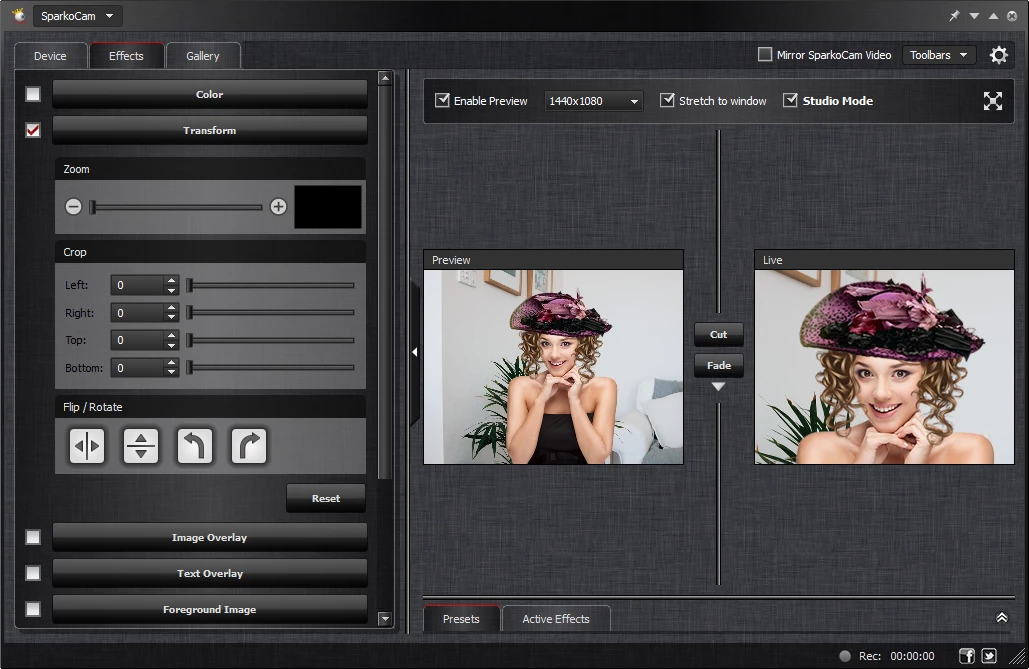
SparkoCam operates as a bridging application that transforms a standard DSLR or mirrorless camera into a direct webcam source over a standard USB connection. Instead of relying on a dedicated hardware capture card or a clean HDMI output, this software intercepts the live view feed from a connected camera and presents it to the Windows operating system as a standard virtual camera device. Broadcasters, remote workers, and content creators use this approach to bypass the small image sensors and fixed lenses of standard USB webcams, gaining access to the superior depth of field, low-light performance, and interchangeable optics of professional camera bodies.
The application serves an audience that requires high-quality video input for live streams, professional presentations, or recorded video tutorials without investing in specialized broadcasting hardware. While a hardware capture setup delivers uncompressed video, it requires specific HDMI capture devices, explicit camera models that support clean output without on-screen menus, and higher physical desktop overhead. SparkoCam solves the immediate hardware gap by utilizing the standard USB data cable that ships with most camera bodies. The desktop application receives the raw USB signal, processes the video feed locally, and pipes it directly into conferencing software such as Zoom, Teams, or broadcasting suites like OBS Studio. This allows presenters to maintain professional broadcast standards directly from a standard desktop environment.
Beyond hardware bridging, the application functions as a live video manipulation tool. Because the processing occurs locally on the desktop, users can apply chroma keying, face-tracking accessories, and digital overlays before the video signal ever reaches the final broadcasting software. This local processing pipeline gives users direct control over their presentation environment, allowing for green screen background replacement and exposure adjustments directly within the desktop interface. By centralizing the video pipeline, the software prevents the user from needing to route their signal through multiple third-party plugins just to achieve a basic background replacement or custom logo overlay.
Key Features
- Feature Name: DSLR USB Bridging Connects supported Canon and Nikon camera bodies to a computer using a standard USB cable, translating the camera's Live View signal into a usable video feed. This eliminates the need for an external HDMI capture device while exposing the camera directly to the operating system as a usable virtual driver.
- Feature Name: Live Background Replacement Includes a chroma key function that identifies green screen backgrounds and replaces them with custom image or video files. Users can manually adjust the tolerance, threshold, and edge smoothing within the interface to prevent visual artifacts, allowing for custom stream layouts without a physical studio set.
- Feature Name: On-the-Fly Camera Control Provides direct manipulation of digital camera hardware settings directly from the desktop interface. Presenters can manually adjust parameters such as aperture, shutter speed, ISO, and white balance without needing to physically reach for the camera body and risk bumping the tripod during a live broadcast.
- Feature Name: Face Tracking and Accessories Utilizes facial recognition algorithms to attach digital objects like glasses, hats, or custom artwork to the user's face. The software tracks movement in real time, keeping the digital props anchored to the presenter even if they shift their seating position. Users can import custom PNG or GIF files to act as trackable props.
- Feature Name: Desktop and Media Casting Supports direct screen capture and local file broadcasting in addition to external camera feeds. Broadcasters can import local video files, image sequences, or capture a specific desktop window and push that feed directly through the virtual webcam output to their audience.
- Feature Name: Split Webcam Feed Routing Allows a single hardware camera source to be utilized by multiple applications simultaneously. Standard Windows architecture normally locks a webcam feed to a single program, but the virtual driver duplicates the signal so users can run a conference call and a local recording tool at the exact same time without hardware conflict.
How to Install SparkoCam on Windows
- Download the official Windows installer executable package from the vendor's main website.
- Launch the setup file to open the installation wizard and review the end-user license agreement.
- Select the destination folder on your local storage drive, keeping the default application path unless a specific directory structure is required for your local production environment.
- Complete the installation wizard and allow the setup routine to register the virtual webcam driver with the Windows operating system.
- Launch the application and navigate to the Device tab located within the main interface.
- Connect your digital camera to the computer using a standard data USB cable, turn the camera's power switch to the ON position, and select the corresponding camera brand checkbox to activate the feed.
- Open your chosen conferencing or broadcasting software, navigate to the video settings panel, and select the virtual webcam driver from the dropdown menu to receive the live output.
SparkoCam Free vs. Paid
The software operates on a freemium business model, allowing users to download and test the core functionality without a strict time limit. The free tier provides access to the virtual webcam driver, the background replacement tools, and the DSLR bridging capabilities. However, any video feed generated from a connected digital camera or featuring the software's visual effects will display a large, persistent watermark over the output. This free mode acts strictly as a trial to verify hardware compatibility, test USB connection stability, and check CPU load before committing to a purchase.
To remove the visual watermark, users must purchase a commercial license. The vendor splits the paid tiers based on hardware requirements and upgrade timelines. Users can buy a brand-specific license, such as the Canon-only or Nikon-only tier, which costs less but restricts the software to bridging that specific manufacturer's camera bodies. For those handling multiple camera brands or operating a studio with mixed equipment, the Pro license covers both hardware ecosystems.
License duration also dictates the final price structure. The base paid tier provides a perpetual license for the currently available software build, coupled with one year of included upgrades. Higher tiers extend the upgrade window to three years or offer lifetime software updates. All paid licenses grant the right to use the software without watermarks and include access to priority customer support. The vendor also provides specific volume licensing discounts for broadcast environments requiring up to five active desktop installations simultaneously.
SparkoCam vs. Canon EOS Webcam Utility vs. XSplit VCam
Canon EOS Webcam Utility serves as the official, direct alternative for users specifically operating Canon hardware. Released in 2020 as a response to increased remote work demands, the Canon tool is entirely free and provides a barebones virtual webcam driver directly from the manufacturer. It consumes minimal system resources and operates silently in the background without a complex user interface. However, it lacks any interface for adjusting visual settings from the desktop, offers no green screen tools, and restricts users strictly to supported Canon camera bodies.
XSplit VCam focuses heavily on background removal and manipulation for standard USB webcams rather than bridging DSLR cameras. XSplit utilizes machine learning models to blur or replace backgrounds without a physical green screen, making it highly effective for laptop users broadcasting from messy environments. While it excels at AI-driven masking and integrates deeply with the broader XSplit ecosystem, it does not function as a USB bridge for DSLR cameras. Users must already have a working webcam or an active capture card to feed their video signal into the XSplit VCam pipeline.
SparkoCam remains the better fit for users who need both DSLR bridging and local video manipulation combined in a single interface. If a user only needs to connect a supported Canon camera and has no use for digital effects or chroma keying, the official Canon utility is the lighter choice. If a user needs AI background removal for a standard webcam, XSplit VCam handles that task efficiently. But for an environment that requires connecting a Nikon DSLR over USB, applying manual green screen effects, and controlling ISO and aperture directly from the desktop, this utility provides the exact combined toolset required.
Common Issues and Fixes
- Problem description. Camera not detected by the software. Close any official camera utilities running in the background, as software from the manufacturer can lock the USB connection and prevent external access. Ensure the camera is powered on, set to standard shooting or video mode rather than media playback, and that the correct manufacturer brand is checked in the Device tab.
- Problem description. Video feed shuts down entirely after thirty minutes. Digital cameras often utilize an internal Auto Power Off setting to preserve battery life and prevent sensor overheating during extended sessions. Navigate into the camera's internal menu system, disable the sleep timer, and use an AC adapter dummy battery to supply continuous uninterrupted power to the camera body.
- Problem description. Visual lag or low frame rates in the broadcast. Pulling a Live View signal over a standard USB 2.0 cable places strict limits on data transfer speeds, forcing the software to compress the feed. Lower the resolution settings within the application, ensure the room is adequately lit to reduce the camera's internal processing overhead, or close unnecessary background applications that consume processor cycles.
- Problem description. Virtual webcam option missing in the conferencing app. Some web-based applications restrict virtual camera inputs for security reasons. Restart the conferencing application completely, check the application's specific video settings tab, and ensure the desktop bridging application remains open and active to maintain the connection.
Version 3.1.2 — October 2025
- Implemented real-time detection capabilities to automatically recognize new monitors or displays connected while the application is running.
- Resolved a critical stability issue that caused the software to crash upon startup on certain system configurations.
- Applied various minor bug fixes and general performance improvements to enhance overall application stability.