Fraps is a dedicated PC gaming utility built to capture uncompressed gameplay footage, take instant screenshots, and measure system performance with strict accuracy. By hooking directly into DirectX and OpenGL rendering pipelines, the application reads data straight from the graphics card to display concrete frame-by-frame rendering metrics on the screen. Hardware reviewers, technical testers, and PC enthusiasts rely on this desktop application to verify how well their graphics cards handle graphical workloads under real conditions, bypassing the inaccurate estimations often provided by in-game software counters.
Because the software writes raw, uncompressed video files directly to the local disk, it avoids the visual artifacts introduced by modern hardware encoders and heavily compressed browser-based recorders. This makes the desktop application an excellent tool for professional video editors and archivists who require visual parity with the original game output for high-quality post-production. Rather than navigating complex scene setups or managing cloud streaming configurations, users open a compact local interface with dedicated tabs to assign capture hotkeys and start recording immediately.
The application remains deliberately focused on three core tasks without attempting to be a live broadcasting suite or a hardware tuning platform. It operates entirely offline, storing all benchmarking spreadsheets, high-resolution screenshots, and large AVI video files locally on the host machine. This offline nature ensures that no accounts, cloud synchronizations, or internet connections are required to capture media, providing a strictly private and reliable workflow for analyzing PC performance metrics.
Key Features
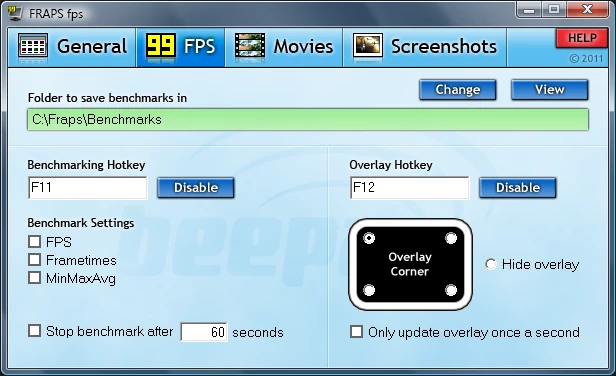
- Real-Time FPS Overlay: Displays the current frame rate in any corner of the screen during DirectX or OpenGL application usage. Users can toggle this metric on the fly using the default F12 key to check performance without leaving the game window. The interface also allows users to configure which specific corner the overlay occupies, or hide it entirely while the application continues counting frames in the background.
- Uncompressed Video Capture: Records raw gameplay footage directly to the AVI format to preserve exact image quality without adding blur or pixelation. Located under the Movies tab, the capture settings allow custom framerates ranging from 1 up to 120 frames per second at high resolutions, including custom widescreen ratios. This raw output requires significant disk write speed but provides a lossless source file for professional video editing.
- Hardware Benchmarking: Logs minimum, maximum, and average frame rates over a user-defined timeframe to track overall system stability during intense gaming sequences. By pressing the F11 hotkey, users can automatically save detailed rendering statistics and frametime data to a local CSV spreadsheet. Reviewers use these spreadsheets to generate graphs that illustrate micro-stuttering or frame pacing issues.
- Instant Screenshots: Captures full-resolution game images that are automatically named and timestamped in the destination folder, preventing users from accidentally overwriting previous captures. Pressing F10 grabs the screen data immediately, with explicit options in the settings to include or hide the yellow FPS overlay counter from the final image output.
- Loop Recording Buffer: Stores a continuous, moving window of gameplay in the system memory to catch unexpected events without filling the hard drive with hours of useless footage. Once the user triggers the primary capture hotkey, the application writes the previous few seconds of buffered footage to the storage drive, ensuring that sudden in-game moments are recorded.
- Independent Audio Channels: Captures both the primary system sound feed and an external microphone input simultaneously, allowing users to record their voice along with the game sound. The interface provides straightforward checkboxes under the Sound Capture Settings to mix the Windows game audio with a local mic source, bypassing the need for virtual audio cable setups or external mixing software.
How to Install Fraps on Windows
- Download the official Windows installer package from the vendor's primary distribution server.
- Launch the downloaded executable file and grant administrative privileges when prompted by the Windows User Account Control dialog box.
- Review the end-user license agreement presented in the setup wizard and click the "I Agree" button to proceed to the directory selection screen.
- Select the destination folder for the application files. Note that the default installation path is mapped directly to the root C:Fraps directory rather than standard application folders, which helps prevent file permission errors when saving large video files.
- Choose whether to create a Start Menu folder and a desktop shortcut for quick access to the configuration panel.
- Click "Install" to extract the core executable, the proprietary video codec, and the benchmarking files to the local drive.
- Click "Close" once the progress bar completes to exit the setup wizard.
- Open the application from the desktop shortcut to assign your preferred keyboard hotkeys for the overlay, benchmarking, and video capture functions before launching a full-screen game.
Fraps Free vs. Paid
The free tier acts as an unrestricted benchmarking and framerate monitoring tool but imposes strict limitations on actual media creation. Video recordings in the free version are restricted to a maximum of 30 seconds per file, forcing the capture to stop abruptly once the time limit is reached. Furthermore, all free video outputs carry a permanent, hardcoded watermark across the top of the footage. Free users are restricted to saving screenshots exclusively in the uncompressed BMP file format, and the loop recording buffer remains entirely disabled.
The paid version requires a one-time purchase of $37 for a perpetual license, granting lifetime access to the software without recurring subscription fees or account sign-ins. Upgrading to the paid tier immediately removes the 30-second video recording limit, allowing users to capture continuous footage until their hard drive runs out of space. It also eliminates the top-banner watermark entirely, resulting in clean gameplay capture.
In addition to unrestricted video capabilities, registered users unlock the ability to export instant screenshots in more efficient image formats, including JPG, PNG, and TGA. The paid license also activates the loop recording feature, allowing content creators to capture retroactive gameplay moments continuously. Because the license is perpetual, users simply enter their registration details locally to unlock these features permanently offline.
Fraps vs. OBS Studio vs. MSI Afterburner
OBS Studio is a customizable screen recording and broadcasting application built for content creators who require hardware encoding and complex scene management. It relies heavily on GPU encoders to compress video on the fly, keeping file sizes small and supporting advanced audio routing for live web streams. Users should choose OBS Studio when they need to stream directly to video platforms, apply real-time video filters, or combine multiple camera feeds, browser windows, and game capture sources into a single broadcast layout.
MSI Afterburner is a specialized hardware utility primarily designed for graphics card overclocking, fan speed control, and deep system monitoring. Through its bundled RivaTuner Statistics Server component, it provides a customizable on-screen display that shows CPU temperature, VRAM usage, and GPU clock speeds alongside the standard framerate counter. Users should pick MSI Afterburner if they want detailed telemetry about hardware temperatures and voltages to test system stability, rather than relying on a basic framerate counter.
Fraps remains the better choice for users who require strict, uncompressed AVI video capture for lossless editing workflows where compression artifacts are unacceptable. It is also the stronger option for benchmarkers who want the simplest interface available. By opening a tiny window and setting a single hotkey, users get raw frametime spreadsheet data and high-quality local recording without navigating the steep learning curve of broadcast software or risking system stability with hardware overclocking tools.
Common Issues and Fixes
- Audio and video become out of sync during long recordings. This frequently happens when the computer struggles to maintain the target framerate under heavy graphical load, causing the visual frames to lag behind the audio track. To fix it, open the Movies tab and verify that the "Don't sync audio and video" checkbox is strictly unchecked. If the issue persists, lock the game framerate internally to match the capture rate setting in the recording application.
- Recordings consume large amounts of hard drive space very quickly. Because the software captures raw, uncompressed AVI files to preserve image quality, a short two-minute video can easily exceed several gigabytes. Users must capture footage to a dedicated secondary hard drive with high write speeds to prevent game stuttering, then use external video software to encode and compress the AVI files into MP4 format after the gaming session ends.
- The application only captures a black screen on the Windows desktop. The capture engine is designed specifically to hook into DirectX and OpenGL rendering APIs rather than standard desktop window managers. To capture basic desktop tasks or web browsers, users must run those applications with hardware acceleration enabled in full-screen mode, or switch to a dedicated desktop capture utility designed for standard operating system windows.
- The framerate overlay does not appear in modern titles. Some newer game engines use rendering APIs that the overlay cannot detect, or they run active anti-cheat services that block third-party interface hooks to prevent tampering. Closing the application completely, right-clicking the desktop shortcut, and selecting "Run as administrator" before launching the game can sometimes resolve basic permission blocks and force the overlay to appear.
- Audio playback sounds distorted or exhibits a crackling noise. High sample rate settings in the host operating system can sometimes conflict with the capture engine's audio mixer. To resolve this, open the Windows Sound Control Panel, navigate to the recording and playback device properties, and manually lower the default format sample rate to 44.1 kHz or 48 kHz before starting a new recording session.
Version 3.5.99 — February 2013
- Improved compatibility with recent Windows system updates to ensure stability.
- Fixed a bug where the frame rate counter would fail to appear in DirectX 10 applications.
- Resolved an issue preventing the overlay from displaying correctly on the Aero desktop (DWM).