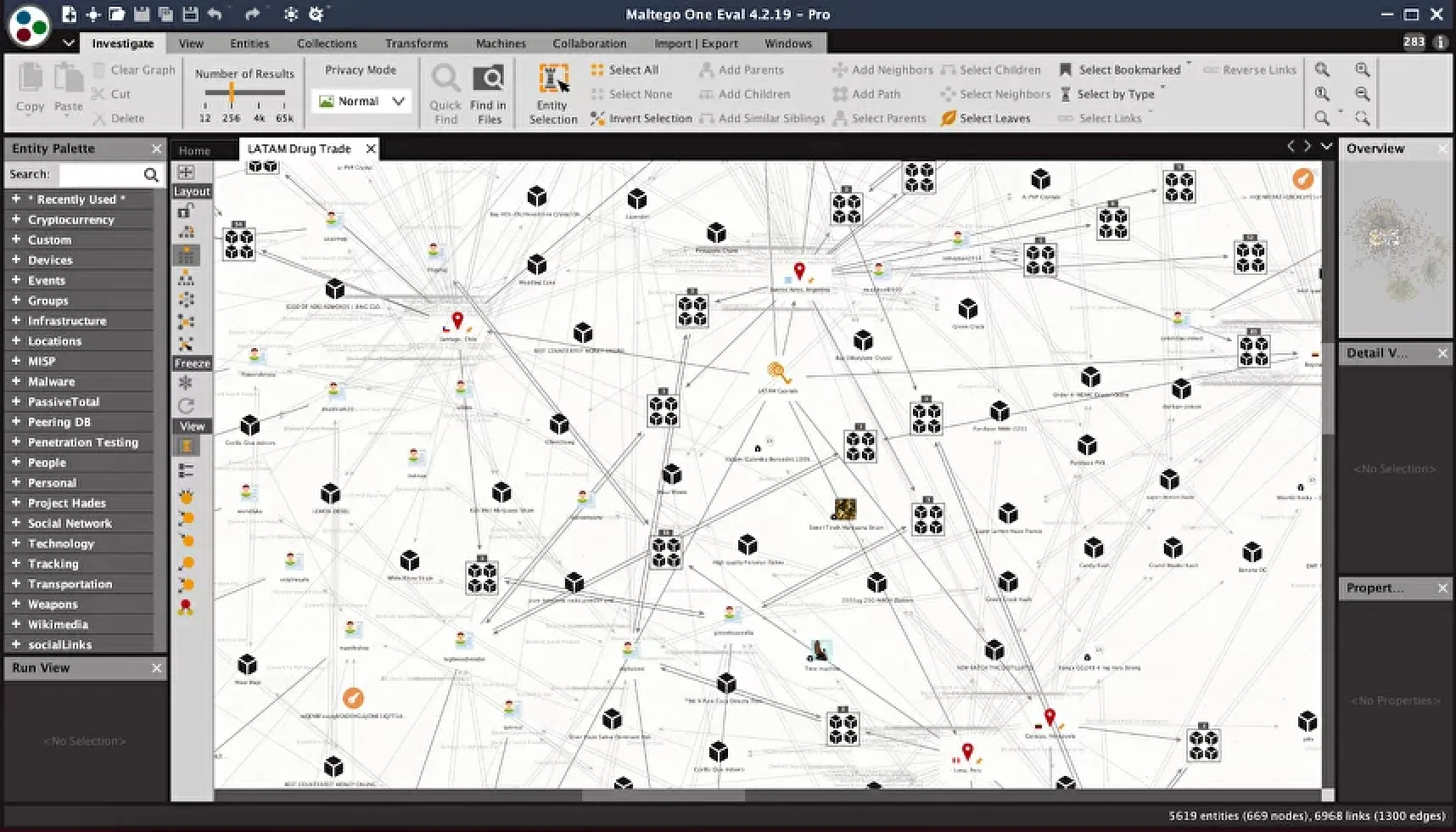
Maltego functions as a highly specialized open-source intelligence and graphical link analysis application designed to map complex data relationships into visual node networks. Security professionals, forensic investigators, and intelligence analysts utilize this software to query external data sources and map out relationships between domains, internet protocol addresses, physical locations, and corporate entities. Instead of parsing through flat text logs, terminal outputs, or tabular databases, investigators drop discrete data points onto a visual canvas. The application then relies on automated query scripts to fetch related intelligence, drawing connecting lines between the original data point and the newly discovered information. This structural approach reveals organizational hierarchies, shared internet infrastructure, and hidden associations that traditional linear search methods routinely miss.
The core functionality relies heavily on a dedicated desktop application environment, which provides the memory management and graphics rendering required to manipulate thousands of vector objects simultaneously. The physical interface is split into practical workspaces: a palette on the left containing drag-and-drop entity types, a central canvas for graph manipulation, and detail panes on the right that expose the underlying metadata for any selected node. By relying on a local processing client, investigators can manually group related nodes, pin significant targets to fixed locations on the screen, and delete irrelevant outliers without experiencing the interface lag common to browser-based rendering engines. The application maintains local state for the graph file, ensuring that manual spatial arrangements are preserved across multiple investigative sessions.
The primary mechanism driving data retrieval within this workspace is the Transform. A Transform is a distinct block of code that takes a specific input, queries an external service, and returns structured outputs back to the graph. For example, executing a domain name system query on a target uniform resource locator will automatically populate the canvas with the associated name servers and mail exchange records. Users access these scripts through the Transform Hub, an integrated repository available on the main navigation ribbon. Rather than writing custom application programming interface scripts in a terminal, analysts can visually install connectors from third-party threat intelligence vendors, public record databases, and search engines directly into their client, expanding their data gathering capabilities without leaving the graphical environment.
Key Features
- Graphical Link Mapping: The central workspace relies on a node-and-edge visualization engine where individual data points are represented as draggable entities. Users can utilize the Layout ribbon to switch between Organic, Hierarchical, Circular, or Block graph alignments to better understand data clusters. This layout system allows for manual spatial manipulation, meaning analysts can group related nodes, select specific network branches, and isolate specific targets to maintain visual clarity.
- Automated Transforms: Data gathering is handled through query scripts that fetch information from external web services and format it for the canvas. By right-clicking an entity and selecting an available query from the context menu, the software retrieves related addresses, registration details, or associated identifiers. The returned data instantly populates the visual workspace as connected child nodes, automating what would otherwise be a manual database lookup.
- Transform Hub Integration: The desktop client includes a built-in repository of third-party data connectors accessible directly from the Home ribbon. Analysts can browse and install data integrations from threat intelligence vendors, public record databases, and social media scrapers natively. Each installed connector adds new context menu options tailored to the specific provider, allowing investigators to route queries through commercial keys or public lookup tools.
- Custom Entity Creation: While the application ships with standard entity types like network addresses, domain names, and individual profiles, investigators can define proprietary data structures. By navigating to the Entity Manager, users specify new icons, property fields, and hierarchical inheritance rules for custom data types. This function allows internal security teams to map proprietary database structures, internal employee identification numbers, or physical hardware assets alongside standard public intelligence.
- Large-Scale Data Handling: The visual engine handles massive infrastructure queries by aggregating repetitive data. When dozens of nodes of the same type connect to identical parent nodes, the interface groups them into Collection Nodes, displaying a numerical count rather than cluttering the screen. Analysts can expand or collapse these collection blocks using the slider controls in the display pane, ensuring the software remains responsive when importing massive target lists.
- Export and Reporting: Completed relationship graphs can be exported into multiple formats for external documentation. The application supports rendering the visual canvas into high-resolution images or portable document formats for client readouts. Additionally, the underlying entity data, including hidden metadata properties and query response details, can be exported to tabular formats like CSV for further processing in spreadsheet applications or external database environments.
How to Install Maltego on Windows
- Download the official Windows installer package from the vendor's primary domain, specifically selecting the executable bundle that includes the 64-bit Java Runtime Environment to prevent manual configuration errors.
- Launch the downloaded setup file to open the installation wizard, granting administrative privileges when prompted by Windows User Account Control to allow the installer to write to system directories.
- Read and accept the End User License Agreement within the setup wizard to proceed to the directory configuration screen.
- Confirm the installation path, leaving it set to the default Program Files directory to ensure proper user permission handling for the Java binaries and the primary executable.
- Choose your preferences for start menu folders and desktop shortcuts, then click the install button to begin extracting the application files and the included Java environment to your local disk.
- Click finish to close the setup wizard and execute the application from the newly created shortcut. Upon first launch, the software will display a license selection screen.
- Select your specific tier and authenticate the installation by entering your registered account credentials, which forces the client to download the standard module definitions from the vendor's repository.
- Finalize the initial configuration by selecting your default web browser for handling external hyperlinks and choosing a privacy mode, after which the client will load the blank canvas workspace.
Maltego Free vs. Paid
The vendor utilizes a tiered access model that restricts data limits and commercial usage based on the selected license. The free tier, currently categorized as the Basic plan, provides no-cost access to the desktop client but mandates a registered account. This tier enforces strict operational limits, capping the number of results returned per query execution and restricting the total number of entities that can be pasted or generated onto a single graph. Basic users also receive a fixed monthly allowance of credits for accessing built-in data providers and are explicitly prohibited from using the tool for commercial incident response or paid consulting engagements.
Commercial plans, such as the Professional tier, remove the query result restrictions and graph size limits, allowing analysts to map massive infrastructure footprints without encountering artificial software bottlenecks. The Professional plan shifts to an annual subscription billing model per seat and provides a significantly higher monthly credit allowance for premium intelligence sources. It also permits unlimited integration with commercial application programming interface keys, meaning analysts can plug in their own paid subscriptions from external threat intelligence providers directly into the Transform Hub.
For larger deployment environments, the Enterprise tier includes administrative tools for managing team licenses and customized data allowances. Organizations transitioning to Enterprise agreements can negotiate specific infrastructure deployments, which is highly relevant because the standard Basic and Professional clients strictly mandate active internet connections to validate licenses and route queries through the vendor's central server infrastructure.
Maltego vs. SpiderFoot vs. Recon-ng
SpiderFoot operates as an automated reconnaissance tool that systematically scans targets and aggregates the findings into a web-based dashboard. Investigators choose SpiderFoot when they want to input a single domain or address and let the software run hundreds of modules in the background without manual intervention. While SpiderFoot generates extensive tabular reports and statistical summaries, its web interface lacks the interactive, manual graph manipulation required for visual clustering and targeted, step-by-step pivoting.
Recon-ng provides a terminal-based framework modeled after standard penetration testing environments, making it strictly text-driven and highly modular. Security professionals prefer Recon-ng for scriptable data collection that runs efficiently from a command line without requiring heavy graphical interfaces or Java runtimes. However, Recon-ng forces the user to manage data within a local relational database structure, which makes understanding multi-layered visual relationships between disparate entities much harder compared to viewing a topological network map.
Maltego is the better fit when an investigation requires visual context and manual, iterative exploration rather than batch processing. If the objective is to see exactly how a registered domain connects to an email address, which then links back to an individual profile, the node-based canvas provides immediate clarity. Investigators choose the graphical approach when they need to manually guide the path of the query, visually prune dead ends, and present a structured map of relationships directly to non-technical stakeholders.
Common Issues and Fixes
- Java environment configuration errors. The application relies heavily on a 64-bit Java Runtime Environment. If the system defaults to an older 32-bit installation, the client will fail to launch. To resolve this, open the Java Config UI included with the software or edit the maltego.conf file in the application data directory to explicitly define the path to a supported 64-bit Java installation.
- Memory exhaustion on large graphs. When importing thousands of entities, the application may become unresponsive or display out-of-memory warnings. Users must manually increase the heap size allocation by modifying the maltego.conf file, changing the -J-Xmx parameter from its default value to a larger allocation like 4GB or 8GB, depending on available system hardware.
- Transform execution timeouts. Queries may fail to return results, displaying a timeout error in the output pane if the target server is slow or local firewalls interrupt the connection. To fix this, investigators can increase the default timeout threshold in the client settings under the Transform options, and verify that outbound traffic on standard web ports is not being intercepted by corporate proxy servers.
- Missing Transform Hub items after updates. Following a software update, custom data integrations or specific third-party connectors might disappear from the main ribbon. This can be fixed by navigating to the Transform Hub, clicking the refresh button to synchronize with the remote repository, and re-authenticating any keys that may have cleared during the update process.
Version 4.11.1 — December 2025
- Added a new system notification to alert users if the memory allocated to the application is below the recommended 8GB.
- Improved Maltego ID stability to prevent unnecessary re-login prompts during brief network interruptions.
- Updated security dependencies, including Keycloak and Bouncy Castle, to address vulnerabilities and enhance protection.
- Fixed an issue where cancelling the login wizard could reset a previously successful activation.
- Resolved a bug regarding "Save As" on Cloud Graphs to ensure the new file is correctly treated as a local copy.
- Corrected a startup crash caused by repeated connection errors when retrieving Hub icons via proxy.
- Fixed metadata handling issues when opening encrypted Cloud Graphs.
- Enhanced support for graph files by recognizing pinned properties generated by the web browser version.