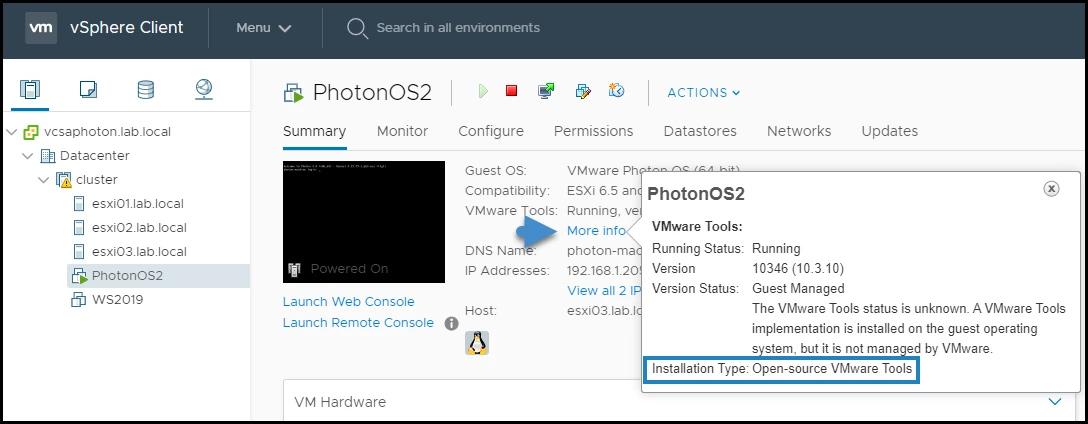
VMware Tools serves as an essential background utility and hardware driver suite designed specifically to optimize the performance, display output, and input management of Windows guest operating systems running inside a virtualized environment. When administrators or developers first provision a virtual machine, the base operating system relies on generic emulated hardware drivers. These default components allow the virtual machine to boot and function, but they force the host processor to translate generic commands, resulting in restricted display resolutions, delayed mouse tracking, and low network throughput. By installing this dedicated driver package directly within the virtualized Windows instance, users bypass emulated hardware bottlenecks and enable paravirtualized communication directly with the host hypervisor.
The utility suite addresses concrete friction points in daily virtualization workflows. Without these specialized drivers, a virtual Windows desktop is confined to static display boundaries, requiring manual scroll bars to navigate a desktop that does not fit the physical monitor. The host cursor remains trapped inside the guest window until released with a specific keyboard shortcut, and users cannot copy text or drag files between their physical computer and the isolated virtual environment. Once the driver suite registers with the Windows kernel, it establishes bidirectional clipboard sharing, implements dynamic screen resizing, and maps input devices using absolute coordinates. This transforms a rigid, isolated virtual machine into an interactive workspace that behaves exactly like a native local desktop application.
Beyond basic interface improvements, the software fundamentally alters how the virtualized system handles network traffic and disk input/output operations. Rather than forcing the physical processor to simulate legacy network adapters or standard IDE hard drives, the suite introduces paravirtualized network controllers and storage interfaces. These specialized modules allow the guest operating system to send traffic and disk write commands directly to the hypervisor layer. For enterprise IT professionals running heavy database operations, software developers compiling large codebases, or security analysts testing network traffic, these kernel-level optimizations prevent system bottlenecking, ensure accurate time synchronization, and allow the hypervisor to safely freeze the disk state during full system backups.
Key Features
- Feature Name: Dynamic Display Resolution. The specialized SVGA 3D display driver forces the Windows desktop resolution to automatically adapt to the dimensions of the hypervisor window. When a user resizes the virtual machine console, the internal desktop resolution updates immediately, bypassing manual adjustments inside the Windows Display Settings menu.
- Feature Name: Host-to-Guest Clipboard Sharing. A background service establishes a direct memory link for the system clipboard across the hypervisor boundary. Users can highlight a block of text, an image, or a file directory on their physical keyboard, copy it, and paste it directly into an application running inside the virtual Windows environment without configuring shared network drives.
- Feature Name: Direct File Drag-and-Drop. This utility intercepts file transfer commands between the physical desktop interface and the virtualized environment. An administrator can drag an executable from their physical screen directly onto the virtual Windows desktop, prompting the hypervisor to securely copy the file into the local storage of the guest system.
- Feature Name: Optimized Input Device Integration. The mouse pointer driver replaces relative tracking with absolute coordinate mapping. This eliminates the legacy requirement to press a hotkey combination to release the cursor from the virtual window, allowing the mouse to move smoothly across the border between the host operating system and the guest screen without stalling.
- Feature Name: Hardware Time Synchronization. Virtual machines frequently experience internal clock drift when their state is paused, suspended, or subjected to heavy processing loads. The background service constantly polls the physical motherboard clock and forces the guest Windows clock to match it precisely, preventing timestamp errors on saved files and authentication failures on domain-joined enterprise networks.
- Feature Name: Paravirtualized Storage Controllers. The package installs specialized PVSCSI storage drivers that replace emulated IDE or SATA controllers. These optimized drivers drastically reduce the processing overhead required for heavy disk reads or network file transfers, increasing input/output operations per second for virtualized database servers or large file compilation tasks.
- Feature Name: Volume Shadow Copy Service Integration. The suite includes a specialized module that interacts directly with the native Windows Volume Shadow Copy Service. When backup software triggers a virtual machine snapshot, this module instructs the Windows guest to flush its disk buffers and pause write operations momentarily, ensuring that the resulting backup image contains no corrupted files or incomplete database transactions.
How to Install VMware Tools on Windows
- Launch your virtual machine from the hypervisor console and wait for the Windows operating system to fully boot to the standard desktop environment.
- Log in to the Windows guest instance using an account with Administrator privileges, as the driver setup requires system-level registry access to modify hardware controllers.
- Navigate to the top menu bar of your hypervisor interface, click the Virtual Machine or Guest OS drop-down menu, and select the specific command to install the utility suite.
- Wait for the hypervisor to automatically mount the included Windows ISO file to the virtual CD/DVD drive of your running virtual machine.
- Open File Explorer inside the virtualized Windows system, navigate to This PC, locate the newly mounted virtual disc drive, and double-click the setup executable to launch the installation wizard.
- Select Typical on the setup type screen if you intend to keep the virtual machine on its current platform, or choose Complete to install all available drivers in case you plan to migrate the machine to a different datacenter product later.
- Click Install to begin the file copy process; your virtual screen may temporarily flicker or go blank as the new SVGA display driver registers with the operating system.
- Click Finish when the wizard completes and accept the prompt to restart the Windows operating system immediately, which finalizes the kernel-level driver changes and activates the shared clipboard service.
VMware Tools Free vs. Paid
The utility suite itself is provided entirely at no cost. Broadcom distributes the required ISO files and installer executables without charging a fee, requiring a license key, or mandating a subscription to activate the drivers. Because these utilities are considered a fundamental technical dependency for operating virtual machines efficiently, the software does not restrict features, apply usage watermarks, or impose artificial performance limits based on billing tiers.
However, the software relies on a host hypervisor environment, which maintains its own distinct licensing model. Broadcom recently updated the licensing structure for its desktop virtualization platforms, making tools like Workstation Pro completely free for personal use, students, and home lab operators. Users can download the host application, run virtual Windows environments, and install the full driver suite without paying, provided their usage remains strictly non-commercial.
For commercial deployment within a business environment, organizations are required to purchase active paid subscriptions for the host hypervisor platform. While the guest utilities themselves remain unrestricted, utilizing the surrounding virtualization infrastructure for enterprise workflows without a valid commercial agreement violates the primary licensing terms. Additionally, direct technical assistance and global support ticket access are exclusively restricted to commercial accounts holding active enterprise service contracts.
VMware Tools vs. VirtualBox Guest Additions vs. Hyper-V Integration Services
VirtualBox Guest Additions functions as the direct equivalent driver package for users operating Oracle's virtualization platform. Much like its Broadcom counterpart, it enables bidirectional clipboards, shared host folders, and dynamic screen resizing for Windows guest environments. Users select Guest Additions when operating specifically within the VirtualBox ecosystem, as it is strictly engineered for that hypervisor and appeals primarily to users focused on open-source infrastructure operations.
Hyper-V Integration Services delivers virtualization enhancements natively built into the Microsoft ecosystem. Unlike third-party driver packages requiring manual ISO mounting and executable wizards, these integration modules communicate directly with modern Windows kernels and activate automatically via Windows Update. Users running Windows 10 or Windows 11 Enterprise with the native Type-1 hypervisor enabled rely entirely on these native services for enhanced session capabilities, disk integration, and continuous heartbeat monitoring.
VMware Tools represents the necessary choice when working within Broadcom's specific enterprise or desktop hypervisor platforms, as neither competing driver set functions outside its native host architecture. The Broadcom suite delivers highly optimized proprietary paravirtualization modules that consistently provide superior network throughput and drastically lower processor overhead compared to standard emulated network adapters. This makes the suite the superior fit for heavy database operations and graphical applications running in specialized virtualized datacenters.
Common Issues and Fixes
- Problem description: The update server could not be resolved during an automated upgrade attempt. Following infrastructure changes to Broadcom's update servers, the automatic download function inside the hypervisor occasionally fails to connect. To resolve this, navigate to the official Broadcom support portal on the host machine, manually download the standalone Windows installer executable, transfer it to the guest, and run it locally.
- Problem description: Setup cannot continue because a later version is already installed. This error occurs when a corrupted Windows registry key tricks the setup wizard into detecting a phantom newer build. Open the Windows Control Panel inside the guest, manually uninstall the existing driver package from the Programs and Features menu, restart the virtual machine, and then run the installer executable again.
- Problem description: The mouse cursor remains trapped inside the boundaries of the virtual window. If the cursor does not smoothly exit the virtual desktop, the absolute coordinate tracking driver failed to initialize. Reinstall the package using the Repair option within the setup wizard, and ensure that the host hypervisor settings have the optimize mouse for games option set to Never.
- Problem description: The bidirectional shared clipboard stops copying text between the host and guest. The background user process occasionally crashes during periods of extreme memory usage. To restore copy-and-paste functionality without rebooting the operating system, open the Windows Task Manager inside the guest, forcefully end the vmtoolsd.exe process, and restart it manually from its installation directory inside the Program Files folder.
- Problem description: The installation wizard stalls due to a missing visual redistributable. Modern builds of the utility suite require the Microsoft Visual C++ Redistributable runtime to operate properly. If the installer hangs during the prerequisite check on an offline virtual machine, download the redistributable package directly from Microsoft, install it on the guest operating system first, and then restart the driver installation process.
Version 13.0.5 — September 2025
- Added support for the "systemctl reboot" command within the DeployPkg plugin, enhancing Guest OS customization capabilities for compatible Linux systems.
- Improved overall security and stability by updating core dependencies, including OpenSSL to version 3.0.17, libxml2 to version 2.14.4, and xmlsec to version 1.3.7.
- Fixed critical security vulnerabilities, specifically resolving CVE-2025-41244 and CVE-2025-41246, to mitigate potential risks in virtualized environments.