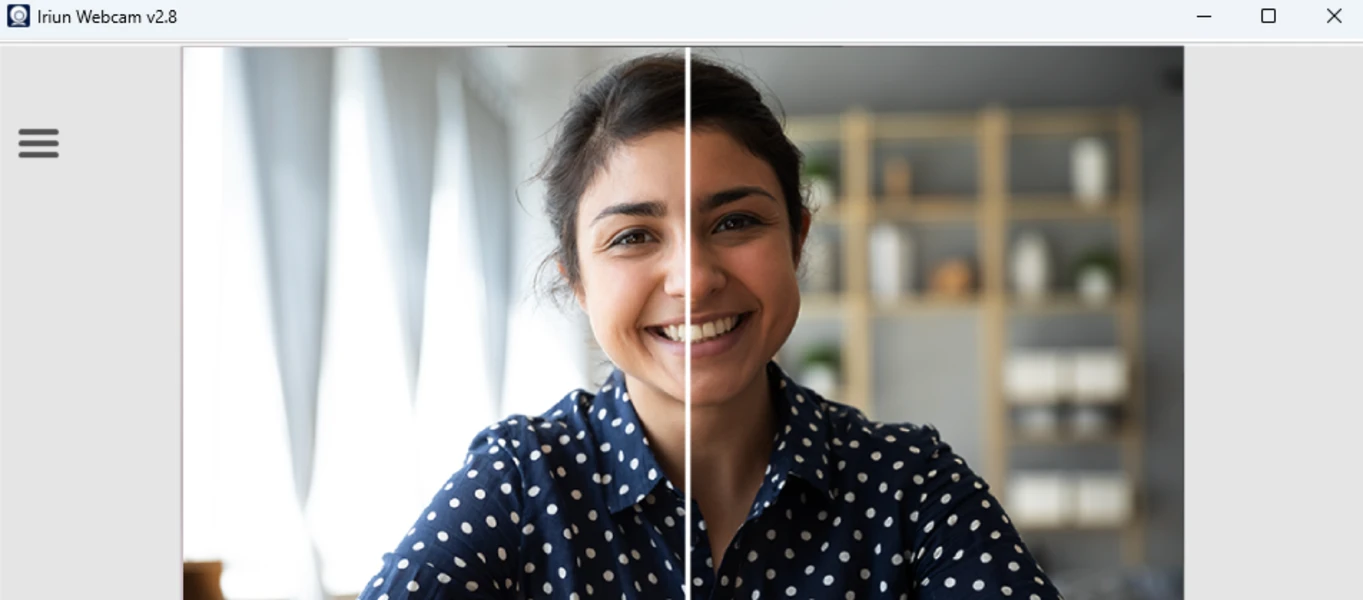
Iriun Webcam bridges the hardware gap between a desktop computer and a mobile device's optical sensors, transforming a smartphone into a dedicated video source for Windows PCs. Instead of relying on a low-quality built-in laptop camera or purchasing an expensive external peripheral, users install a lightweight desktop client and a companion mobile application. This setup routes the phone's high-resolution camera feed directly into video conferencing, broadcasting, or recording software. It acts as a virtual camera driver at the system level, functioning instantly inside utilities like Zoom, Microsoft Teams, and Open Broadcaster Software (OBS) without requiring capture cards or complex local networking scripts.
Content creators, remote workers, and online educators often encounter blurry, poorly lit video from standard monitors or budget accessories. Iriun Webcam solves this exact problem by utilizing the superior lenses, larger image sensors, and advanced image signal processing already present in modern phones. By delivering a direct feed over a local Wi-Fi network or a wired USB connection, it handles demanding visual tasks such as recording high-definition tutorials, live streaming games, or presenting in professional corporate meetings. The background server application receives the video stream and broadcasts it to the selected software without consuming excessive processor cycles, ensuring the host machine remains responsive.
Unlike browser-based virtual cameras or heavy production suites that introduce noticeable audio-video latency, this utility relies on a direct, local peer-to-peer connection. This architecture minimizes frame delay and maintains strict synchronization between the speaker's lips and the audio track, a critical requirement for live broadcasting. Furthermore, keeping the core optical processing on the phone side frees up the Windows desktop hardware for running intensive video games, handling dense spreadsheet screen sharing, or rendering graphics simultaneously. The result is a practical, low-latency workflow that maximizes existing hardware investments.
Key Features
- Up to 4K Resolution Support: Iriun Webcam allows users to transmit video feeds at resolutions up to 4K, depending entirely on the physical hardware of the connected smartphone. Rather than artificially capping the frame size at 720p or 1080p, the software reads the maximum available sensor output and sends a high-definition signal directly into OBS or local recording software, ensuring crisp visual fidelity.
- Dual Connection Methods: The system supports both wireless and wired connectivity to suit different physical environments. Users can link their devices over a shared local Wi-Fi network for physical freedom around a studio room, or utilize a standard USB cable connection to eliminate wireless interference and guarantee a stable, uninterrupted frame rate during crucial live streams.
- Screen-Off Operation: To prevent the mobile device from overheating and to conserve battery life during lengthy video calls, the mobile application continues to capture and transmit the video feed even when the screen is dimmed or turned off. This behavior is practical for multi-hour lectures or prolonged Twitch broadcasts where the device remains stationary on a desk mount.
- Native Virtual Camera Integration: Upon installation on Windows, the utility registers as a standard video capture device within the operating system registry. This ensures the camera appears natively in the standard drop-down hardware menus of programs like Discord, Skype, Google Meet, and Webex, requiring no additional routing tools, plugins, or virtual cables to function.
- Multiple Device Scaling: The Windows background client is capable of accepting and routing feeds from up to four different smartphones simultaneously. By specifying the desired number of camera inputs during the initial setup phase, multi-angle broadcast configurations become possible, allowing a single streamer to manage a face angle, a top-down desk view, and a wide room shot using spare mobile hardware.
- Low Latency Architecture: The server application is structured to transfer frames with minimal buffering, prioritizing real-time communication over heavy processing overhead. By bypassing cloud servers and keeping data transfer strictly on the local area network or the physical USB bus, the resulting video feed avoids the noticeable lip-sync delays common in older IP camera setups.
How to Install Iriun Webcam on Windows
- Download the official Windows installer executable directly from the vendor's primary website to ensure you receive the latest virtual driver package and security updates.
- Double-click the downloaded setup file to launch the installation wizard. When Windows User Account Control prompts for administrator permissions, approve the request, as the software needs to write virtual camera drivers into the core system directories.
- Proceed through the initial setup screen and select your preferred installation folder. Leaving the path on the default primary system drive is recommended to maintain strict compatibility with background startup routines.
- When prompted by the installer, select the number of virtual cameras you intend to use from the provided drop-down menu. Choose multiple cameras only if you plan to connect several phones for a multi-angle broadcasting setup.
- Finish the installation process and allow the server application to launch automatically. A minimalist desktop window will appear, displaying a "Waiting for connection" status indicator.
- Ensure your Windows PC and the smartphone are connected to the exact same local Wi-Fi network, or connect the phone directly into a high-speed USB port on your computer for a wired link.
- Download and open the companion application on your mobile device. The phone will immediately scan the local network or USB bus, detect the waiting Windows server, and begin transmitting the video feed into the desktop window.
Iriun Webcam Free vs. Paid
The pricing structure for Iriun Webcam is straightforward, offering a capable free tier alongside a single premium upgrade path. The free tier provides the core broadcasting functionality without restricting the output resolution or imposing artificial time limits on video sessions. Users can utilize the maximum optical capability of their smartphone, including 1080p and 4K transmission, as long as their physical hardware supports those formats. However, this unpaid tier permanently embeds a small Iriun watermark logo in the top-left corner of the video feed, which is visible to any meeting participant or stream viewer.
For individuals requiring a completely clean, unbranded presentation, the Pro upgrade is available as an inexpensive one-time purchase, typically costing between $5 and $7 depending on regional pricing and the mobile application storefront. Securing this upgrade permanently removes the desktop watermark. Because the transaction is handled entirely through the mobile ecosystem rather than a Windows-based subscription portal, the purchase remains tied to the user's mobile account, granting lifetime access without any recurring monthly software fees.
Beyond simple watermark removal, upgrading to the Pro tier unlocks advanced manual camera controls directly within the application interface. While free users must rely on the smartphone's automatic lighting and focus adjustments, Pro users gain the capacity to manually define ISO values, lock exposure times, and adjust color temperature via white balance settings. Furthermore, the paid tier activates remote camera management from the Windows desktop client, allowing broadcasters to tweak focus ranges or switch physical lenses without having to stand up and interact with a tripod-mounted device during a live recording.
Iriun Webcam vs. Camo vs. EpocCam
Camo operates as a specialized studio management suite directly on the PC, giving users granular desktop control over focus, zoom, framing, and color grading. It is designed for individuals who want extensive filters and overlays managed directly from their Windows machine. However, Camo restricts its free tier to a maximum resolution of 720p, forcing users into a relatively expensive monthly subscription or a high-priced lifetime license to broadcast in 1080p or 4K. Broadcasters who demand deep color correction and do not mind paying a premium price for professional-grade virtual camera software should choose Camo.
EpocCam, maintained by Elgato, is another visible alternative that integrates directly with the broader Elgato broadcasting ecosystem, including Stream Deck controllers. Its free tier is heavily restricted, capping the video resolution at 480p and injecting advertisements into the mobile interface, making it practical only as a quick connectivity test. The paid EpocCam Pro upgrade involves a one-time fee that unlocks 1080p output and HDR video processing. It is the logical choice for existing Elgato hardware owners who need integrated workflow routing, but it falls short for users demanding ultra-high-definition streaming, as it lacks 4K support.
Iriun Webcam is the optimal solution for users who prioritize raw video resolution and a minimal desktop footprint without facing recurring costs. Unlike Camo, Iriun allows fully unrestricted 4K streaming in its free tier, asking only that users accept a small logo watermark. Unlike EpocCam, the free edition is not obstructed by intrusive advertisements or severe 480p pixelation limits. It is the best choice for users who want to mount a spare phone, establish a Wi-Fi or USB link, and pipe the maximum possible image quality directly into OBS or Zoom with minimal setup, requiring a cheap one-time payment only if the watermark conflicts with their presentation needs.
Common Issues and Fixes
- The Windows desktop application displays a "Waiting for connection" message indefinitely. This typically happens when the PC and the mobile device are operating on different network subnets, or when the Windows Firewall blocks the local server communication. To fix this, verify both devices are authenticated to the exact same Wi-Fi network, temporarily disable the firewall to test the routing, or bypass the wireless network entirely by using a direct USB cable connection.
- The video feed experiences severe lag, freezing, or stuttering during live streams. Wireless network congestion or an overloaded desktop graphics processor often causes dropped frames. Resolve this by switching the mobile device to an uncongested 5GHz Wi-Fi band, lowering the broadcast resolution in the mobile application settings from 4K down to 1080p, or closing background Windows programs that consume heavy bandwidth.
- The virtual camera does not appear in the video settings of Zoom, Teams, or Discord. Occasionally, a conferencing application launches before the virtual driver finishes initializing, or a recent Windows update disrupts the registry paths. The most immediate fix is to restart the video conferencing program completely; if the camera remains hidden, reinstall the Windows setup package and reboot the computer to properly register the capture driver.
- The phone battery drains rapidly or the hardware overheats during long recording sessions. Continuous optical processing and network transmission are demanding on mobile components. Mitigate this thermal strain by utilizing the built-in screen dimming feature within the mobile app, keeping the phone plugged into a physical power adapter, and ensuring the device is not mounted in direct sunlight.
- The image appears blown out, out of focus, or constantly shifts lighting automatically. By default, the software relies on the phone's auto-focus and auto-exposure sensors, which can struggle in low-light rooms filled with bright computer monitors. Upgrading to the Pro tier allows you to lock the exposure level, fix the white balance, and set manual focus distances to maintain a consistent, professional image regardless of screen glare.
Version 2.9.1 — November 2025
- Enhanced connectivity stability to prevent intermittent dropouts during extended wireless sessions.
- Optimized video encoding pipeline for lower latency and reduced CPU usage on the host machine.
- Fixed a bug where the camera feed would occasionally freeze or appear black upon initial connection with certain conferencing apps.