SignalRGB replaces the chaotic mess of proprietary hardware control applications with a single interface that coordinates lighting across components from competing manufacturers. For years, PC builders who mixed Corsair RAM, a Razer keyboard, an Asus motherboard, and Lian Li fans were forced to run four separate background applications just to set a uniform color across their desk. This application circumvents official vendor limitations by directly addressing the hardware controllers on the motherboard and USB headers, allowing entirely different brands to sync together. Users no longer have to compromise on component selection just to keep their lighting effects visually consistent.
Instead of assigning individual colors to specific LEDs on separate devices, this platform relies on a visual two-dimensional canvas system. Users physically arrange virtual representations of their keyboards, mice, memory modules, and cooling fans on a digital grid that mirrors their real-world desk layout. When a lighting effect such as a sweeping radar plays across the canvas, the application calculates the exact spatial timing required to transition the colors from the edge of the case fans across the motherboard components and down through the keyboard. This spatial awareness turns a fragmented collection of hardware into a continuous lighting display without requiring manual timing adjustments.
The desktop client is designed specifically for dedicated PC setups. Because it intercepts hardware polling and manages fan curves at the system level, it must run locally as an installed service. It targets dedicated gamers and system integrators who want precise control over their aesthetic environment. By eliminating the heavy background tasks normally associated with official manufacturer suites, builders can reclaim system memory and reduce software conflicts.
Key Features
- Spatial Canvas Editor: Rather than picking colors from a dropdown list for each piece of hardware, users drag and drop digital representations of their devices onto a layout grid. This interface allows lighting effects to physically sweep across the room, moving from case fans to the keyboard based on where those items sit on the actual desk.
- Direct Hardware Control: The software actively bypasses official manufacturer control suites by utilizing reverse-engineered USB and SMBus protocols to communicate directly with RGB controllers. This allows it to address LED nodes on memory modules, graphics cards, and peripheral docks without launching the original vendor background services.
- Screen Ambience Mirroring: The application captures the pixels currently displayed on your monitor and projects those colors outward onto your physical hardware in real time. This extends the visual footprint of a movie or a video game into the physical room, dynamically shifting the lighting tones to match the display.
- Advanced Fan Control: Beyond aesthetic customization, the interface provides thermal management tools that read CPU and GPU temperature sensors. Users can build multi-point fan curves for different cooling headers on the motherboard, determining exactly when intake or exhaust fans spin up to manage system heat.
- Game State Integrations: Specific supported titles trigger automatic lighting shifts based on internal game memory or pixel reading. This translates in-game events into physical lighting cues, such as flashing red when the player's health drops low or matching the color of an active spell cooldown.
- Audio Visualization: The engine intercepts local audio output streams and converts frequency data into responsive lighting adjustments across the connected hardware. Users can configure bass thresholds and frequency bands to determine exactly how their desk reacts to music players or system sounds.
- Custom Macro Mapping: The client includes a dedicated input mapper that assigns complicated multi-key binds or system commands to single hardware switches. Builders can configure a spare mouse button to swap lighting layouts instantly or mute system volume without needing the original peripheral driver.
How to Install SignalRGB on Windows
- Navigate to the official website and download the primary Windows installer executable to your local storage drive.
- Locate the downloaded file and double-click it to initiate the setup wizard. If Windows SmartScreen displays a warning about an unrecognized publisher, click "More info" followed by "Run anyway" to proceed past the security filter.
- Review the software license agreement when prompted and click the confirmation button to move to the destination directory selection.
- Choose the installation path on your primary startup disk. Because the software interacts with low-level motherboard drivers and USB polling, installing it on the main system drive ensures the background services initialize correctly upon booting.
- Wait while the wizard copies the core files and extracts the necessary hardware communication libraries. Do not close the window during the extraction phase.
- Allow the application to launch automatically once the progress bar finishes. If it does not start on its own, locate the new shortcut in your Start menu and open it manually.
- Create a new user account or log in with an existing profile. Follow the first-time setup interface to scan your active hardware, then navigate to the "My Rig" tab to verify that the software successfully identified your motherboard headers and peripherals.
SignalRGB Free vs. Paid
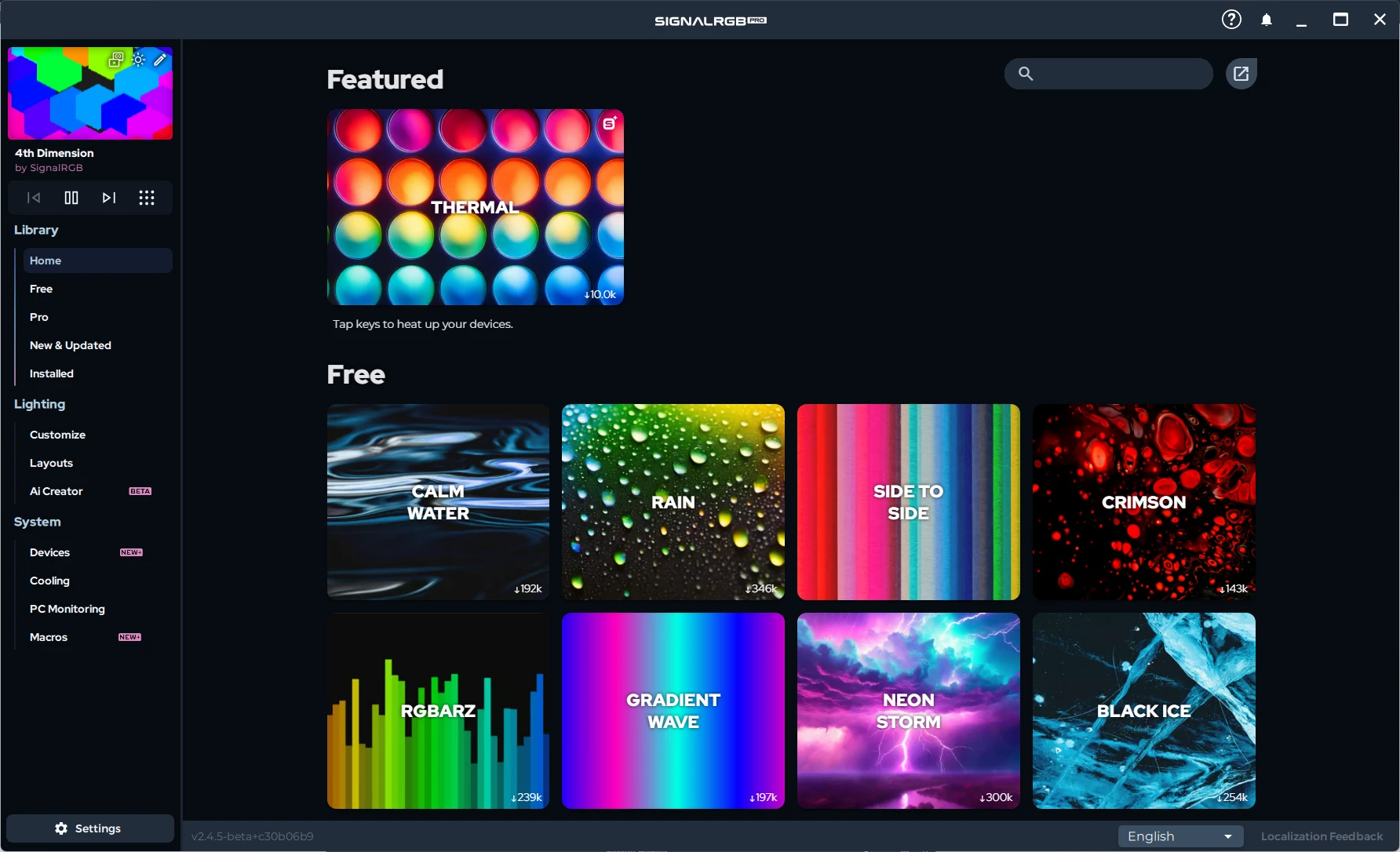
The core application operates under a freemium model that provides substantial utility without requiring a purchase. The Free tier grants full access to the hardware compatibility database, allowing builders to sync their disparate components, map them on the digital canvas, and apply standard lighting effects like color cycles, static tones, and basic gradients. It also includes basic peripheral configurations such as managing mouse DPI settings. For many users who simply want their multi-brand computer to display a single unified color without running multiple vendor applications, the free tier is entirely sufficient.
Users who want to expand the software into a complete system management tool can upgrade to the Pro tier. This subscription costs $5.99 billed monthly or roughly $45.00 when billed annually. The Pro license unlocks advanced modules, including the Fan Control interface, in-depth PC monitoring graphs, Game Integrations, Screen Ambience, and Audio Visualizers. It also removes standard interface advertisements and grants the ability to map unlimited macro commands to peripheral buttons.
The subscription model directly funds the constant reverse-engineering efforts required to maintain hardware compatibility. Because hardware manufacturers frequently change their USB protocols and proprietary connectors without warning, the development team continually maps new communication protocols. The application does not offer a perpetual lifetime license, so users must maintain an active subscription to retain access to the advanced fan control and responsive display features. If the subscription lapses, the account reverts to the Free tier, preserving basic hardware control but locking the advanced tabs.
SignalRGB vs. OpenRGB vs. Corsair iCUE
OpenRGB is an open-source, lightweight alternative focused entirely on hardware control without the overhead of user accounts or paid effects. It excels in environments where users demand the absolute minimum background resource consumption, preferring an interface that merely sets the hardware registers to a specific color and gets out of the way. However, OpenRGB lacks the spatial drag-and-drop canvas, meaning complex synchronized waves across multiple devices are difficult to configure. It also omits the thermal management, macro assignments, and screen mirroring tools found in commercial software.
Corsair iCUE is a polished, proprietary management suite built explicitly for Corsair hardware and a small handful of partnered components. When a builder commits entirely to the Corsair ecosystem, iCUE provides deep hardware integration, reliable firmware updates, and complex layered lighting rules. The critical flaw with iCUE is its active refusal to control competing brands. If a user installs an Asus motherboard, Razer mouse, or Lian Li fans, iCUE cannot synchronize them, forcing the user to run additional software.
SignalRGB is the better fit for hardware enthusiasts who intentionally mix brands but refuse to sacrifice the unified visual experience. It bridges the gap between OpenRGB's hardware-agnostic philosophy and iCUE's rich, visual layout editor. While it requires an account and locks certain system monitoring tools behind a paid tier, it remains the most effective way to force conflicting hardware brands into the same lighting animation.
Common Issues and Fixes
- Devices fail to appear in the detection list. This conflict occurs when original vendor applications like Armoury Crate, Synapse, or Mystic Light are actively locking the USB polling interfaces. To resolve this, open the Windows Task Manager, force close all background processes associated with competing RGB tools, and restart the central application.
- RGB memory modules do not light up. Communicating with RAM lighting requires accessing the motherboard SMBus, which often demands elevated system permissions. Right-click the application icon in the system tray and select Quit, then right-click the desktop shortcut and choose "Run as Administrator" to force the memory drivers to load properly.
- Motherboard ARGB strips only partially illuminate. The software cannot automatically detect how many physical LEDs are soldered onto a daisy-chained ARGB strip. Navigate to the Devices tab, select the specific motherboard header, and manually type in the correct number of LEDs so the application knows exactly how far to push the lighting effect.
- Connected case fans spin at the wrong speeds. If you bypass the initial start and stall speed calibration in the Pro version, the application sends incorrect PWM signals to the fan headers. Open the Cooling tab, select the problematic fan channel, and run the automatic calibration sequence to correctly detect the minimum operating RPM.
Version 2.5.28 — January 2026
- Added support for a variety of new devices, including the SteelSeries Rival 310 (variant), ASUS ROG Strix RTX 2070, Corsair H150I RGB Elite AIO (White), and the ASUS PG32UQX Monitor.
- Added ABNT2 key layout support for the Logitech G715 and a legacy single-color control option for MSI 4000/5000 series motherboards.
- Improved application stability by updating the underlying framework to Qt 6.8.0 and updating VC runtimes.
- Improved detection logic for Corsair DDR5 RAM and refined LED layouts for the Logitech G560, Razer BaseStation V2, and Wooting 60 HE.
- Fixed a rare crash that could occur when exiting the application.
- Fixed an issue where new users might get stuck in a loop requesting administrator privileges upon first launch.
- Fixed a bug where the Canvas MiniPlayer buttons would fail to appear when hovered over.
- Fixed a problem with the Lian Li SL Infinity setting incorrect fan speeds for free users after system wake.