Willow Voice operates as a system-wide AI dictation tool that converts speech into formatted text across Windows applications. Instead of raw word-for-word transcription that requires heavy manual editing, the application actively removes filler words, corrects grammar, and structures sentences before they ever appear on the screen. The software targets professionals, developers, and medical staff who spend hours drafting emails, writing code documentation, or responding to direct messages. By processing spoken language intelligently, it allows users to draft long-form content or handle quick conversational replies significantly faster than manual typing. Replacing the physical strain of manual data entry with highly accurate voice recognition helps mitigate repetitive strain injuries while maintaining high daily output.
As a native desktop application, it connects directly into any active text input field on the operating system. Whether you are typing an update in Slack, composing a message in Microsoft Outlook, writing documentation in Visual Studio Code, or filling out a web form in Google Chrome, you simply press a designated hotkey and start talking. This direct input method eliminates the friction of recording audio in a separate browser tab, running a transcription script, and copying the results over to your actual workspace. With an ultra-low latency of roughly 200 milliseconds, the converted text appears almost instantly, providing visual feedback that matches the pace of natural speech.
Beyond basic dictation, the tool differentiates itself by understanding the specific work context. If you are writing a casual message to a coworker, it maintains a relaxed tone. If you are drafting a formal client proposal, it structures the output with appropriate professionalism. This contextual awareness prevents frustrating transcription errors that usually occur when dictation software fails to distinguish between homophones or ignores the surrounding sentences. It essentially bridges the gap between raw voice recognition and a polished final draft, drastically reducing the time spent on keyboard-heavy data entry. The software runs quietly in the system tray, waiting for the user's specific hotkey command, ensuring it only listens when explicitly instructed to do so.
Key Features
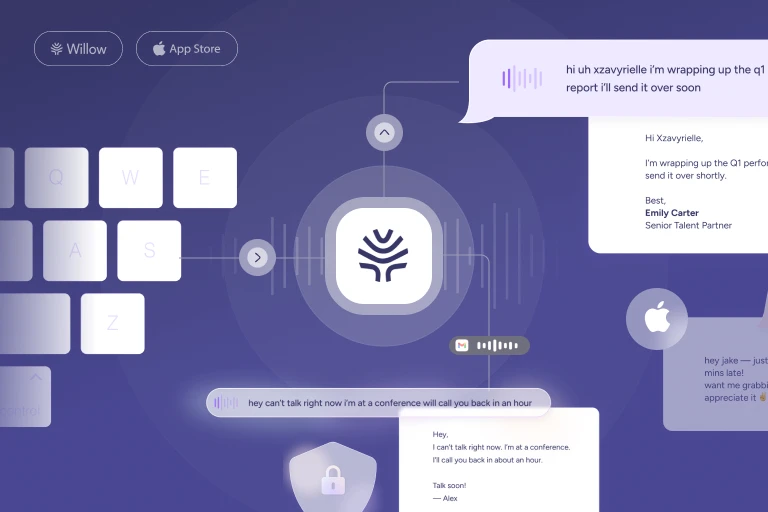
- Automatic Formatting and Editing: The transcription engine actively removes verbal hesitations, corrects grammatical mistakes, and inserts proper punctuation as you speak. This eliminates the need to manually clean up raw transcripts, turning a spoken stream of consciousness into structurally sound paragraphs ready for submission. The AI automatically capitalizes the first letter of new sentences and adds question marks when your vocal inflection implies a query.
- System-Wide Integration: The tool operates across the entire Windows desktop environment rather than confining you to a specific notepad or web interface. It allows direct dictation into communication apps, word processors, and code editors by injecting text directly where your cursor is placed. This means no more copying and pasting from a dedicated dictation window.
- Custom Dictionary Support: Users can manually add industry-specific jargon, internal company acronyms, and proper names to their personal library. This ensures technical terms like "Kubernetes," specific medical diagnoses, or unique client names are always spelled correctly without forcing you to manually fix them later.
- Text Expansion Shortcuts: You can create custom text snippets that instantly expand into full phrases or larger blocks of text when triggered. By defining a simple spoken command like "addr" or "sig," you can instantly insert your full mailing address or complete email signature using just your voice.
- Quiet Mode Dictation: Designed specifically for shared office spaces or public environments, this feature allows users to speak softly or whisper directly into their microphone. The audio processing still accurately captures and interprets the speech without requiring you to project your voice and disturb nearby coworkers.
- Enterprise-Grade Privacy: All voice data is processed securely to meet strict SOC 2 and HIPAA compliance standards. The vendor explicitly states that user audio recordings and generated transcripts are never stored long-term or used to train background AI models, making the tool suitable for clinical and corporate environments handling sensitive data.
- AI Mode Prompts: Instead of dictating exact words, users can issue brief conversational instructions that the engine expands into full messages. You can simply state the core idea of an email, and the application generates a fully polished, personalized response based on your established writing style.
How to Install Willow Voice on Windows
- Navigate to the official vendor website and download the Windows executable installer package to your local drive.
- Locate the downloaded executable file in your Downloads folder and double-click it to initiate the setup sequence.
- Allow the installer to extract files and copy the required application data to the default directory, which typically resides in your user AppData folder under LocalProgramswillow-voice.
- Wait for the background installation processes to finish, as the tool does not prompt you with advanced custom path selections or extra bloatware checkboxes.
- Launch the application from the newly created desktop shortcut or the Windows Start menu.
- Sign in using your existing account credentials, or create a new user account to authenticate the software and connect to the transcription servers.
- Grant the application permission to access your microphone when prompted by the Windows privacy settings dialog.
- Complete the initial first-run onboarding wizard to select your preferred audio input device and define the global keyboard shortcut you will use to trigger dictation.
Willow Voice Free vs. Paid
Willow Voice operates on a freemium model that ties usage directly to word count and feature availability. The Free tier provides users with up to 2,000 dictated words per week at no financial cost. This allowance resets on a weekly basis and provides enough capacity for casual users who want to draft short emails, reply to daily messages, or simply test the accuracy of the transcription engine before committing to a paid plan. It serves as a practical trial for evaluating how well the AI handles your specific accent and vocabulary.
For professionals who rely heavily on dictation for extended document drafting or constant daily communication, the Willow Pro subscription removes these word limits entirely. Priced around $15 per month, or available at a discounted rate through an annual billing cycle, the Pro tier unlocks unlimited dictation volume. This paid tier also ensures priority access to the processing servers during peak hours, reducing any potential transcription latency.
Enterprise and Team plans are also available for larger organizations requiring centralized billing, shared team dictionaries, and enforced security policies across multiple employee workstations. Because the system relies on active cloud processing for its low-latency AI transcription, there is no perpetual license or one-time purchase option. Users must maintain an active internet connection and a valid subscription account to continue using the software beyond the free limits.
Willow Voice vs. Wispr Flow vs. Windows Voice Typing
Wispr Flow targets a very similar demographic with high-speed, system-wide AI dictation and automatic text formatting. Both tools offer rapid transcription and understand surrounding context, but Wispr Flow frequently emphasizes immediate conversational speed over deep formatting constraints. While both dictate accurately, Wispr Flow is heavily optimized for fluidity, which appeals to users who prioritize getting words on the screen as fast as possible. Willow Voice, conversely, leans into security and specialized vocabulary, making it a safer choice for heavily regulated industries.
Windows Voice Typing is a built-in operating system feature accessed quickly via the Windows Key plus H keyboard shortcut. It is completely free, runs natively without requiring third-party accounts, and handles basic voice-to-text duties well. However, it provides raw, literal dictation without removing filler words, rewriting awkward phrasing, or applying intelligent grammar correction. Because it lacks advanced AI processing, Windows Voice Typing relies entirely on the speaker speaking clearly and manually dictating punctuation like "comma" or "period", which interrupts the natural flow of thought.
Willow Voice is the better fit when raw transcription is insufficient and the user needs an active assistant to clean up their speech into ready-to-send paragraphs. Ultimately, Willow Voice acts as an intermediary editor rather than just a microphone relay. It is a practical investment for developers, doctors, and executives who require accurate handling of complex terminology and immediate formatting. The Windows built-in tool remains sufficient for simple, occasional text entry where precise formatting is not critical.
Common Issues and Fixes
- Application stops transcribing mid-sentence. This usually happens if the active text cursor loses focus in the target application. Click back into the text field of your word processor, code editor, or browser, and press the dictation hotkey again to resume active input.
- Microphone input is completely ignored. Windows sometimes restricts hardware access for newly installed applications to protect user privacy. Open the Windows Settings panel, navigate to Privacy & Security, select Microphone, and ensure the toggle for allowing desktop apps to access your microphone is switched on for this application.
- Technical words are consistently misspelled. The default AI model may not recognize highly niche industry acronyms, specific coworker names, or proprietary product titles. Open the application settings panel and manually add these exact terms to your Custom Dictionary to force correct spelling globally.
- High latency or delayed text appearance. Because the software relies on cloud processing to maintain its 200ms response time, a weak Wi-Fi connection will delay the transcription return. Switch to a wired Ethernet connection or move closer to your network router to stabilize the upload and download speeds.
- Formatting commands are printed as literal text. Occasionally, the engine might type out the word "dash" instead of inserting the punctuation mark. Pause briefly before issuing a formatting command to help the processing engine distinguish it from normal conversational speech, or adjust the context settings in the main menu.
Version 1.2.2 — January 2026
- Added new offline dictation capabilities, enabling you to seamlessly transcribe speech to text without needing an active Wi-Fi or cellular connection.
- Added an in-app HIPAA compliance (BAA) workflow to ensure secure, privacy-focused voice dictation for professionals.
- Improved performance of the overall typing experience by introducing a more accurate, responsive keyboard layout and a polished user interface.
- Fixed general bugs and implemented under-the-hood stability optimizations for a smoother, more reliable application experience.