RescueTime is an automated productivity app and background time tracking solution designed to help professionals deeply understand their daily digital habits. Unlike manual timers that require constant interaction, this utility operates quietly on your desktop, recording exactly which web pages, local applications, and files consume your schedule. By capturing raw usage statistics directly from the active window, the software delivers accurate activity monitoring analytics that help you stop chronic procrastination, optimize your daily routine, and keep your professional and personal life balanced. It completely removes the friction of manual data entry, allowing users to focus entirely on their work while the system builds a detailed profile of their behavior over days, weeks, and months.
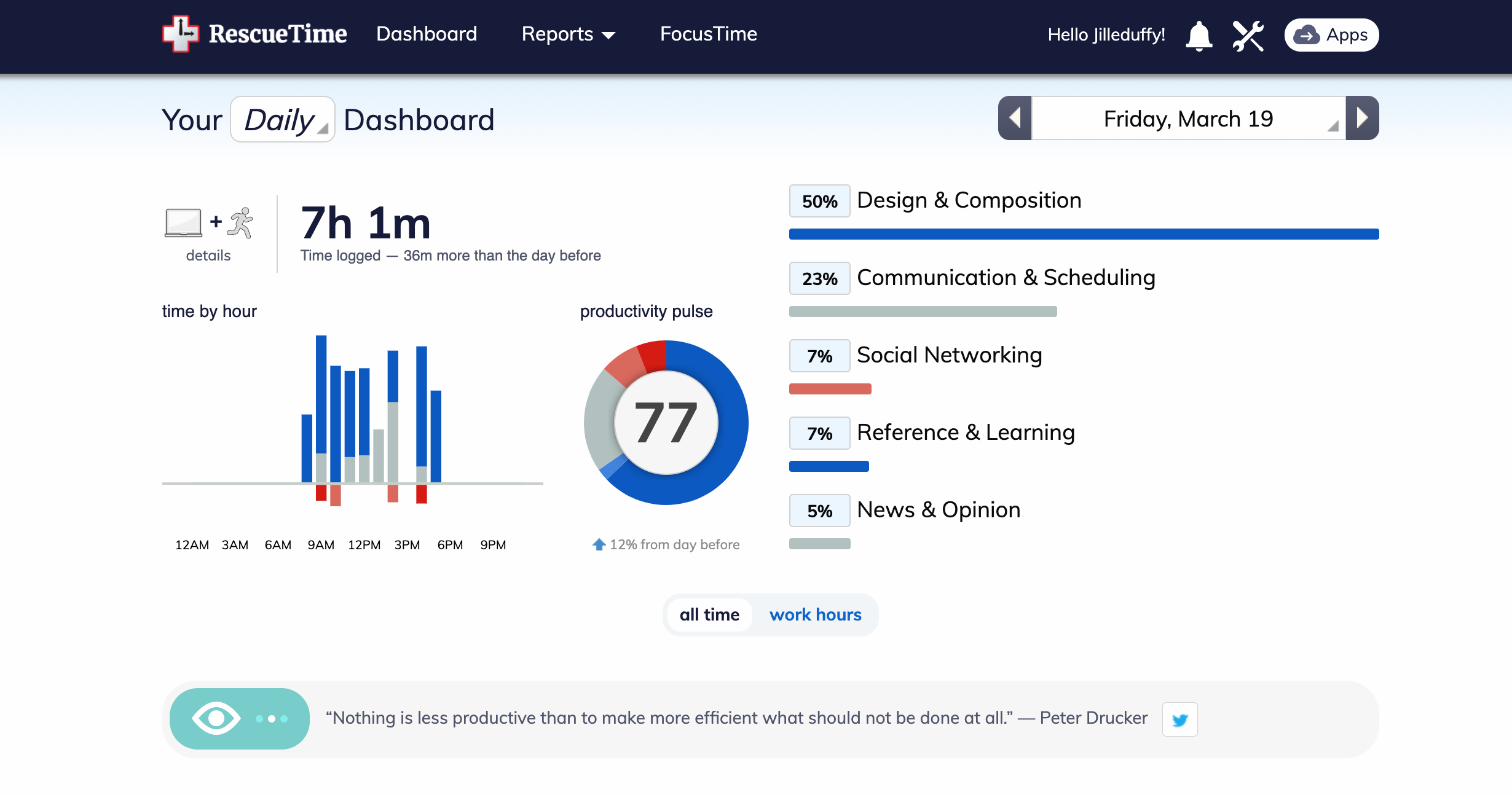
For knowledge workers, freelancers, and students, managing attention is often more difficult than managing tasks. The core function of this application is to hold a mirror up to your workday by measuring exactly where your minutes go. It categorizes your activities—from coding in an integrated development environment and writing in a word processor to scrolling through social media feeds or watching streaming video—and applies productivity scores to each. This raw data is then compiled into a highly visual dashboard that reveals peak focus hours, frequent context switching, and the specific digital distractions that derail progress. By observing real behavior rather than relying on self-reported estimates, the application provides an objective, honest assessment of how your screen time is actually distributed.
Relying on a dedicated desktop client provides significant advantages over lightweight browser extensions or web-only dashboards. A browser-only tracker cannot see what happens when you switch to local software like Microsoft Excel, Adobe Photoshop, or a desktop chat application. By running at the operating system level, the background service monitors the actual focused window across your entire environment. It knows whether you are actively typing in a document or simply leaving a video playing on a secondary monitor while you do something else. This system-wide visibility is what enables the program to accurately trigger focus sessions, block distracting websites globally, and detect idle time when you step away from the keyboard to grab a coffee or attend a physical meeting.
Key Features
- Automatic Activity Tracking: The background service logs active windows, applications, and URLs without requiring you to click a start or stop timer. It monitors the currently focused application on your screen and accurately records the duration of use, automatically pausing the count when you minimize the window or step away.
- Focus Sessions (FocusTime): This distraction management tool allows you to block access to specific websites that you have categorized as unproductive. You can trigger a session for a set duration, during which the application actively intercepts attempts to load distracting URLs, forcing you to return to your primary tasks until the timer expires.
- Smart Alerts and Goals: The system allows you to configure specific daily targets, such as logging three hours of software development or keeping social media use under twenty minutes. When you reach these thresholds, the desktop client triggers real-time notifications via system tray pop-ups to keep you aware of your pacing and daily progress.
- Offline Time Prompting: Because the tracker detects keyboard and mouse inactivity, it knows when you leave your desk for an extended period. Upon your return, a dialog box prompts you to categorize the away time, allowing you to log offline activities like physical meetings, whiteboard sessions, or phone calls directly into your daily timeline.
- Detailed Productivity Reporting: The analytics dashboard compiles your raw activity data into visual charts, assigning default or custom productivity scores ranging from "Very Productive" to "Very Distracting." You can filter these reports by day, week, or month to identify long-term behavioral trends, helping you pinpoint exactly when your focus peaks during the work week.
- Timesheet Suggestions: For users who need to allocate their tracked time to specific projects, the system provides autocompletion hints based on your logged history. It reviews your daily activity and suggests project categorizations, allowing you to quickly review and approve the time blocks before they are finalized on your official timesheet.
- Privacy and Tracking Controls: If you need to handle sensitive information, log into personal banking, or browse casual sites after hours, you can access the system tray icon and select the pause option. This completely halts all data logging for a specified duration, ensuring your private activities are strictly excluded from the main dashboard reports.
How to Install RescueTime on Windows
- Download the official Windows installer executable from the developer's website and locate the file in your default downloads folder.
- Double-click the installer package to launch the setup wizard, which will prompt you to confirm administrative privileges if required by your operating system settings.
- Follow the on-screen instructions to extract the core application files into your chosen destination directory, which defaults to your standard Program Files folder.
- During the setup process, leave the option checked to start the application automatically when you turn on or log into your computer, ensuring you never forget to launch the tracker before starting your workday.
- Once the installation completes, the setup wizard will close, and the application's Assistant icon will immediately appear in your Windows system tray near the clock.
- Click the system tray icon to open the initial sign-in prompt, where you must enter your registered account email and password to link the local client to your cloud dashboard.
- Review your system privacy and browser settings to ensure the background service has the necessary permissions to read active window titles and web addresses correctly without interference from security software.
RescueTime Free vs. Paid
The developer utilizes a freemium pricing structure, offering a permanent free tier called RescueTime Lite alongside a fully featured Premium subscription. The Lite version provides the core automatic time tracking engine, basic activity categorization, and weekly email summaries. This free tier is entirely sufficient for individuals who simply want to monitor their computer habits, identify general time sinks, and view a rolling three-month history of their productivity scores without any financial commitment.
For users who require active intervention to stop procrastination, the Premium tier costs approximately $12 per month, or $78 when billed annually. Upgrading to the Premium plan unlocks the FocusTime distraction blocker, offline time tracking prompts, real-time threshold alerts, and unlimited historical data retention. The paid plan also grants access to deeper reporting filters, allowing users to analyze specific document names and individual web pages rather than just seeing top-level domains in their activity logs.
Beyond individual usage, there are Team plans designed for small businesses and organizational groups that need collective productivity insights. These team subscriptions generally range from $6 to $9 per user per month and require a minimum of two seats. The Team tier provides all Premium features while adding group-level dashboards, which aggregate anonymized team data to help managers understand overall workload trends, identify burnout risks, and schedule meetings better without resorting to invasive employee screen recording.
RescueTime vs. Toggl Track vs. Clockify
Toggl Track is structured around manual time entries and client billing, requiring users to explicitly start and stop a timer for specific tasks. It is highly optimized for freelancers, agencies, and consultants who need to generate accurate invoices, track project profitability, and share detailed timesheets with external stakeholders. You should choose Toggl Track if your primary goal is to bill clients for specific hours worked, whereas RescueTime is better suited for individuals who want background behavioral analytics without managing a stopwatch.
Clockify operates as a comprehensive project management and timesheet application, widely known for offering a generous free tier that supports unlimited team members. It focuses heavily on organizational oversight, employee scheduling, budget tracking, and basic attendance reporting for internal teams. Managers tracking shift workers, approving vacation time, or allocating budget across multiple departments should choose Clockify, but those who want automated personal habit tracking and active website blocking will find RescueTime more effective for individual focus.
RescueTime occupies a distinct space by prioritizing personal productivity and behavioral change over strict project accounting or payroll management. Because it logs window activity automatically and actively intercepts distracting websites during focus sessions, it serves as a personal coach rather than a traditional billing tool. It is the superior choice for users who struggle with context switching, want to proactively reduce time spent on social media, and need objective data on exactly how their screen time is distributed throughout the day.
Common Issues and Fixes
- Dashboard shows no data logged. This typically means the local client is not running or is logged into the wrong user account. Check your system tray for the application icon; if it is missing, launch the program from your Start menu. If it is running, verify that the registered email address exactly matches your active dashboard session.
- Installation fails due to locked files. The setup wizard may halt and display an error stating that applications are using files that need updating. To fix this, click Abort on the prompt, open the Windows Task Manager, end any active background processes sharing the program's name, and restart the installer from scratch.
- Authentication problem after installing. If you see an authentication error immediately after logging in, the local configuration may be stuck on an older account profile from a previous installation. Right-click the system tray icon, navigate to the Help menu, select the option to reset your configuration, and then sign in again.
- Specific web pages are not recorded. While the desktop client tracks supported browsers natively, strict privacy settings or non-standard browsers can sometimes block URL logging. Installing the official browser extension alongside the desktop application usually resolves this communication gap and restores detailed page-level tracking.
- Application does not launch on boot. If the tracker fails to start with your operating system despite enabling the setting, press Windows+R, type
shell:startup, and press Enter to open the startup folder. Create a shortcut to the application executable in this directory to force Windows to launch it automatically upon logging in.
Version 3.2.11.5 — August 2025
- Introduced built-in timer functionality to enhance tracking.
- Upgraded and clarified system error messages for better troubleshooting.