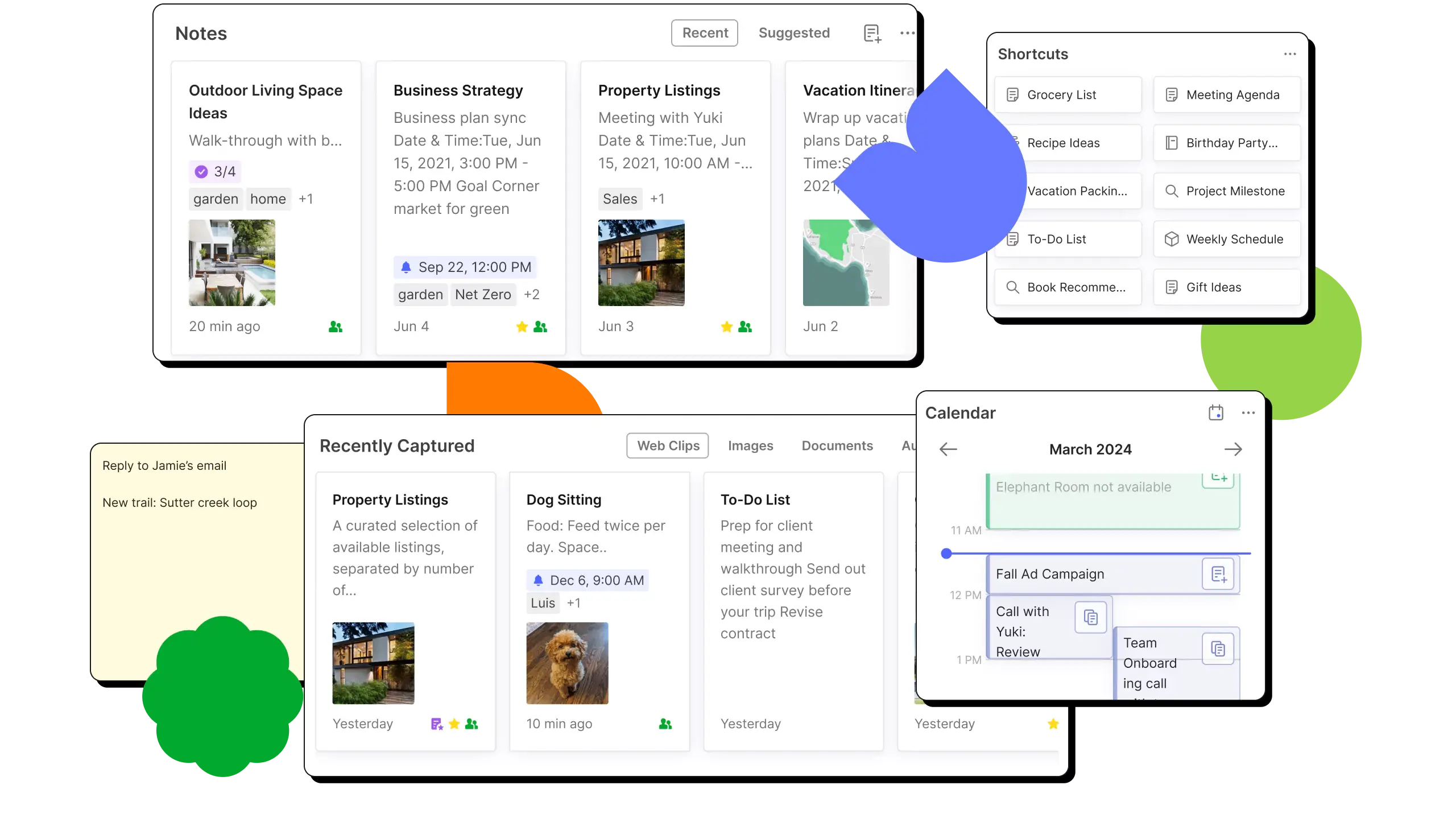
Evernote serves as a central digital workspace designed to ingest, organize, and retrieve information across a multitude of formats. It handles everything from quick meeting minutes and grocery lists to extensive research projects, financial receipts, and scanned document archives. For users suffering from scattered local files and fragmented browser bookmarks, this application acts as a unified repository where plain text, high-resolution images, voice memos, and complex PDF documents live side-by-side. The core philosophy relies on capturing ideas instantly and using advanced search algorithms and flexible tagging structures to find them exactly when needed, rather than forcing users into rigid, traditional folder hierarchies that easily become disorganized over time.
While browser-based note applications work well for light, occasional usage, the dedicated desktop client provides a highly responsive environment for heavy information management. The desktop software allows for immediate capture without navigating through cluttered browser tabs, supports background synchronization, and offers reliable offline access to locally cached notebooks. When managing hundreds or thousands of clipped articles, large file attachments, and extensive audio recordings, the native Windows client prevents the memory drain typical of heavy web portals. It ensures that global keyboard shortcuts can instantly open quick-capture windows without interrupting other active software running on the machine.
Local execution accelerates initial document rendering and provides a smoother environment when organizing massive stacks of notebooks. The desktop interface presents a dedicated Home dashboard, displaying pinned notes, recent captures, and a scratchpad for immediate typing the moment the application launches. By moving information processing out of the browser and into a standalone executable, users benefit from a dedicated workspace free from digital distractions. Many users start their capture process on mobile devices while commuting, relying on the desktop installation to process and organize that raw input later. The application functions as a staging ground where scattered ideas are synthesized into final documents. Because the desktop client natively supports extensive keyboard navigation and multi-window operation, users can open multiple reference notes on one monitor while writing a primary draft on another.
Key Features
- Semantic Search Retrieval: Instead of relying entirely on exact keyword matches, the search bar understands natural language queries. Typing a question scans document contents, PDF text, and image metadata to return precise answers and filter out irrelevant files, dramatically reducing the time spent hunting for specific details.
- Integrated Web Clipper: Users can save full articles, simplified reading text, or selective screen captures directly from their browser into designated notebooks. The clipping engine strips away intrusive advertisements and complex site formatting, preserving only the core text and images for permanent offline reference inside the desktop client.
- Intelligent Note Cleanup: The formatting toolbar includes a dedicated tool to automatically structure messy drafts. Clicking the cleanup icon processes disorganized text, adds logical structural headings, fixes typographical errors, and visually separates actionable tasks without altering the original meaning of the raw input.
- Multi-Format Attachment Support: Notes act as versatile containers rather than simple plain-text files. Users can drag and drop PDFs, spreadsheet documents, presentation files, and audio recordings directly into the editor pane, where they become fully searchable and can be reviewed or annotated in place without launching external viewing software.
- Audio Transcription Engine: A built-in transcription module converts recorded voice memos and video files up to a strict size limit directly into editable text blocks. The resulting transcript appears inside the note as a formatted quote block right below the original media file, making spoken meetings completely searchable and easily scannable for later review.
- Advanced Tagging Architecture: Rather than forcing documents into a single nested folder, the tagging system allows complex cross-referencing. Users can apply multiple contextual tags to a single note, making it easy to filter a massive database by project phase, urgency status, or team member context simultaneously using the sidebar filtering panel.
- Dedicated Home Dashboard: The main interface opens to a customizable overview screen that aggregates critical information. Users can view a temporary scratchpad for immediate typing, access recently edited documents, check pinned reference notes, and review outstanding tasks in a single unified view before diving into specific notebooks.
How to Install Evernote on Windows
- Download the standalone Windows installer package from a trusted directory or the official vendor website.
- Double-click the downloaded executable file to launch the setup wizard.
- Review the installation directory prompt, allowing the software to install to the default system path unless a specific custom drive is required for space management.
- Click through the remaining installation prompts and wait for the file extraction and local database creation to complete.
- Launch the application from the newly created desktop shortcut or the Windows Start menu.
- Enter your account credentials or follow the prompts to create a new profile, as an active sign-in is strictly required to verify subscription limits and activate the software.
- Leave the application running for several minutes during the first launch to allow the initial background synchronization to download your existing database and offline notebook cache.
- Configure your preferred startup behavior in the application settings, choosing whether the client should launch silently in the system tray upon Windows boot for immediate access to global capture shortcuts.
Evernote Free vs. Paid
The pricing structure relies on a tiered subscription model that sharply separates casual testing from intensive professional usage. The Free tier acts primarily as a strictly capped companion account, limiting users to a strict maximum of fifty notes and one single notebook. If an account exceeds this structural threshold, existing notes remain fully accessible, editable, and exportable, but the system firmly locks the creation of any new notes until the user upgrades or deletes enough content to fall back under the limit. This introductory tier also restricts synchronization to a single device, making it impractical for continuous cross-platform workflows.
For users who require genuine daily utility, the entry-level paid option—the Starter plan—provides a functional middle ground. This subscription tier lifts the restriction to a generous cap of one thousand notes and twenty distinct notebooks, while enabling synchronization across up to three devices. It unlocks all core application functionality, including the ability to utilize the integrated text cleanup and media transcription tools. This makes it a highly viable option for personal organization, light academic research, and daily task management without forcing users to pay for unlimited enterprise-grade server capacities they may never utilize.
Power users who treat the software as a primary digital brain must look to the Advanced plan. This top-tier subscription removes all note, notebook, and device limits entirely, providing unrestricted storage and synchronization capabilities across an entire hardware ecosystem. It is explicitly designed for professionals managing massive archives of scanned PDFs, thousands of clipped web articles, and extensive long-term project documentation.
Beyond the individual tiers, specialized business configurations exist for corporate teams requiring centralized administration. These higher-level deployments include single sign-on integration, shared team workspaces, and centralized billing management. However, for solo professionals, freelancers, and students, the decision typically comes down to managing the strict fifty-note cap of the Free tier versus investing in the Starter or Advanced plans. It is crucial to evaluate exactly how many documents you generate monthly before committing, as hitting the storage or note-count limits will immediately halt your ability to save new information until a billing upgrade is processed.
Evernote vs. Notion vs. Microsoft OneNote
Notion operates fundamentally as a heavily structured database and modular workspace builder rather than a traditional capture-first tool. It excels when teams need to create visual kanban boards, nested corporate wikis, relational data tables, and highly customized project management dashboards. However, Notion requires significant manual setup, relies almost entirely on constant cloud connectivity, and struggles with offline capability; if a user loses internet connectivity, accessing deep databases or loading un-cached pages becomes impossible. In contrast, Evernote provides a much faster, out-of-the-box capture experience and superior offline desktop performance for throwing disorganized thoughts into a reliable inbox.
Microsoft OneNote offers a completely different interface based on an unstructured digital canvas, allowing users to click and type anywhere on the screen to mimic a physical binder. It is heavily integrated into the broader Office ecosystem and provides a massive storage allowance through native cloud drives without strict note-cap limits. Additionally, OneNote synchronizes data differently, sometimes resulting in delayed updates across devices when dealing with massive embedded file attachments. While OneNote is visually flexible and remains the superior choice for stylus input on touchscreen devices, Evernote holds a significant advantage in rapid text retrieval and metadata filtering.
Ultimately, Evernote remains the better fit for users who prioritize immediate file capture, strict organization through metadata tags, and lightning-fast search retrieval over visual page formatting or complex database building. When the primary goal is building a massive, searchable archive of web articles, financial receipts, PDF reports, and meeting transcripts with minimal friction, its dedicated document-handling tools and intelligent search filters outpace both competitors.
Common Issues and Fixes
- Notes fail to sync across local devices. Open the desktop application menu and force a manual sync through the troubleshooting options, or log out and log back in to trigger a complete server refresh and push local changes to the cloud.
- The text cleanup button is greyed out and unclickable. Ensure your device has an active internet connection and that the current note contains between 100 and 6,000 characters, as the formatting model cannot process documents outside these specific length constraints.
- The desktop application consumes excessive system memory during heavy use. Restart the client entirely to clear cached background processes, and consider periodically utilizing the integrated database optimization tool found in the help menu to rebuild the local search index.
- New notes disappear or revert to older cached states. Check the web-based client to confirm which exact draft successfully reached the central server; if the desktop client is stuck in an offline loop, export your recent unsynced notes as a local archive, cleanly reinstall the application, and re-import them.
- Audio recordings cut off or fail to transcribe. Verify that the uploaded media file does not exceed the strict twenty-five megabyte size limit, as larger files will not process through the transcription engine. If a file is too large, compress it externally before dragging it back into the note editor.
Version 11.4.4 — February 2026
- Added minor under-the-hood adjustments to ensure a more seamless note-taking experience.
- Improved performance of the application to provide faster response times and smoother navigation.
- Fixed various miscellaneous bugs and general background stability issues.