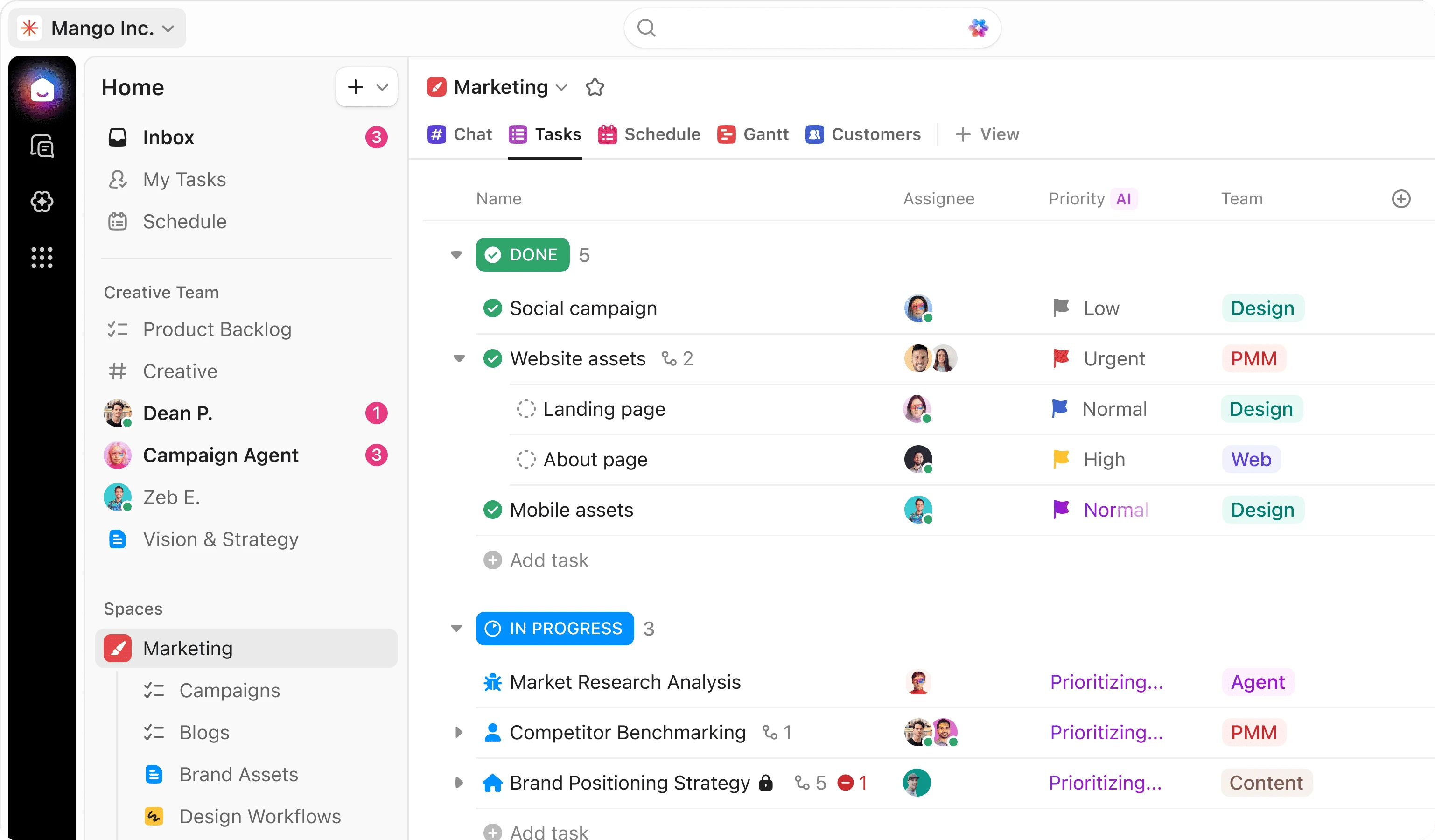
ClickUp functions as an all-in-one productivity platform designed to consolidate multiple workplace tools into a single, highly customizable interface. Instead of maintaining separate subscriptions for task trackers, collaborative wikis, spreadsheet databases, and time loggers, teams rely on this application to centralize their entire operational workflow. The software organizes everything from simple daily to-do lists to complex, multi-departmental strategic plans. By utilizing artificial intelligence capabilities, the application can summarize long comment threads, automatically generate project briefs, and format standard operating procedures, reducing the manual administrative load placed on project managers.
The platform caters to a wide spectrum of users, ranging from independent contractors organizing client deliverables to large enterprise teams executing software development sprints. A marketing agency can use the board views to track creative assets through a review pipeline, while an engineering team might rely on the Gantt charts to map out strict deployment schedules and dependencies. By supporting custom field types, relationship linking between different project spaces, and automated rule triggers, the application adapts to highly specific operational requirements rather than forcing organizations to conform to a rigid, predefined methodology.
While the platform remains fully accessible through a standard web browser, the dedicated Windows desktop application fundamentally changes how power users interact with their daily work. Relying on a browser for heavy project management often leads to buried tabs, accidental closures, and memory bloat. The standalone Windows client resolves this by providing a focused environment pinned directly to the taskbar. It introduces global keyboard shortcuts that allow users to capture passing thoughts or create immediate tasks regardless of what other software is currently active on their screen. Furthermore, the desktop client supports multi-window workflows, enabling users to detach a project requirement document into a separate monitor while actively updating individual task cards on their main display. This offline-friendly architecture also caches recently viewed assignments, allowing work to continue when internet connectivity temporarily drops.
Key Features
- Multi-Window Workspace Organization: Instead of crowding a single browser tab, the application allows users to detach specific documents, chat threads, and task boards into entirely separate windows. This means a project manager can keep a critical meeting agenda open on one monitor while actively checking off action items or adjusting timeline dependencies on another display.
- Global Quick-Action Shortcuts: The desktop client registers system-wide keyboard hotkeys that function even when the application is minimized. Pressing a customizable hotkey instantly summons a quick-entry floating bar, allowing users to log time, draft a new task, or capture a reminder without interrupting their current workflow in other productivity tools.
- Local Cache Offline Mode: When internet connectivity drops, the software automatically relies on its local cache to keep you productive. Users can continue reading recently opened project specifications, drafting task descriptions, and adding new reminders directly to their personal inbox. The client safely stores these local changes and synchronizes the data back to the cloud the moment the network connection is restored.
- Custom Status Workflows: Every project folder supports entirely custom task states, moving far beyond simple binary open and closed toggles. Teams can map exact operational pipelines, such as creating specific review stages for quality assurance, client approval, and final deployment. Visual color coding instantly communicates exactly where an assignment is stalled without requiring managers to read through individual comment histories.
- Integrated Document Creation: The platform includes a fully featured rich-text editor nested directly within project folders, eliminating the need to link out to external word processors. Users can draft meeting notes, format standard operating procedures, and embed dynamic widgets that automatically update to show the real-time status of associated tasks directly inside the text document.
- Native Time Tracking and Estimates: Each individual task card includes built-in timer controls, allowing contributors to click a simple play button when they begin an assignment. Project leaders can compare this logged time against upfront hour estimates to monitor budget pacing, generate team capacity reports, and identify operational bottlenecks without relying on third-party timekeeping plugins.
How to Install ClickUp on Windows
- Navigate to the official developer website and initiate the download for the Windows desktop installer package.
- Open your local downloads directory and double-click the executable setup file to begin the unpacking process.
- Wait for the installer to allocate the required storage space and write the necessary application directories to your system drive.
- Once the setup completes, launch the client directly from the newly created desktop shortcut or by searching for it in the Windows Start menu.
- Enter your account email and password, or authenticate using your organization's designated single sign-on provider to grant the client access to your workspace.
- Allow the software a few moments to perform its initial background synchronization, which pulls down your folder structures, active task boards, and user permission settings.
- Click your profile avatar in the corner to access the settings menu, where you can configure application startup behavior, system tray preferences, and specific desktop notification triggers.
- Set up your global hotkeys in the desktop settings pane to ensure the quick-task creation shortcut does not conflict with your other daily software tools.
ClickUp Free vs. Paid
ClickUp utilizes a per-user subscription model structured into four distinct tiers to accommodate varying organizational sizes. The Free Forever tier allows an unlimited number of users and an unlimited number of tasks. This entry point includes full access to core features like Kanban boards, native time tracking, and collaborative documents. However, it implements a strict 100-megabyte cap on total file storage, limits custom field usage, and restricts access to advanced permission controls, which naturally funnels active teams toward the paid options once they begin uploading assets.
Small teams typically upgrade to the Unlimited tier, which costs $7 per user per month when billed on an annual cycle. This tier removes the file storage ceiling entirely, allowing marketing and design teams to upload high-resolution assets directly to task cards. It also unlocks unlimited integrations with third-party software, unlimited custom dashboards, and the ability to invite external guests with specific, read-only or edit-only permission levels. This makes it a highly practical choice for freelance collectives or boutique agencies managing multiple client projects simultaneously.
Larger organizations usually adopt the Business tier, priced at $12 per user per month on an annual contract. This level introduces highly granular security controls, custom exporting formats, required two-factor authentication rules, and significantly higher monthly limits for automation triggers. It also enables advanced resource management views to map out employee workloads across multiple concurrent projects. For massive deployments requiring custom legal terms, single sign-on enforcement, and dedicated success managers, the developer offers an Enterprise tier with customized pricing available through direct sales contact.
ClickUp vs. Asana vs. Monday.com
Asana is often selected by teams that prioritize a highly structured, predictable interface focused squarely on task assignments and timeline management. Users who want a tool that functions purely as a project tracker without a steep learning curve generally appreciate Asana's clean design. It limits extreme customization in favor of standardized list and board views, which works exceptionally well for teams that do not need to replace their existing document editors or whiteboarding tools.
Monday.com caters heavily to operations managers who think in terms of dynamic databases and visual spreadsheets rather than traditional to-do lists. Its fundamental architecture relies on highly flexible columns that can track physical inventory, sales pipelines, event logistics, and financial budgets. Teams that require complex, color-coded visual dashboards to monitor high-level business metrics often lean toward Monday.com's building-block structure.
ClickUp proves to be the better fit for organizations aiming to consolidate their software footprint by merging tasks, documents, goals, and team communication into one unified application. Its extreme flexibility allows different departments to work exactly how they prefer—whether through strict agile sprints, basic checklists, or detailed visual timelines. The dedicated Windows client further elevates the experience for heavy users by moving intense, multi-window knowledge work out of a cluttered web browser and directly onto the desktop.
Common Issues and Fixes
- Application feels sluggish, pages freeze, or task states fail to update. This usually indicates a heavy buildup of temporary files bogging down the client. Open your profile settings located in the upper right corner, scroll down to the bottom of the menu, and click the option to clear the application cache. Restart the client, and the interface will reload fresh data from the server, restoring speed.
- Desktop notifications fail to appear for due dates or team mentions. Windows often blocks application alerts at the system level. Open your Windows System settings, navigate to Notifications, and verify that the toggle for the specific application is active. Next, check the internal application settings to confirm your alert routing is specifically configured to trigger desktop pop-ups for high-priority events.
- Specific project boards are missing when working without an internet connection. The desktop client does not automatically download your entire company database for offline use; it only caches items you have recently accessed. To guarantee a specific task list or document is available during a flight or commute, you must open those exact files while still connected to an active network.
- Client displays an endless loading animation or a blank white screen upon launch. A corrupted display state or an interrupted update process can break the initial login handshake. Force quit the application entirely using the Windows Task Manager to ensure no background processes remain active. Relaunch the software, log out of your current session, and authenticate your credentials again to force a clean server connection.
Version 3.5.176 — February 2026
- Added an integrated AI Notetaker for capturing meeting details via shareable links, introduced Super Agents for 24/7 collaborative assistance, and implemented AI auto-classification for task types.
- Improved performance of workspace navigation and Gantt chart exports, which now allow for precise date-range filtering to streamline targeted sharing.
- Fixed issue with automation reliability by adding robust new triggers that fire accurately when task names are modified or contain specific keywords.