VMware Workstation Pro is an advanced desktop hypervisor that allows IT professionals, system administrators, and software developers to run multiple operating systems simultaneously as completely isolated virtual machines on a single physical PC. Following its transition under Broadcom, this desktop application is now offered entirely free for commercial, educational, and personal use. By virtualizing complete hardware setups, it eliminates the frustration of managing complex dual-boot configurations. This lets you monitor experimental software behavior, evaluate unknown files, and test custom code deployments without ever risking the stability or security of your primary computer.
Unlike browser-based cloud labs or lightweight container engines, this local virtualization tool interacts directly with your host machine hardware. It gives you precise control over processor core allocation, memory limits, and offline virtual networking configurations. Developers rely on this deep level of isolation to test experimental code deployments and verify software compatibility across different Windows environments. It also serves as an excellent sandbox for keeping legacy applications alive, running older tools that refuse to function on modern operating systems while isolating them from network threats. Running these instances locally ensures you retain complete privacy over your data and avoids the latency and recurring billing costs often associated with cloud hosting.
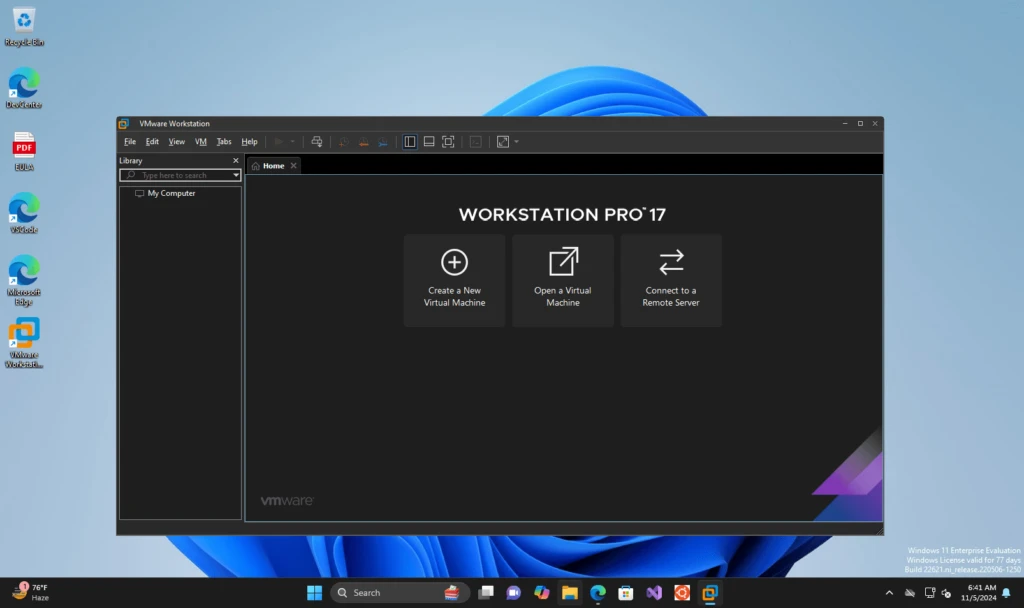
Because the hypervisor operates natively on your physical disk, the workflow remains contained within an organized, responsive tabbed interface. You can switch between running virtual machines just like switching browser tabs, while managing external hardware connections and local network bridges from the top menu bar. The software provides a practical, self-contained environment for building network architectures and troubleshooting deployment errors right on your desk. For professionals who build server topologies or test applications, having a fully local environment means you can continue working during internet outages or in secure, air-gapped facilities.
Key Features
- Hardware Virtualization Controls: Assign specific CPU cores, allocate exact gigabytes of RAM, and configure 3D hardware graphics acceleration in the Virtual Machine Settings menu. This precise hardware allocation allows resource-heavy software to perform reliably inside isolated guest environments without overwhelming the host machine.
- Snapshots and Reversions: Take exact save states of your virtual drive before running risky executable files or initiating major system updates. By clicking the Snapshot Manager icon in the top toolbar, you can instantly restore your entire environment to a previous working state if a test fails.
- Virtual Network Editor: Build custom network topologies without needing physical routers. The built-in editor allows you to configure specific Network Address Translation rules, bridge physical network adapters directly to your guests, or establish isolated host-only networks for secure penetration testing.
- Remote vSphere Integration: Connect directly to remote ESXi hosts or vCenter servers from within the desktop interface. IT administrators can manage cloud infrastructure, monitor server health metrics, and deploy local virtual machines directly to remote enterprise hardware using the dedicated server connection panel.
- Virtual Trusted Platform Module (vTPM): Add an emulated vTPM device to your virtual machine configuration to meet modern cryptographic requirements. This hardware emulation ensures full compatibility with Windows 11 security policies, allowing you to install and test secure boot environments safely.
- Encrypted Virtual Machines: Protect sensitive guest data by applying strict password-based encryption to your virtual disks. When enabled in the access control settings, this prevents unauthorized users from mounting your virtual hard drives or inspecting your saved states without credentials.
- Shared Folders and Drag-and-Drop: Transfer files quickly between your physical host disk and your virtual environment. By configuring Shared Folders in the Options tab, you can set up permanent directories that both systems can access simultaneously, or drag documents directly across the application window border.
How to Install VMware Workstation Pro on Windows
- Verify that your host machine has hardware virtualization enabled in the BIOS or UEFI settings, typically labeled as Intel VT-x or AMD-V, before starting.
- Register for a free Broadcom Support Portal account using a valid email address and navigate to the Desktop Hypervisors download catalog.
- Complete your basic user profile to pass the required export compliance screening, which is a mandatory step to unlock the direct download links.
- Download the official Windows installer executable package to your local storage drive and launch the setup wizard with administrative privileges.
- Accept the end-user license agreement and choose your preferred installation directory, or simply accept the default path located on your main system drive.
- Decide whether you want to install the enhanced keyboard utility, which requires a system reboot but improves keystroke handling for international keyboard layouts.
- Review the configuration prompts regarding desktop shortcuts and choose whether you want the program to check for product updates automatically on startup.
- Click install and wait for the wizard to copy the necessary files, register the system services, and configure the virtual network adapters on your physical machine.
- Finish the setup process, restart your computer if prompted, and launch the application. You will no longer be asked for payment details or a license string.
VMware Workstation Pro Free vs. Paid
Following its acquisition by Broadcom, the product transitioned to a completely free licensing model for all users. This major shift eliminates all previous software costs, upgrade fees, and recurring subscriptions, granting unrestricted access to commercial, personal, and educational users alike. The installer automatically unlocks all advanced capabilities that were historically restricted to paid enterprise tiers, including custom network editing, encrypted virtual drives, and remote server management tools. There are no trial periods, no artificial save limits, and no embedded watermarks on your virtual displays. The company now funds its operations entirely through its massive enterprise infrastructure services and hardware divisions rather than charging for individual desktop virtualization tools.
While the application itself costs absolutely nothing, this transition means that direct technical support from the global vendor team is no longer available to non-enterprise users. If you encounter setup errors, complex networking issues, or performance bottlenecks, you cannot open direct support tickets. Instead, administrators must rely entirely on community forums, user groups, and the official technical documentation portal for troubleshooting assistance. Updates, bug fixes, and security improvements continue to be delivered regularly through the Broadcom download directory without any hidden paywalls or restrictive usage limitations.
VMware Workstation Pro vs. Oracle VM VirtualBox vs. Microsoft Hyper-V
Oracle VM VirtualBox is a widely used open-source hypervisor maintained by Oracle. Choose VirtualBox if you need cross-platform host support on alternative operating systems not supported by Workstation Pro, or if you prefer an entirely open-source ecosystem. It handles basic virtualization tasks well and offers excellent snapshot functionality out of the box. However, it often struggles to match the raw 3D graphics performance, overall interface polish, and complex networking stability of commercial-grade rendering engines, making it slightly less ideal for graphics-intensive desktop testing.
Microsoft Hyper-V is a bare-metal hypervisor built directly into Windows 10 and Windows 11 Pro and Enterprise editions. Choose Hyper-V if you want a native solution that requires zero external downloads and integrates tightly with Microsoft Server environments. Because it operates at the bare-metal level, it offers excellent raw computational performance. However, its management interface is far less intuitive for quick desktop testing, and it lacks straightforward audio routing, easy USB passthrough, and simple drag-and-drop file sharing features that dedicated desktop applications provide natively.
VMware Workstation Pro is the better fit when you need advanced desktop management tools like easy multi-monitor configuration, drag-and-drop file sharing, and complex local networking labs without sacrificing hardware 3D acceleration. It blends the ease of use of a standard desktop application with the deep technical capabilities of an enterprise tool. The fact that its enterprise-grade toolset is now entirely free makes it an excellent choice for Windows-based developers and IT professionals who demand high stability, deep configuration options, and a refined graphical interface.
Common Issues and Fixes
- Automated update server errors. After Broadcom updated its download portal infrastructure, the built-in auto-updater might throw certificate validation errors and fail to fetch new software updates. You can bypass this broken mechanism by manually downloading the newest installer directly from the support portal and running it over your existing setup.
- Host hypervisor conflicts. Virtual machines sometimes crash or refuse to boot if native Windows virtualization is running simultaneously in the background. Ensure that native hypervisor services are disabled in the Windows Features menu, or configure the application settings to tolerate nested virtualization scenarios properly.
- Black screens after resuming from sleep. Resuming a saved state can occasionally result in an unresponsive black display on the virtual monitor, forcing a hard reset. To resolve this, restart the guest environment completely or disable 3D hardware acceleration in the specific display settings for that virtual machine.
- Delayed download access. New users might see a "Not Entitled" error or experience delays when trying to grab the installer file from the vendor website. This happens because the vendor requires an automated export compliance screening; ensure your profile address information is completely accurate to speed up the approval process.
- USB devices not recognized. Sometimes external hard drives fail to appear in the removable devices menu when plugged into the physical computer. Check the Windows Services menu on your host machine to ensure the VMware USB Arbitration Service is currently running and set to start automatically.
Version 25H2u1 — February 2026
- Restored the built-in update checker, allowing users to download and install new versions directly from within the application.
- Addressed four security vulnerabilities to improve system protection (CVE-2026-22715, CVE-2026-22716, CVE-2026-22717, and CVE-2026-22722).
- Resolved a critical issue where virtual machines would unexpectedly crash or throw "unrecoverable errors" on Windows hosts with Hyper-V nested virtualization enabled.
- Improved guest operating system performance by fixing unresponsive behavior and input lag experienced on Windows host machines.
- Fixed a multi-monitor bug that caused the mouse cursor to become invisible when moving between screens in full-screen mode.
- Deactivated Vulkan and DirectX 12 presentation modes by default to prevent hardware-specific display issues, such as missing toolbars and permanently dimmed screens.
- Eliminated the unintended 1-pixel white border that appeared around the edge of the virtual machine during full-screen use on Windows.
- Corrected a graphical glitch causing 3D-accelerated Windows XP and Vista VMs to show a black or severely degraded display after a host system reboot.
- Fixed USB pass-through reliability so that connected devices no longer fail to mount or randomly disconnect due to USBArbitrator service interruptions.