Breevy is a dedicated desktop text expansion utility that allows Windows users to reduce keystrokes by replacing short, custom abbreviations with long blocks of text. Instead of typing out repetitive email signatures, legal boilerplate, customer support responses, or complex code snippets manually, users assign a short trigger word. When that trigger is typed into any program, the application immediately replaces it with the full assigned content. This utility operates quietly in the background system tray, listening for specific keyboard inputs and intervening before the operating system registers the raw characters.
For medical transcriptionists, legal clerks, customer service agents, and anyone who spends most of their day typing, this tool provides a direct reduction in physical typing fatigue and helps prevent repetitive strain injuries. Because it is a native desktop application rather than a specialized browser extension, it intercepts keystrokes across the entire operating system. This means the same abbreviation works identically whether you are typing in Microsoft Word, an email client like Outlook, a specialized medical database, or a simple text editor like Notepad. It removes the need to copy and paste standard responses from a separate document or sticky note application.
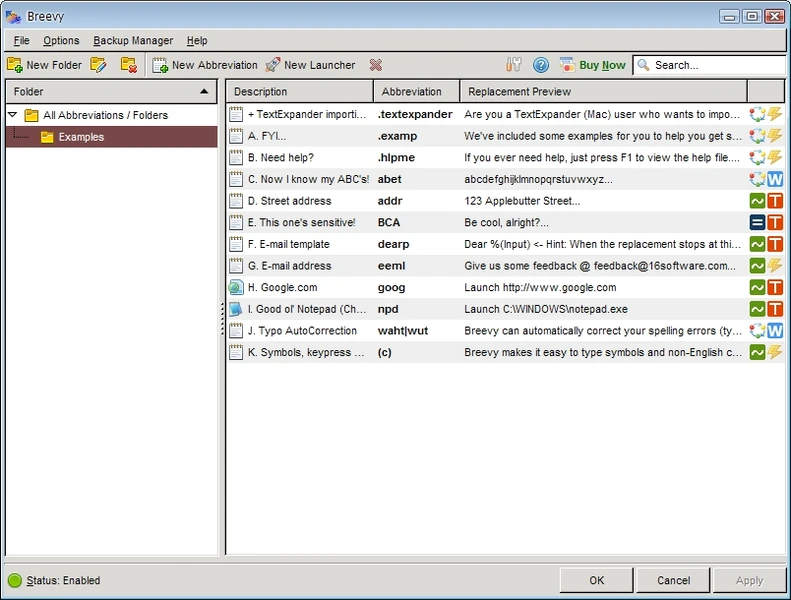
Users often choose this utility over heavier alternatives because it maintains a strict utilitarian focus. The interface is a straightforward dual-pane window showing folders of abbreviations on the left and the specific text blocks on the right. There are no mandatory cloud accounts required to use the basic functions, and it does not force you into a monthly subscription just to save keystrokes. While it relies on external methods like Dropbox for syncing across multiple computers, its core engine is entirely local, ensuring that your typing speed is never bottlenecked by an internet connection or server latency.
Key Features
- Typo Correction and Medical Dictionaries: Out of the box, the software includes a large library of pre-configured autocorrect entries. Users can instantly activate over 6,500 standard English typo corrections, ensuring that common spelling mistakes are fixed automatically as they type in any application. Furthermore, it includes an optional dictionary of over 13,500 specialized medical abbreviations, making it an immediate asset for healthcare transcriptionists who need to output long anatomical terms or pharmaceutical names using only a few keystrokes.
- TextExpander Snippet Compatibility: Migrating from other platforms is a common friction point, but this tool includes native support for importing snippet libraries generated by TextExpander. By linking the application to a local Dropbox folder, it can read and write TextExpander format files directly. This allows users who operate a secondary computer at home and a Windows computer at the office to maintain a single, unified database of text snippets without having to manually recreate their library.
- Dynamic Cursor Positioning: A major limitation of basic clipboard managers is that they dump text and leave the typing cursor at the very end of the paragraph. This application uses a special syntax to dictate exactly where the text cursor should land after the abbreviation expands. This is practical for coding or filling out HTML tags, as you can type a short trigger to generate a full code block and have the cursor automatically position itself between the quotation marks or brackets to continue typing.
- Smart Case Adaptation: The utility intelligently monitors how you type your abbreviations to determine the capitalization of the output text. If you configure a snippet for an email signature to output your full name, typing it in all lowercase will output the standard text. However, if you type the abbreviation with a capital first letter, the software will automatically capitalize the first letter of the expanded text. If you type the abbreviation in all caps, the entire expanded paragraph mirrors that formatting, saving you from creating multiple separate entries for different capitalization needs.
- Application and Website Launcher: Beyond just inserting text, the trigger system can be used to execute system commands. Users can define an abbreviation that, instead of pasting words, opens a specific local file path, launches a Windows executable, or opens a frequently visited URL in the default web browser. Typing a quick string like "mail" could be configured to automatically open your email client, turning the text expander into a keyboard-driven application launcher.
- Customizable Trigger Behaviors: Not every snippet needs to expand the exact same way. The software allows users to configure the exact firing conditions for each individual abbreviation. You can set an abbreviation to expand immediately upon typing the final letter, or you can require a specific word-ending character such as a space, period, or Enter key. Additionally, users can set specific trigger keys, ensuring that a short abbreviation does not accidentally expand when typed as part of a longer, unrelated word.
How to Install 16 Software Breevy on Windows
- Navigate to the official vendor website and download the primary Windows installer executable to your local storage drive.
- Double-click the downloaded setup file to launch the installation wizard, granting Administrator privileges if prompted by the Windows User Account Control dialogue.
- Review and accept the end-user license agreement presented on the first screen of the wizard to proceed.
- Select the destination folder for the application files; leaving the default path in the Program Files directory is recommended for most users to ensure proper system-wide permissions.
- Choose whether to create a desktop shortcut and ensure the option to launch the application on Windows startup is checked so your abbreviations are active when you reboot.
- Click the Install button to copy the necessary files to your local drive, which should only take a few seconds due to the small footprint of the utility.
- Finish the setup process and launch the application; it will appear as an icon in your system tray, which you must double-click to open the main interface and begin creating your first text snippets.
16 Software Breevy Free vs. Paid
The software operates under a traditional shareware model, allowing users to test the specific capabilities of the utility before committing to a purchase. New users can download the application and use it unhindered for a 30-day trial period. During this trial, there are no artificial limits placed on the number of abbreviations you can create, the length of the text snippets you can expand, or the applications you can type into. However, as the trial progresses, the software displays a periodic nag screen reminding you of how many days are left in your evaluation period.
Once the trial expires, users are required to purchase a permanent license to continue using the tool without interruption. The paid version is priced at approximately $34.95, which is a one-time perpetual license fee. This means there are no recurring monthly or annual subscriptions required to keep your text expander functioning. You own the specific build you purchased forever, and it will continue to work offline without requiring constant check-ins with a licensing server.
This flat-fee pricing structure appeals to individuals who dislike the subscription model prevalent in modern productivity tools. While a perpetual license saves money over the long term, it is important to note that the purchase generally covers the current release and minor bug fixes. Because the development cycle for this specific utility has been historically slow, buyers should evaluate the trial version on their specific Windows setup to ensure it meets their needs exactly as it exists today.
16 Software Breevy vs. TextExpander vs. PhraseExpress
TextExpander is a cross-platform competitor in the text expansion category, offering dedicated applications for multiple operating systems and mobile devices. It operates on a recurring subscription model and features native cloud synchronization, meaning any snippet you create on your desktop is available on your smartphone without any manual folder configuration. TextExpander also focuses heavily on team collaboration, allowing enterprise users to share centralized snippet libraries across entire departments, making it the better choice for company-wide customer support teams who need to keep their messaging aligned.
PhraseExpress is a dense, detailed Windows application designed for power users who need advanced automation beyond simple text replacement. It includes complex macro programming capabilities, custom input forms with drop-down menus, clipboard history management, and the ability to pull snippet data directly from external SQL databases. If you need your text expander to run complex logical operations, calculate dates, or format elaborate legal documents based on multiple variable inputs, PhraseExpress provides a much deeper technical toolset, though its interface and setup process are significantly more complicated.
16 Software Breevy is the better fit for a solo Windows user who wants a straightforward, lightweight application with a one-time purchase price. It avoids the recurring monthly fees of TextExpander and skips the steep learning curve of PhraseExpress, focusing entirely on fast, reliable keystroke interception. If you just want to turn a three-letter abbreviation into a standard email response, do not need mobile device access, and prefer to sync your data manually via a local Dropbox folder, this utility provides exactly the right amount of functionality without overwhelming your system or your wallet.
Common Issues and Fixes
- Long snippets type out slowly character-by-character. In some email clients or text editors, the application may struggle to paste a massive block of text instantly, resulting in a slow typing effect that takes several seconds to complete. You can fix this by adding a few empty lines of space before the insertion point in your document, which often clears the buffer issue, or by checking the application's preferences to ensure clipboard-based pasting is enabled rather than simulated keystrokes.
- Abbreviations do not sync automatically across multiple computers. Because the application lacks a proprietary cloud server, installing it on a second machine will not load your snippets. To fix this, you must install the Dropbox desktop client on both computers, open the synchronization preferences in the text expander, and point the sync directory to a shared folder within your local Dropbox directory.
- Text expansions stop working entirely while typing. If the utility suddenly ignores your abbreviations, it is likely the background process was accidentally closed rather than minimized. You can fix this by ensuring the application is configured to run automatically at Windows startup and remembering to click the minimize button instead of the red exit button, keeping the tool active in the system tray.
- Case sensitive abbreviations trigger incorrectly. Users sometimes find that typing an abbreviation in all lowercase accidentally triggers an expansion meant for an uppercase trigger. To fix this, open the main interface, select the specific abbreviation causing the conflict, and verify that the "Case Sensitive" option is explicitly checked so the software knows to treat exact capitalization as different commands.
Version 8.81 — December 2025
Added:
- Rich text formatting support (Bold, Italic, Underline).
- "Vary8tions" feature to assign multiple expansions to a single abbreviation.
- Dark Mode for the user interface.
- Statistics counter to track time and keystrokes saved.
- Emoji support in expansions.
Improved:
- Greatly improved Search Bar speed and accuracy.
- Enhanced Turbo Mode for faster expansion performance.
- Overall fit and finish improvements to the UI.
Fixed:
- Various stability fixes and reliability improvements.
- Minor bugs related to specific application interactions.