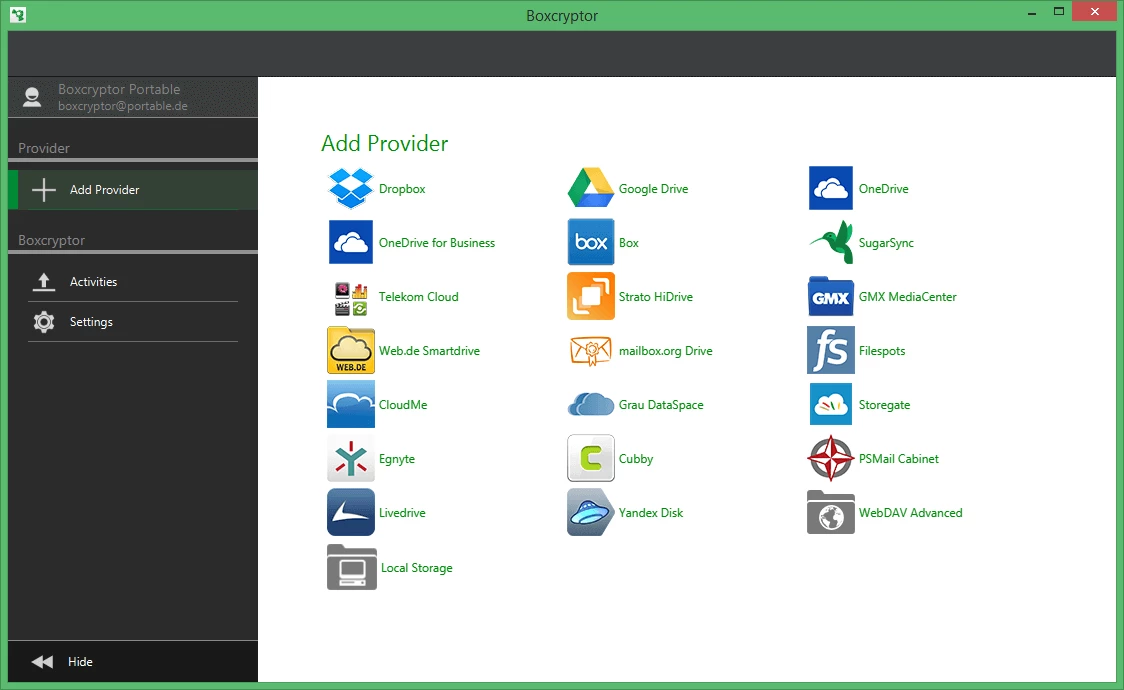
Boxcryptor functions as a dedicated cryptographic layer that sits directly between the local Windows file system and third-party cloud storage synchronization clients. Rather than operating as an isolated vault or a traditional file archiver, the software intercepts file operations at the system level, encrypting data locally before passing it to sync directories. This approach secures sensitive documents on local storage and ensures that files arriving at external servers remain entirely unreadable to unauthorized parties. The application maps existing cloud storage folders into a single, unified virtual drive—typically mounted as the X: drive by default in Windows Explorer—allowing users to read, write, and modify their data exactly as they would on a standard hard disk, while relying on AES-256 and RSA cryptography to handle the background processing.
Users generally deploy this desktop client to mitigate the privacy risks associated with storing tax records, financial models, and proprietary corporate assets on remote servers. Standard web-based cloud interfaces require trusting the provider's infrastructure, whereas a local desktop application ensures all encryption and decryption cycles consume local CPU processing before transmission. Following the acquisition of the underlying technology by Dropbox in late 2022, the original developer paused the creation of new accounts and the purchase of new licenses. However, the desktop client continues to operate normally for existing license holders, maintaining its zero-knowledge architecture to ensure long-term data accessibility and security for those already established within its ecosystem.
Operating at the file system level is strictly necessary for preventing sync conflicts and maximizing transfer speeds. Browser-based encryption utilities struggle with gigabyte-sized files due to memory constraints, and local archivers force users to unpack an entire container to edit a single text file. By mounting a virtual volume, the engine ensures that opening a locally cached spreadsheet only decrypts that specific file into temporary memory. Saving the document triggers an immediate, localized re-encryption. The corresponding cloud synchronization client then detects only the modified encrypted file, uploading the necessary bytes without requiring a full container rebuild. When a user drags a folder containing numerous photographs into the virtual drive, the desktop client rapidly generates individual encrypted files in the actual sync directory, allowing parallel cloud uploads.
Key Features
- Feature Name: On-the-Fly File Encryption. The software operates continuously in the background, intercepting file save commands and executing local AES-256 encryption before the data ever reaches the physical disk sector assigned to the cloud synchronization folder. This eliminates manual encryption steps; saving a document directly to the mounted virtual drive automatically generates a secure, randomized .bc file in the raw storage directory without delaying user workflow.
- Feature Name: Virtual Volume Aggregation. Instead of forcing users to navigate multiple disparate folder trees, the application mounts a single drive letter within Windows Explorer that aggregates all detected cloud directories. Users browse this unified volume to access distinct storage providers, allowing them to copy encrypted materials between different physical drives or cloud services using standard drag-and-drop mechanics.
- Feature Name: File-Based Cryptography Architecture. Rather than creating a fixed-size container file that requires pre-allocated disk space, the engine encrypts data on a strict file-by-file basis. Modifying a single small text file inside an encrypted directory only alters that specific encrypted counterpart on the hard drive, minimizing the bandwidth required for the host cloud client to synchronize changes to external servers.
- Feature Name: Filename and Directory Obfuscation. Beyond securing the contents of documents, the application scrambles folder titles and file names to prevent unauthorized parties from inferring the contents of the storage tree. A document titled 'Quarterly_Earnings.pdf' becomes a string of randomized alphanumeric characters in the raw cloud folder, remaining identifiable only when viewed through the authenticated virtual drive interface.
- Feature Name: Cryptographic Key Management. The application relies on a hybrid encryption model combining symmetric AES-256 for the data payload and asymmetric RSA encryption for key distribution. This structure allows users to share access to specific encrypted directories with other registered individuals by encrypting the folder's access keys against the recipient's public RSA key, avoiding the security risks of transmitting raw passwords.
- Feature Name: Context Menu Integration. The software injects specific controls directly into the standard Windows right-click context menu. Users can right-click any folder inside the virtual volume to toggle encryption states, manage shared access permissions, or generate external transmission links without opening a standalone application window.
- Feature Name: Visual State Indicators. The application overlays standard Windows Explorer icons with specific status markers to indicate encryption states. A green checkmark appears on file icons to denote successful local encryption, ensuring users can visually verify that a document is protected before relying on the background cloud client to upload it to external servers.
How to Install Boxcryptor on Windows
- Download the official Windows installer package and execute the setup file to launch the local deployment wizard.
- Read and accept the end-user license agreement, then verify the target installation directory, which defaults to the standard program files structure on the primary system partition.
- Permit the installer to deploy the required file system filter drivers and virtual drive controller components; Windows User Account Control will prompt for administrative privileges during this specific step.
- Complete the setup wizard and initiate a full computer restart when prompted. Rebooting is strictly required to initialize the system-level drivers that handle real-time file interception.
- Launch the application from the Start menu after returning to the Windows desktop. The main interface will immediately request standard account credentials. Due to current lifecycle restrictions, users must log in with an existing account, as the interface will reject attempts to register new profiles.
- Navigate to the settings panel to verify that the application has automatically detected your local cloud storage synchronization directories. If a custom folder path is missing, use the 'Add Location' button to map it manually.
- Check the Windows system tray to ensure the background service is running. Open Windows Explorer, locate the newly assigned virtual drive letter, and navigate through the structure to confirm that the encrypted folders display green checkmark overlays indicating a ready state.
Boxcryptor Free vs. Paid
The financial structure and tier system for this application are defined by existing legacy contracts, as the commercial acquisition by Dropbox resulted in an immediate halt to new subscriptions, tier upgrades, and license renewals. For established users, the feature set remains strictly tied to the plan active at the time of the cutoff. The Free tier restricts usage to a single cloud storage provider and limits installations to two specific devices, while strictly withholding the filename encryption capability.
Users holding active Personal or Business licenses bypass these limitations entirely. The paid tiers permit unlimited device installations, support concurrent mapping of multiple cloud storage providers within the same virtual drive, and provide the critical filename obfuscation layer. These features remain active until the end of the user's specific contract period, after which the client enforces a read-only state, requiring users to decrypt their local archives and migrate to alternative storage solutions.
Enterprise deployments operate under customized corporate licensing, which includes centralized administration consoles and master key management. This functionality allows corporate administrators to decrypt files belonging to employees who lose their credentials or leave the organization. Existing enterprise agreements are honored through their specific expiration dates, but expanding seat counts or initiating new deployments is no longer possible through the vendor portal.
Boxcryptor vs. Cryptomator vs. AxCrypt
Cryptomator provides an open-source alternative for cloud-based file security, utilizing a vault-based system rather than appending individual extensions directly into the standard sync folder. When users configure Cryptomator, it builds a specific encrypted directory structure that must be mounted via WebDAV or FUSE. This requires deliberate configuration and separates encrypted files into rigid vaults, making it ideal for users who prioritize independent security audits.
AxCrypt operates differently by prioritizing direct file encryption without relying on a mounted virtual drive controller or a background interception service. Users interact with AxCrypt primarily by right-clicking individual files on their standard local drive to secure them in place. Because it does not abstract the storage behind a secondary drive letter, AxCrypt proves practical for individuals who only need to secure a handful of specific documents before attaching them to an email or copying them to an external USB drive.
Boxcryptor remains the superior choice for users managing complex, multi-terabyte cloud synchronization setups across different platforms who already hold active legacy licenses. By integrating at the system driver level and projecting a unified virtual disk, the software eliminates the need to manage fixed vault sizes or manually process individual files. It accommodates rapid, continuous background saving processes, making it suited for active work environments where documents undergo constant revision directly within the cloud synchronization directory.
Common Issues and Fixes
- Virtual drive fails to appear in Windows Explorer. This occurs when a Windows system update interferes with the file system filter driver. Open the Control Panel, locate the application, and run the native repair tool to restore driver registry keys, followed by a reboot.
- Host cloud synchronization remains permanently stuck or looping. Background cloud clients often attempt to upload a newly modified .bc file before the encryption process fully releases its write lock. Temporarily pausing the host cloud client (such as OneDrive or Google Drive) for thirty seconds allows the encryption driver to complete its process and release the file handle.
- Custom local directories do not appear in the interface. The software searches for standard default installation paths for major cloud providers. If you installed your cloud sync folder on a secondary hard drive, you must open the application settings, select the 'Locations' tab, and manually add the absolute path to your custom directory.
- Access denied due to a forgotten master password. Because the architecture relies on strict zero-knowledge cryptography, the central servers cannot issue password resets. You must locate the offline key export file generated during your initial account setup to restore access to your private key; without this file or an enterprise master key policy, the data remains cryptographically inaccessible.
Version 2.55.2774 — November 2022
- Resolved an issue where saving Microsoft Office documents on network drives and removable storage devices could fail.
- Implemented various minor bug fixes and general stability improvements.