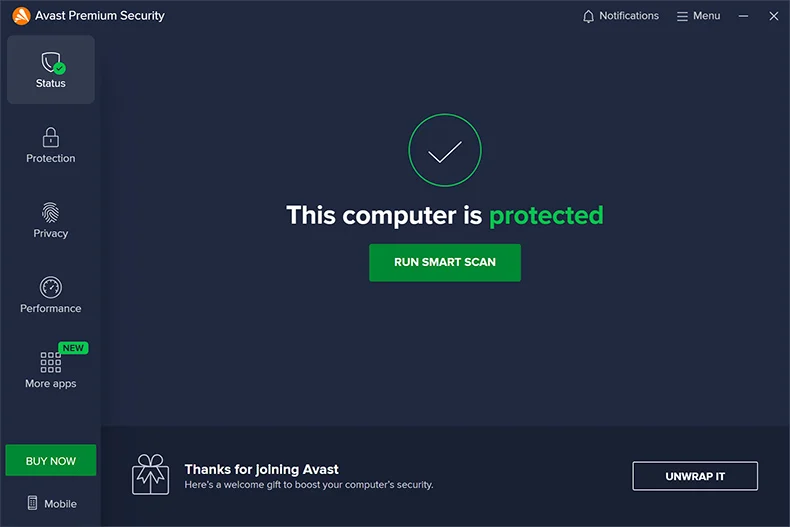
Avast Security provides a dedicated desktop interface for defending Windows environments against malware, phishing attempts, unauthorized network access, and persistent rootkits. Instead of relying solely on built-in operating system utilities, it offers an independent scanning engine that actively monitors file execution, incoming web traffic, and email attachments in real time. This tool targets everyday users, remote workers, and office administrators who need concrete visibility into their system's safety status. By centralizing all diagnostic tools into a single navigation dashboard, users can immediately identify which background processes are consuming resources or exhibiting suspicious behavior.
Users rely on the application to intercept malicious executable files before they launch, block tracking scripts embedded in websites, and secure sensitive storage directories against unauthorized encryption. The desktop application fits into daily workflows by operating largely in the background while keeping its active controls accessible via the system tray. If an unrecognized program attempts to modify a critical registry key or system file, the behavior monitoring engine halts the process immediately and alerts the user, providing a clear visual prompt to either quarantine the threat or add it to an exclusion list. This explicit control prevents silent infections from taking root.
Unlike browser extensions or cloud-only scanning services that only protect internet traffic, a localized desktop client manages deep system permissions across the entire storage drive. It can perform intensive boot-time scans before the operating system fully loads the graphical interface, catching persistent threats that hide from standard software-level checks. By maintaining a compressed local database of virus definitions alongside its cloud-based threat intelligence network, the software ensures that offline files, USB flash drives, and external hard disks are still scrutinized even when an active internet connection is unavailable.
Key Features
- Smart Scan: This single-click diagnostic checks the entire computer for hidden viruses, outdated applications, and network vulnerabilities simultaneously. Instead of running multiple separate tests through different menus, users get a consolidated report showing exactly which files need quarantining, which tracking cookies should be cleared, and which localized programs require immediate updating to close security loopholes.
- Core Shields: The primary protection engine is divided into distinct modules labeled File Shield, Behavior Shield, Web Shield, and Mail Shield within the main interface. The File Shield checks documents at the exact moment of execution, while the Web Shield actively filters incoming internet traffic, stepping in to block malicious scripts and deceptive phishing domains before they load in the web browser.
- CyberCapture: When a user attempts to run an unrecognized or unverified executable, this feature prevents the file from launching on the local machine. It automatically sends a mathematical hash and a copy of the file to cloud servers for isolated analysis, holding the local process in a suspended state until definitive clearance is received from the central threat database.
- Ransomware Shield: This tool specifically locks down user-defined directories, such as the default Documents and Pictures folders, against unauthorized modification. If an untrusted third-party application attempts to encrypt, delete, or alter the files inside these protected zones, the software blocks the action instantly and issues a desktop alert, preserving the integrity of personal data.
- Wi-Fi Inspector: Navigating to the network protection tab allows users to scan their current local network for weak points. The tool identifies vulnerable router passwords, open network ports, and unfamiliar mobile devices or computers connected to the same subnet, which is particularly useful for verifying the safety of public Wi-Fi hotspots before transmitting sensitive data.
- Rescue Disk: For severely infected machines that cannot start normally, users can create a bootable scanning environment on a USB drive or DVD. Running the computer from this external media bypasses the primary storage drive entirely, allowing the scanning engine to detect and remove deeply embedded rootkits that actively hide from standard desktop scans.
- Do Not Disturb Mode: To prevent security alerts from interrupting full-screen applications, this feature automatically detects when a game, movie, or presentation is running. It suppresses non-critical pop-ups and pauses scheduled background disk scans, ensuring that system resources, processor cycles, and screen focus remain entirely dedicated to the active task.
How to Install Avast Security on Windows
- Download the official Windows installer executable package from the vendor's primary website, ensuring you save the file to a standard location like the Downloads folder.
- Double-click the downloaded setup file to initiate the extraction process and grant the necessary administrative privileges when prompted by the Windows User Account Control dialog box.
- Review the initial setup screen carefully, as it frequently presents optional companion software checkboxes, such as a secure browser or third-party utilities, which you can uncheck if you only want the primary antivirus application.
- Choose the 'Customize' link located below the main install button to verify the target directory path and manually select or deselect specific security modules based on your local storage capacity and personal preference.
- Click the final 'Install' button and wait for the setup wizard to extract the core executable files, register the background monitoring services, and integrate the right-click scanning context menus into Windows Explorer.
- During this phase, the installer will require an active internet connection to download the most recent virus definition databases and threat signatures directly to the local disk.
- Allow the application to launch its main dashboard automatically once the file extraction and registry configurations are complete.
- Run the prompted initial Smart Scan to establish a baseline security reading of your storage drives, browser add-ons, and immediate network environment.
Avast Security Free vs. Paid
The free tier provides the baseline scanning engine, the four core shields, and local network inspection tools at no monetary cost. It is fully functional for standard file scanning, real-time threat blocking, and basic ransomware defense, making it suitable for casual computer usage. However, it relies on an ad-supported business model that frequently prompts users to upgrade to premium tiers. These internal notifications highlight advanced features that remain locked behind a paywall, which can clutter the interface for users who only want silent background protection without continuous marketing interruptions.
Upgrading to the Premium Security tier requires a paid subscription, which typically costs around $49.99 for the first year and renews at a standard rate of approximately $77.99 per year. This paid version removes all internal advertising and unlocks advanced defense mechanisms, including a secure sandbox environment for testing questionable files without risking the main operating system. It also activates a webcam shield to block unauthorized applications from accessing the camera, and introduces an advanced firewall that replaces the default operating system firewall with much more granular traffic control rules.
For users managing multiple machines within a single household, the vendor offers multi-device subscription plans that cover up to ten installations under a single annual license. A higher tier, often branded as Ultimate, bundles the Premium Security features with additional utility applications, such as a virtual private network client for encrypting web traffic, a system cleanup utility for removing temporary files, and anti-tracking software for browsers. Users must manage these subscriptions, including cancellations and payment updates, through their online vendor account portal, as the software defaults to automatic auto-renewal billing cycles.
Avast Security vs. Microsoft Defender vs. Bitdefender Antivirus
Microsoft Defender is integrated directly into the operating system architecture, making it invisible and free of third-party advertising. It handles core file scanning, cloud-based threat detection, and basic network firewall duties without requiring any standalone application downloads or account registrations. However, it lacks a unified, visual dashboard for manual vulnerability scanning and misses out on extra utility modules like dedicated local network inspectors, boot-time scanners, or a secure testing sandbox for running unverified executables.
Bitdefender Antivirus focuses on minimizing system resource consumption and maintaining a strictly distraction-free environment for the user. Its free and paid tiers are known for operating quietly in the background without aggressive upsell pop-ups, and its malware detection engines consistently score at the top of independent laboratory tests. The trade-off is a minimalist user interface that offers fewer manual configuration options and visual reports for users who like to actively micromanage their protection modules and view detailed scanning statistics.
Avast Security is the better choice for users who prefer a visual, centralized desktop dashboard with numerous manual scanning tools readily available. While it pushes more internal upgrade prompts than its competitors, it compensates by including a broader array of utilities in its base installation, such as the detailed Wi-Fi inspector and the standalone rescue disk creator. It fits users who want to actively see and manage their security layers, check detailed network vulnerability reports, and manually control app permissions rather than relying on a completely silent background service.
Common Issues and Fixes
- Problem description: The main application interface fails to load and displays a "Sorry, our screen didn't load" error message. This usually occurs when essential background services fail to start simultaneously with the operating system. Open the Windows Services console by typing `services.msc` in the run dialog box, locate the associated Avast service, set its startup type to Automatic, and manually start it.
- Problem description: Smart Scan stops unexpectedly before completing the file verification process. Incomplete scans are often caused by corrupted installation files, missing registry entries, or conflicting Windows updates. Navigate to the Windows Apps and Features menu, select the antivirus application, click Modify or Uninstall, and choose the 'Repair' option to download and replace the damaged components.
- Problem description: The software constantly interrupts full-screen work with promotional pop-ups and feature notifications. Users can suppress these internal marketing notifications by adjusting the internal application settings. Go to the main menu, open Settings, select General, navigate to Notifications, and toggle Silent Mode on to block non-critical alerts and background offers.
- Problem description: The application displays a "Something went wrong" network error when attempting to update virus definitions. This issue points to a failure in domain name resolution, which blocks the application from accessing the update servers. Changing the local network adapter's DNS settings to a reliable public provider, such as Google DNS or Cloudflare, restores the connection and allows the definition update to proceed.
- Problem description: The advanced firewall module blocks local printers or file sharing on a home network. By default, the firewall may classify a new network as a public connection, restricting local discovery protocols. Open the Firewall settings within the application and change the current network profile from Public to Private, which explicitly allows trusted local devices to communicate.
Version 25.12.10659 — December 2025
- Introduced a new DeepFake Protection tool within the Antiscam dashboard to help users identify and block AI-generated scam videos.
- Improved the detection capabilities and connectivity stability for wireless displays.
- Fixed an issue where the application interface would repeatedly pop up even when Silent Mode was enabled.
- Resolved a bug that caused boot-time scans to freeze or fail to initialize properly.
- Enhanced overall product stability and fixed crashes related to background services and license migration.