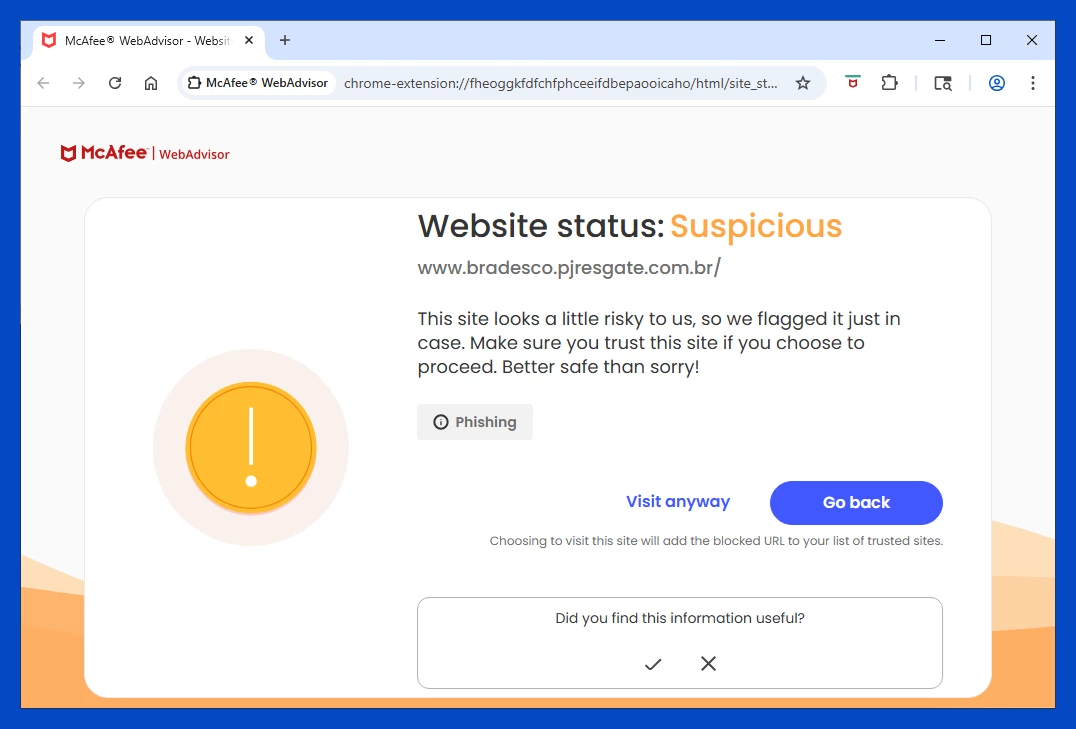
Navigating the modern web requires more than just careful clicking, as deceptive URLs, disguised download buttons, and phishing portals constantly adapt to bypass built-in browser defenses. McAfee WebAdvisor operates as a dedicated security layer that intercepts web traffic and evaluates domain reputation before your browser renders the underlying page. By functioning as both a background Windows process and a browser extension, the software actively monitors search engine queries, social media links, and direct URL inputs to prevent accidental exposure to malicious payloads. Instead of relying on a local antivirus to quarantine files after they land on your hard drive, this tool halts threats at the network edge, displaying a hard block screen the moment a user attempts to access a blacklisted domain or initiate a suspicious file transfer.
This utility serves individuals who handle sensitive tasks, such as accessing financial accounts or managing remote server portals, and need clear visual indicators of website safety. It solves the concrete problem of distinguishing legitimate login pages from cleverly disguised credential harvesting sites. When a user searches for retail stores, banking institutions, or administrative portals, the software injects color-coded icons directly into the search engine interface, making it immediately obvious which links are verified by threat researchers and which lead to known fraud traps. By translating complex server reputation data into simple visual cues, it reduces the burden on the user to manually inspect every web address for subtle misspellings or suspicious domain extensions.
While many web browsers include basic anti-phishing filters, a dedicated companion application applies a stricter, more specialized evaluation process. The underlying desktop component ensures that protection policies remain consistent across multiple environments on the same machine, linking Chrome, Edge, and Firefox to a single, continuously updated threat database. This architecture also allows the software to verify the health of your primary Windows security controls, checking that essential firewalls and local scanning engines are active before you engage in high-risk browsing. If a background update or a conflicting application disables your core defenses, the companion alerts you immediately. By isolating the web filtering logic from the browser's core rendering engine, the application evaluates incoming connections strictly against known threat signatures without delaying the display of safe web pages or interrupting streaming media.
Key Features
- Misclick Protection: Intercepts navigation attempts to known malware distributors and displays a full-page warning screen before the browser can load the malicious payload. This mechanism stops accidental clicks on deceptive advertisements or disguised links in emails from executing harmful scripts on your machine.
- Typo Protection: Detects common domain name misspellings used by typosquatters aiming to steal login credentials or display fraudulent system alerts. When a user types a recognized mistake into the address bar, the extension pauses the request and displays a prompt suggesting the correct, legitimate destination.
- Safe Search Annotations: Integrates directly into search engine results pages by placing specific color-coded icons next to individual links. A green checkmark indicates a verified safe domain, while red or yellow markers warn the user to avoid clicking the associated search result based on recent threat reports.
- Safer Downloads: Scans incoming executable files and compressed archives against a threat intelligence database before the browser finalizes saving them to the local disk. If the file matches a known malicious signature or originates from an untrusted server, the tool blocks the transfer and displays a detailed alert.
- Security Health Check: Monitors the underlying Windows environment to verify that primary antivirus and network firewall defenses remain active. If core security components are disabled manually or by a background script, the interface prompts the user to restore their defenses before continuing web navigation.
- Phishing Form Detection: Analyzes the structural elements of login forms and password fields to identify deceptive pages attempting to harvest credentials. If a site requests sensitive authentication data but lacks the proper security certificates or originates from an unverified server, the extension blocks the submission and warns the user.
- Threat Override Controls: Provides a manual bypass option for users who need to access a flagged domain for testing or research purposes. Users can acknowledge the risk and click through the warning page, temporarily adding the specific URL to a localized trusted exceptions list.
How to Install McAfee WebAdvisor on Windows
- Obtain the official McAfee WebAdvisor installer executable from the vendor's primary distribution portal or security dashboard.
- Locate the downloaded setup file in your default downloads directory, typically found in your user profile folder, and double-click it to initiate the deployment wizard.
- Grant permission at the Windows User Account Control prompt to allow the installer executable to write necessary files to your local system directories.
- Review the software license agreement on the initial setup screen and click the accept button to proceed with the background installation.
- Wait for the setup wizard to copy the necessary executable files, register the background monitoring services, and configure the local threat database.
- Open your preferred web browsers one by one, watching for a prompt in the top right corner asking you to enable the newly detected extension.
- Approve the required browser permissions, which strictly include reading website data and managing file transfers, to activate the active network scanning features.
- Restart your web browser to finalize the user interface integration, and verify that the security shield icon appears consistently within your extension management toolbar.
McAfee WebAdvisor Free vs. Paid
McAfee WebAdvisor is distributed as a completely unpaid utility intended to improve general web safety. Users do not need an active vendor subscription, a trial account, or a saved billing profile to utilize the core browser protection features, such as search link annotations, active file scanning, and misclick prevention. The unpaid tier functions indefinitely and does not enforce bandwidth caps, usage time limits, or mandatory account creation for its basic web filtering functions, making it a highly accessible tool for standard desktop environments.
While the extension itself carries no direct financial cost, it frequently functions as an entry point into the vendor's broader security software ecosystem. The user interface occasionally displays prompts suggesting upgrades to premium security suites, such as McAfee Total Protection or McAfee+ Premium. These paid security products offer extensive system-wide malware remediation, virtual private networking capabilities, and dedicated identity theft monitoring, which the specialized browser tool does not handle on its own.
Users who rely solely on the unpaid version receive the exact same threat intelligence updates and daily blocklist definitions as paying enterprise customers. The underlying business model relies on upselling broader local security packages to individuals who realize they need more than just browser-level defenses. This structure allows the vendor to maintain the web companion as an accessible, no-cost network utility while continuously funding the cloud infrastructure required to analyze millions of URLs daily.
McAfee WebAdvisor vs. Malwarebytes Browser Guard vs. Bitdefender TrafficLight
Malwarebytes Browser Guard applies a highly aggressive filtering engine designed specifically to block hidden tracking scripts, intrusive advertisements, and technical support scams. Users who demand tight, manual control over individual page elements and script execution often prefer the Malwarebytes approach. However, this strict heuristic filtering can occasionally break the layout of complex web applications, requiring users to manually whitelist specific domains or scripts to restore normal page functionality and navigation.
Bitdefender TrafficLight operates as a highly specialized, minimalist URL scanner that intercepts network traffic without injecting bulky interface elements into the daily browsing experience. It excels for users who want invisible protection that strictly evaluates links against a remote threat database in the background, without offering additional local system health checks or displaying persistent prompts to upgrade to premium antivirus software tiers.
McAfee WebAdvisor is the more appropriate choice for users who want clear, color-coded visual indicators directly injected into their search engine results, alongside dedicated domain typo protection. It provides a more guided, visual experience for individuals who benefit from explicit, full-page warning screens and a companion desktop process that actively monitors the overall operational health of the Windows firewall and local antivirus engine.
Common Issues and Fixes
- Menu fails to load after a browser update. Browser updates often disable third-party security extensions by default to prevent compatibility errors during the transition to a new build. Open your browser's extension manager, locate the security add-on in the list, and manually toggle the switch to reactivate the interface.
- Interference with embedded Microsoft Office documents. The active scanning mechanism can sometimes block internal datasheets from opening when using specific presentation plugins like think-cell. You must temporarily disable the web extension or add the specific local application path to the trusted exclusions list to edit the embedded chart data.
- False positive warnings on regional websites. The threat intelligence database relies heavily on traffic volume to establish domain reputation, resulting in overly cautious warnings for new or low-traffic international sites. Click the manual override option to bypass the warning page only if you are absolutely certain the destination is legitimate.
- Uninstaller process leaves browser icons behind. Removing the main background application via the Windows control panel does not always force the browser to drop the local extension files. You must manually open the add-on settings in your specific browser and click the remove button to clear the remaining layout elements.
- Setup fails with a JSON runtime error. The installation process can fail if the target directory contains corrupted configuration files from a previous security deployment. Manually delete the existing WebAdvisor folder from your local Program Files directory and restart the computer before running the installer executable again.
Version 4.1.1.1084 — December 2025
- Enhanced real-time threat detection algorithms to better identify and block emerging phishing schemes and malicious websites.
- Improved extension stability and loading times across major browsers (Chrome, Edge, and Firefox) for a smoother browsing experience.
- Fixed minor compatibility issues with recent browser updates to ensure consistent safety ratings in search results.
- Updated internal security databases to address the latest known online vulnerabilities and tracking attempts.