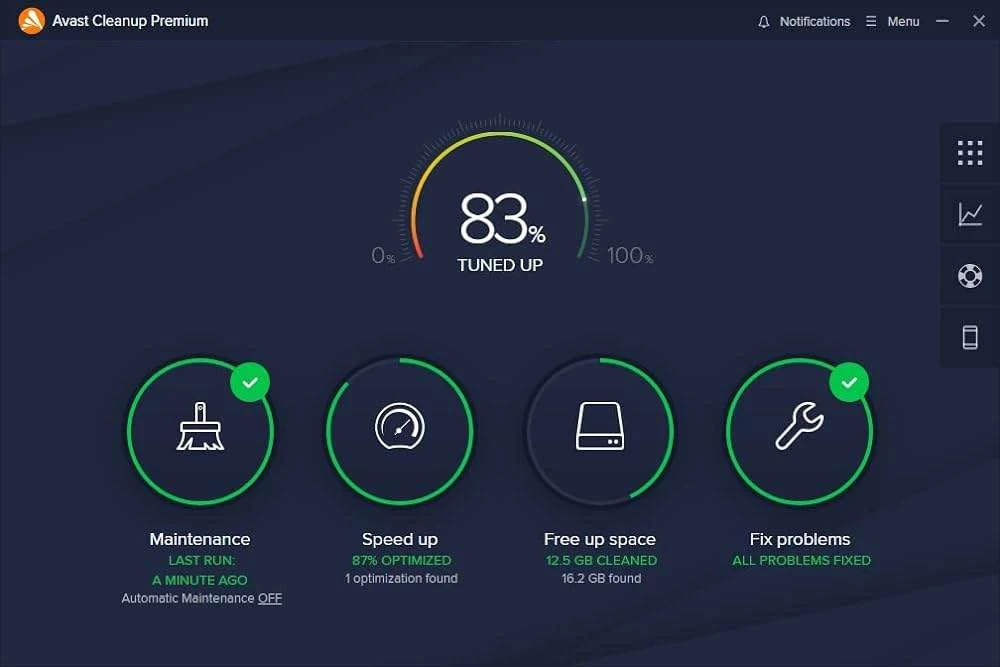
Over time, Windows operating systems accumulate temporary files, leftover registry keys, and background processes that slowly consume system resources and reduce overall responsiveness. Avast Cleanup is a dedicated PC optimization and maintenance utility designed to identify and remove this digital clutter. Instead of manually digging through hidden application data folders, clearing out browser caches individually, or using the Windows Task Manager to force-close background apps, users can rely on this desktop application to safely clear storage bottlenecks and suspend inactive software. It acts as an automated housekeeper for a computer's local hard drive and active memory footprint.
The desktop application format allows it to deeply scan the local registry, manage startup items, and monitor background services in ways that a lightweight browser extension or built-in basic storage settings cannot achieve. It is built for daily computer users who notice their system taking longer to boot to the desktop, applications hanging during heavy multitasking sessions, or local drives filling up with unexplained temporary data. By organizing the optimization process into a single, visual dashboard, the software provides a clear overview of exactly what types of files are eating up system resources and gives users the exact tools needed to reclaim that space.
Unlike generic tune-up utilities that simply clear the browser history and empty the recycle bin, this tool actively manages third-party application behavior. Its central strength lies in its ability to put resource-heavy programs into a suspended state until they are actually needed, preventing them from constantly draining CPU cycles and memory while running invisibly in the system tray. This makes it an effective daily utility for keeping an older machine running smoothly or maintaining peak hardware responsiveness on a newly built workstation over months of heavy software installation and web browsing.
Key Features
- Sleep Mode: This tool scans the system for installed applications running hidden background services or scheduled tasks. It suspends these inactive programs to free up RAM and CPU cycles, automatically waking them up only when the user explicitly clicks the application icon to launch it for active work.
- Disk Cleaner: Scans local storage drives to identify and remove temporary files, installer leftovers, and Windows crash reports. It targets over 200 specific application caches, helping to reclaim gigabytes of storage space on smaller solid-state drives without touching user-generated documents or media files.
- Browser Cleaner: Removes tracking cookies, temporary internet files, offline cached data, and browsing history from over 25 supported web browsers, including Google Chrome, Mozilla Firefox, Opera, and Microsoft Edge. This prevents the browser installation folder from bloating over time and protects local privacy.
- Software Updater: Checks installed third-party programs against an online database of current software releases. It downloads and installs the latest updates automatically in the background, closing known security vulnerabilities and fixing application bugs without requiring the user to manually visit vendor download pages.
- Shortcut Cleaner: Scans the Windows desktop, the Start menu layout, and application history lists for broken or orphaned shortcuts. It deletes icons pointing to uninstalled applications, removed external drives, or moved files, keeping the navigation interface organized and preventing launch errors.
- Registry Cleaner: Identifies orphaned entries in the Windows registry left behind by incomplete uninstallations or outdated system updates. It safely removes these obsolete keys, empty class identifiers, and broken file associations to prevent software conflicts and reduce the overall size of the registry database.
- Automatic Maintenance: Allows users to schedule regular, background cleaning tasks using an interval timer. The software will automatically clear out temporary data, fix registry errors, and optimize the system at predefined intervals without demanding manual input or interrupting active full-screen applications.
How to Install Avast Cleanup on Windows
- Download the official Windows installer executable package directly from the vendor's website to ensure you receive the most current build.
- Locate the downloaded executable file in your local downloads folder and double-click it to launch the initial setup wizard.
- Click "Yes" when the Windows User Account Control (UAC) prompt asks for administrative permission to make system-level changes to your device.
- Review the initial setup screen, select your preferred interface language from the available drop-down menu, and click the prominent "Install" button to proceed with standard settings.
- Wait for the setup routine to extract the core application files, install the required background maintenance services, and configure the uninstaller data on your primary system drive.
- Once the installation progress bar completes, the application will automatically launch its main dashboard without requiring an immediate system reboot.
- On the first run, enter your valid subscription credentials or sign in with your account details to verify your active license status with the vendor servers.
- Complete the initial automated system scan, which generates a baseline performance report and identifies immediate storage savings and background applications suitable for suspension.
Avast Cleanup Free vs. Paid
Avast Cleanup Premium operates strictly on a paid subscription model and does not offer a permanent free tier for active system optimization. Users can download the application and perform an initial diagnostic scan at no cost, which successfully identifies junk files, broken registry keys, and performance bottlenecks. However, actually applying the recommended fixes, removing the accumulated files, or using active background tools like the application suspender requires purchasing a premium license.
The vendor typically offers an annual subscription billing cycle, with pricing tiers based entirely on the number of covered devices rather than locking specific features behind higher tiers. A single-device license for one Windows PC generally costs around $55 to $77 per year, depending on active seasonal discounts or introductory rates. A multi-device plan covering up to ten devices is also available, usually priced around $70 to $100 per year. These subscriptions include all ongoing software updates, security fixes, and automated maintenance features for the duration of the paid term.
For users who want to thoroughly test the software before committing to an annual purchase, Avast occasionally provides a fully functional 30-day trial depending on the region and promotional period. This trial grants temporary, unrestricted access to all premium tools, including the background Sleep Mode, the Disk Cleaner, and the automatic Software Updater. This allows users to measure the actual performance impact and storage savings on their specific hardware configuration. Once the 30-day trial period expires, the software reverts to a scan-only mode, and users must enter a valid subscription code to resume applying system tweaks and deleting temporary files.
Avast Cleanup vs. CCleaner vs. IObit Advanced SystemCare
CCleaner targets users who want granular, manual control over their daily system hygiene. It provides a popular, permanent free version that handles basic temporary file deletion and registry cleaning without ever forcing a mandatory subscription. Users should choose CCleaner if they prefer a lightweight, on-demand utility where they can select exactly which specific browser cookies, log files, or application caches get deleted, making it suitable for technical users who want to review every single file before it is removed. Its interface relies on checkboxes and direct directory paths, appealing directly to administrators who know exactly what they want to clean.
IObit Advanced SystemCare focuses on providing a massive, all-in-one maintenance suite that includes real-time system monitoring, an AI-driven scanning mode, and various supplementary security utilities. It offers a broader range of distinct tools out of the box, including an internet connection speed booster, a dedicated startup manager, and a software uninstaller, often at a slightly lower entry price point for a single license. Users who want a visible optimization dashboard with real-time desktop widgets displaying RAM and CPU usage will prefer the comprehensive IObit approach, as it emphasizes constant visual feedback regarding the current state of the computer.
Avast Cleanup is the better fit for users who want an automated, hands-off maintenance routine wrapped in a polished and intuitive interface. Its unique Sleep Mode handles background application suspension much more aggressively and effectively than standard startup managers, offering noticeable performance gains on hardware burdened by too many installed programs. It is ideal for individuals who prefer paying for a premium, low-friction tool that quietly keeps the operating system optimized in the background without requiring constant manual tinkering, technical knowledge, or daily user intervention. The dashboard focuses on plain-English explanations of system issues rather than raw directory paths.
Common Issues and Fixes
- Problem description. The application fails to launch entirely and displays a "Well, this is embarrassing" crash error on the desktop. This usually indicates corrupted installation files or a conflict with Windows services. Open the Windows Apps and Features menu, select the Avast application, click Uninstall, and choose the "Repair" option in the setup wizard. Follow the prompts to verify the installation files and restart the computer to apply the fix.
- Problem description. A necessary third-party application stops receiving notifications or refuses to update in the background. The program was likely suspended automatically by the software's active optimization tools. Open the main optimization dashboard, navigate to the Sleep Mode menu, locate the affected application in the list of sleeping programs, and click "Wake up" to restore its normal background activity and notification permissions.
- Problem description. The software does not accept a recently purchased subscription code or indicates the license is invalid. Ensure the code is typed exactly as provided in the confirmation email without extra spaces. If it still fails, log into the application directly using the account credentials tied to the purchase, or navigate to "My licenses" in the main menu to force a re-sync with the vendor's licensing servers.
- Problem description. An important configuration file or registry key was accidentally deleted during a routine automated cleanup. Navigate to the Settings menu and open the Rescue Center tab. Find the specific cleaning action in the historical log list and click "Undo" to restore the removed items to their original directories, noting that not all disk cleaning actions or large cache deletions support this reversal process.
Version 26.1.18283.22284 — December 2025
- Added a new Quick Cleanup Alert feature that displays an instant summary of detected issues after automatic scans, allowing for one-click resolution.
- Improved the internal scanning engine to deliver faster results and reduced system resource usage during background maintenance.
- Fixed various minor bugs and stability issues to ensure smoother overall application performance.