Virtual private networks often force users to navigate complex server lists, manage protocol configurations, and complete lengthy registration forms before securing their internet traffic. Betternet VPN For Windows eliminates these barriers by providing a minimal, click-and-go desktop client designed specifically for immediate privacy. The application operates on the premise that everyday PC users need a fast way to mask their IP addresses on public Wi-Fi networks without dealing with the friction of mandatory account creation or technical menus.
For individuals connecting their Windows laptops at coffee shops, airports, or hotels, the desktop application encrypts incoming and outgoing data to prevent local network snooping. Instead of relying solely on browser extensions that leave background application traffic exposed, installing the dedicated Windows client ensures that all desktop activity passes through the encrypted tunnel. This system-wide approach is crucial for securing background activities that users often forget about, such as automatic software updaters, cloud storage synchronization clients, and standalone email applications. By capturing all outbound requests at the network adapter level, the software ensures no unencrypted data leaks onto the local network.
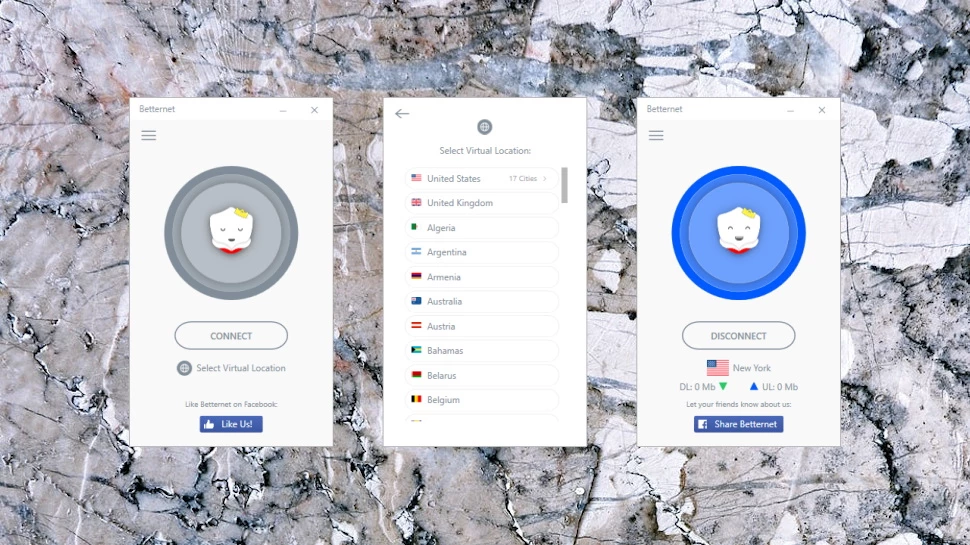
While advanced privacy advocates might prefer highly configurable open-source clients, Betternet VPN For Windows targets a different demographic: users who value speed and simplicity. The desktop interface remains uncluttered, keeping essential network settings tucked away while prioritizing one-click access. By bypassing the need for initial sign-ups, it allows users to download the installer, launch the client, and immediately shield their web browsing, making it a practical choice for temporary privacy needs or restrictive network environments. The minimal footprint ensures that the software consumes very few system resources while running silently in the system tray, allowing older laptop hardware to maintain secure connections without experiencing significant performance degradation during daily multitasking.
Key Features
- Catapult Hydra and WireGuard Protocols: By default, the application utilizes the proprietary Catapult Hydra protocol, which optimizes data routing for faster speeds across long distances. Users who prefer recognized industry standards can navigate to the Protocols tab and manually switch their connection to WireGuard or IKEv2. This flexibility ensures that users can troubleshoot connection problems or prioritize performance based on their specific network environment.
- System Kill Switch: Located in the Advanced settings menu, the Kill Switch prevents accidental data exposure if the encrypted connection suddenly drops. When enabled, this tool immediately blocks all inbound and outbound internet traffic until the application successfully reconnects to the server. This prevents the Windows operating system from reverting to the default unencrypted ISP connection and exposing the user's real IP address.
- Split Tunneling Routing: The client includes application and website routing controls, labeled within the interface as Bypass VPN and Route via VPN. Users can configure specific trusted applications, such as a local banking website or a low-latency competitive game, to bypass the encrypted tunnel entirely. Conversely, they can set the client to only route specific applications through the network, allowing the rest of the Windows system to run on the standard local connection.
- Auto-Protect on Unsafe Wi-Fi: For laptop users frequently moving between different wireless networks, the Auto-Protect feature monitors the security status of connected Wi-Fi hotspots. If the computer joins an open, unsecured network at a cafe or airport, the application can automatically trigger the connection. This removes the risk of a user forgetting to manually turn on the client before opening their web browser on a public network.
- Local Network Protection: When connected to an untrusted public Wi-Fi access point, the Local Network Protection toggle isolates the computer from other devices on the same local area network. Activating this setting blocks incoming requests from other computers on the same router, adding an extra layer of security against local snooping. It effectively disables access to network printers or shared local drives while the tunnel remains active.
- IP and DNS Leak Prevention: Even when a tunnel is active, certain background services or browser caches can inadvertently reveal the user's actual location. The Prevent IP Leak setting enforces strict DNS routing, ensuring that all domain name requests are handled directly by the provider's servers rather than the local internet service provider. This stops websites from discovering the true geographical location through background DNS queries.
How to Install Betternet VPN For Windows on Windows
- Download the official Windows setup executable directly to your local storage drive.
- Locate the downloaded installation file in your default downloads folder and double-click it to launch the setup wizard.
- Review the installation prompts and grant the necessary administrator permissions when prompted by the Windows User Account Control dialogue.
- Wait for the installer to unpack the required background services and install the virtual network adapter drivers necessary for system-wide encryption.
- Open the application from the newly created desktop shortcut or the Start menu once the installation finishes.
- Upon first launch, the software will display a payment and trial screen; locate and click the close button to dismiss this window if you intend to use the free tier.
- Click the main connect button in the center of the application window to establish your first secure session without creating a user account.
Betternet VPN For Windows Free vs. Paid
The software operates on a freemium model, providing a basic tier that requires no financial commitment and no account registration. Free users receive a daily bandwidth allocation of 500 MB, which accommodates casual web browsing, checking emails, and reading text-heavy news articles. However, this data cap severely restricts heavy media consumption, making it unsuitable for downloading large files or streaming high-definition video. Additionally, the free tier is ad-supported and automatically assigns the user to a United States server, removing the ability to manually select a specific geographic location.
Users who require unrestricted data access can upgrade to the Premium subscription tier. The paid plan eliminates the 500 MB daily restriction, providing unlimited bandwidth for continuous streaming, gaming, and large file transfers. Premium members also gain access to a network of over 115 virtual locations worldwide, allowing them to manually choose their server destination to bypass specific regional blocks. Furthermore, the paid tier removes all advertisements from the application interface and includes access to priority customer support. This dedicated support channel ensures that paying customers can quickly resolve complex routing issues or billing inquiries without relying solely on automated chatbots or public knowledge base articles.
The Premium service operates on a recurring subscription basis, offering no perpetual license options. It is typically priced around $12.99 for a month-to-month plan, while choosing an annual billing cycle reduces the monthly equivalent to approximately $7.99. A single Premium account allows concurrent connections for up to 10 separate hardware devices, meaning users can secure their primary desktop, a travel laptop, and other household hardware simultaneously under one active subscription. The vendor frequently offers a seven-day trial for the Premium tier, though users must manually cancel their payment agreement before the trial period concludes to avoid automatic billing. The vendor accepts standard payment methods including major credit cards, and users control their subscription status directly through the account management dashboard on the official website rather than within the desktop interface itself.
Betternet VPN For Windows vs. ProtonVPN vs. Windscribe
ProtonVPN prioritizes strict privacy transparency and open-source software, making it the preferred choice for security-conscious individuals. Unlike many freemium alternatives, its free tier offers completely unlimited bandwidth without daily data caps, though it restricts users to a small handful of server locations and limits connection speeds during peak hours. Users who prioritize independent security audits, advanced routing options like Secure Core, and an ad-free experience even on the unpaid tier will find ProtonVPN more suitable for their daily privacy needs.
Windscribe takes a different approach by offering a highly customizable desktop client paired with strict firewall integration and an advanced ad-blocking system. Its free tier provides up to 10 GB of data per month and access to a wider variety of country locations than most competitors, provided the user confirms an email address. Windscribe is the better option for users who want granular control over their network traffic, detailed spoofing capabilities, and aggressive tracker blocking built directly into the client.
Betternet VPN For Windows remains the better fit for absolute beginners who want zero configuration and immediate access to a secure connection. Because it requires no email registration or account creation to utilize the basic tier, a user can install the application and mask their web traffic in seconds. For individuals who find complex interfaces intimidating and simply want a single central button to encrypt their data on public Wi-Fi, this streamlined approach removes the friction associated with more advanced network administration tools.
Common Issues and Fixes
- Connection gets stuck on a spinning circle. This usually indicates that the default protocol is being blocked by the local network administration or a strict firewall. Open the application settings, navigate to the Protocols tab, and switch the connection from Auto or Hydra to WireGuard or IKEv2, then attempt to connect again.
- Unable to access local printers or shared network drives. The application includes a security feature designed to block local network traffic on untrusted Wi-Fi access points. Go to the Advanced settings menu and toggle off the Local Network Protection setting to restore access to your home or office local devices.
- The connection drops randomly in the background. Aggressive Windows battery-saving modes can sometimes suspend background network services to conserve power. Ensure your device is not in strict battery saver mode, and enable the Always-on VPN feature in the client's General settings to force an automatic reconnection if the tunnel drops.
- Cannot connect when using hotel or office Wi-Fi. Many public networks use captive portals that require you to accept terms or enter a password on a web page before granting internet access. Disconnect the client entirely, open your web browser to log into the network's captive portal, and only click connect in the desktop application after standard internet access is confirmed.
- Application fails to launch after a Windows network update. System updates can sometimes conflict with the virtual network adapter drivers required for the encrypted tunnel. Navigate to the Windows Control Panel, uninstall the software completely, restart the computer, and run a fresh installer from the official website to rebuild the necessary network drivers.
Version 8.6.0.1290 — August 2025
Added:
- Enhanced support for Windows 11 latest build compatibility.
Improved:
- Optimized server selection algorithm for lower latency.
- General stability improvements for prolonged sessions.
- Faster connection times on initial launch.
Fixed:
- Resolved minor connectivity drops on specific public Wi-Fi networks.
- Fixed UI scaling issues on high-DPI monitors.
Security:
- Updated OpenSSL libraries for improved encryption standards.