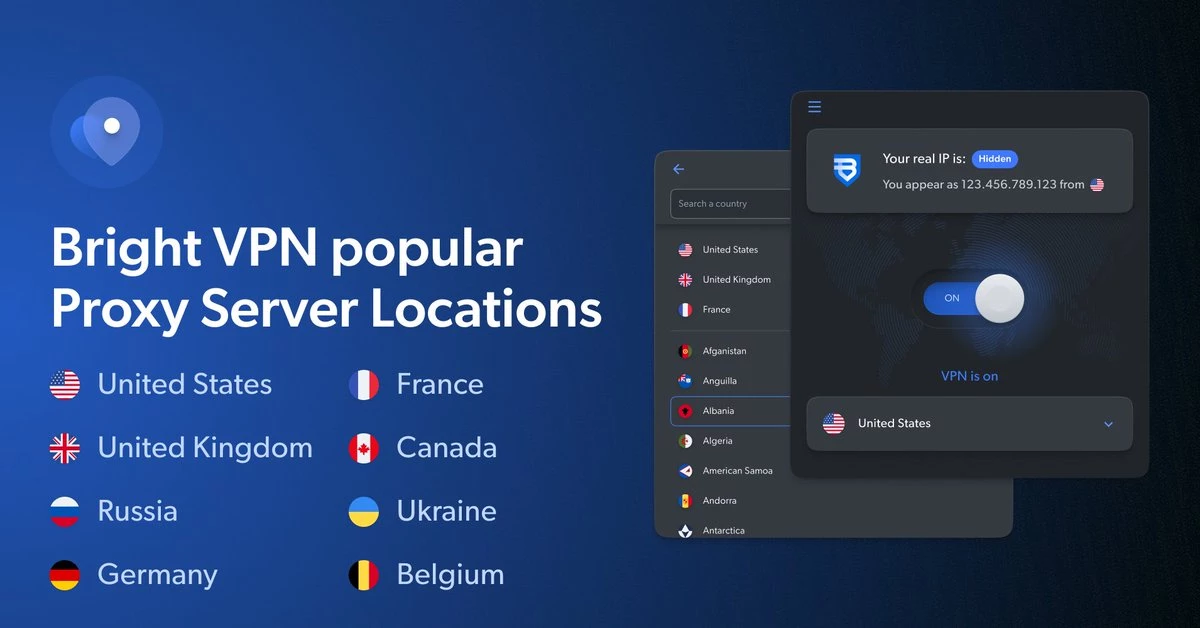
Bright VPN operates on a proxy-node business model that differs heavily from standard virtual private networks. Instead of charging a monthly subscription or imposing strict data caps, the application provides unrestricted server access by utilizing a peer-to-peer network. Users gain the ability to mask their IP addresses and encrypt their local web traffic, while the parent company routes occasional background requests through the user's idle internet connection. This background proxy activity collects public web data, such as flight prices, search engine results, and retail listings, which the parent company then sells to academic institutions, banks, and e-commerce platforms.
This desktop application appeals to users who need a quick, no-cost way to change their geographic location online without managing accounts or entering payment details. Because the software does not require an email address, password, or login credentials, you can immediately connect to servers in dozens of countries right after the initial setup. The interface is intentionally minimal, keeping technical configuration out of the way so that a basic connection can be established with a single click on the main dashboard.
Because of its proxy-node mechanics, the desktop app is better suited for casual browsing and basic geographic masking rather than high-bandwidth streaming or strictly confidential enterprise work. Routing traffic through peer networks can sometimes result in slower download speeds or higher latency, which affects gaming and heavy video consumption. However, users who understand the trade-off of sharing idle bandwidth for a fully unmetered VPN find it a practical utility. It bypasses the usual restrictions of free-tier services, giving Windows users a straightforward tool for unblocking websites and maintaining basic encrypted sessions without facing regular connection drop-offs.
Key Features
- No-Account Access: The application launches directly into the main dashboard without asking for an email, password, or profile creation. This allows instant connections and ensures that your browsing sessions are not tied to a central user account or billing profile.
- IKEv2 Encryption: Traffic is secured using the IKEv2 protocol, which encrypts data between your local machine and the remote server. This protocol is known for its stability when switching between different internet connections, helping to prevent local network administrators from monitoring your plaintext web requests.
- Data Usage Controls: A dedicated settings menu allows you to specify exactly when background web data collection is active. You can schedule the collection process to run only during specific hours, or set it to pause entirely when your computer CPU usage crosses a certain threshold, ensuring the proxy work does not slow down your daily tasks.
- Global Server Selection: The main dashboard provides a dropdown list of connection points spanning over 120 countries. This allows you to manually pick your virtual location by clicking on a specific nation, immediately routing your outgoing traffic through that regional node.
- Built-In Kill Switch: A toggle in the security settings blocks all internet traffic if the VPN connection drops unexpectedly. By cutting off network access until the secure tunnel is re-established, the kill switch ensures your real IP address and physical location do not accidentally leak to the websites you are visiting.
- Company Restrictions: The software gives you granular control over which types of organizations are permitted to utilize your idle bandwidth. You can uncheck categories like universities, financial institutions, or retail aggregators, preventing your IP address from being used to index data for those specific sectors.
- Referral Dashboard: An integrated referral menu allows you to link a Google account to generate a custom invite link. The dashboard tracks successful sign-ups and usage, providing a financial credit if new users maintain the application on their systems for a continuous thirty-day period.
How to Install Bright VPN on Windows
- Download the official Windows installer package to your local storage drive, ensuring you have administrator privileges on the machine.
- Launch the executable file to open the setup wizard and initialize the background unpacking process.
- Review the required consent screen carefully. This screen explicitly details how the software utilizes your internet connection for public data collection, which is the mandatory requirement for operating the software without payment.
- Accept the data collection terms and the end-user license agreement to proceed with the installation process.
- Choose your preferred installation directory if prompted, or allow the setup wizard to copy the application files to the default system path.
- Wait for the installer to configure the necessary network adapters, specifically the WAN Miniport drivers required for IKEv2 tunnel routing.
- Open the application directly from the Start menu or the newly created desktop shortcut. You will bypass any account creation or sign-in step and drop directly into the connection dashboard.
- Select a target country from the dropdown list and click the primary connect button to establish your first encrypted session and mask your IP address.
Bright VPN Free vs. Paid
Bright VPN does not offer a paid subscription tier. The software is entirely free to download and use, and there are no premium plans, pro upgrades, or trial periods. All features, including unlimited data bandwidth, the built-in kill switch, and access to the complete list of global server locations, are available to every user immediately after the installation finishes. You will never encounter a paywall or a prompt asking for credit card details inside the application interface.
The service sustains itself through an alternative corporate business model. Instead of collecting subscription fees from desktop users, it requires users to opt into a peer-to-peer network where their idle bandwidth is utilized by corporate clients. The developer monetizes the platform by charging businesses, academic institutions, and retail aggregators to scrape public web data through the IP addresses of the user base. This background proxy activity acts as the payment for the virtual private network service.
Because there is no option to pay a fee to disable the background data collection, users must accept this proxy model as a permanent condition of using the software. The settings menu allows you to pause the background scraping temporarily or restrict certain types of companies from using your connection, but you cannot opt out entirely. If you want a traditional virtual private network that strictly routes your traffic without using your connection for corporate data indexing, you will need to abandon this tool and select a competing product that relies on standard monthly billing.
There is also a small monetization feature for the users themselves, hidden in the referral program. By sharing a generated link and getting other users to keep the software installed for thirty days, referrers can earn a minor financial credit. However, this is an optional side feature and does not change the core fact that the software itself operates without any direct monetary cost to the person installing it.
Bright VPN vs. ProtonVPN vs. Windscribe
ProtonVPN operates on a strict privacy-first architecture, offering a free tier that does not share your bandwidth or collect web data for third parties. While its free version limits server locations and restricts speeds to encourage users to upgrade to a paid subscription, it provides a strictly closed tunnel with an audited no-logs policy. You should choose ProtonVPN if you handle sensitive financial data, require complete network isolation from peer-to-peer proxy mechanics, or want to ensure your connection is never utilized by outside corporations for data scraping.
Windscribe offers a freemium structure with a generous monthly data cap and access to a restricted set of country locations. It includes built-in ad blocking, a highly configurable firewall, and extensive protocol options, but free users must manage their data usage carefully to avoid hitting the monthly ceiling. Windscribe is ideal for users who want strong privacy controls and traditional server routing for occasional browsing, provided they are willing to track their data consumption or wait for the monthly reset.
Bright VPN takes a completely different path by eliminating data caps and payment tiers entirely in exchange for background bandwidth sharing. It is the better choice for users who want unmetered data, instant access to dozens of global connection points, and a zero-signup process. If your primary goal is bypassing basic geographic restrictions for reading articles or viewing public content, and you are comfortable with the public data collection model running in the background, this software removes the traditional friction of free-tier limitations.
Common Issues and Fixes
- VPN connection error 633 or 756. This happens when the Windows network dialer hangs and prevents new secure tunnels from forming. To fix it, open the Windows Command Prompt, type
rasdial /disconnect, and press Enter. Afterward, open the Task Manager, end the rasdial and Bright VPN background processes, and relaunch the application. - Cannot connect to specific regional servers. The application may fail to establish a secure tunnel if the requested server is currently overloaded, offline, or actively blocking incoming traffic. Use the "no, fix it" option under the "Is it working?" section in the main dashboard to force the application to cycle to a fresh IP address in a different sub-region.
- Background processes running after closing. The proxy node functionality remains active by default even when you are not actively routing your own traffic through the tunnel. You can stop this behavior by manually right-clicking the application icon in the system tray and selecting quit, or by adjusting the strict data usage schedule in the primary settings menu.
- DNS requests leaking real location. Some local network configurations bypass the encrypted tunnel entirely, sending DNS requests directly to the local internet service provider and exposing your real location. Ensure the built-in kill switch is toggled on in the security settings, and verify your active connection status using an independent IP checking website.
- Error 31, 87, or 720 during connection. These errors typically indicate a corrupted network adapter driver blocking the IKEv2 protocol. Fix this by opening the Windows Device Manager, expanding the Network Adapters list, uninstalling all WAN Miniport drivers, and clicking the "Scan for hardware changes" icon to force the system to reinstall fresh copies.
Version 1.572.298 — December 2025
Added:
- Expanded server list with new regional options in Southeast Asia and Europe.
- New 'Data Usage Rules' configuration to give users more control over resource sharing times.
Improved:
- Optimized proxy server selection logic for faster connection times.
- Enhanced IKEv2 protocol stability for Windows 11 users.
- Reduced background resource usage when VPN is idle.
Fixed:
- Fixed an issue where the client would occasionally disconnect after waking from sleep mode.
- Resolved minor UI glitches in the country selection search bar.
- Addressed a compatibility bug with certain third-party antivirus firewalls.
Security:
- Updated encryption libraries to latest standards to prevent potential vulnerabilities.