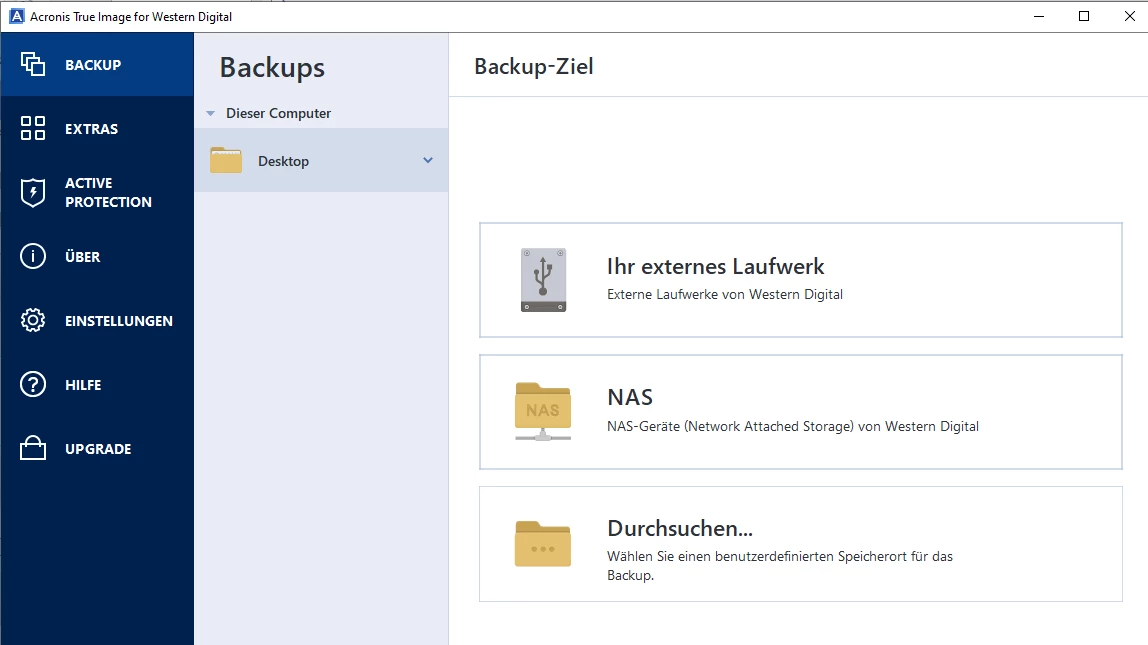
Acronis True Image WD Edition connects high-performance storage hardware with industrial-grade data protection software, providing a dedicated utility for users who own Western Digital, SanDisk, or WD_BLACK drives. When upgrading a computer's storage from a slower mechanical hard drive to a high-speed NVMe solid-state drive, users face the technical hurdle of moving the Windows operating system, applications, hidden recovery partitions, and personal files without breaking the boot sequence. This desktop application solves that exact problem by providing block-level disk cloning and bare-metal backup tools that mirror the entire system state perfectly.
Relying on simple drag-and-drop file copying in Windows Explorer is entirely insufficient for system migration, as it fails to capture the master boot record, EFI system partitions, and locked system files. A dedicated desktop application is required to interface directly with the storage controller and read the drive sector by sector. By operating at the hardware level, this utility ensures that the newly cloned drive maintains the exact partition structure and bootable state of the original disk, allowing users to physically swap the drives, turn on the computer, and immediately resume their work.
Beyond initial system migration, the software serves as a long-term disaster recovery tool. It allows users to schedule routine image backups to an external Western Digital hard drive, creating a compressed snapshot of the entire PC. If a primary drive fails, a catastrophic software update corrupts Windows, or a malware infection encrypts personal files, users can boot from a dedicated rescue USB drive and restore the computer to an exact previous state. This localized, offline approach to system recovery ensures that heavy data restoration tasks do not rely on internet bandwidth or browser-based cloud portals, making it a highly practical tool for hardware upgrades and local data archiving.
Key Features
- Drive Cloning: Migrates the operating system, applications, and all user data from an existing drive to a new Western Digital or SanDisk SSD. The software automatically resizes partitions proportionally to fit the target disk capacity and maintains the proper 1024 KB alignment offset required for optimal SSD read and write speeds.
- Full Image Backup: Captures the entire system state at the block level and compresses it into a single proprietary backup archive format. Users can choose between incremental and differential backup methods, which drastically reduce storage space and processing time by only recording the specific data blocks that have changed since the initial full backup.
- Rescue Media Builder: Creates a bootable USB flash drive or optical disc that can launch the Acronis recovery environment outside of the active operating system. The builder supports both standard minimal boot environments and modern Windows PE (WinPE) architectures, allowing the software to inject current storage and network drivers directly into the bootable drive.
- File and Folder Backup: Allows users to target specific directories, documents, or project files instead of capturing the entire hard drive. This targeted approach is ideal for scheduling daily automated backups of critical work folders to an external WD My Passport or SanDisk portable drive without tying up system resources.
- Acronis Active Protection: Runs a background monitoring service that uses behavioral heuristics to detect unauthorized file encryption attempts typical of ransomware attacks. If a malicious process attempts to alter backup archives, the service halts the execution and automatically reverts the affected files from a local cache.
- Secure Drive Wipe: Permanently erases data from old or discarded storage devices by overwriting the existing data sectors with zeros or random data patterns. This physical overwrite process ensures that sensitive personal documents, passwords, and financial records cannot be recovered using forensic undelete tools before the drive is sold or recycled.
How to Install Acronis True Image WD Edition on Windows
- Connect at least one compatible Western Digital, SanDisk, or WD_BLACK drive to the computer via an internal SATA cable, an M.2 slot, or a direct USB connection.
- Download the official Windows installer package from the Western Digital support page and extract the contents of the archive if it is distributed as a compressed file.
- Locate the extracted executable file and double-click it to launch the setup wizard, then click "Yes" when the Windows User Account Control prompt asks for permission to make system changes.
- Click the "Install" button on the primary setup screen; the installer will run a background hardware check to verify that a qualifying storage device is currently attached to the system.
- Wait for the installation process to copy the necessary program files, register the background services, and configure the Active Protection modules on the local disk.
- Click "Start Application" once the progress bar completes, which will immediately launch the software and prompt you to accept the End User License Agreement.
- Review the main dashboard on the first launch, where the software will automatically scan the system buses and display all connected internal and external drives available for backup or cloning operations.
Acronis True Image WD Edition Free vs. Paid
Acronis True Image WD Edition is provided as a fully free utility for any user who currently owns a compatible Western Digital, SanDisk, or WD_BLACK storage device. Instead of requiring a paid subscription for essential backup tasks, it functions as a complimentary, perpetual license that permanently unlocks local backup and cloning features as long as it detects the required hardware connected to the PC. Users do not need to enter a billing account or deal with trial expiration dates.
While the WD Edition handles local disaster recovery and disk migration effectively, it is a hardware-restricted subset of the commercial Acronis Cyber Protect Home Office software. The free tier explicitly omits all cloud-based features. Users cannot back up data directly to Acronis Cloud storage, access files remotely via a web browser, or synchronize Microsoft 365 accounts. Furthermore, the free edition does not provide the advanced continuous data protection schedules or the full anti-malware suite found in the premium subscription.
If a user replaces their Western Digital drive with an unsupported brand, the software will lock its cloning and backup capabilities, though it will generally still allow users to restore previously created archives. To lift the hardware restriction entirely, gain cloud storage space, or receive priority technical support, users must purchase a paid subscription directly from the developer.
Acronis True Image WD Edition vs. Macrium Reflect Free vs. AOMEI Backupper Standard
Macrium Reflect Free was widely regarded as the industry standard for fast, reliable disk cloning and bare-metal recovery for many years. However, the developer recently placed the free tier into End of Life (EOL) status, shifting the product line entirely to a paid subscription model. While legacy installations of Macrium Reflect can still be found and used for direct disk-to-disk clones, they no longer receive official security patches, updated hardware drivers, or technical support, making them less ideal for long-term use on modern Windows 10 and Windows 11 systems.
AOMEI Backupper Standard is a highly accessible alternative because its free tier does not require any specific brand of hard drive to function. It excels at basic file synchronization and creating image backups. Unfortunately, AOMEI intentionally restricts the system clone feature behind its paid upgrade. If users want to migrate a bootable Windows installation directly from an old hard drive to a new SSD, the free tier of AOMEI Backupper will block the operation and demand a license purchase.
Acronis True Image WD Edition is the better fit for anyone who currently owns a Western Digital or SanDisk drive, as it bypasses the artificial paywalls found in modern alternatives. By relying on hardware detection to subsidize the software cost, it grants users full access to low-level operating system cloning and bootable media creation. It provides the premium migration capabilities that AOMEI restricts, while actively receiving the security updates that the free tier of Macrium Reflect lacks.
Common Issues and Fixes
- Installation restricted or "No WD drive detected" error. Certain third-party USB enclosures and docking stations use custom controller chips that mask the internal hardware ID of the drive. To bypass this, remove the drive from the enclosure and connect it directly to the motherboard via an internal SATA or M.2 port, or try plugging the external drive directly into a rear motherboard USB port rather than a front-panel hub.
- Cloning process fails abruptly with a read error. This occurs when the software encounters corrupted sectors on the source hard drive. Open the Windows Command Prompt as an administrator and run the
chkdsk /f /rcommand on the source drive to locate, block, and repair the bad sectors, then restart the computer and attempt the clone again. - Volume Shadow Copy Service (VSS) fails during a live backup. If the software cannot lock the file system to create an image, press the Windows Key + R, type
services.msc, and locate the "Volume Shadow Copy" service. Right-click it, select Restart, and ensure its startup type is set to Manual before retrying the backup task. - Bootable rescue USB fails to recognize an NVMe SSD. The default minimal rescue media often lacks drivers for newer storage controllers. Recreate the bootable USB drive using the Advanced mode and select the Windows PE (WinPE) option, which allows the software to inject the current Windows storage drivers directly into the recovery environment.
Version Build 41936 — 2025
- Added full compatibility for the latest operating systems, including Windows 11 (version 24H2) and macOS 15 Sequoia.
- Fixed a persistent issue where the IPN.db database file was not correctly removed from the TrueImageHome folder after uninstallation.
- Resolved a user interface bug where the system tray icon failed to display the appropriate warning sign when the license had expired.
- Implemented various stability improvements and general bug fixes to enhance overall application performance.