Ransomware attacks and hardware failures frequently threaten local storage, making exact system backups a necessary defense for Windows 10 and Windows 11 desktop environments. O&O DiskImage Professional is a dedicated desktop application that specializes in exact block-level cloning. Unlike cloud synchronization tools that only copy isolated documents to remote servers, it captures a 1:1 replica of the entire system drive. This includes the operating system registry, installed application files, hidden partitions, and user configurations exactly as they exist at the time of the backup. This local, offline approach ensures that if a primary solid-state drive fails or becomes encrypted by malware, users can restore the machine to a bootable state without reinstalling the operating system and reconfiguring software from scratch.
The software is built specifically for users managing physical local backups, catering to small office administrators and home desktop users who prefer keeping their data on external hard drives or network-attached storage. Operating entirely outside the browser, the desktop architecture allows the application to directly interface with the Windows Volume Shadow Copy Service. This system integration means users can capture active database files, running applications, and hidden system sectors without interrupting their active workflow. By handling heavy processing locally, the application avoids the bandwidth bottlenecks and monthly storage quotas associated with cloud-only backup platforms.
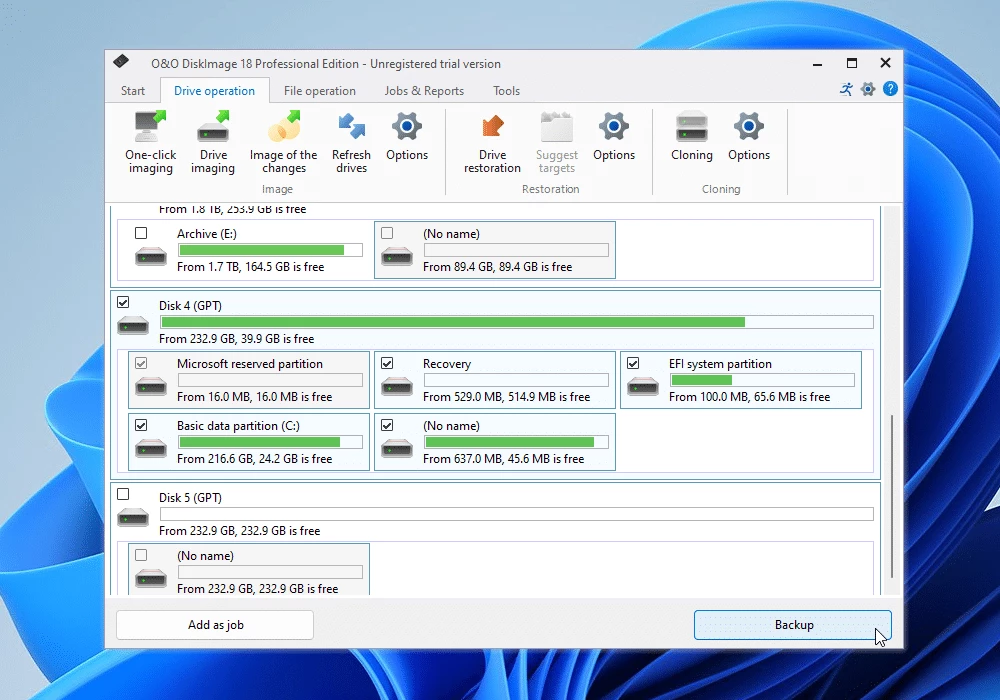
Beyond disaster recovery, O&O DiskImage Professional solves concrete migration and deployment tasks. When upgrading from a small capacity drive to a larger NVMe module, users can clone the active environment directly to the new hardware. The application also addresses the friction of replacing a broken motherboard or migrating to an entirely different physical computer. Using its hardware-independent restoration protocols, it dynamically strips out old driver dependencies during the transfer process and injects the necessary components to boot the existing operating system on unfamiliar hardware. This practical utility makes it a daily tool for IT technicians and independent professionals who require strict control over their machine states and data redundancy. When dealing with modern operating systems, restoring an environment requires precise alignment of boot records, hidden EFI partitions, and primary active partitions. O&O DiskImage Professional manages this complexity natively. It provides a user interface that abstracts the command-line intricacies of disk management, presenting users with clear tiles and guided workflows. This ensures that even when dealing with encrypted disks or complex partition tables, the resulting backup file contains every required byte to reconstruct the exact working state on a blank disk.
Key Features
- Feature Name: Machine Independent Restoration (MIR) This utility allows you to restore a system image onto a completely different physical computer or a new motherboard. When you target new hardware, the protocol intercepts the boot configuration, strips out previous hardware drivers, and dynamically loads the generic drivers necessary to ensure the restored operating system boots successfully.
- Feature Name: Drive Imaging and Cloning Users capture sector-by-sector copies of physical disks and logical partitions using the "Start drive imaging" interface tile. This process bypasses standard file-copy limits to capture locked system files, hidden recovery partitions, and master boot records, creating a complete snapshot that can overwrite a corrupted drive in a single operation.
- Feature Name: Plug-and-Play DiskImage To Go This feature transforms an external USB flash drive or portable hard disk into a preferred backup repository and a bootable rescue medium simultaneously. Once configured, a background listener detects when this specific drive is plugged in and immediately triggers an automatic backup sequence, keeping archives current without manual scheduling.
- Feature Name: Virtual Hard Disk Integration The application converts proprietary backup archives directly into standard VHD and VHDX virtual disk formats. This allows system administrators to attach the cloned environment directly to hypervisors like Microsoft Hyper-V or mount the virtual images as local Windows drive letters to extract specific legacy files via the standard file explorer.
- Feature Name: Differential and Incremental Archives To prevent storage exhaustion on external drives, the software supports sequential archiving that only records the data blocks modified since the last backup. Users can choose differential backups that reference the original complete image or incremental chains that reference the immediate prior state, reducing the time and disk space required for daily operations.
- Feature Name: Bootable Windows PE Rescue Environment Using the "Create bootable disk" menu, users generate a standalone recovery environment based on the Windows Preinstallation Environment. This USB or DVD media includes basic networking support, disk management utilities, and the core restore application to initiate a bare-metal restore even if the primary Windows installation fails to load.
How to Install O&O DiskImage Professional on Windows
- Download the official Windows installer package directly from the vendor's website or an authorized distributor portal.
- Double-click the downloaded executable file to launch the setup wizard, granting administrative privileges when prompted by the Windows User Account Control dialog.
- Review and accept the end-user license agreement, then select the destination folder path, which typically defaults to the standard Program Files directory.
- Choose between a complete installation, which includes all standard desktop features, or a custom installation to manually omit specific background listener services or shell extensions.
- Click the install button and allow the setup engine to copy the application files and register the background Volume Shadow Copy integration required for capturing live system data.
- Wait for the final confirmation screen, click finish to exit the installer, and launch the application from the new desktop shortcut.
- Upon the first launch, either enter your purchased perpetual license credentials or select the option to begin the fully functional 30-day trial period to evaluate the backup workflows.
O&O DiskImage Professional Free vs. Paid
Unlike many competing backup utilities that offer basic free editions with disabled features, O&O DiskImage Professional is a strictly paid application. The vendor does not provide a restricted free tier for home users, positioning the software entirely as a commercial product. However, users can download a fully functional 30-day trial to test the disk cloning, file backup, and recovery media creation workflows before committing to a purchase.
Because there is no free community edition, the target audience remains firmly focused on users who value data ownership and are willing to pay for reliable, ad-free utilities. Corporate environments also have access to higher-tier Server Editions, which include support for Microsoft Exchange and SQL databases, but the Professional Edition covers all local backup needs for standard Windows workstations. The lack of in-app advertisements, cross-selling pop-ups, and forced account registrations makes the trial and paid experience much cleaner than many freemium alternatives.
The primary purchasing model relies on a traditional perpetual license rather than a mandatory annual subscription. A standard single-PC lifetime license is typically priced around $49.95, which grants permanent access to the purchased package without requiring ongoing monthly fees to restore data. The vendor also frequently offers multi-device bundles, such as a 5-PC license for approximately $69.95, which lowers the cost per machine for small office deployments or households with several computers.
By avoiding the subscription model, the application ensures that users are never locked out of their backup archives if they stop paying a recurring fee. The initial purchase covers the core offline desktop application, local system imaging, and the creation of bootable rescue media. Because the software does not bundle proprietary cloud storage quotas or offsite backup servers, buyers only pay for the local processing capabilities, making it a predictable one-time expense for administrators who already own external hard drives or local network servers.
O&O DiskImage Professional vs. Acronis Cyber Protect Home Office vs. Macrium Reflect
Acronis Cyber Protect Home Office bundles deep disk imaging with real-time cybersecurity, active ransomware scanning, and integrated cloud storage. It is ideal for users who want a combined subscription service that handles both antivirus duties and automated offsite backups in a single background client. Users should choose Acronis if they prefer paying a recurring fee for integrated cloud hosting and active malware defense.
Macrium Reflect is widely recognized for its Rapid Delta Restore technology, which makes restoring incremental image updates very fast by bypassing unchanged data blocks. Users who need detailed scheduling configurations, script-based deployments, or prefer a highly technical interface often pick Macrium for enterprise environments. However, Macrium has shifted heavily toward corporate subscription models in its recent updates, retiring its previously popular free tier.
O&O DiskImage Professional is the better fit for users who want a strictly offline, perpetual-license desktop application without mandatory cloud subscriptions or bundled antivirus components. Its straightforward Windows-style tile interface, combined with the plug-and-play DiskImage To Go feature, makes it much easier for home users and small offices to maintain physical backups on external USB drives. It provides a simple, pay-once alternative for those who strictly want to manage their own local hardware without being forced into an ecosystem of recurring software-as-a-service fees. Additionally, because the software focuses entirely on the core task of disk cloning and file restoration, it consumes fewer system resources during idle periods compared to background-heavy security suites. This focused architecture appeals directly to technicians who prefer modular, single-purpose software tools.
Common Issues and Fixes
- Problem description: Access denied when mounting older backup images. This happens because the Security ID of your current Windows user account does not match the folder owner recorded in the older backup. You must open the Windows file properties for the mounted virtual drive, navigate to the Security tab, and manually take ownership of the folders to bypass the permission restriction.
- Problem description: Storage devices are missing in the bootable recovery environment. If you boot from the rescue media and cannot see your local RAID arrays or NVMe drives, the Windows PE environment likely lacks the specific storage controller drivers for your motherboard. You can resolve this by selecting the "O&O System settings" dialog under the Drivers tab within the boot environment to manually load the driver files from a secondary USB stick.
- Problem description: Incremental backups fail to initiate or calculate. This error occurs if the base complete image has been moved, renamed, or corrupted on the external drive. The application relies on precise checksums from the previous image to track block-level changes, so you must either move the base image back to its original directory path or initiate a completely new full backup to start a fresh chain.
- Problem description: The application fails to capture live system files. If the backup stalls or fails with an error regarding locked files, the background Volume Shadow Copy Service integration may not have started correctly. Restart the application by right-clicking its desktop shortcut and selecting "Run as administrator" to ensure it has the elevated system privileges required to interface with the Windows storage subsystem.
Version 22.0.1122 — November 2025
- Added capability to mount backup archives directly as virtual drives, enabling instant access to files and folders without full restoration.
- Introduced VHDX export functionality to seamlessly convert image backups into virtual hard disks for use with virtual machines.
- Added smart retention policies to automatically manage storage space by cleaning up obsolete backup files based on user-defined rules.
- Improved the creation of bootable media with better drive letter mapping to prevent confusion during recovery processes.
- Improved reporting features to provide centralized status overviews and automated notifications in case of backup errors.
- Enhanced hardware-independent restoration to support a wider range of dissimilar hardware configurations during system recovery.