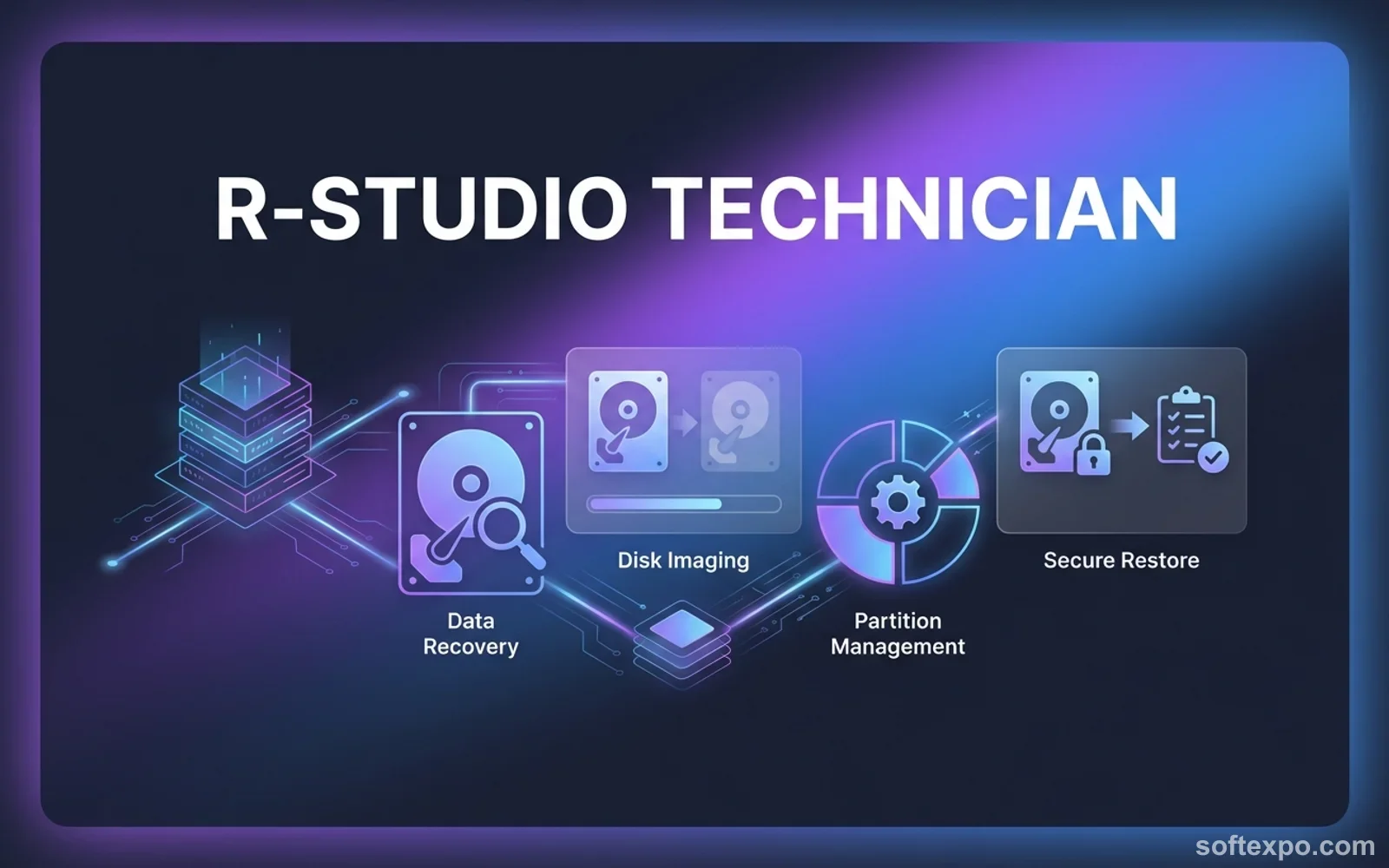
R-Studio Technician operates as a professional-grade data recovery and forensic analysis platform. Rather than catering to home users who accidentally deleted a few documents, this suite is built explicitly for data recovery labs, IT service providers, and digital forensic investigators. It provides an environment capable of extracting intact or fragmented files from mechanically unstable drives, corrupted filesystems, and damaged arrays. The application bypasses standard logical restrictions, allowing technicians to read raw sector data, mount virtual disk formats, and directly manipulate hexadecimal values for precise file reconstruction.
In practical, real-world scenarios, an enterprise IT administrator or local lab engineer turns to this application when confronted with complex data loss. Tasks include retrieving critical databases from a failing RAID 5 array, executing network-based recovery from an unbootable remote server, or safely imaging a degrading hard drive using hardware controllers like DeepSpar Disk Imager. The desktop environment is critical here compared to lighter, consumer-grade alternatives, as the technician needs total control over multi-pass imaging parameters, read retries, and hardware timeouts. When a hard drive starts dropping sectors, a standard operating system freezes or drops the connection. This desktop application intercepts these hardware timeouts, skips bad blocks dynamically, and creates a raw image or sparse image of the drive.
Because it operates as a multi-platform utility without locking operators into a single file system, investigators can use the Windows deployment to mount and parse structures from APFS, HFS+, Ext4, UFS, and Btrfs drives. By giving professionals the exact technical instruments needed—like a built-in virtual array builder and forensic-grade logging—the software turns desperate hardware failure situations into structured, manageable extraction workflows. Furthermore, investigators rely on the application to access encrypted volumes, such as BitLocker partitions, given the correct credentials, extracting evidence without booting the host machine, which could alter timestamps or metadata.
Key Features
- Multi-Pass Fault-Tolerant Disk Imaging: Instead of halting a scan when encountering bad sectors, the software creates raw or compressed bit-to-bit copies while dynamically adjusting read parameters. Operators can define read retries, block sizes, and timeout limits to safely extract data from degrading magnetic platters or failing solid-state memory before performing the logical extraction on the resulting image file.
- Advanced Array Reconstruction: The application includes a virtual builder capable of assembling broken RAID 0, 1, 4, 5, 6, 10, and nested arrays even if the original controller card is dead or parameters are lost. Technicians can manually specify block sizes, parity delays, and stripe orders, or rely on auto-detection to virtually rebuild Microsoft Storage Spaces and mdadm arrays.
- Network Data Recovery: Technicians can execute full-scale forensic extractions across local area networks or the internet by deploying an Agent utility on a target machine. This allows administrators to recover lost files from remote enterprise servers or inaccessible headless nodes via TCP/IP without physically removing the storage drives from their chassis.
- Professional Hexadecimal Code Editor: A built-in hex editor permits operators to manually inspect and modify raw data structures, file headers, and Master File Table records. It displays data interpreted by various data patterns such as boot records or directory entries, allowing deep forensic analysis and manual repair of corrupted file systems.
- Cross-Platform File System Support: Running the desktop client allows operators to read, scan, and extract data from formats foreign to the host operating system. The application mounts and parses NTFS, ReFS, FAT, exFAT, APFS, HFS+, Ext2, Ext3, Ext4, UFS, and Btrfs, meaning a technician can recover an enterprise server or damaged laptop drive using their main workstation.
- Integration with Hardware Recovery Controllers: The application natively interacts with specialized data recovery hardware interfaces, including DeepSpar Disk Imager and USB Stabilizer. This integration gives the software direct command over the hardware controller, allowing it to hardware-reset unresponsive drives and maintain read stability during complex mechanical failure recoveries.
- Custom File Signature Definitions: When recovering damaged or proprietary systems, operators can expand the content-aware scanning engine by adding custom file types. By defining specific header and footer hexadecimal signatures in an XML file, the application can carve out unknown or specialized database files directly from unallocated space.
How to Install R-Studio Technician on Windows
- Download the official executable installer package directly from the vendor site to ensure you receive the untampered, fully signed setup file.
- Launch the downloaded setup executable, granting the required User Account Control administrative privileges to allow the installer to write registry keys and system-level disk access drivers.
- Read and accept the End User License Agreement, verifying the terms for the commercial tier, which covers multiple machines and forensic operations.
- Choose the installation directory. It is critical to install the software on a completely different physical drive than the one you intend to recover data from, preventing accidental overwriting of lost files.
- Select the optional shortcut tasks, such as placing an icon on the desktop or pinning the application to the Start menu for rapid access during emergency recovery scenarios.
- Complete the setup wizard and launch the application for the first time, where you will be prompted to enter your commercial registration key or insert the dedicated USB activation stick if utilizing the portable workflow.
- Upon opening the main interface, configure the temporary folder paths in the settings menu, ensuring that workspace caches and recovered files are strictly routed to a designated, healthy storage drive.
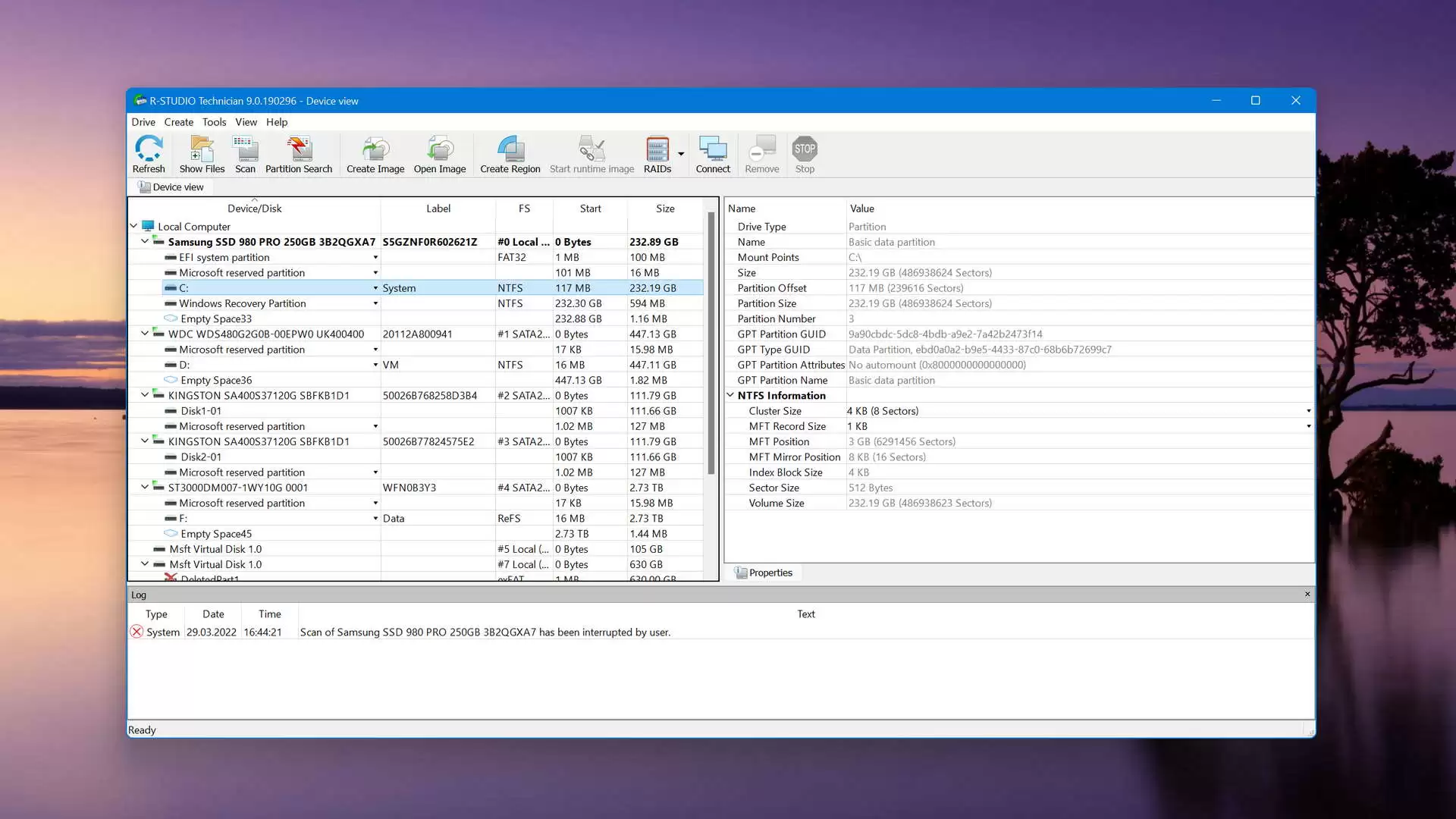
- Familiarize yourself with the main Device View screen, which lists all connected physical drives, virtual volumes, and mounted image files, ready for forensic analysis.
R-Studio Technician Free vs. Paid
The vendor provides a time-unlimited demo mode at no cost. In this unactivated state, operators can connect storage drives, run deep scans, reconstruct virtual arrays, and preview supported file types to verify that recovery is possible. However, the demo restricts saving recovered files to a maximum size of 256 kilobytes. To extract larger files, the operator must apply a valid commercial registration key.
The flagship Technician tier requires a one-time perpetual payment of $899. This tier is engineered for commercial service providers, forensic labs, and IT consultants who perform recovery services for third-party clients. It allows the software to be used on multiple machines temporarily, supports activation via a portable USB stick, and includes the ability to generate bootable emergency media for systems that refuse to load an operating system.
For smaller repair shops that encounter complex arrays infrequently, the vendor offers the T80+ license. This operates as a short-term access plan, providing full commercial capabilities for $80 for a limited duration, allowing technicians to solve a single client emergency without committing to the full upfront cost.
For standard in-house environments, local workstation licenses are available starting around $79.99. These basic licenses allow the recovery of standard file systems but are permanently tied to one specific computer hardware ID and strictly prohibit commercial third-party recovery services.
R-Studio Technician vs. UFS Explorer Professional vs. DMDE
UFS Explorer Professional caters to the same high-end forensic and lab recovery market. Technicians frequently choose UFS Explorer when dealing with specific, proprietary enterprise storage formats, as it provides native reconstruction for ZFS RAID-Z, Btrfs-RAID, Drobo BeyondRAID, and Synology Hybrid arrays out of the box. However, operators often note that its user interface relies heavily on obscure terminology, and its logical scanning engine can sometimes be slower when parsing heavily fragmented NTFS partitions compared to the optimized algorithms found in competing tools.
DMDE is a specialized, low-cost alternative that focuses heavily on raw disk editing and partition table reconstruction. IT administrators turn to DMDE when they need to perform surgical, manual repairs on a Master File Table or boot sector using a hex editor, often fixing the file system in place rather than extracting the data to another drive. While its raw editing capabilities are exceptional, the interface is dense, and it entirely lacks the network recovery agent, automated hardware controller integration, and portable commercial licensing structures that enterprise labs require for daily operations.
R-Studio Technician offers the most balanced and structured environment for professional data extraction. It excels when a lab requires a capable file carver, deep integration with hardware imagers like DeepSpar, and the flexibility to perform recoveries over a local area network using the Agent application. If the workflow demands commercial licensing, portable USB activation, and a unified interface capable of bridging the gap between mechanical drive stabilization and logical file reconstruction, this software handles the job efficiently.
Common Issues and Fixes
- Recovered files will not open or appear corrupted upon extraction. This usually happens when the original file system metadata was destroyed, and the file contents were fragmented across the disk. To fix this, discard the damaged file, return to the main scan results, and check the "Extra Found Files" section to see if the engine carved the file based on its raw hexadecimal headers.
- The software freezes or the operating system drops the drive connection during a logical scan. This points to severe physical hardware degradation or bad sectors causing read timeouts. Stop the logical scan immediately and switch to the "Create Image" tool to generate a multi-pass, fault-tolerant byte-to-byte clone, performing all subsequent recovery operations entirely on the generated image file.
- Complex array partitions fail to mount even when all physical disks are connected to the workstation. The original hardware controller parameters are likely lost or the metadata is destroyed. Open the Virtual Block RAID builder tool, manually insert the physical disks into the virtual array, and specify the correct block size, parity rotation, and stripe order based on the original server specifications.
- The network recovery agent refuses connection attempts from the main technician workstation. Local firewalls or network routing policies are likely blocking the specific TCP/IP ports required by the Agent. Ensure that the required port is explicitly forwarded through the router, temporarily disable the local firewall on the target machine, and verify the access password matches exactly.
- Folders labeled with generic numbers appear instead of the original directory structure. This occurs when the directory indexing records are permanently overwritten, leaving orphaned folders. The data inside is intact, but the software cannot determine their original parent directory, requiring you to manually open these numbered folders, inspect the contained files, and rename them based on their contents.
Version 9.5.191686 — January 2026
- Added support for the ZStd real-time compression algorithm, boosting R-Studio Agent data transfer rates up to 250 MB/s on high-speed networks.
- Added the ability to discard incomplete files upon canceling a recovery by unchecking the "Keep the partially recovered file" preference.
- Improved performance and speed when enumerating exceptionally large ext4 file systems.
- Fixed an issue that prevented deploying R-Studio Agent to remote computers running Windows 10 or Windows 11.
- Fixed a bug that caused an inaccurate error prompt to appear when entering an invalid password for a remote R-Studio Agent connection.
- Fixed a program crash that could occur if a user closed a disk tab while files were actively being enumerated.
- Fixed an application crash triggered by the "Reopen All Files" command when a file mask actively hid all files on the disk.
- Fixed improper file marking behavior when utilizing a file mask under the "Enumerate files in individual folders" mode.
- Fixed a failure during the image creation process when a newly created folder was designated as the target destination.
- Fixed a freezing issue that happened when attempting to open a multi-part image file after some of its component files had been relocated.