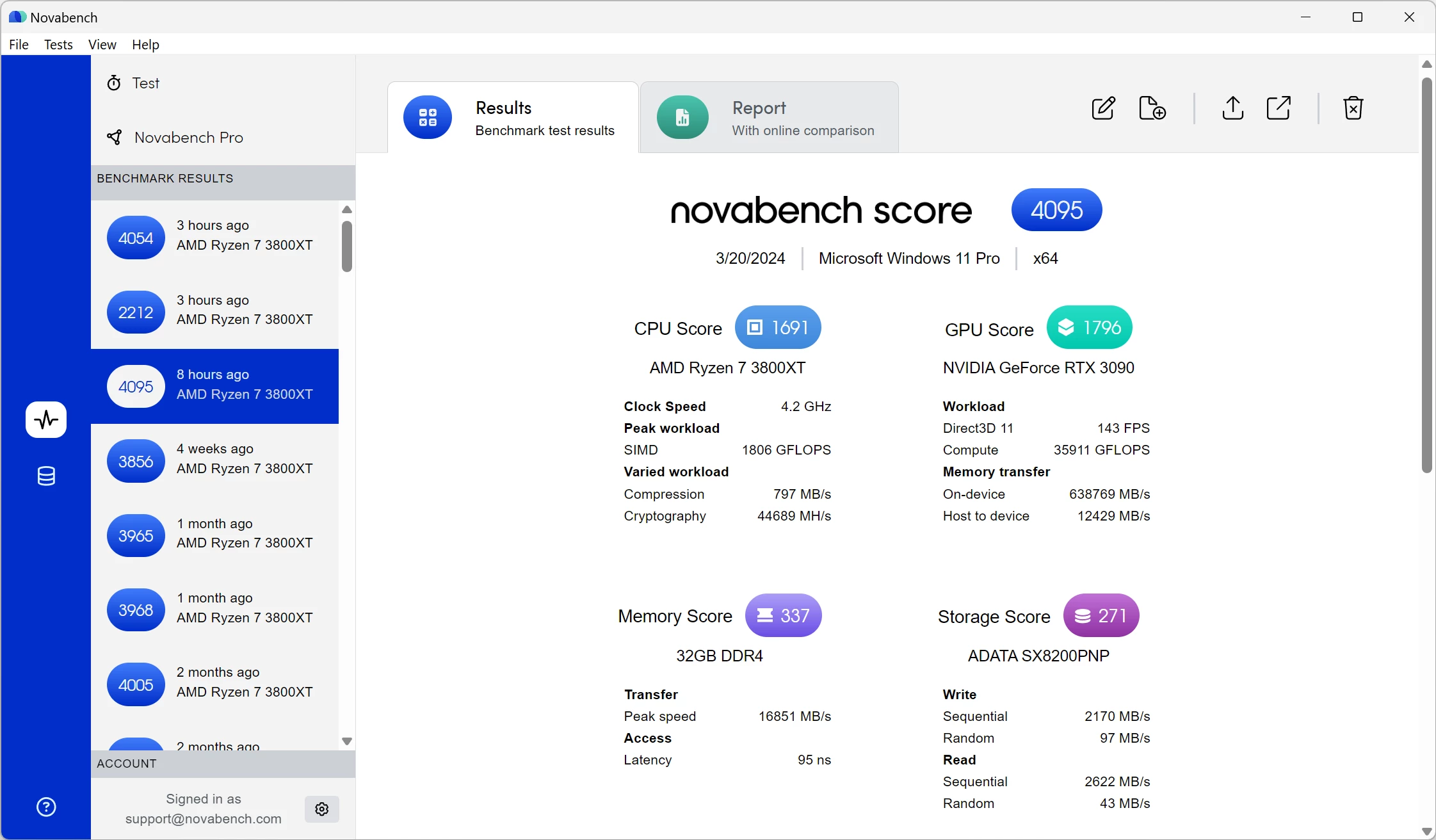
Hardware benchmarking often requires navigating complex utilities that demand significant time to configure and execute. Many diagnostic programs place computer hardware under hours of artificial load, which serves a purpose for extreme overclocking but proves unnecessary for standard performance validation. NovaBench operates as a direct alternative by executing a rapid sequence of hardware tests that evaluate the processor, graphics card, memory modules, and storage drives in just a few minutes. It is built for system integrators, IT technicians, and general users who need to verify that their computer components are performing at expected baseline metrics without committing to overnight thermal stress loops.
Executing these low-level diagnostic routines requires a native desktop application, as web browsers lack the permission to interface directly with hardware controllers or execute raw architectural instruction sets. By running directly on the operating system, the software communicates directly with the central processing unit for floating-point mathematics, pushes the graphics card through targeted Direct3D rendering passes, and measures exact sequential read and write speeds directly on the local storage controller. The resulting data points are aggregated into a composite numerical score, allowing the operator to measure their current hardware configuration against an online database of similar machine builds.
Technicians typically deploy this utility when purchasing second-hand components to ensure they function correctly under load, or immediately after building a new workstation to confirm the memory profiles and storage drives are operating at their advertised capacity. It addresses the practical job of identifying the weakest link in a hardware environment. Instead of guessing why a computer stutters during heavy workloads, the generated metrics isolate the exact hardware component limiting the rest of the machine. The user interface remains strictly functional, guiding the operator through the benchmarking process with a single initiation button and returning concrete measurement numbers rather than vague system health ratings.
Key Features
- Feature Name: CPU Arithmetic and Hashing: The application evaluates processor execution speed by running targeted integer and floating-point mathematical operations. It also runs a specific MD5 hashing routine to measure how quickly the processor can calculate cryptographic algorithms. These specific routines push all available processor cores and threads to their maximum clock frequency for a brief duration to calculate a baseline compute score.
- Feature Name: 3D Graphics and Compute Rendering: The graphics testing module forces the video card to render a heavily shader-dependent 3D scene utilizing Direct3D APIs. Alongside the visual pixel rendering, it executes a separate OpenCL compute-specific workload to evaluate how well the graphics processor handles parallel data processing tasks that are entirely unrelated to drawing images on a monitor.
- Feature Name: Memory Bandwidth Evaluation: The utility allocates large blocks of temporary data to the system memory to measure precise read and write transfer rates. This test verifies whether the installed RAM modules are actually functioning at their advertised speeds and confirms if multi-channel memory configurations are properly recognized and utilized by the motherboard.
- Feature Name: Storage Sequential Performance: Local drive performance is evaluated by writing and reading large, contiguous files to the primary storage device. This sequential test highlights the maximum throughput limit of the local solid-state drive or hard disk controller, intentionally bypassing the operating system cache to reveal raw hardware transfer ceilings.
- Feature Name: Hardware Bottleneck Identification: By analyzing the relationship between the processor and the graphics card during the 3D rendering phase, the software calculates potential hardware imbalances. It identifies specific scenarios where the CPU is unable to feed data to the GPU fast enough, resulting in an artificial performance ceiling during graphical workloads.
- Feature Name: Thermal and Power Logging: During the diagnostic sequence, the application polls motherboard hardware sensors to record temperature spikes and power draw variations. This logging mechanism helps operators track battery health on laptops and determine if a specific component is thermal-throttling under heavy load before it can reach its maximum theoretical performance output.
- Feature Name: Command-Line Execution: For enterprise deployments or automated testing environments, the software supports execution via a traditional command-line interface. IT administrators can trigger specific diagnostic routines, bypass the graphical interface entirely, and output the resulting hardware metrics directly into comma-separated log files for network analysis.
How to Install NovaBench on Windows
- Download the executable Windows installer package, which is fully compatible with Windows 10 and Windows 11 environments, from the official vendor website to your local storage drive.
- Locate the downloaded executable file in your default downloads directory and double-click it to initiate the setup wizard.
- Accept the User Account Control prompt if Windows requests permission to allow the application to make changes to your device.
- Review the End User License Agreement presented on the first screen and click the acceptance button to proceed with the installation process.
- Select the destination folder on your local drive; the installer defaults to the standard Program Files directory, which ensures correct user permission handling.
- Choose whether to create a desktop shortcut and a start menu folder for quick access to the benchmarking utility.
- Click the install button to allow the setup wizard to extract the necessary core files, visual test assets, and hardware polling drivers to your selected directory.
- Finish the setup process and launch the application; upon the first run, your active firewall may prompt you to grant network access, which is required if you wish to submit and compare your benchmark results online.
NovaBench Free vs. Paid
The vendor provides a baseline free tier intended strictly for personal, non-commercial home use. This unpaid tier includes the core benchmarking tests for the processor, graphics card, memory modules, and storage drives. To view detailed comparisons of the generated scores against other hardware configurations, the free tier requires the user to submit their results to the public online database. The free tier does not display advertisements, but it lacks advanced offline saving capabilities and deeper diagnostic tools.
For users needing deeper hardware analysis, the Plus tier is available for $35 per year. This subscription removes the online submission requirement entirely, allowing operators to keep their hardware data offline and private. It introduces specialized diagnostic modules, including dedicated stress testing, bottleneck analysis, and scheduled benchmark runs. Furthermore, the Plus tier activates real-time thermal monitoring, sensor logging, and battery health tracking for laptops, making it highly useful for hardware enthusiasts tweaking their cooling configurations.
Commercial users and IT departments must purchase the Pro tier, priced at $99 per user annually. The Pro license permits legal deployment in business environments and unlocks advanced network workflow utilities. Operators utilizing this tier gain access to the command-line interface for automated scripting, a portable edition of the software that can run directly from a USB flash drive without installation, and the ability to export all benchmark data into CSV format. It also provides a centralized team dashboard for managing hardware records across multiple network workstations.
NovaBench vs. Cinebench vs. Geekbench
Cinebench serves as a highly specialized diagnostic utility focused almost entirely on rendering performance utilizing the native Cinema 4D engine and Redshift. It applies massive, sustained loads to the processor and graphics card to evaluate how the hardware handles prolonged, heavy-duty 3D rendering tasks. Users configuring workstations specifically for animation, video production, or architectural visualization typically rely on Cinebench to test thermal limits and absolute compute stability over extended rendering periods.
Geekbench takes a different approach by isolating single-core and multi-core processor performance using a wide array of simulated daily tasks, such as image compression, machine learning queries, and text processing. It is heavily utilized for cross-platform comparisons, allowing users to compare desktop architectures directly against mobile phone processors on an identical scoring scale. It provides deep architectural insights but places less emphasis on total system synergy or storage hardware speed.
NovaBench is the better choice when an operator requires a fast, holistic overview of the entire computer system rather than a targeted stress test of a single component. While Cinebench requires a long wait for rendering loops to finish, and Geekbench focuses heavily on processor instructions, NovaBench runs a complete, sequential sweep of the CPU, GPU, RAM, and storage drives in just a couple of minutes. It provides a highly practical baseline for general system health, making it ideal for verifying new computer builds or diagnosing a sluggish machine without dedicating hours to artificial load testing.
Common Issues and Fixes
- Problem description. Result submission fails at the end of a benchmark run. This usually happens when a strict firewall blocks the application from communicating with the online database. To fix this, open your Windows firewall settings and add an outbound rule allowing the executable to transmit data over the network.
- Problem description. The uninstallation process freezes halfway through. The uninstaller will hang if the background hardware polling services are still active or if disk usage loops. Open the Windows Task Manager, force close any active processes associated with the benchmarking utility, and then attempt the uninstallation from the Control Panel again.
- Problem description. Processor clock speeds display incorrectly in the hardware summary. Newer processor architectures or heavily overclocked chips may not register correctly in the application interface during the initial scan. Fixing this requires updating the benchmarking software to the newest available download, as the developer regularly updates the hardware detection tables to recognize new chipsets.
- Problem description. Antivirus software isolates the executable file during installation. Because the application requires low-level access to system hardware sensors, heuristic security scanners sometimes flag it as suspicious. You can resolve this by adding the installation folder to your antivirus whitelist and restoring the quarantined executable file.
Version 5.6.1 — November 2025
- Improved hardware component detection algorithms for better accuracy and compatibility.
- Fixed a critical bug that prevented the application from launching correctly on certain Windows configurations.
- Released exclusively for Windows with targeted system stability enhancements.